Office 365 groups -What you need to know?

Office 365 groups lets you choose a set of people that you wish to collaborate with and easily set up a collection of resources for those people to share. Resources such as a shared Outlook inbox, shared calendar, shared document library, Planner and a site for collaborating on files are a part of an Office 365 group.

The best part of Office 365 groups is such that you don’t have to worry about manually assigning permissions to all those resources because adding members to the group automatically gives them the permissions they need to the tools your group provides. Additionally, groups are the new and improved experience for what we used to use distribution lists or shared mailboxes to do.
1

Although, Office 365 groups helps in addressing many gaps from a collaboration stand point it has become a huge challenge for IT/Office 365 administrators to manage them. So, in this article I’ll be explaining in detail about what Office 365 groups is all about, how you can create it and what are the different sources from which we can create an Office group. So, let’s get into the details …

  1. What are Office 365 groups?

2

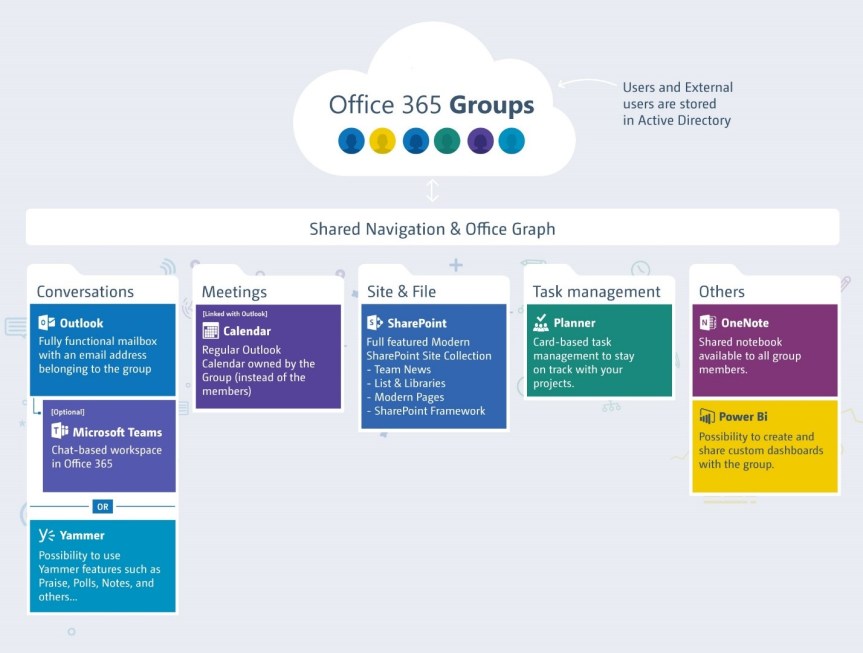
Well, to put it in very simple words, Office 365 groups is nothing but a cross-application membership service in Office 365. It’s an object created in Azure Active Directory with a list of members in it and also has some inbuilt workloads associated with it such as a SharePoint Team site, Yammer Group, Shared Exchange mailbox, Planner, Power BI and OneNote. You can add or remove people to the Group just as you would add any other group-based security object in Active Directory.

So, what does this mean to me? Well, it simply means that you don’t need to go to different places in your Office 365 eco-system to collaborate with your team members or to find a document that’s stored in a SharePoint document library in a SharePoint site. You have a single console now called as Office 365 groups which can help in bringing all the required workloads into one single hub so that it’s easy for you to collaborate within your team members while you’re working on a project.

Alright, I think I’m just talking all technical stuff till now, but I haven’t really talked or even showed you folks about how this can add value as an end user or as a project manager/ team lead. So, let’s get into the fun stuff now ….

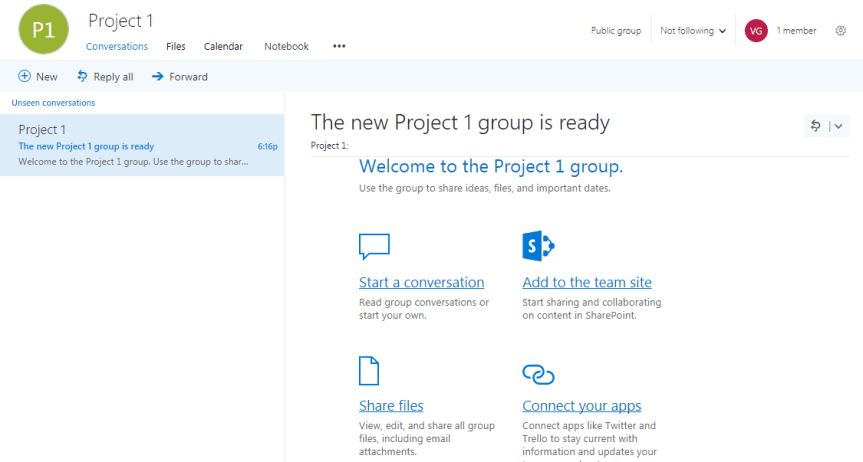
Every time I create an Office 365 group this is what it looks like …
3


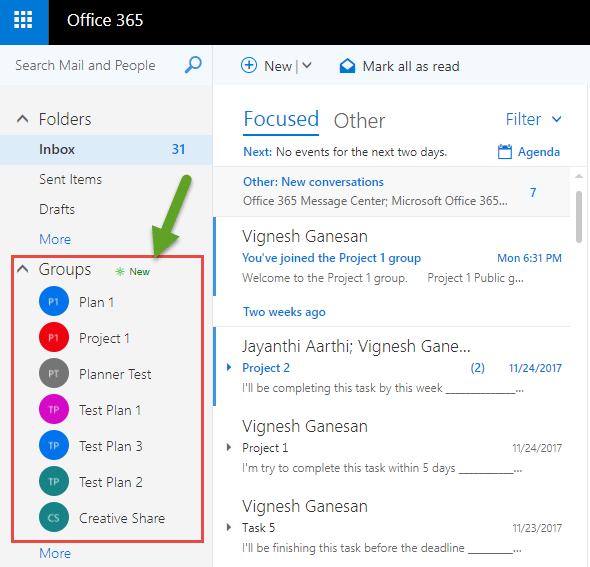
I would get a welcome email in my mailbox stating that the group is ready and the members whom I’ve added to the group would receive a similar email notification stating that they’re a part of that group now. If you’re using Outlook 2016 or Office 365 Pro Plus, then the group would automatically get mapped as a folder in your outlook client as shown in the image below.
4

In addition to that, once you have created a group you would get the below mentioned workloads by default along with the Office 365 group.

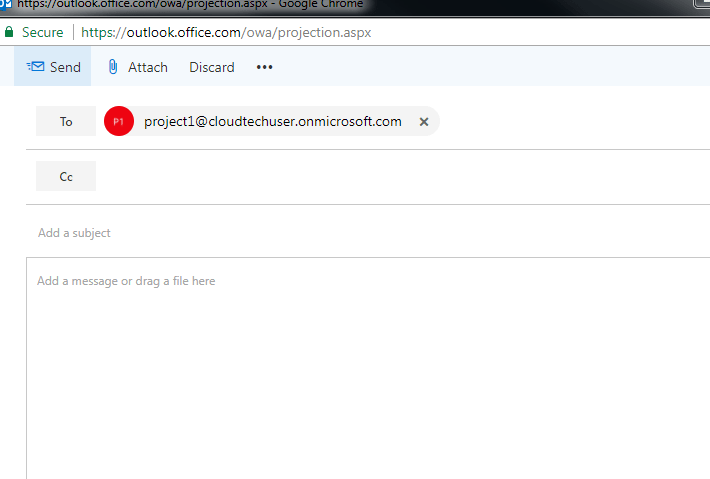
a) Conversations -This helps you to have email conversations within the group by sending an email to the group’s email address as shown in the image below. Any conversation which happens within the group can be viewed by all the members of the group.
5

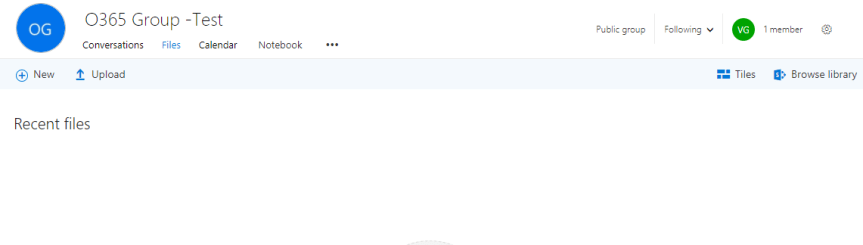
b) Files -You can upload all the files related to your project /team in this Tab and once it’s uploaded here it will be available to all the team members as shown in the image below.
6

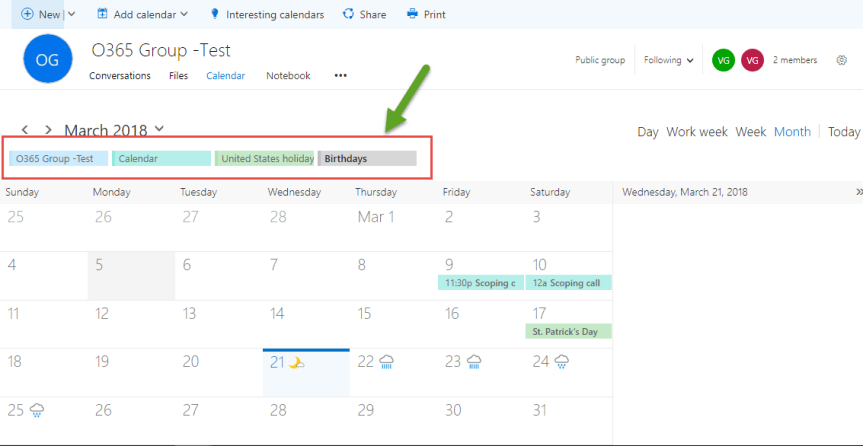
c) Calendar (you can schedule or view the meeting on the group if you’re a member of the group). In addition to this you can view your own calendar as well in the same Tab.
7

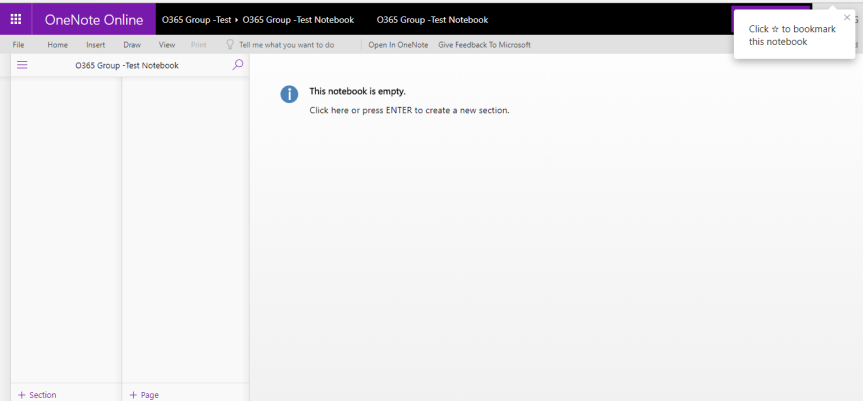
d) Notebook (Notebook which is used to share updates with the entire team in the group or you can create new section which is password protected). This can be used for capturing meeting points or something of that sort.
8

In addition to all these tabs, you would notice an ellipsis button towards your right side next to the “Notebook” Tab as shown in the image below. Clicking on that ellipsis would give you two options as shown in the image below. 1.  Planner & 2. Site

9

Now, let’s look into these two options.

e) Planner (You can create tasks and plan them using planner). Any tasks that you need to plan as a part of your project can be added to the Planner with appropriate deadlines. You would also get email reminders for tasks that are nearing the deadlines.
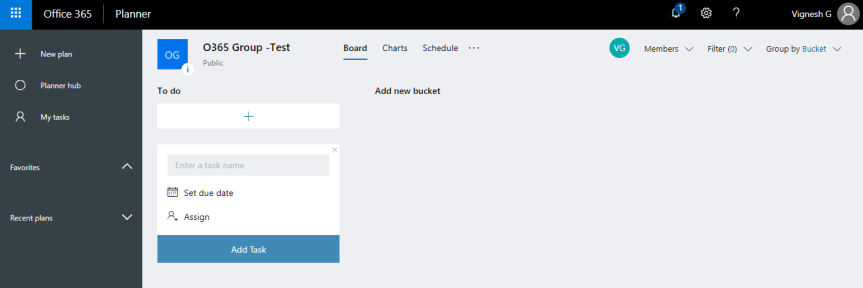
10

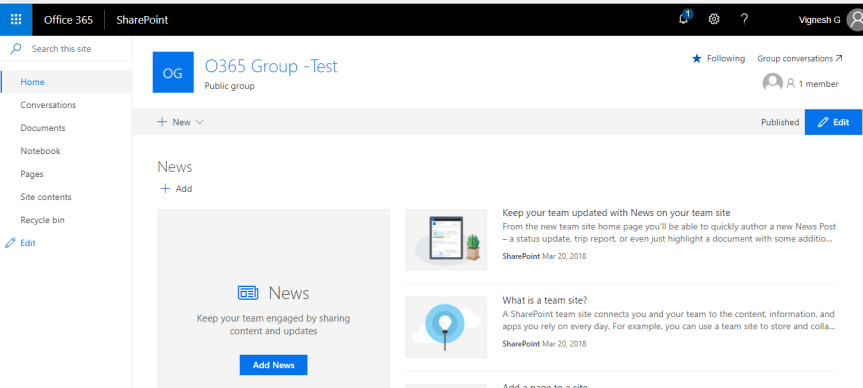
f) Site (SharePoint group site, which can upload documents or create new pages, web part, InfoPath form, etc.). So, when you click on site it would take you to a SharePoint Site which has the Modern experience and you use this for document collaboration and other SharePoint related stuff.
11.png

Note: The “Files” tab which I was talking about earlier is nothing but a document library which is a part of this SharePoint site. So please don’t get confused that it’s a different document library altogether. I see many people getting confused about these two workloads in an Office 365 group where they think that these are two different pieces altogether. So please bear in mind that these are both the same. The reason why Microsoft has given this as two pieces is, using the “Files “tab you can directly upload the files/documents to the document library instead of navigating to the “Site” tab and uploading it to the document library from there.

Listed below are the features that you get in the Modern SharePoint site …

  1. Responsive Pages to provide Team News
  2. Group Classification and Privacy always on display, an indicator for external users will also show up here
  3. Jump to the Outlook Conversations or manage Group members right here
  4. Create something new: Document Libraries, Lists, Pages, etc.

Now, that I have given an overview of Office 365 groups and the workloads in it and its functionality let’s try to understand how to create an Office 365 group. Well, when I think about it, it really excites me and scares me at the same time and I’ll explain the reason for that below.

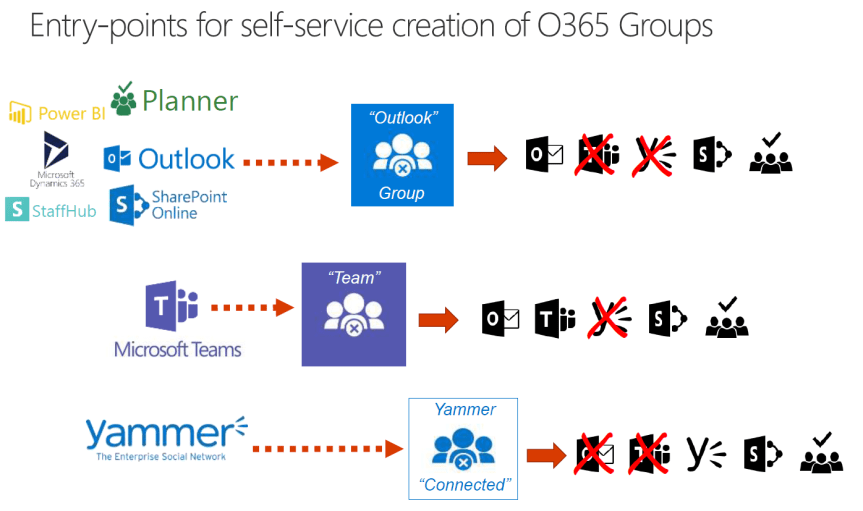
The below mentioned image depicts the different ways of creating an Office 365 group in Office 365 (meaning, the different places from which an end user can create an Office 365 group)
12.png

Note: As shown in the image above, an Office 365 group can be created from all these different sources and this may or may not change in the mere future (meaning, Microsoft can add few more sources from which you can create an Office 365 group, or they might even remove the creation of an Office 365 group from a specific source).

As of today, any end user who has access/license assigned to all these applications can create an Office 365 group. Of course, this is really exciting to me from an end user perspective as I don’t need to go to a specific location in Office 365 to create an Office 365 group and it can be created from within SharePoint, Outlook, Planner, Power BI, Teams, Yammer, Microsoft Dynamics 365 & StaffHub.

But when I think about this from an IT admin/ Office 365 admin perspective it really scares me because this would just open the door for all the users to create an Office 365 group either knowingly and unknowingly (meaning, may be the users intent was just to create a Yammer group or a Planner but, in the backend, it creates an Office 365 group and the user wouldn’t know about this).

However, there’s a catch here. If you pay attention to the image above you would notice that the behavior or the features of the Office 365 group is not the same when its created from a different source (meaning, when a group is created by the creation of a Team in Microsoft Teams you would only get outlook, Teams, SharePoint & Planner and not Yammer. On the other hand, when an Office 365 group is created as a result of the creation of a Yammer group you would only get Yammer, SharePoint & Planner). So, the point here, there’s going to be difference in the features/workloads you get in an Office 365 group based on what’s the source. The reason behind this is, Office 365 acts as a building block for all these groups created in Yammer, Teams and so on.

Now, if you’re interested in knowing more about the functionalities of all these groups and how they differ based from which source they get created then please go through the links below.

  1. Creating a Planner in Office 365 (this would create an Office 365 group in the backend) :_ https://support.office.com/en-us/article/create-a-plan-in-microsoft-planner-93e65b03-6fac-4661-a502-e3161475ab93
  2. Creating a group in Outlook :_ https://support.office.com/en-us/article/create-a-group-in-outlook-04d0c9cf-6864-423c-a380-4fa858f27102
  3. Creating a group in Yammer :_ https://support.office.com/en-us/article/create-a-group-in-yammer-b407af4f-9a58-4b12-b43e-afbb1b07c889
  4. Creating a group in StaffHub :_ https://support.office.com/en-us/article/add-employees-or-groups-in-microsoft-staffhub-f56ba0bb-8ca2-4583-8c0e-e10be3fc8985
  5. Creating a group in Power BI: _ https://docs.microsoft.com/en-us/power-bi/guided-learning/publishingandsharing#step-6
  6. Creating group in Microsoft Dynamics 365: _ https://docs.microsoft.com/en-us/dynamics365/customer-engagement/admin/deploy-office-365-groups
  7. Creating a team in Microsoft Teams( this would create an Office 365 group in the backend) :_ https://support.office.com/en-us/article/create-a-team-for-staff-in-microsoft-teams-314ac9d5-36a9-408e-8ae4-7ef20e9f1ddf
  8. Creating a modern team site in SharePoint Online (this would create an Office 365 group in the backend):_ https://support.office.com/en-us/article/create-a-team-site-in-sharepoint-online-ef10c1e7-15f3-42a3-98aa-b5972711777d

So, I believe by now you would have understood the beauty of an Office 365 group and how to create it and what are the different sources from which you can create an Office 365 group.

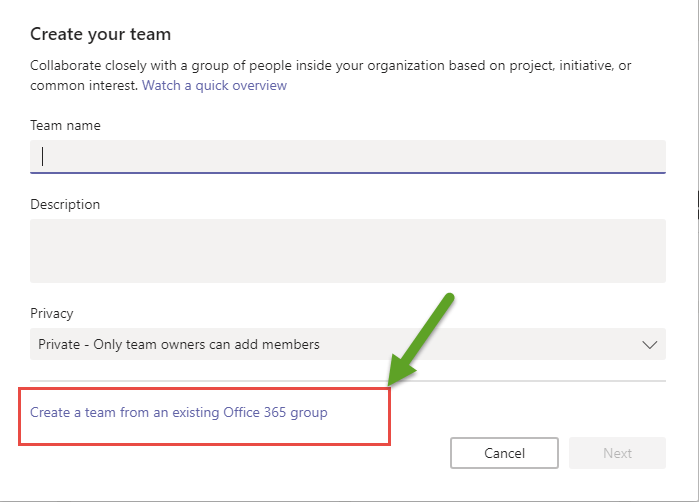
Now, let me get into the flip side of this….I believe by now you folks would have understood  that Office 365 groups is the basic building block for all the groups that gets created from different sources and let me also tell you that it’s also possible to create a group in Yammer or create a Team in Microsoft Teams from an existing Office 365 group ( meaning , when you create a new group in Yammer or while creating a Team in Microsoft Teams it creates an Office 365 group and that’s something which I already explained before .In addition to this I can create a Yammer group or a Team in Microsoft Teams from an existing Office 365 group ) as shown in the image below .
13

Note: In the image above, you can see that I’m trying to create a Team in Microsoft Teams and it gives me an option to choose an existing Office 365 group that already exists in Azure AD.

Behavior of an Office 365 group when it’s connected to Microsoft Teams:

  1. When a Group is created through Teams, the privacy of the Office 365 Group is automatically set to private and cannot be changed.
  2. You can add a Teams chat to an existing Office 365 Group if it’s set to private and has fewer than 600 members in the group. Note that this may change in the future.
  3. Teams cannot be added if the Office 365 Group uses Yammer for conversations instead of Outlook, as mentioned above


Behavior of an Office 365 group when it’s connected to a Yammer group:

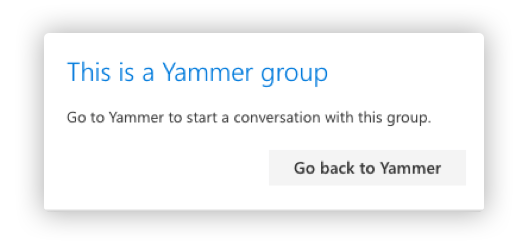
Outlook Conversations are for emails; Microsoft Teams are to live chat and Yammer is for forum-like threaded conversations. Yammer conversations are a little different, as they are not always available with Office 365 Groups. To get an Office 365 Group with Yammer Conversations, you must create it from within Yammer and Yammer only.

If you decide to create a Yammer connected group, it’s exclusive. You will not be able to use the Outlook Conversations, Microsoft Teams, or the Calendar.
14

The behavior of an Office 365 groups varies based on which service it’s connected to and you can test if for yourself by creating it from different sources.

Alright. That’s all I have for this blog post and I’ll come back to you folks soon on different topics in Office 365 groups such as 1. How to restrict the creation of Office 365 groups to all the users? 2. Best practices for Office 365 groups administration 3. PowerShell for Office 365 groups etc.

Please stay tuned until then and good luck with Office 365 groups!!!


Recording of my Webinar on Security and Compliance in Office 365-Part 1:

Security and Compliance

Webinar Recording :_  https://youtu.be/eqhtos-Tf00

Red Team and Blue Team in Microsoft :_ https://youtu.be/gvqRcV5INtU

OneHunt -Red Team and Blue Team :_ https://youtu.be/IYcGA-AqcWo

Link to the PPT Slides :_ https://www.slideshare.net/VigneshGanesanMCPMCI/security-and-compliance-in-office-365-part-1

Please keep checking my blog site for more webinars and useful articles .

Good luck with Security and Compliance in Office 365 !!!

Webinar on Security and Compliance in Office 365 :

Hi All,

Please join me for a webinar on March 17th ,2018 at 6:00 pm IST on ”Security and Compliance in Office 365-Part 1″

Security and Compliance

Agenda:
We will be discussing in detail about how Microsoft secures the customer’s data in Office 365 datacenters by following the defence in-depth approach and we will also look into the Security and Compliance offerings in Office 365 such as ATP, Threat Intelligene, DLP, AIP, Compliance Manager for Office 365 and Cloud Access Security Broker etc.

Webinar Details :_ https://www.c-sharpcorner.com/events/security-and-compliance-in-office-365-part-1

Thanks for enrolling yourself for this session !!!

Slide decks of our event on Digital Transformation at Microsoft Bangalore:

27655037_1859899160749951_8067317264927356857_n

Hi All,

Thanks to everyone who attended our event at Microsoft Bangalore last Saturday on Digital Transformation . Please find the slide decks below .

1. Modern Workplace with Microsoft 365 by Ravikumar SatyaMurthy:

2. Working with workflow using Visual Studio 2015 in SharePoint Online by Bijay Kumar

http://www.enjoysharepoint.com/Articles/Details/gave-session-on-working-with-workflow-using-visual-studio-2015-in-sharepoint-online-22246.aspx

3. What’s new in SharePoint Online by Jayanthi P


4. Overview of Enterprise Mobility and Security by RadhaKrishnan 

Please keep a watch on the link below for all are upcoming events

http://www.c-sharpcorner.com/chapters/bengaluru-chapter

Recording of my Webinar on Digital Transformation and Microsoft 365:

thumbnail


Webinar Recording :_  https://youtu.be/A-QNENq0sUU

Link to the PPT Slides :_ https://www.slideshare.net/VigneshGanesanMCPMCI/overview-of-digital-transformation-and-microsoft-365

Link to few useful PDF docs on Digital Tranformation and Microsoft 365 which I want you all to read :_ https://1drv.ms/f/s!AoFihz1Q1IhzgpgfhVhAic1npWyoTA

Please keep checking my blog site for more webinars and useful articles .

Good luck on your Digital Transformation journey!!!

Webinar on Digital Transformation and Microsoft 365:

Hi All,

Please join me for a webinar on Jan 27th ,2018 at 6:00 pm IST on ” Digital Transformation and Microsoft 365″

26238793_1746907218716744_2609163963299549981_nAgenda:

A detailed overview of Digital Transformation and how it has been disrupting the organizations across the globe and how Microsoft 365 can help in planning your organization’s Digital Transformation.

Webinar details : _ http://www.c-sharpcorner.com/events/overview-of-digital-transformation-and-microsoft-365 


General Availability of the Microsoft SharePoint Migration Tool :

4

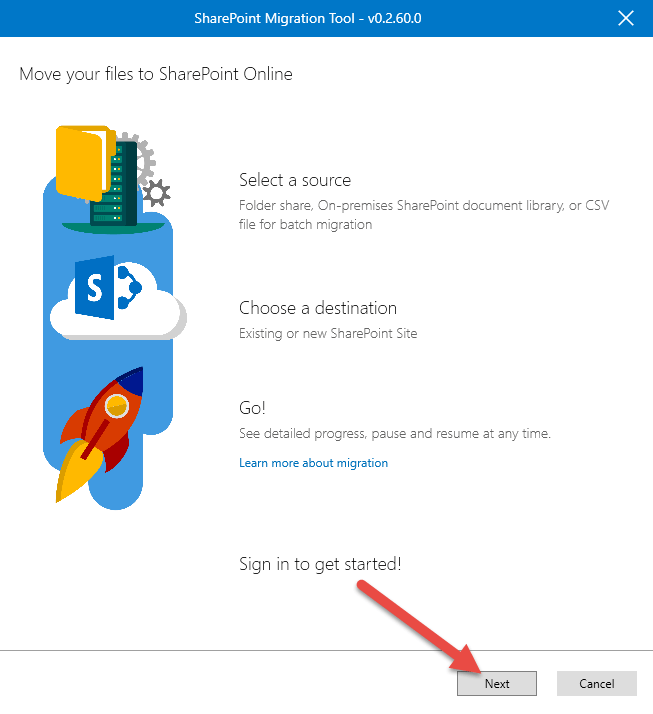
Couple of months back I wrote an article on the Microsoft SharePoint Migration Tool when it was newly introduced , today I’m really happy to see that Microsoft has announced the General Availability of this tool .

Please go through the article below to read in detail about this :_

https://blogs.technet.microsoft.com/wbaer/2018/01/11/general-availability-of-the-sharepoint-migration-tool-sharepoint-migration-assessment-tool-updates/

Happy SharePointing !!!

My next event on Digital Transformation using Microsoft 365 at Hyderabad

Dig Tranform 2

Hi Folks ,

Please use the link below to enroll yourself for my next event on “Planning your Digital Transformation with Microsoft 365” at Hyderabad on Jan 7th , 2018 .

http://www.c-sharpcorner.com/events/planning-your-digital-transformation-with-microsoft-365 


How Email notification works in Microsoft Planner?

1

Disclaimer: The contents mentioned in this article below describes the current functionality of Microsoft Office 365 Planner and may or may not change in the mere future.

You can read this complete article on HubFly blog site as well where it’s published on two parts from the link given below .

http://blog.hubfly.com/office-365/how-email-notification-works-in-microsoft-planner-part-i 

http://blog.hubfly.com/office-365/how-email-notification-works-in-microsoft-planner-part-ii

Microsoft Planner is a planning application available on the Microsoft Office 365 platform. Planner enables users and teams to create plans, assemble and assign tasks, share files, communicate and collaborate with other users, and receive progress updates via various means on the Office 365 platform. It makes it easy for your team to create new plans, organize and assign tasks, share files, chat about what you’re working on, and get updates on progress.

With that being said, in this article I’ll be explaining how the email notification works in Microsoft Planner as this has been bit confusing to understand for beginners.

Planner helps to stay on top of your work and you can also receive email notifications from Planner when the below conditions are met.

  1. When you create a Plan
  2. When you’re added as a plan member
  3. When a task is assigned to you by the owner
  4. When any plan member adds a comment to a task that you’ve commented on.
  5. When the owner of a plan has turned on task activity notifications in a plan that you’re a member
  6. When you have checked the Subscribe new members to notifications email option while creating a Plan

Although, these are the criteria’s for receiving email notifications, it’s confusing when you see these things in action. So, let me try to go through all the criteria’s here and help you understand how this works as a Plan owner and as a member of a Plan.

Let’s begin with seeing the different ways of creating a Plan in Office 365 Planner first

1. From the Office 365 App launcher:

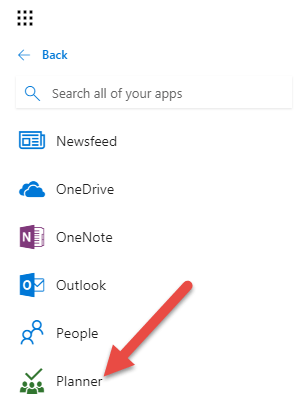
a) Navigate to the Office 365 App launcher and you can access Planner from there to create a Plan.

2

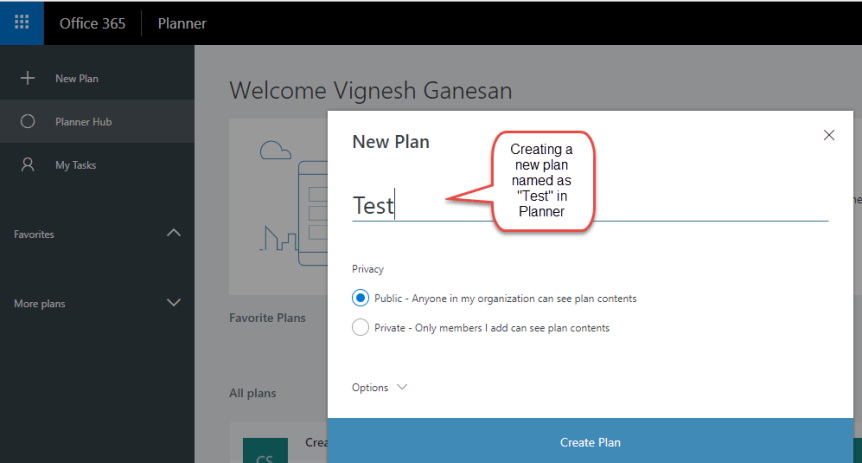
b) Once you’re in the Planner hub you can create a Plan by using the New Plan button as shown in the image below.

3.png

Note: Creating a Planner would create an Office 365 group on the back-end as a Planner is officially backed up by an Office 365 group.

2.By creating a Team in Microsoft Teams:

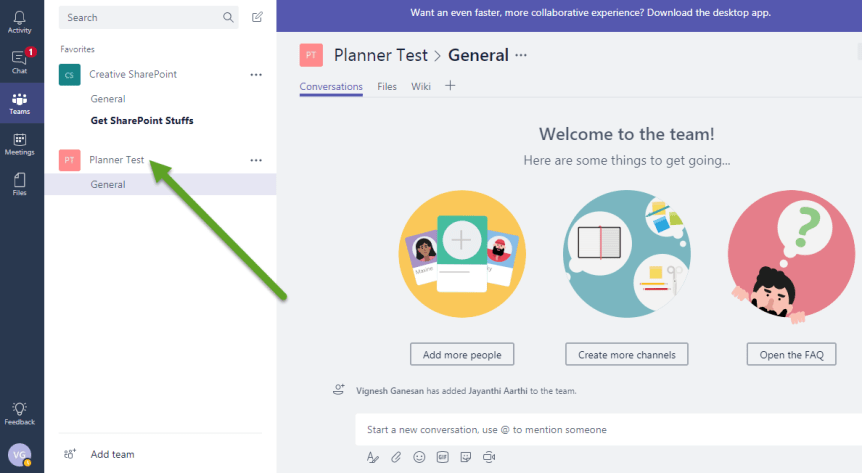
When you create a Team in Microsoft Teams, it creates an Office 365 group on the backend and in addition to that it also creates a Plan in Microsoft Planner.

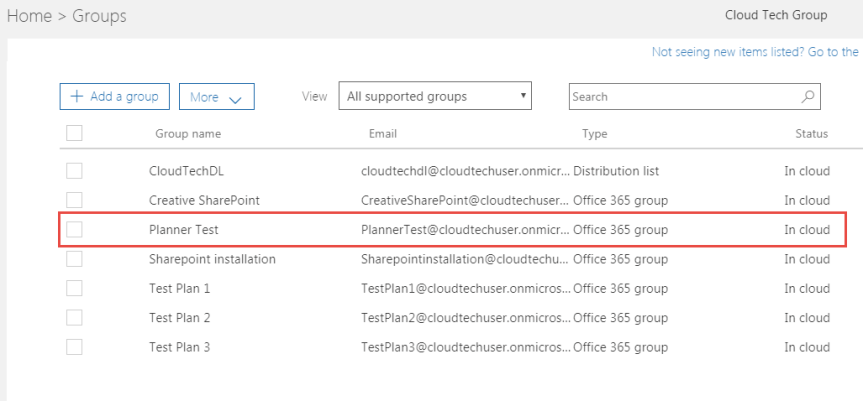
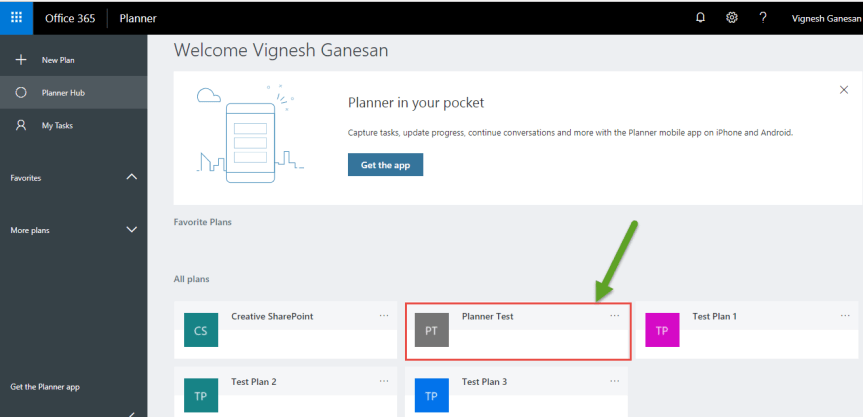
For instance, please check the image below where I’ve created a Team named as “Planner Test” in Microsoft teams and it has created an Office 365 group as well as a Plan in Microsoft Planner.

4

Corresponding Office 365 group:

5Corresponding Plan in Microsoft Planner:
6

3.By accessing the below URL:

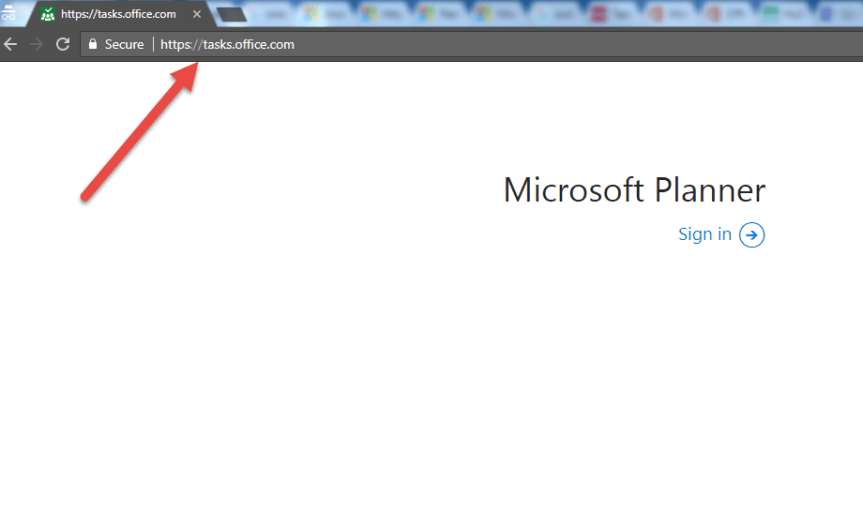
When you access https://tasks.office.com/ it takes you to the below seen sign-in page and you can access Microsoft Planner from here.

7Alright, now let’s get into the main agenda of this article. As already described above you would receive email notifications from Microsoft Planner when either one among the below mentioned criteria’s are met.
  1. When you create a Plan
  2. When you’re added as a plan member
  3. When a task is assigned to you by the owner
  4. When any plan member adds a comment to a task that you’ve commented on.
  5. When the owner of a plan has turned on task activity notifications in a plan that you’re a member
  6. When you have checked the Subscribe new members to notifications email option while creating a Plan

Now, let’s take a look on all these criteria’s….

  1. When you create a Plan:

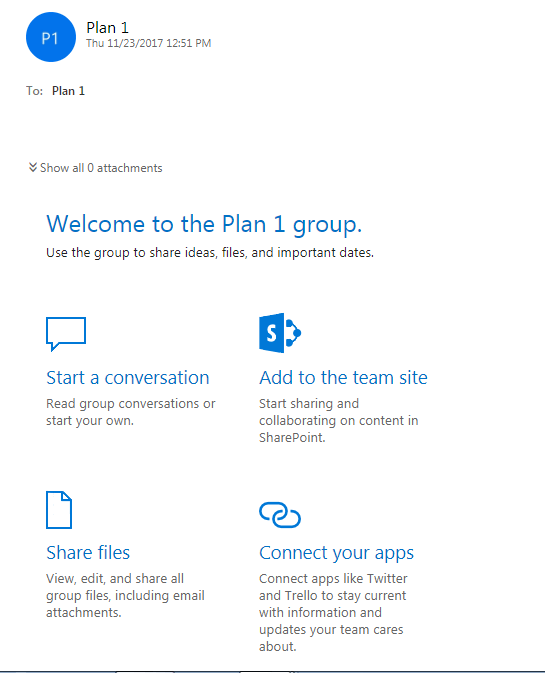
As already mentioned above, creating a Planner will create an Office 365 group on the back end and you would get a welcome email to that Office 365 group as show in the email below.

8

The intent of this Office 365 group from a Planner perspective is to receive email notifications for all the activities that happens in the Plan.

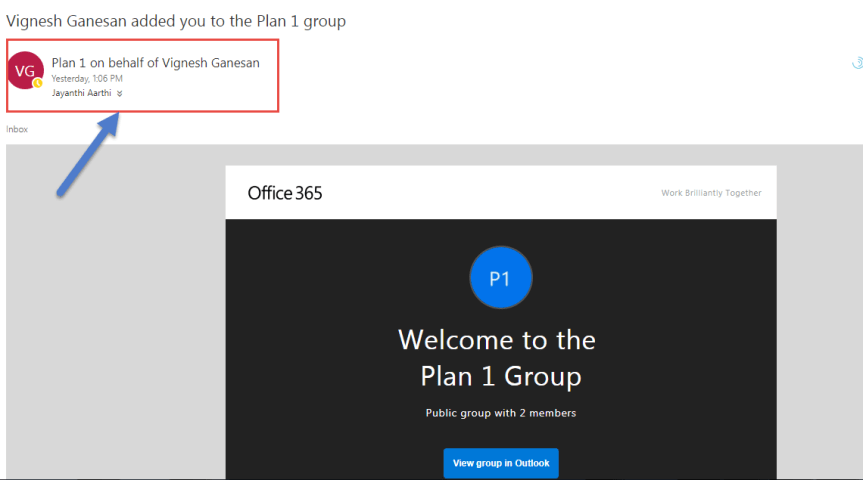
Note: You would receive this welcome email notification even if you’re the one who created the Plan and in addition to that all the members of Plan would receive this welcome email.

2.When you’re added as a plan member:

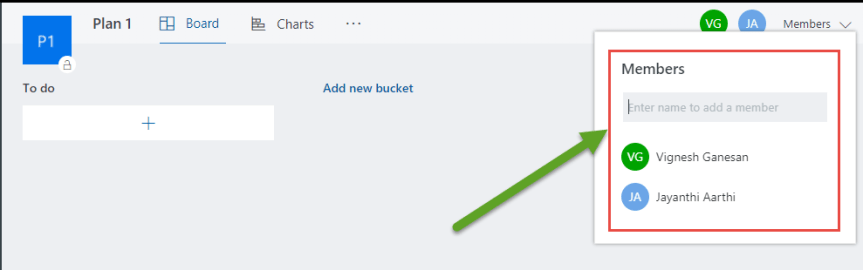
When you add a member to this plan, even in such case the member would receive this welcome email from the Office 365 group which is tied to that Plan.

9

10

  1. When a task is assigned to you by the owner:

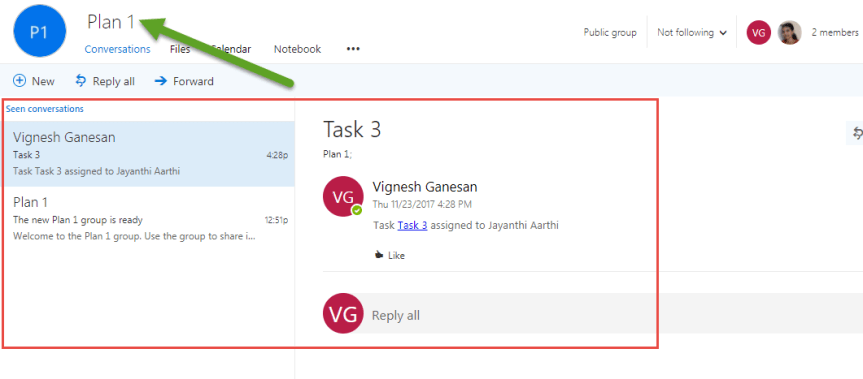
Whenever a task is assigned to a member of a plan, an email notification will be sent to the Office 365 group conversation as shown in the image below.

Note: You would receive this notification on the Office 365 group conversation even if the task was not assigned to you and was assigned to a different member.

11.png

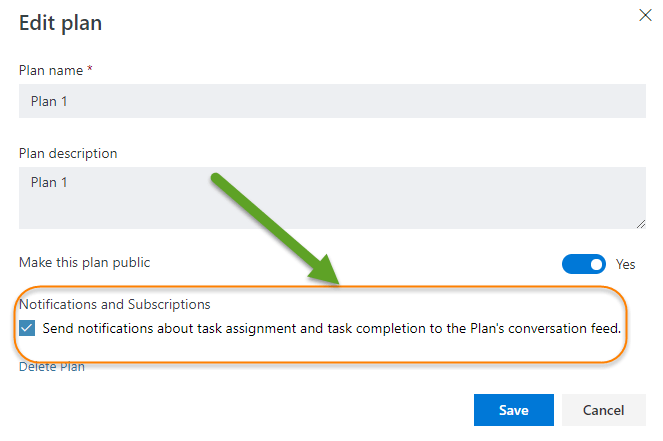
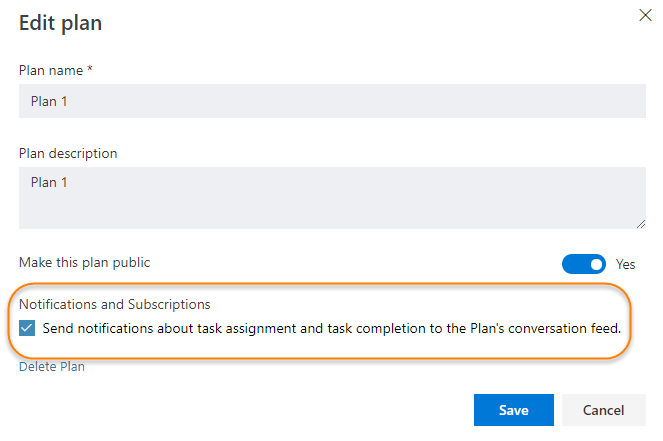
However, this functionality of receiving email notification for task assignment is turned off by default in the Plan. You need to go click on the ellipsis above then go to Edit Plan –>Check the “Send notifications about task assignment and task completion to the Plan’s conversation feed” as shown in the image below to receive email notifications.

Note: This won’t be checked by default.

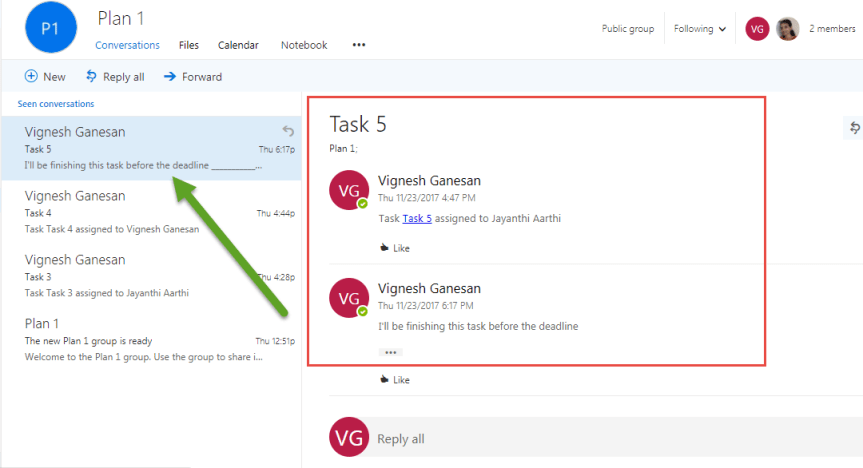
12Once this option is activated, notifications about task creation, assignment and completion will be sent to the Plans conversation (in the Office 365 group conversation) and not individually for each user. Currently planner does not send e-mail notification directly to the user’s inbox, rather it sends updates about the plan only to the Office 365 groups conversation.
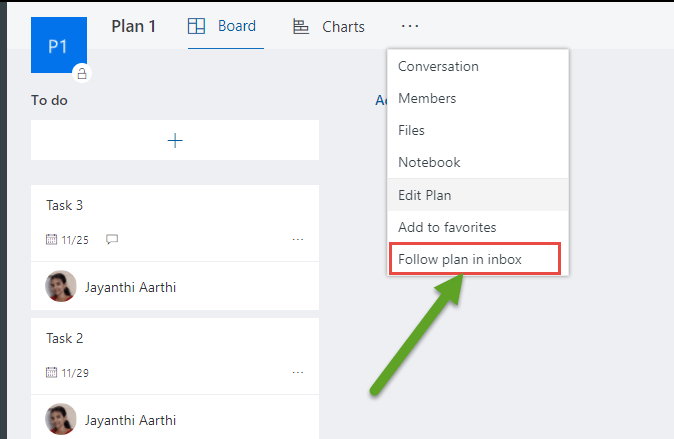
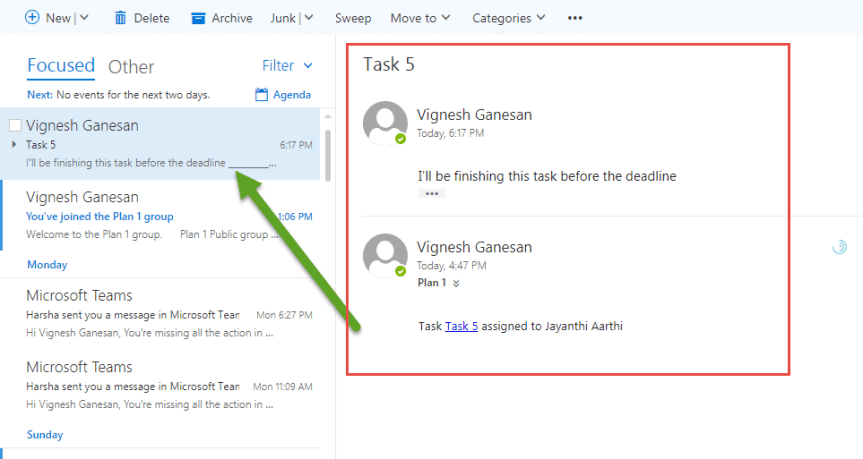
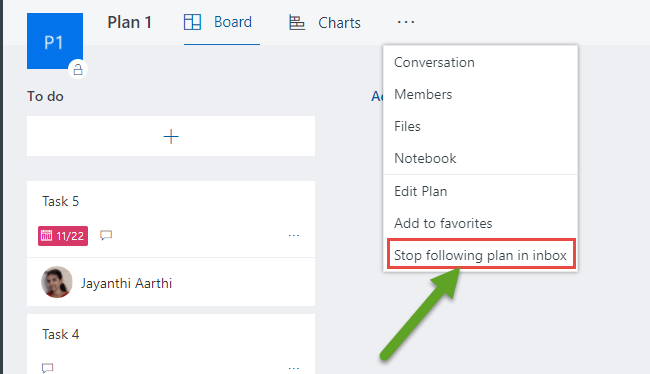
If the user(s) want to receive notifications directly into their inbox, they need to be subscribed to the plan (Open the plan in Planner -> click on ellipses -> click on Follow plan inbox). This feature will allow users to receive email notifications right into their inbox, but keep in mind, that even if a task was assigned to another user, they will still be notified about this. Basically, every notification from the Group conversation will also be sent to the users that are subscribed to the plan. Please check the image below for reference.

13

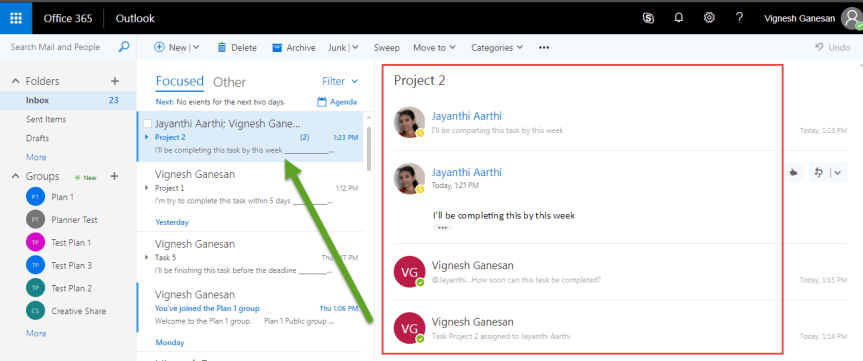
Once you’ve clicked on “Follow plan in Inbox” as shown in the image above you will receive the notifications directly in your personal inbox as well as in the Office 365 group conversation as shown in the image below. The follow feature will send the notifications that are incoming to the Office 365 group mailbox, to the personal mailbox as well.

In my personal inbox:

14.pngIn the Office 365 group conversations:
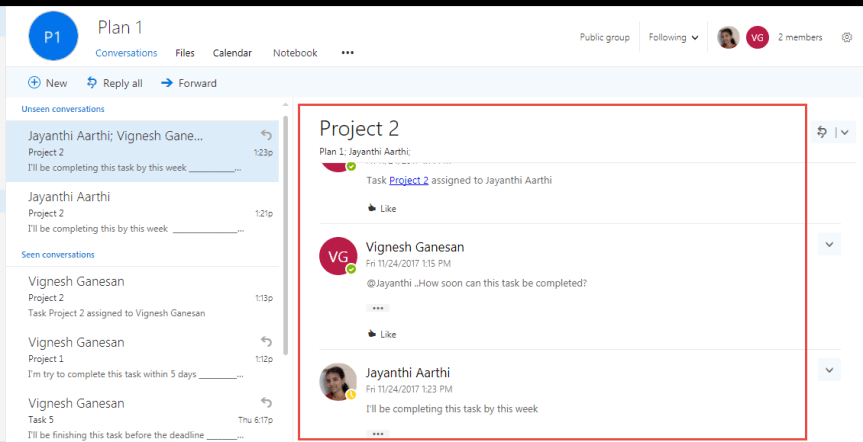
15.png

You can also verify whether you have followed the plan successfully by doing the same step once again as described and this time you will see “Stop following the plan “instead of seeing “Follow the plan” which confirms that you have successfully subscribed to receive personal email notifications as shown in the image below.

16.png

Note: If you are the one that assigns the task to someone (even to yourself) you will not receive the notification in your personal email. It is considered unnecessary as you were the one who assigned it so Planner considers that you are already aware of this.

The email notification which you receive in your personal inbox may not be instant and you need wait for some time to receive it. However, that’s not the case for Office 365 group conversations where you would be receiving notifications from Planner instantly.

4.When any plan member adds a comment to a task that you’ve commented on:

So, every time a comment is made by a plan member on a task that you’ve commented on then you would get a notification for that as well.

Email notification for a comment in Office 365 group:

17.png

Email notification for a comment in personal inbox:

18.png

Note:  You can reply to the comment from the Office 365 group conversations /personal inbox itself, but it wouldn’t be reflecting as a “comment” inside the Plan.  

5.When the owner of a plan has turned on task activity notifications in a plan that you’re a member:

This option is something that I’ve explained before, where you as an owner of a plan can go to Edit Plan –>Check the “Send notifications about task assignment and task completion to the Plan’s conversation feed” as shown in the image below to receive email notifications.

Note:  This won’t be checked by default.

19.png

6.When you have checked the Subscribe new members to notifications email option while creating a Plan:

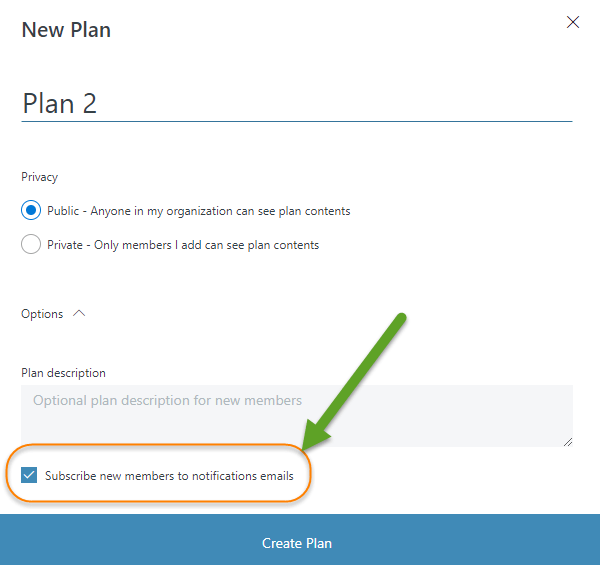
As shown in the image below, you would be get an option which says “Subscribe new members to notifications emails “while creating a plan as shown in the image below.

20.png

At the moment this functionality of this feature is not yet functional and hence enabling it will not have any difference. However, the main reason why this feature is visible is because of the upcoming changes that will be implemented in Planner.

This feature will automatically subscribe every new member to the notification emails – basically, they would not need to go and manually “Follow the plan” as I described above. It will already be set as following by default.

If you still want to use this feature, you can do so from the Office 365 Admin centre, by doing the following steps:

  1. Create the plan in Planner
  2. Do not add any members just yet
  3. Navigate to Office 365 Admin Centre -> Groups -> select the Office 365 Group (Plan) that you’ve created -> click Edit in the top right corner -> and set the “Send copies of group conversations and events to group members’ inboxes.” to <ON>
  4. Once done, you will see the following changes:

21.png

5. If you go back to Planner and start adding new members to the Plan, they will already have the “follow plan in inbox” feature set.

Note: Keep in mind that you will still need to have the Notifications set ON from the (i.e. Plan -> Edit plan):

22

Note: The catch here is, you won’t be able to make the above said changes with your Global admin account if you don’t have Exchange Online license assigned to it. If you attempt to do so, you would end up getting the below seen error.

23.png

Also, please be informed that if you’re doing this modification in an Office 365 group which is tied to a Team in Microsoft Teams then there’s no situation where Teams sends a notification to the Office 365 group. It only has notifications within teams, which can be configured in various ways, but none of them goes to the Office 365 group mailbox and this has already been tested

There might be changes in the future (not documented anywhere just yet) but as of now, there is none.

Also, as you probably know there is a “follow this channel” feature available within teams. This feature is not changed by the “subscribe” checkbox from Office 365 admin center.

Thanks for reading this post …. Good luck with Microsoft Planner!!!


Slide decks of our event on SharePoint,Office 365 & Azure at Microsoft Bangalore:

23559853_1747310662008802_7726173547664900951_n.jpg

Hi All,

Thanks to everyone who attended our event at Microsoft Bangalore last Saturday .

Please find the event album as well as the slides from the link below .

Event Album :_ http://www.c-sharpcorner.com/Photos/Album.aspx?aid=1015  

Design and Implement Azure Web Apps by Ayush Rathi:

https://www.slideshare.net/AyushRathi17/design-and-implement-azure-web-apps 

Understanding the benefits of Azure AD, EM+S and Tips to get prepared for GDPR Compliance by Ravikumar Sathyamurthy :

http://www.slideshare.net/shakthiravi/understanding-azure-ad-ems-and-tips-to-get-prepared-for-gdpr-compliance

Overview of Microsoft Teams and DLP by Radhakrishnan Govindan :

Improving your productivity in Office 365 using Microsoft Flow & PowerApps by Jayanthi & Vignesh Ganesan:

https://www.slideshare.net/VigneshGanesanMCPMCI/improving-your-productivity-using-microsoft-flow-and-powerapps-in-office-365

Please keep a watch on the link below for all are upcoming events

http://www.c-sharpcorner.com/chapters/bengaluru-chapter