Webinar on SharePoint Server 2016.

Hi All,

Please join me for a webinar on Jan 21st at 6:30 pm IST on ” Overview of SharePoint Server 2016” .

webinar-pic

Agenda:

  • SharePoint 2016 Overview & Focus areas
  • Software & Hardware Requirements to implement SharePoint Server 2016
  • What’s new & what’s deprecated?
  • Deep dive into MinRole,Feature packs and Zero Downtime Patching
  • Deployment Guidelines and Best practices for SharePoint Server 2016
  • Migration approach to SharePoint 2016
  • Recap & Conclusion

I’ll be discussing in detail Microsoft SharePoint Server 2016 and all it’s new features and functionalities.

Meeting details : http://www.c-sharpcorner.com/events/overview-of-sharepoint-server-2016

SharePoint Infrastructure Assessment Questionnaire for transitioning new customers

The questionnaire which I prepared below can be used to  assess the existing SharePoint environment for support transition and to collect key Information to propose the right support model for the transition.Folks who are working on transitioning new accounts/customers to your team can use this questionnaire to ease the transition phase.

microsoft-sharepoint-online.jpg

1.Business Goal:

  1. What is the primary business objective of the SharePoint environment? (What needs of your business are met by the existing system – Communication, Collaboration, Knowledge Management, Enterprise Content Management, Document Management, Dashboards, Complete Intranet Solution, Extra-net for suppliers, customers etc.?)
  2. Please share the status of all ongoing and planned activities for SharePoint (Development, migration and upgrade)?
  3. SharePoint farm version (SP 2010, SP 2013, SP 2016 & Office 365)?
  4. Please enlist the sites that are most critical to business?
  5. Please list down all the mission critical services that are hosted in SharePoint and its purpose

2.Infrastructure details:

  1. Explain in detail about how the domain controller is configured and the primary and secondary data center details?
  2. Please provide details or preferably Physical and Logical Architecture Diagrams for Production, Staging and Development Environment (i.e. Farm Topology, deployment diagrams, Virtual environment, SharePoint version details, Directory Services)
  3. Server hardware & software specifications
  4. Total number of users? Number of concurrent users?
  5. Server Naming Convention for Prod/Dev/Test servers
  6. Licensing details for SharePoint, Office web apps, Office Online server, Windows server and other supporting platforms.
  7. Please enlist all Integration points (Interfaces) with External LOB and other applications/ Software (Ex: SAP Integration with SharePoint
  8. Please give a brief explanation about all Web Applications and service applications in scope.
  9. Please provide the list of all 3rd party software’s that has been integrated with SharePoint (Ex: Ninetex Workflow, Doc Ave & Boldon James etc.)
  10. Explain in detail about the load balancing methodology used for the SharePoint Environment ((ISA? TMG? CISCO Ace? Or any other Hardware load balancer, F5 Big IP?)
  11. Is there any redundancy for Service applications and if yes how are they configured
  12. Are there any service applications which are being shared between two farms?
  13. DR farm details and its configuration for Business Continuity. A separate DR farm on a different data-center or a stretched farm where the servers are distributed across two data centers?
  14. Backend SQL Server details (i.e. SQL Server version, what level of permissions do we (i.e. SharePoint admin) have on SQL, SQL alias, named instance for SharePoint etc. . .)
  15. Backup strategy for SharePoint content databases.
  16. RTO and RPO strategy for SharePoint content databases.
  17. High Availability strategy for SQL Server – Clustering in place? Mirroring? Always ON?
  18. Authentication mechanism for SharePoint.
  19. Known issues in the farm if any?
  20. Language pack details if installed?
  21. When the farm was recently patched?
  22. Repository for configuration files, Implementation/Build guides, Known error database (KEDB), Incident Logs, RCA (root cause analysis), (CSV, SVN, TFS, etc.
  23. Deployment architecture? Give an overview (Farm solutions or Sandbox solutions)
  24. Do you have Office web apps/Office Online server deployed? If yes, detailed explanation of the Office web apps farm.
  25. Do you have Workflow Manager deployed? If yes, detailed explanation about the Work flow manager farm.
  26. How often do you perform a data refresh to the UAT and TEST farm?
  27. Details about AV scanning for the SharePoint farm?
  28. Do we have any monitoring in place for monitoring the environment (Ex: SCOM, Zenoss monitoring tool)?
  29. Are you using IaaS platform for SharePoint, if yes details about that? (AWS, Azure & Google Cloud Platform) .VM machine types if the SharePoint environment is on Azure, A series, D series, G series etc.?
  30. Health check scripts if available and it’s frequency. How often does the health check script run and what are the parameter it monitors?

3.SharePoint Online (Office 365) details:

1.What’s the Office 365 plan that your users are using?

2. How are the user identities synced from on-premises AD to Azure AD?

3.Are you using any Hybrid functionalities (One drive for business, Hybrid Search, Hybrid user profile, Hybrid App launcher etc.)?

4.Detailed explanation about the customizations made on the SharePoint Online sites.

5.Documentation of all the customization made on the SharePoint Online sites.

6.Migration tools used to migrate to SharePoint Online from on-premises.

7.What level of permissions will the SharePoint Online tenant admin have on the Office 365 tenant? Just SharePoint administrator or Global administrator?

8. Who will take care of Office 365 license management?

4.Portals:

1.Please explain in detail about the most critical sites (in scope) on existing environment?2.Please share the information architecture

3. Please share the governance plan for the SharePoint environment.

4. List of blocked and allowed file types in SharePoint?

5. Content management:

1.What’s the main kind of content that’s stored in SharePoint? (Text content, Documents, Images, flash, Audios, Videos, other formats etc.)

2.Is there any other Content Management or Document management tool in place along with SharePoint (Ex: Onbase from Hyland software)?

6.Security:

1.Are the SharePoint sites secured (Using SSL, encryption)?

2.Details about the SSL certificates used for SharePoint sites?

3.If the SharePoint sites are made available to internet/ external sharing what’s the authentication mechanism followed for that?

4.What is the current Authentication mechanism? (Windows Authentication, Forms based Authentication or Kerberos, AD, LDAP )

5.Authentication mode used for web applications (Claims or Classic)?

7. Customizations:

1.Does the SharePoint farm /SharePoint Online have customizations on it?

2.If yes, what’s the total number of farm solutions, User solutions & sandboxed solutions that’s been deployed?

3.Detailed description /documentation of all the WSP files that’s been deployed and its use?

4.If we have apps deployed to the app catalog, then detailed description about those apps?5. What kind of apps are they? Provider hosted, Auto –hosted or SharePoint hosted?

  • List of custom scripts running on the SharePoint servers and its purpose.
  • How Branding is applied, what’s being done? (Feature staplers/custom site definitions/Themes/Custom CSS, Master pages, etc.)
  • Do we have a SharePoint developer/developer team who takes care of all the development related tasks and if yes his/her details?

 8.Supporting Team details:

1.Who is supporting the existing environment? Please provide existing SLA and priorities for incident management.

2.Please give a brief description about team structure for Support (OS, Hardware, SQL server, Security, Exchange server, SharePoint, Cloud Management team)

3.Do you have a distributed development team across multiple locations/geographies? Please provide details.

4.Do you have a distributed team of site owners?

9.Vendor details:

1.Does this account have Microsoft premier support? If yes, whom to contact for opening a support case. Microsoft PFE and TAM contact details for this account if applicable?

2.Name of the Vendor who did all the SharePoint environment customizations.

3.Can we reach out to the Vendor for any customization issues which is not in our scope of support, if yes contact details of the Vendor?

4.Vendor details for the third party tools that’s used in the SharePoint farm (Ex: Metalogix, AvePoint, Share gate etc…)

5.SLA details with the Vendor and the contact person from the Vendor’s side for this account?

10.Support & Incident Management:

1.What is the Support Type (L1, L2 or L3) expected?

2.Please provide the call flow process. Find below a sample process flow.

3. What’s the frequency of L1, L2 and L3 tasks that you get in a day, in a week & in a month?

Call Flow Process / Diagram

call flow diagram.jpg

4.Who is expected to make calls to Microsoft for support and for other vendors?

5.Is it expected to interact with end users for Support?

6.What are the support hours (time zones) and SLAs expected? What support coverage are you looking? (24*7, 16*5, or 8*5 …)

Service Hours:

The below calendar defines the times that the SLA clock starts and stops excluding weekends.

Day Start  hours(EST) End hours(EST)
Monday    
Tuesday    
Wednesday    
Thursday    
Friday    

1.Do you have any system in place for Incident Management? If yes, please give details so that we can understand about how to accommodate that with our Incident Management system?

2.Please explain the Incident classification criteria. Find sample below.

     
  Definition Response Time from time of Incident Log Fix Time from time of Incident Log
P1 Impact on All Users /Risk to Business Continuity 10 mins Stay with it
P1 Impact on All Users /Secondary system down    
P2 Impact on Site or Dept. / Significant problem preventing satisfactory operation    
P3 Impact on single User    
P4 Service Request/Advice required    
P4 Service Request/Planning    
P4 New starters/requisitions/supplies/bookings    

3.What is the mode of communication for Support (Email only, Incident management tool, Phone, chat)?

4.Please share the SLAs/ OLAs with existing vendors for 3rdparty software, Infrastructure, Exchange Server, Security, SQL Server, OS and hardware.

5.It is assumed that content and configuration DB of all SharePoint sites are in scope for support. Please confirm?

6.Please confirm if following is out of scope for SharePoint Support

1.OS level support like Server Performance Management, Memory Management, Disk Space and SQL Server Uptime.

2.Installation, Implementation, Deployment of any Software

7.Design, Development, Implementation or any issue on Development and Test servers.

8.Evaluation of any Software, Tool and Processes and Results

9.Design, Development and Implementation of Proof of Concepts

10.Development and Enhancements of 3rd Party Products

11.Platform Troubleshooting

12.Application Migration & Upgrades

13.Optimizing search for website or any other design changes to website

14.Managing Office 365 licenses and supporting the Azure environment.

7.Are there any development or migration projects that are currently in progress? What support is given to these projects by existing (Portal, or SharePoint) support teams?

8.Is there any repository for knowledge documents, Incident Logs, RCA (Root cause Analysis)?

9.Communication plan for any planned/unplanned outages – Key stakeholder list

9.Escalation matrix details.

10.Detailed description of tasks & activities performed in shift / daily / weekly / monthly

11.Please provide us with the following Support statistics (priority wise)

  1. Total tickets logged for SharePoint in last 1 month, 3 month and 6 months.
  2. How many Priority 1 calls were logged in last 1 month, 3 month and 6 months?
  3. Details about past SLA adherence,
  4. Summary of support tickets with case open age

 12.Are there user training requirements for educating the users about the sites? Need for webinars, training material, FAQs etc. to facilitate the rollout and ongoing changes to the sites

13. Any past record of the entire SharePoint environment going down, if yes details about that?

Finally, once all the above mentioned details are gathered and you have understood the customer’s environment well then you’re good to close the transition phase .

Happy SharePointing !!!


Resetting Search Index in SharePoint 2013:

searchadministration_thumb2

Search is indeed a mission critical service application in SharePoint and it’s very important that it remains healthy so that you get the results in the Search center whenever you execute a search query. However, it’s quite possible that you may notice some errors in the “Crawl log” stating that the crawler is not able to crawl the contents in the content source and at times it might get even worse such that you may notice all “failures” and no “success” in the crawl logs. In scenarios like that you might have to reset the search index so that the content in the index gets flushed away after which you need to perform a full crawl so that search index component receives the newly processed items from the content processing component and writes them to the search index. Of course, directly resetting the index is not a fix for any search related issue, please ensure that you do all the necessary troubleshooting steps from your end to identify and fix the issue and once you reach a point where nothing really helped, that’s when you should think about resetting the search index.

What happens when you reset the Search Index?

When you reset the search index, all the contents will be immediately removed from the search index and users will not be able to retrieve search results when they execute a search query on the search center.  Once you’re done resetting the search index, you must perform a full crawl on one or more content sources to create a new search index. Users will be able to retrieve search results again once the full crawl is finished and the new search index is created. So in a nutshell there will be a downtime when the search index is getting reset. After a search index reset, the full crawl won’t restore all the analytics features that are powered by the Analytics Processing Component. All the analytics results will be erased after resetting the search index.

When we should reset the search index?

As I already mentioned above, resetting the search index should be the final step of troubleshooting for any search related issue. However, based on my experience this when we should reset the search index ….

  1. Index is corrupted
  2. One or all index component status is degraded
  3. You crawl completed successfully but you are not getting the search results.
  4. When you move the index location
  5. When Index location run out of space.
  6. In a scenario where we have Index partitions spread across multiple servers and the indexed document count is out of sync. For example, we have 2 servers set as index partitions, server 1 has 150K indexed documents and server2 has 145k index documents
  7. If we make any changes to search topology such as removing the search components ,adding the components & activating a different search topology

 Alright, now let’s take a look at the steps to reset the search index …

Pre-requisites: 

Please ensure that you take care of the below mentioned pre-requisites before resetting the search index .Failing to do so will cause adverse effects and at worst case you may end up recreating the entire search service application.

  1. Make sure the crawl status for each content source is “Idle”. If any crawl is running, wait for the crawl to complete or follow the steps to “Stop the active crawls” below.
  2. Make sure continuous crawl for content sources is disabled [if applicable].This step is only specific to SharePoint 2013 and above.
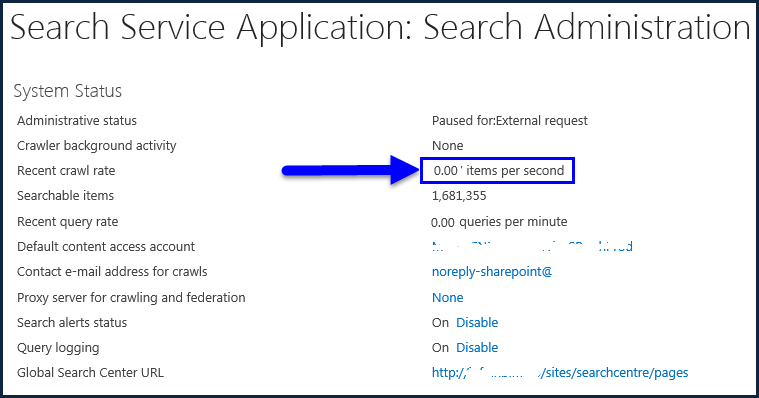
  3. Make sure the crawl rate is 0
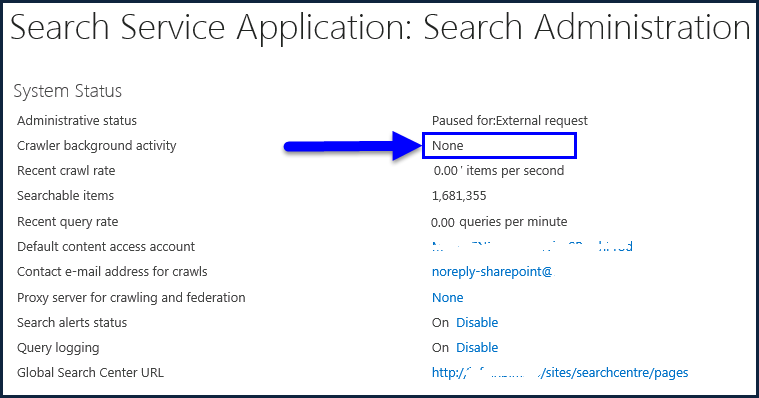
  4. Make sure background activity status is “None” on search administration page.

Stopping the Active Crawl(s):

  1. Navigate to search administration page.
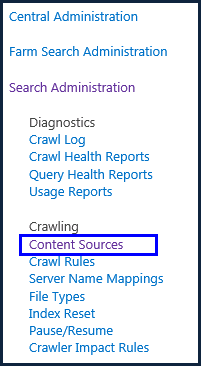
  2. Click on Content Sources link towards your left hand side as shown in the image below.

4

3. If any content source is crawling, click on the drop down of the content source and click on “Stop Crawl”.

Disable Continuous Crawl:

  1. Navigate to search administration page.
  2. Navigate to Content Sources link appearing on quick launch.

4

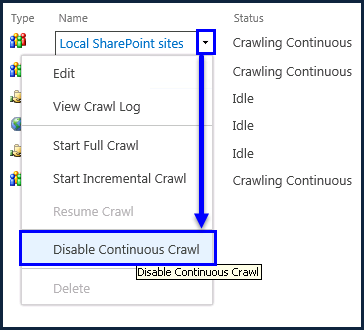
3. Click on the drop down and select “Disable Continuous Crawl” to disable it.

5

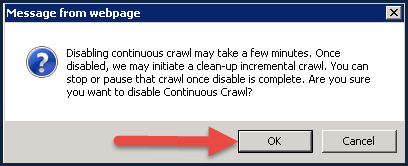
4. Click “Ok” when below warning message appears.

6

5. Follow the same steps to disable continuous crawl for other content sources. Finally, all the content sources would show “Idle” status as shown in the image below.

7

Suspend Search Service Application:

This step is to ensure that there is no crawling activity in place while we perform the Index reset.

  1. Open SharePoint Management Shell using service account
  2. Run the below command.

Suspend-SPEnterpriseSearchServiceApplication “Search Service Application Name”

Note: If you don’t know the name of search service application, you can get it by running below command before executing the above command.

Get-SPServiceApplication | Where-Object {$_.TypeName –eq “Search Service Application”}

After suspending the search application, search administration page will show the status as “Paused for: External request” as shown in the image below.

8

 Ensure Crawl Rate is 0:

  1. Navigate to search administration page.
  2. Check the Recent Crawl rate.

9

Ensure Crawler Background Activity is none:

  1. Navigate to search administration page.
  2. Check the status of the Crawler background activity and ensure it shows as “none” as shown in the image below.

10

Once the necessary pre-requisites are taken care, please follow the below steps to perform an Index Reset.

There are 2 ways to perform Index reset.

Using UI [User Interface]: This method can be used when the indexed content in your farm is not much in size i.e. index size is not huge and also when you don’t have large content sources.

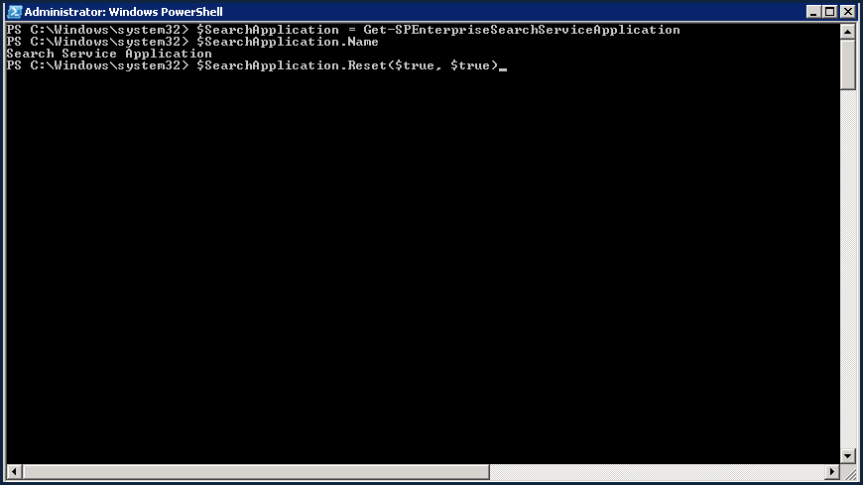
Using PowerShell: UI method is not recommended for SharePoint farms with large search index. [i.e. huge count of searchable/indexed documents]. Using the UI method in large farms for resetting the search index can result in time out error. In such cases, we need to use PowerShell method to reset the index.

USING UI:

  1. Navigate to SharePoint Central Administration.
  2. Under “Application Management” category, click on “Manage Service Applications”.
  3. Find out “Search Service Application” and click on the Search service application.
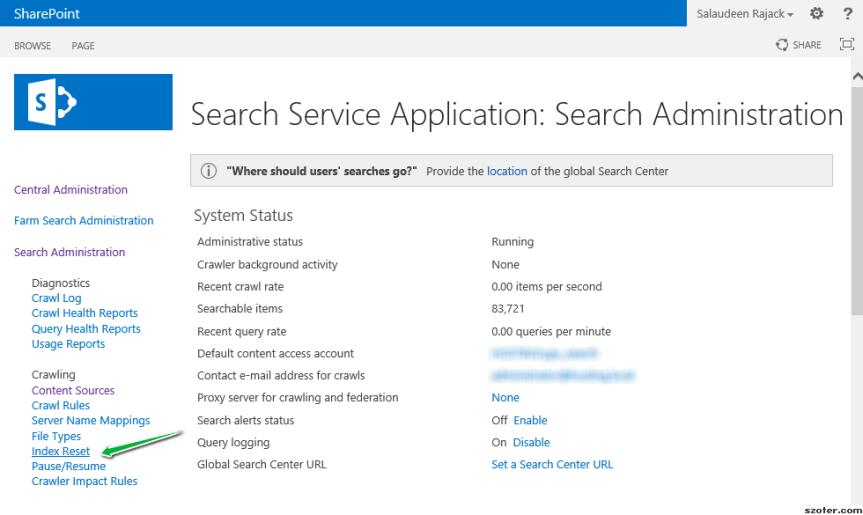
  4. In the quick launch, click on “Index Reset

reset-crawl-index-sharepoint-2013

5. Click on confirm once done .

USING POWERSHELL:

  1. Login to the SharePoint server using Administrator credentials.
  2. Open “SharePoint management shell” with elevated permissions.
  3. Run the below command to reset search index.

12

Post Index Reset Steps:

  1. Check whether the number of searchable items is 0.
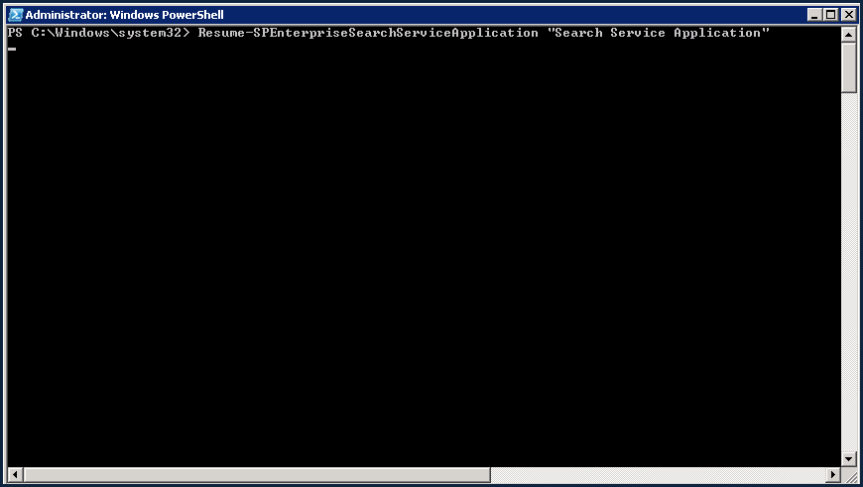
  2. Resume the search service application by running the command shown in the screenshot below.

133. Enable “continuous crawl” for the content sources if it was enabled prior to index reset.

4. Run full crawl for the content sources one by one.

This confirms that you’re done resetting the Search index successfully and please keep monitoring the full crawl and ensure that it doesn’t get stuck in the middle. The time duration for the full crawl depends on the size of the content source, if you have very large content sources then it might take days for the full crawl to complete successfully. Once done, please verify the search results and ensure that they return fine. Also check the “Crawl log” and make sure you’re not seeing any errors this time.

Thanks for reading this post …..Happy SharePointing!!!

PowerShell script for generating the site collections list with multiple administrators

powershell.png

Running this script will generate a report which displays the list of site collections that has multiple site collection administrators and will also display the total number of users who have access to those site collections.

Add-PSSnapin microsoft.sharepoint.powershell -ErrorAction SilentlyContinue

Add-Content “Sites.csv” -Value “SiteCollection Name,SiteCollection URL, SiteCollection Administrators, Users Count,Usage in MB”

$webApp = Get-SPWebApplication

foreach($webapps in $webapp)

{

foreach ($SiteCollection in $webApps.Sites)

{

$url = $SiteCollection.Url

$webs = Get-SPWeb $URL

[boolean] $WriteToFile = $true

$weburl = $SiteCollection.OpenWeb()

$siteowner = “”

foreach ($siteAdmin in $weburl.SiteAdministrators)

{

$siteowner = $siteAdmin.DisplayName + “|” + $siteowner

}

foreach($web in $webs)

{

#Grab all users in the site collections

$siteUserCnt = $web.AllUsers.Count

$Siteurl = $web.Url

$siteTitle = $web.Title

$site = Get-SPSite  $Siteurl

$siteusage = $site.Usage.Storage/1MB

Add-Content -Path “Sites.csv” -Value “$siteTitle,$Siteurl,$siteowner,$siteUserCnt,$siteusage”

$web.Dispose()

}

}

}

Thanks for using this script …..Happy SharePointing!!!!

Recording of Webinar Session on SharePoint Architectural Models:

thumbnail

For those who missed my session yesterday , please find the link for the video recording below .

Webinar Recording on SharePoint Architectural Models

Thanks once again for attending my session yesterday and will see you all soon in different webinar shorlty .

Happy SharePointing!!!!


Webinar on SharePoint Architectural Models:

15181617_1224110950996376_7487734758665217173_n

Hi all ,

Please join me for a webinar on Dec 3rd at 7 pm IST on ” The Different type of Architectural models in SharePoint” .

Agenda:

Types of Architectural models in SharePoint

  • SharePoint on-premises
  • SharePoint Online/ SaaS(Office 365)
  • SharePoint Hybrid
  • SharePoint in Azure/IaaS

I’ll be discussing in detail about all these models and when to choose it and when not to choose it and I’ll also be giving some deep insights on all these models .

Meeting detailshttp://www.c-sharpcorner.com/events/learn-architectural-models-in-sharepoint

Feature pack 1 for SharePoint server 2016 is out:

1.jpg

Just in case you haven’t heard the news yet, Microsoft has announced the release of Feature Pack 1 for SharePoint server 2016 on November 2016 and this release brings several enhancements based on the recent innovations in Office 365. Please find the details below.

Listed below are the new capabilities that was introduced in this release:

  1. Logging of administrative actions performed in Central Administration and with Windows PowerShell.
  2. Enhancements to MinRole to support small environments.
  3. A new OneDrive for Business user experience.
  4. Custom tiles in the SharePoint app launcher.
  5. Unified auditing across site collections on-premises and in Office 365.
  6. Unified taxonomy across on-premises and Office 365.
  7. OneDrive API 2.0.

Now let’s take a look at all these capabilities in a detailed manner,

Administrative actions logging:

As SharePoint administrators we spend a considerable amount of time troubleshooting administrative changes in the on-premises environment, which can result in failure conditions or other undesired effects. So for this Microsoft has introduced more insightful, granular logging in Feature Pack 1. The Feature Pack 1 introduces the logging of common administrative actions performed in the Central Administration website and with Windows PowerShell.

MinRole enhancements:

One of the infrastructure advancements in SharePoint Server 2016 was the concept of MinRole. MinRole is designed to transform architectural guidance into code, simplifying deployment and scale with SharePoint by ensuring a request is served end-to-end by the receiving server based on the origin of the request (i.e., end user or batch processing) and role of the destination server.

MinRole was originally optimized for larger farm topologies. With four server roles, the minimal requirement for a supported MinRole configuration was a four-server farm. A farm with high availability (HA) requires two servers for each role, making eight servers the minimal requirement for a HA MinRole configuration. However, customers have reported to Microsoft that they would like to have the benefits of MinRole with smaller farm topologies too. We listened to you and enhanced MinRole to address this request.

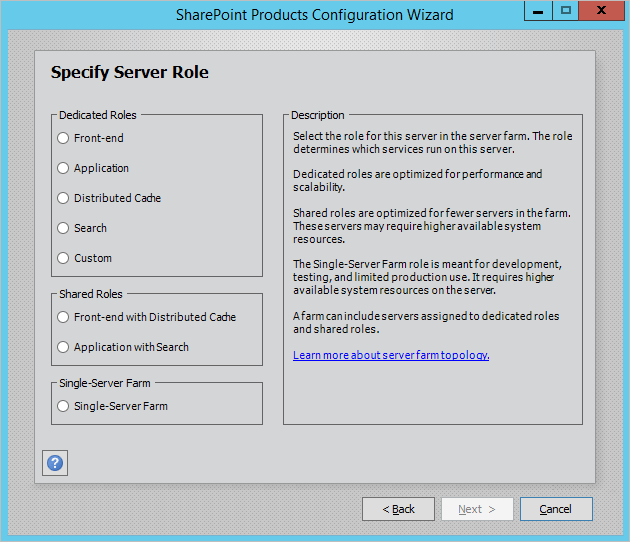
Once the new MinRole enhancements are enabled, you will notice that two additional server roles are available: “Front-end with Distributed Cache” and “Application with Search.” The Front-end with Distributed Cache role combines the Front-end and Distributed Cache roles together, while the Application with Search role combines the Application and Search roles together. These new roles let you host a multi-server MinRole farm with just two servers or four servers with HA.

2

A new OneDrive for Business user experience:

OneDrive for Business is an integral part of Office 365 and SharePoint Server. It provides a place where you can store, share and sync your work files. OneDrive for Business makes it easy to manage and share your documents from anywhere, and work together in real-time, on your favorite devices. Feature Pack 1 brings the modern OneDrive for Business user experience to SharePoint Server 2016. The new OneDrive user experience is a Software Assurance benefit.

old-scale.png


SharePoint App Launcher custom tiles:

The App Launcher was introduced in SharePoint Server 2016 with the ability to extend the tiles with the SharePoint Hybrid App Launcher to include apps available in Office 365. The App Launcher provides a common location to discover new apps and navigate between on-premises SharePoint and Office 365 applications. Now, in addition to native SharePoint and Office 365 apps, you can also add your own custom tiles that point to other SharePoint sites, external sites, legacy apps and more. This makes it easy to find and navigate to the relevant sites, apps and resources to do your job.

4

Hybrid capabilities:

Unified auditing—Unified auditing gives SharePoint administrators’ detailed visibility into file access activities across all site collections, on-premises and in Office 365. With unified auditing in place, the Office 365 Security and Compliance Center can provide audit logs search for your SharePoint Server 2016 on-premises audit logs in addition to Office 365 audit logs.

This hybrid auditing capability—powered by Microsoft SharePoint Insights—enters preview with Feature Pack 1. Configuration is simple: a few clicks in Hybrid Scenario Picker wizard and you’re ready to start viewing and experiencing unified auditing.

Unified taxonomy:

SharePoint’s managed metadata service application makes it possible to create a taxonomy for information architecture across site collections and web applications. With Feature Pack 1, you can implement a unified taxonomy across a SharePoint Server 2016 farm and Office 365. You can seed the term store in SharePoint Online from your on-premises term store and then manage your taxonomy in SharePoint Online. Replication to on-premises SharePoint is performed by the hybrid taxonomy feature.

Developer enhancements:

OneDrive API 2.0—The OneDrive API provides a common API for access to files located on-premises and in the Office 365 cloud. The API provides access and enables developers to build solutions that target user data stored in OneDrive for Business and SharePoint document libraries

Things to know about a Cumulative Update:

sharepoint2013

In addition to the SharePoint patching installation guide that was published by me few days back I’ve come up with a new article that gives a detailed description about what a Cumulative Update is all about and the things you need to know about a CU.

Please find the details below …

What is a CU?

A  CU (i.e. Cumulative Update) is a software package which includes fixes for problems with Microsoft products that have been reported by customers to Microsoft support in the form of support cases.

What is included?

As the name says, the updates/fixes that are included in the package are always Cumulative (meaning, it includes all the new and all previously released fixes (CUs and PUs) since the oldest supported service pack (within the first 12 months after a Service Pack has been released the CU includes also fixes released after the previous service pack).

How often does Microsoft release SharePoint Cumulative Updates?

Microsoft releases Cumulative Updates (CUs) once in every month.

How does Microsoft test Cumulative Updates before deployment?

All Cumulative Updates are tested extensively before each public release. If an issue, such as a regression, is discovered on a CU that could potentially impact the application, the CU will be cancelled and will be rescheduled to a later CU.

Are CU’s Multilingual?

Yes. The CU package includes fixes for all the languages. So no matter whatever language you download the CU package on, the fixes/updates in the package will remain the same.

What is the prerequisite?

The oldest supported service pack. For instance, all the SharePoint CU‘s post the SP1 release need the SP1 to be installed for SP 2013 .In case of SP 2010, all the CU’s that were released post SP2 need SP2 to be installed first after which you can install those CU’s .

When to install?

CU’s should only be installed to resolve specific issues fixed with the CUs as mentioned in each CU KB article: “Apply this hotfix only to systems that are experiencing the problems described in this article. This hotfix might receive additional testing. Therefore, if you are not severely affected by this problem, we recommend that you wait for the next software update that contains this hotfix.” Or if advised to install by Microsoft Support.

Impact on future fixes: In general, a CU is not a prerequisite of future CUs and PUs. However this may not be the case always .There has been few scenarios where a CU that was released few months back tends to become a pre-requisite for the later CU’s. So before installing any CU please take a look at the related KB article and make sure you have all the necessary pre-requisites in place.

Installation sequence: Installing the CU doesn’t require any specific order, you can do it on any server in the farm and then go on by installing it on other servers in the farm (meaning you can do it on the WFE server first and then on the APP server). Although it’s ok to go ahead and install the CU in any order on the server based on my experience with installing the CU I would suggest you to do it on the WFE server first. Ensure that the WFE is taken out of the Load balancer pool so that it’s not serving user traffic and then go ahead and install the CU and reboot the server. Once the server comes back online verify whether all the components have been installed correctly under Control Panel and the Central administration site is accessible. This is just to ensure that the installed CU didn’t do any harm to the server. It’s ok to lose a WFE but not a APP server, I hope you’re getting the idea here J .Also by any chance if you’re patching the farm on the business hours (which might ideally not be the case unless it’s a TEST /UAT farm) then make sure that the server on which you’re installing the CU is taken out of the load balancer so that the user traffic doesn’t goes to that server. So, the idea to keep in mind is, do it on the WFE servers first and then on the APP server.

Running the SharePoint Configuration Wizard:

Unlike the CU installation you can’t run the “SharePoint Configuration Wizard” in any order, it must be running on the server which is hosting “Central Administration” site first and then on the WFE and APP servers.  It’s a 6-step process which might take an hour at the max (in an ideal scenario) to run and complete. Once it’s completed successfully on the server where CA is hosted, please try opening the CA site and make sure everything looks fine and make sure you’re able to access the SharePoint sites. By any chance if the CA site is not coming up, please stop right there and fix it. Without fixing the CA site issue, please don’t proceed further with running the Configuration wizard on the other servers. This is the basic thumb rule to be followed while patching a SharePoint farm. You need to follow the same procedure for all the servers in the farm.


Patching a SharePoint 2013 farm: Step-by-Step Installation guide.

sharepoint2013

I often to stumble around in my early days as a SharePoint administrator while patching a SharePoint farm with the latest Cumulative updates and after putting together some years of experience in SharePoint administration I finally reached a point where I could confidently patch a farm without encountering any issues.  So, if you’re a SharePoint guy who takes care of the SharePoint environment in your firm and one fine day you’ve been asked to patch the farm then this is the article that you need to follow.

As always you may not be able to get it right the first time but let’s not forget that practice makes a man perfect .  As always try to patch your UAT and TEST environment first and try to validate the farm post the CU installation. Once you confirm that everything looks good then proceed further to the PROD farm .Never ever patch a SharePoint PROD farm directly without testing the patch in other environments, that’s the basic thumb rule to follow as a SharePoint consultant. Now let’s look at the steps in a detailed manner.

ATTENTION:

Be aware that all Updates for SharePoint 2013 require SharePoint Server 2013 SP1 to be installed first.

  1. Downloading the Cumulative Update package from Microsoft site:

Before beginning, please be advised that SharePoint doesn’t need separate CU’s for foundation version as well as for server version. The CU for server version of the SharePoint application (i.e. SharePoint server 2013 enterprise/standard version) will include the fix for the foundation version as well.

Now let’s get started ….

Please look for the required Cumulative update which you want to install and then download it from the Microsoft website. For instance, if you’re planning to install the October 2016 CU for SharePoint server 2013 in your farm then just search as “October 2016 CU for SharePoint server 2013 “and you will get the link to download the package.

Ex: For October 2016 CU, this is the download link: _ https://support.microsoft.com/en-us/kb/3118366 .

In lieu to the MS site, you can also refer to Todd Klindt’s blog. This blog provides the list of all the CU’s and it provides the link to download the respective update. In addition to that Todd Klindt does an awesome job on reviewing all the CU’s that has been released for SharePoint. The reviews contain information such as the bugfixes involved in the CU, the issues that got newly introduced post installing that CU and what to do to fix the new issues.

Ex:  For October 2016 CU, you can refer this link in Todd Klindt’s blog site: _ http://www.toddklindt.com/blog/Regressions/sp2013oct2016cu.aspx

1

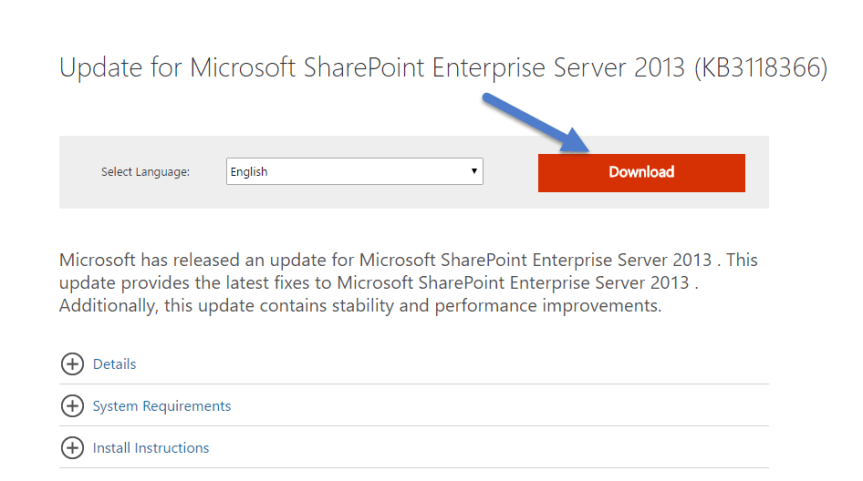
Now to download this CU, please click on the download link and you will be redirected to Microsoft site from where you need to download the CU. Choose the appropriate language and click on the “Download button” as shown in the image below.
2

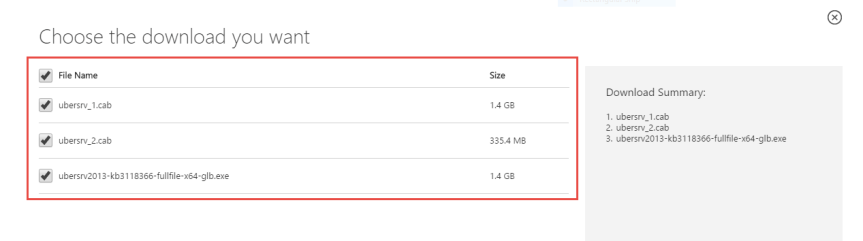
The next page will ask to choose the files you need to download, please check all the three files and make sure that you’re downloading them to the same folder.
3So, till now we looked on how to download the CU packages, now let’s look at the things which has to be backed up prior to patching your farm.

2. Taking necessary backups:

There are certain things which has to be backed up prior to patching your environment and please find the details below.

a) First take a SharePoint farm backup using the backup option in Central Administration site. You can also do this using the below mentioned PowerShell command. Also refer this TechNet link to know in detail about the SharePoint farm backup.

Backup-SPFarm -Directory <BackupFolder> -BackupMethod {Full | Differential} [-Verbose]

b) You can schedule the Farm backup the night prior to CU installation hoping that no changes will be made to SharePoint farm post that . If you’re planning to patch the PROD farm on Saturday morning with appropriate downtime then please schedule a farm backup at midnight on Friday.

c) Take the necessary IIS backups.

d) Also take a backup of the web. config file in IIS. This is the place where all the customizations are saved. Take a look at this link to understand how to back up the web.config file in SharePoint using PowerShell.

https://sharepintblog.com/2011/09/15/backup-sharepoint-web-config-file-with-powershell/

e) Optionally you can also backup all the customizations in the farm if your SharePoint farm is heavily customized. Take a look at the TechNet article link mentioned below to know in detail about backing up the customizations in a SharePoint farm.

https://technet.microsoft.com/en-us/library/ee748642.aspx

f) Also back up all the WSP files that’s deployed in the farm. This is not a mandatory step but if you feel that this is required, you can do this using the below mentioned PowerShell script.

                                       $farm = Get-SPFarm

                           $file = $farm.Solutions.Item(“solution.wsp”).SolutionFile

                                       $file.SaveAs(“c:\Solution.wsp”)

g) Finally once all the backups have been taken the most important thing to do is to have a Snapshot of all your SharePoint servers and if possible the backend SQL server too. Though you have a complete farm backup in place, please note that it’s not enough to do a complete farm restoration if something goes wrong and in such cases you might need to rely upon the snapshots for restoration. Take a look at this link below to know in detail about SharePoint Snapshots.

https://blogs.msdn.microsoft.com/mossbiz/2013/01/14/sharepoint-vs-snapshots/

3. Pre-Installation Steps:

There are certain pre-requisites that you need to do prior to installing the package and one among them is to run the “Robust Office Inventory Scan” script to find out the status of SharePoint/Office products installed in the server. The script will generate a log by which we can find if there is any patch or chained product missing. If so, you need to fix that issue first. If the log does not mention any errors under “Review items” section, we are good to go. You can also download the script from the below mentioned link

https://gallery.technet.microsoft.com/office/68b80aba-130d-4ad4-aa45-832b1ee49602

Once this is done and you verified that there are no errors reported under “Review items” section in the logs, please go ahead and suspend the “Search service “.

Suspending the Search service is a very important step to do prior to installing the CU and failing to do so might break the search crawl. It may be possible that when you check, there is no crawl running. However, if a crawl is triggered by schedule which occurs during the installation, the search application may crash or lead to inadvertent results. In worst case, you might end up rebuilding the entire search application.

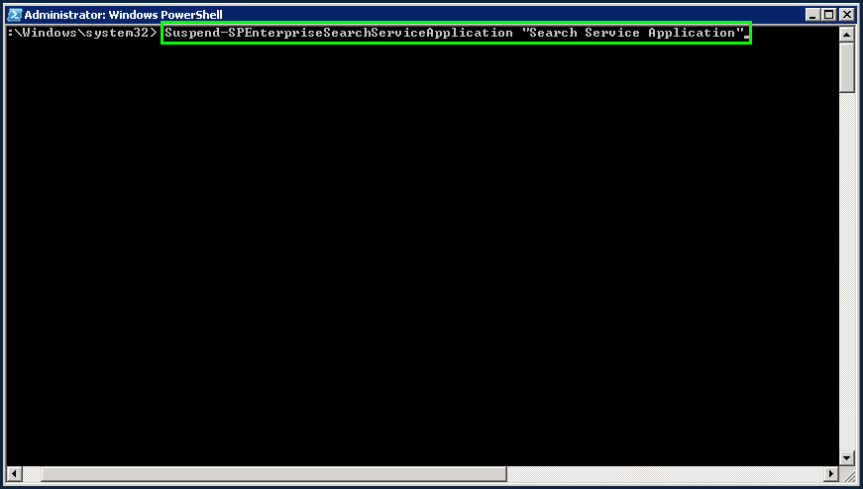
Hence to make sure there is no crawl running currently and no crawl will be triggered during the installation, pause the search application. For this, open “SharePoint 2013 Management Shell” using the farm service account and then execute the below command.

Suspend-SPEnterpriseSearchServiceApplication –Identity “SearchServiceApplicationName”
4

 This command will take a couple of minutes to execute. Once it is executed, navigate to the search service application in CA and verify that its status is showing as “Paused: for external request” as shown in the image below

5.png

If you go to Content Sources, you should see the status as “Paused by system”.

6

 4. Installing the Cumulative Update Package:

Once you’ve confirmed that the above mentioned pre-requisites have been taken care, now it’s time to go ahead and install the CU. Please follow the steps mentioned below to install the CU package.

Note: Installing the CU doesn’t require any specific order, you can do it on any server in the farm and then go on by installing it on other servers in the farm (meaning you can do it on the WFE server first and then on the APP server). However, that’s not the case when you would be rebooting the server post the installation or when you would be running the “SharePoint Configuration Wizard”. There’s a specific order to be followed while doing that and I’ll be discussing in detail about that later in this article.

1.  Navigate to the folder where you have downloaded the package and double-click on the package to install it. Please note that it’s mandatory to keep all the three executables (package as well as Cabinet files) in the same folder as shown in the screenshot below.

7.png

2. On the “End user license agreement page”, select the accept check box and click continue.

8

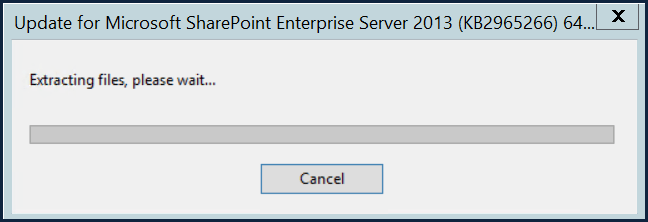
3. Now it will start the installation. Installation will take around 20-30 minutes. It will first start with extracting the files as shown in the screenshot below.
9

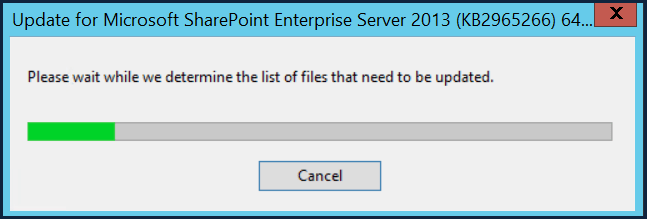
4. On the next screen, it will be loading the files to be updated as shown in the image below.
10

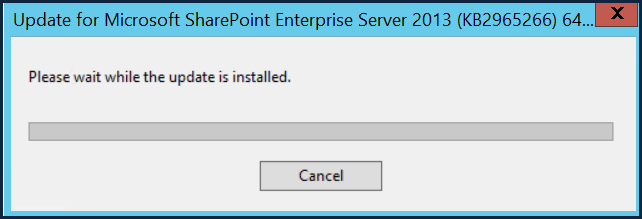
5. In the next screen, it will be installing the package as shown in the image below.
11

6. Post installation, if it prompts for reboot, click Yes as shown in the image below.

12

7. Finally, once the installation is complete, go to Control Panel and verify whether the package has been installed correctly as shown in the image below. For some reason if it’s not showing up here you need to troubleshoot and identify what’s causing the trouble.

13

5. Running the SharePoint Configuration Wizard:

Once you’ve confirmed that the CU package has been installed successfully and it’s showing up correctly under Control Panel now it’s time to go ahead and run the SharePoint Configuration Wizard. However, before doing so I would like to talk a bit about the order to be followed while installing the CU.

As I previously mentioned in this article, it’s ok to go ahead and install the CU in any order on the server. However, based on my experience with installing the CU I would suggest you all to do it on the WFE server first. Ensure that the WFE is taken out of the Load balancer pool so that it’s not serving user traffic and then go ahead and install the CU and reboot the server. Once the server comes back online verify whether all the components have been installed correctly under Control Panel and the Central administration site is accessible. This is just to ensure that the installed CU didn’t do any harm to the server. It’s ok to lose a WFE but not a APP server, I hope you’re getting the idea here .Also by any chance if you’re patching the farm on the business hours (which might ideally not be the case unless it’s a TEST /UAT farm) then make sure that the server on which you’re installing the CU is taken out of the load balancer so that the user traffic doesn’t goes to that server. So, the idea to keep in mind is, do it on the WFE servers first and then on the APP server.

Point to note while running the SharePoint Configuration Wizard:

Unlike the CU installation you can’t run the “SharePoint Configuration Wizard” in any order, it must be running on the server which is hosting “Central Administration” site first and then on the WFE and APP servers.  It’s a 6-step process which might take an hour at the max (in an ideal scenario) to run and complete. Once it’s completed successfully on the server where CA is hosted, please try opening the CA site and make sure everything looks fine and make sure you’re able to access the SharePoint sites. By any chance if the CA site is not coming up, please stop right there and fix it. Without fixing the CA site issue, please don’t proceed further with running the Configuration wizard on the other servers. This is the basic thumb rule to be followed while patching a SharePoint farm.

Now, let’s look at the steps to run the SharePoint Configuration Wizard….

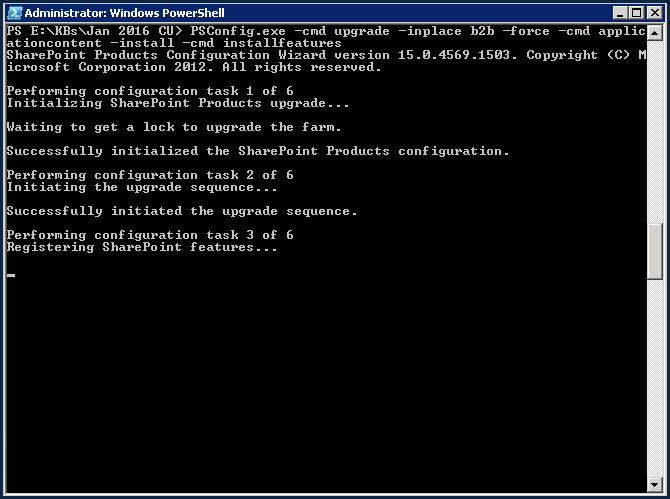
  1. Open SharePoint management shell with elevated permissions using the farm service account and run the below mentioned command as shown in the image below.

PSConfig.exe -cmd upgrade -inplace b2b -force -cmd applicationcontent -install -cmd installfeatures

14

2. It will take few seconds and start the upgrade process.

15

3. It’s time to go for a coffee now as it will start running a series of 6 steps to finish the configuration. Please check the steps below.

16

17

18

  1. The configuration wizard will have 6 steps which will be executed one by one. It should complete all 6 steps successfully. If it fails somewhere in the middle, you will need to check the “PSDiagnostics Logs” in the ULS logs folder. Find the issue, fix it first and then run the above command once again. Once all the steps are completed successfully, you are done.
  2. Repeat the above mentioned 4 steps on all the servers in the farm.

Once the Configuration wizard is successfully done running all the 6-steps it’s time to go ahead and do some post-installation steps ,let’s look at them.

6.Post Installation steps:

  1. Verify all the SharePoint and IIS services are up and running. If not, start them.
  2. Go to IIS Manager and verify application pools and sites are in started/running state.
  3. Open CA and the web applications and make sure they are opening fine
  4. Go to “Manage servers in the farm” section in CA and check for the version number on Configuration database version and make sure it’s showing the version number correctly. Ex: For January 2016 CU, it should show the version number as 15.0.4787.1000 as shown in the image below.

19

5. Check “Manage Servers in this Farm” page in Central administration. This page will also tell you if you need to run the SharePoint Products Configuration Wizard on a server to complete the upgrade process. Make sure every server in your SharePoint farm is upgraded and displays the status as “No Action Required” as shown in the image below.

patch 3.png


6. You can check the patch status on each and every individual server with “Manage patch status page” (Central Administration >> Upgrade and Migration >> Check product and patch installation status)

patch 1.PNG

patch-2


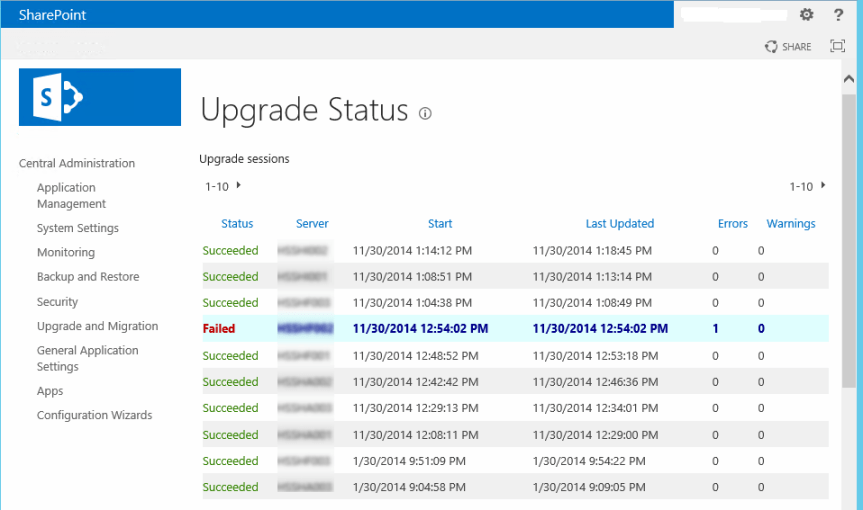
7. Also check the “Check upgrade status” page which will give you the detailed information on upgrade status as shown in the image below.
patch-4


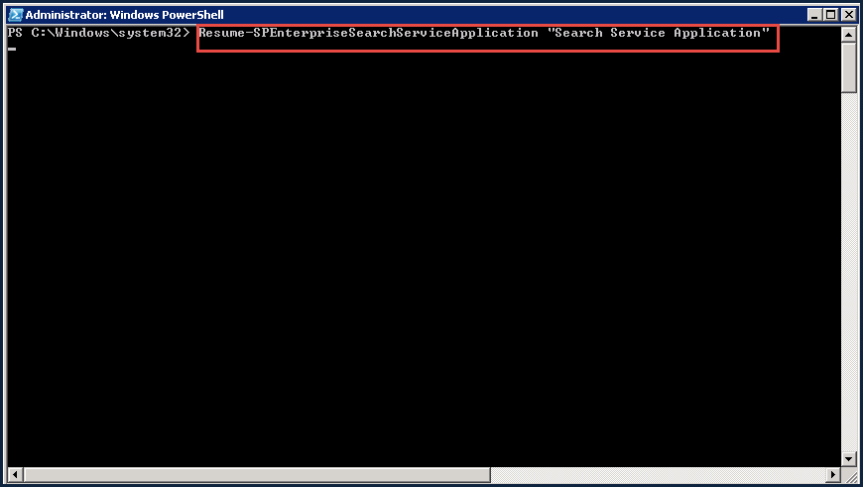
8. Finally, resume the search service application using the below mentioned PowerShell command

Resume-SPEnterpriseSearchServiceApplication –Identity “SearchServiceApplicationName”
20

  1. Verify search service application is not paused and it’s in running state.

21

10. Also, please go to the content sources section in the Search administration page and kick start a full-crawl.

11. Now add the servers back to the Load balancer pool so that they start serving user traffic and try to load the SharePoint sites from PC’s which belong to different geographical locations and check the time taken to open the site.

12. Also, check the custom functionalities in the site such as third party WSP’s, site features, custom web parts, custom site templates etc. and make sure everything works fine.

13. You could also run the ROIScan tool post the patching and verify the status of all the patches that has been installed and ensure that nothing is showing up under “Review items” section in the logs.

So finally, once you confirm that everything remains fine and the SharePoint farm remains intact post patching then this confirms that you’ve successfully patched the SharePoint farm. As I already mentioned in the beginning, you may encounter some issues as well as some errors while patching the farm and please don’t feel bad or demotivated by that. It takes a lot to successfully patch a SharePoint farm and by experience you can master in that.

If you ever feel that the patching task takes a lot of time and you need to find an alternative solution for that, please take a look at this link to know about the scripted way of patching a SharePoint farm.

https://blogs.msdn.microsoft.com/russmax/2013/04/01/why-sharepoint-2013-cumulative-update-takes-5-hours-to-install/

Thanks for reading this post ……. Happy SharePointing!!!!!!


October 2016 CU for SharePoint Server 2013 CU is out :Fix for Follow count web part issue is included in this CU

Microsoft has released the October 2016 CU for SharePoint server 2013 and it’s available for download from the below mentioned link .

https://support.microsoft.com/en-us/kb/3118366

As previously mentioned in my blog, the fix for the “Follow count web part” issue has been included on this CU. You can verify that by taking a look at the “Improvement and Fixes” section of this CU.

Improvement and Fixes: _ https://support.microsoft.com/en-us/kb/3118355

Please check this link to know in detail about the “Follow count web part” issue which got introduced in August 2015 CU. I’ve given a detailed explanation about this issue on a previous blog post .

So the bottom line here is , if you’re facing the “ Follow count web part “ issue in your environment where-in clicking on the “Follow count web part” throws you an error stating “Followed Count Web Part can’t be displayed because of null reference exception” then patching your environment with October 2016 CU should fix it .

Happy SharePointing !!!       Thanks for reading this post .