Configuring Windows PowerShell to support SPO management shell, Exchange Online Management Shell, Skype for Business Online Management Shell and Office 365 Compliance center:

office3652.jpg

Good evening  to all the Office 365 nerds out there, this article would be on how to configure Windows PowerShell in your client operating system to support Office 365 (i.e. SharePoint Online Management shell, Exchange Online Management Shell, Skype for Business Online Management Shell and Office 365 Security & Compliance center). Well it’s a known fact that Microsoft has released the PowerShell module for all these products (SharePoint Online, Exchange Online, Skype for Business Online and Office 365 Security & Compliance center) separately and you can use that to manage these products separately .Listed below are the links to download those modules .

SharePoint Online Management shell: _ https://www.microsoft.com/en-us/download/details.aspx?id=35588

Skype for Business Online module: _ https://www.microsoft.com/en-us/download/details.aspx?id=39366

Exchange Online module: _ https://technet.microsoft.com/en-us/library/jj984289(v=exchg.160).aspx

Office 365 Security & Compliance center: _ https://technet.microsoft.com/en-us/library/mt587091(v=exchg.160).aspx

Azure AD Module (this can be used for user and domain management tasks in Office 365): _ https://msdn.microsoft.com/en-us/library/jj151815.aspx .

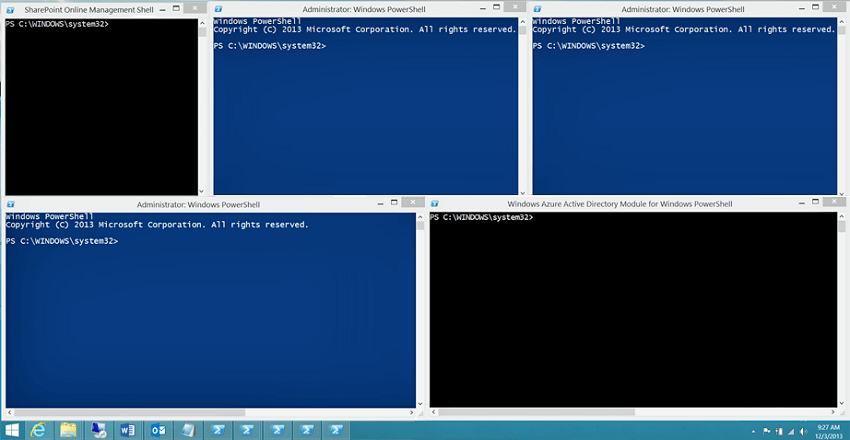
So if you’re the guy who plays the IT administrator role in your company and if you’re the one who has Office 365 global admin role assigned to you and takes care of managing Office 365 then chances are that your desktop could look very messy as shown in the image below while you’re using the management shell and you’re definitely going to have hard time managing them .

29.png

So the idea here is to show guys how to configure PowerShell to support all these modules and be successful in managing Office 365 from a single PowerShell window.

Let’s get into the detailed steps now:

Note: Please bear in mind that you need to have Office 365 global admin access to perform these steps.

  1. Please install the Microsoft .NET Framework 4.5.x and then either the Windows Management Framework 3.0 or the Windows Management Framework 4.0. in your PC.

Windows Management Framework 3.0:_ https://www.microsoft.com/en-us/download/details.aspx?id=34595

Windows Management Framework 4.0:_ https://www.microsoft.com/en-us/download/details.aspx?id=40855

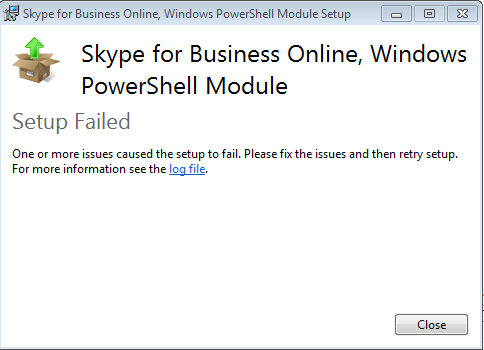
  1. For Skype for business online module to function, you need a 64-bit operating system and hence please make sure you’re running a 64 bit version of Windows. Else you will end up getting an error  message as shown in the image below.

31.png

3.  Listed below are the 64-bit version of Windows that you can use

                                Windows 8.1 or Windows 8

                                Windows Server 2012 R2 or Windows Server 2012

                                Windows 7 Service Pack 1 (SP1)*

                                Windows Server 2008 R2 SP1*

  1. Once that’s done you need to install the modules that are required for Office 365, SharePoint Online, and Skype for Business Online. Listed below are the links to download those modules.

Microsoft Online Service Sign-in Assistant for IT Professionals RTW

Windows Azure Active Directory Module for Windows PowerShell (64-bit version)

SharePoint Online Management Shell

Skype for Business Online, Windows PowerShell Module

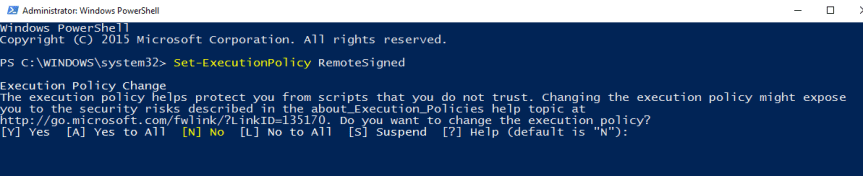
5. Once you’re done installing all the modules you need to configure Windows PowerShell to run signed scripts for Skype for Business Online, Exchange Online, and the Security & Compliance Center. To do this, run the following command in an elevated Windows PowerShell session

Set-ExecutionPolicy RemoteSigned

1

6. Now inorder to identify whether you’re running Windows PowerShell using elevated permissions or normal mode, please check the prompt on your PowerShell screen.

PS C:\Windows\System32> –>Elevated permissions

 PS C:\Users\UserName>–>Normal mode

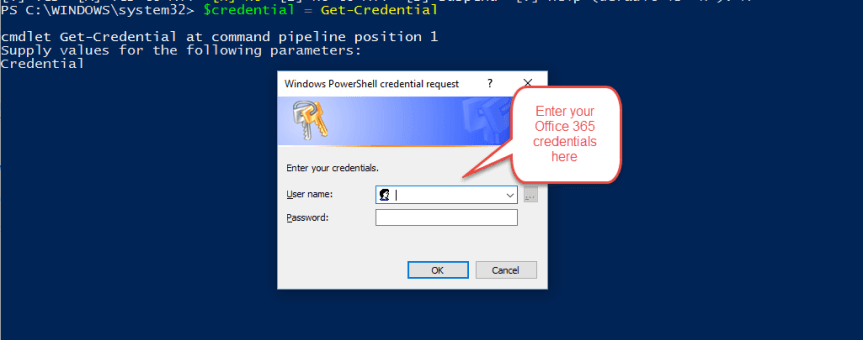
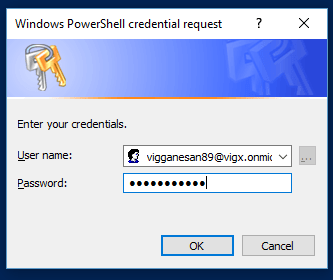
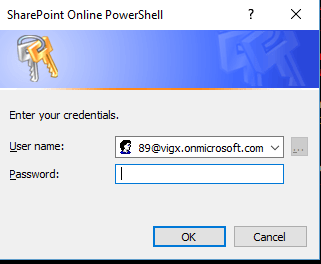
7. Now run the next below mentioned command to pass your Office 365 user name and password to Windows PowerShell in an encrypted way. Once that’s done you will get a windows dialog box prompting for your credentials as shown in the image below.

$credential = Get-Credential

2

8. Now key-in your Office 365 credentials and click on OK as shown below.

3

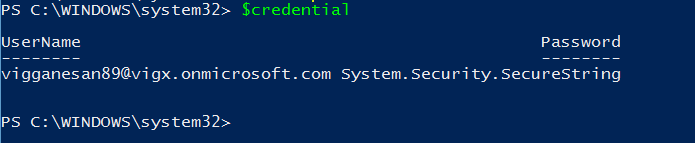
9. In-order to identify whether your credential object has been created successfully, please run the below mentioned command as shown in the image below and it should return the value.

Note: Windows PowerShell will never tell you anything when things go fine, it will silently pass on to the next line .It only yells at you when something went wrong. That’s the funny thing about Windows PowerShell.

$credential

30

10.  Now we are all good to and hence we can start connecting to Office 365, for that please run the below mentioned command.

Import-Module MsOnline

4

11. Once that’s done in-order to verify whether the module was imported successfully you need to run the below mentioned command. This should return the value as shown in the image below.                                Get-Module

12. Somewhere in the list of modules that are returned by this command you should see something that looks like this:  

  Manifest 1.0 MS Online {Add-MsolForeignGroupToRole, Add-MsolG…}.

If you see MSOnline listed, that means that everything went according to plan.

13. Since we have verified that the credential object has been created and also the MSOnline module has been loaded successfully the next step would be to connect to Office 365 using the Connect-MsolService cmdlet. For that run the below mentioned command as shown in the image below.

                                Connect-MsolService -Credential $credential

5

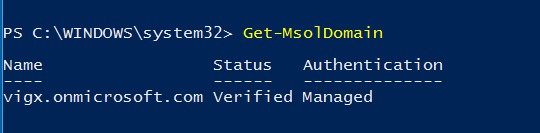
14. In-order to verify whether you have successfully logged into your Office tenant, please run the below mentioned command and verify your domain information as shown in the image below. In my case my domain name for Office 365 is “vigx” and you can see that in the image below.

                                                 Get-MsolDomain

32.png

15. After performing all the above mentioned we have successfully verified that we are able to establish a connection to the Office 365 tenant using our user name and password which has Global admin access in Office 365 . Now the next steps would be to create a connection to each modules separately (i.e. SharePoint Online, Exchange Online , Skype for Business Online & Security and Compliance center for Office 365 )

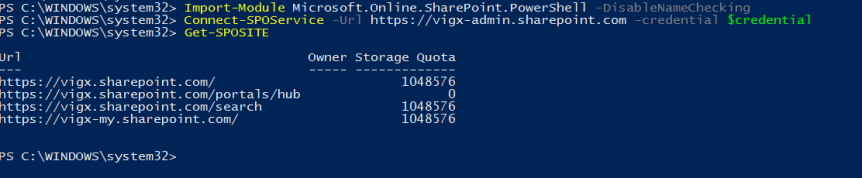
16 .Initially let’s get started with SharePoint Online by running the following command.   Import-Module Microsoft.Online.SharePoint.PowerShell –DisableNameChecking

Here the “DisableNameChecking” switch suppresses the below mentioned warning.

Warning: The names of some imported commands from the module ‘Microsoft.Online.SharePoint.PowerShell’ include unapproved verbs that might make them less discoverable. To find the commands with unapproved verbs, run the Import-Module command again with the Verbose parameter. For a list of approved verbs, type Get-Verb.

17. In order to connect to SharePoint Online, you need to supply two pieces of information: your credentials and the URL of your SharePoint Online admin site. This is how the format is going to look like.

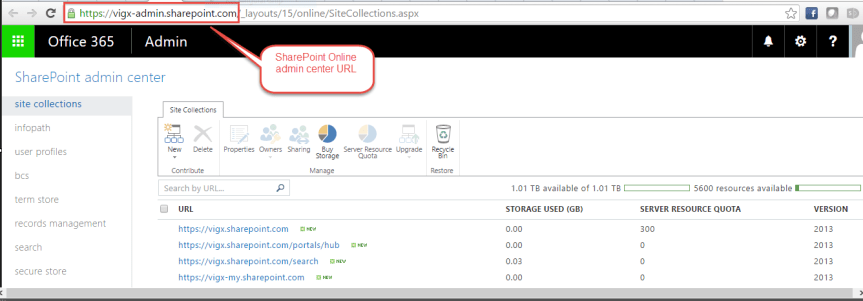
Note: You can get your SharePoint Online tenant URL by opening the tenant admin page. Check the screenshot below.

33

This is how the format will look like,

Admin URL: – https://vigx-admin.sharepoint.com   Connect-SPOService -Url https://vigx-admin.sharepoint.com -credential $credential

18. Once that’s done, please go ahead and run “Get-SPOSite” command as shown below and see the results .This should list all the SharePoint Online sites.

34.png

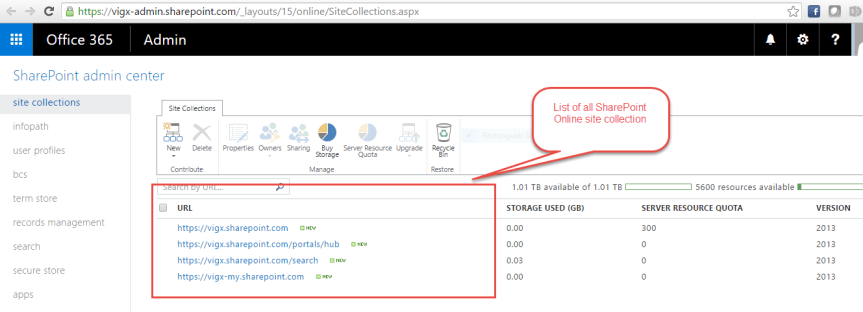
19. If you successfully get the list of all SharePoint Online sites then your command ran successfully.You can verify that by visiting the SharePoint Online admin center as shown below.

6.PNG

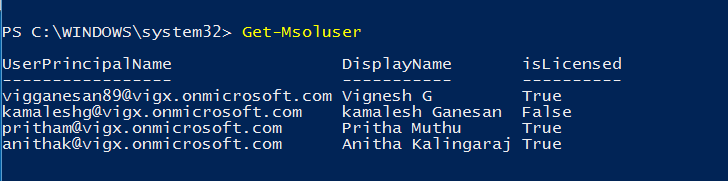
20. Also try running Get-MsolUser and see the result , this will return the list of all the users in Office 365 .This means you can now manage both SharePoint Online and Office 365 from the same Windows PowerShell window .

35.png


21. Now, let’s take a look on how to connect to Skype for Business Online (formerly as Lync Online)

Note:  Connecting to Skype for Business Online (and to Exchange Online or the Security & Compliance Center) is different than connecting to Office 365 or to SharePoint Online. That’s because the Skype for Business Online and Exchange Online cmdlets don’t get installed on your computer like the Office 365 and the SharePoint Online cmdlets do. Instead, each time you sign in, the appropriate cmdlets are temporarily copied to your computer. When you sign off, those cmdlets are then removed from your computer.

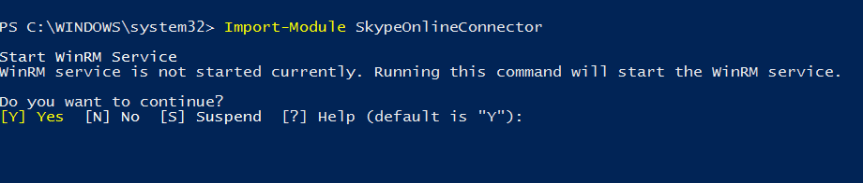
22. In order to connect to Skype for Business Online, please run the below mentioned command to import the Skype for Business Online module. For that run the below mentioned command.

                         Import-Module SkypeOnlineConnector

36.png

Note: The first time you might see some warning message which can be safely ignored.

23. Once the module has been imported, run the below mentioned command to initiate a new Sfbo session by running the below command.

$sfboSession = New-CsOnlineSession -Credential $credential

Note: By running the above command we have successfully created a remote PowerShell session. The above command is used to connect to an instance of Windows PowerShell running on one of the Office 365 servers.

37.png

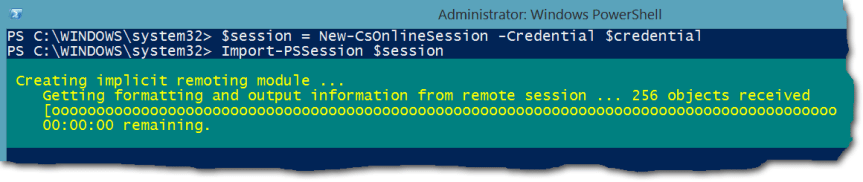
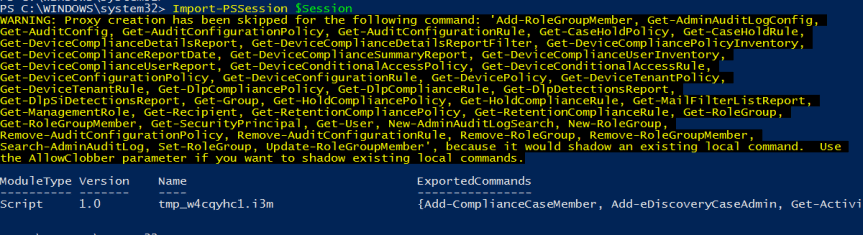
24. Once that’s done you need to run the below mentioned command to download the “Skye for Business Online scripts /cmdlets” and other items. As already mentioned before Skype for Business Online commands are not similar to SPO cmdlets, Sfbo cmdlets need to be loaded every time you plan to use PowerShell to manage Sfbo. So now let’s load sfbo cmdlets to PowerShell by running the below mentioned command(you can notice the progress bar in the image below loading the cmdlets to Windows PowerShell)

Import-PSSession $sfboSession

10.png

25. Once Windows PowerShell is done loading the sfbo cmdlets you should notice something like this as shown in the image below. If you notice this in your screen then you have successfully made a connection to Skype for Business Online.

11

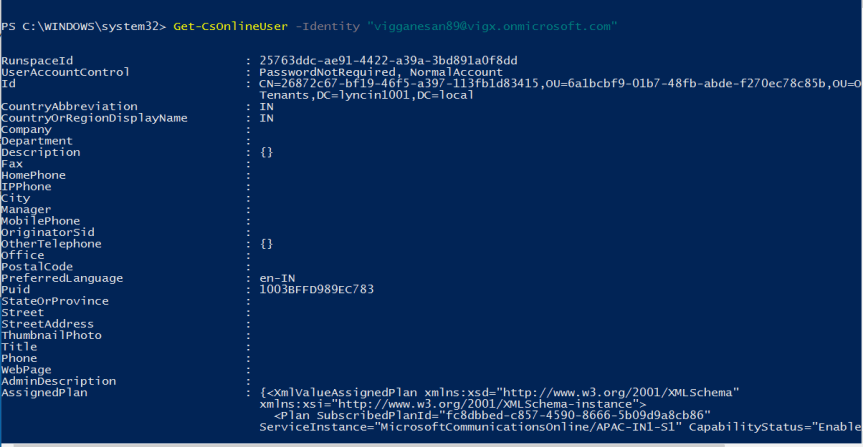
26. You can verify your connection to Skype for Business Online by running the below mentioned command.

Get-CsOnlineUser -Identity vigganesan89@vigx.onmicrosoft.com 

Note: This command will give the information for the user who has his UPN/SIP ID as vigganesan89@vigx.onmicrosoft.com

16

27.  Alright, till now we have seen how to configure Windows PowerShell to support SharePoint Online and Skype for business online, now let’s take a look on how to configure Windows PowerShell to support Exchange Online.

28. In order to proceed further, please run the below mentioned command which creates a remote Windows PowerShell session with Exchange Online.

$exchangeSession = New-PSSession -ConfigurationName Microsoft.Exchange -ConnectionUri “https://outlook.office365.com/powershell-liveid/” -Credential $credential -Authentication “Basic” -AllowRedirection

Note: Why is the command for connecting to Exchange Online more complicated than the command to connect to Skype for Business Online? Technically, it’s not: both commands do the exact same thing. However, the Skype for Business Online team created its own cmdlet—New-CsOnlineSession—that hides some of the parameters (like Authentication and AllowRedirection) that are used when connecting to Exchange Online. Instead of requiring you to type that information yourself, the Authentication and AllowRedirection parameters are effectively built in to the New-CsOnlineSession cmdlet. You have to type those parameters when connecting to Exchange Online because Exchange Online uses the standard New-PSSession cmdlet to connect to Office 365. The disadvantage is that you have a little more typing to do. The advantage is that you don’t have to download and install an Exchange Online module. This will start loading the modules as shown in the screenshot below.

13.png

29. Once you’re done running the above command, please run the below command to import the Exchange Online remote session, just as we did for Skype for Business Online. Please check the screenshot below.

        Import-PSSession $exchangeSession –DisableNameChecking

38

30. Once you’re done running the above command you would get the results as shown in the image above.

31. After you get the desired results in the screen, try running the below mentioned command , you should see information about your Office 365 domains that are configured for email addresses in Exchange Online.

Get-AcceptedDomain

39

32. This confirms that you have successfully connected to Exchange Online, you can also verify that by running the “Get-Mailbox” command as shown in the email below. This should return the Mailbox information of the users who are in Office 365.

40

33. So till now we have seen how to manage the user administration/license management for Office 365 , SharePoint Online , Exchange Online & Skype for Business Online using Windows PowerShell .Now let’s see how to manage the Security and Compliance center in Office 365 using Windows PowerShell .

34. The connection instructions for the Security & Compliance Center are very similar to those for Exchange Online, but with a slight difference .Let’s take a look at it. To get started with, please run the below mentioned command which creates a remote PowerShell session with the Security & Compliance Center

$ccSession = New-PSSession -ConfigurationName Microsoft.Exchange -ConnectionUri https://ps.compliance.protection.outlook.com/powershell-liveid/ -Credential $credential -Authentication Basic –AllowRedirection

35. This will start loading the modules as shown in the image below.

20.PNG

36. Now in order to import the cmdlets for “Security and Compliance center” run the below mentioned command .This should look similar to the Exchange Online cmdlet. The DisableNameCheckingswitch isn’t required here as there are no unapproved verbs in the Security & Compliance Center. But the additional -Prefix ccparameter and value is something different here. The Exchange Online and the Security & Compliance Center share some cmdlets that have exactly the same names and provide the same functionality. Get-RoleGroup is an example.                                                                                             Import-PSSession $ccSession -Prefix cc

21.PNG

37. Now you can verify the result of the above command in the screenshot above.

38. In order to verify whether you have been successfully connected to “Security and Compliance center” in Office 365, please visit the below mentioned link and try executing the cmdlets there and see the results.

https://technet.microsoft.com/en-us/library/mt587093(v=exchg.160).aspx

39. So finally we have connected to all the instances of Office 365 (Office 365 user/license management, SharePoint Online, Exchange Online, Skype for Business Online & Security and Compliance center in Office 365) using Windows PowerShell and we also saw how to execute the appropriate cmdlets to manage them.

40. Now, run the below mentioned command to get the active sessions that are running .For that run the Get-PSSession

The Get-PSSession cmdlet should show you that you have at least three remote sessions open, one for Skype for Business Online, one for Exchange Online and one for the Security & Compliance Center (it’s possible you could have more than three remote sessions running, depending on whether you’ve used this instance of Windows PowerShell to connect to something else besides the Office 365 services). You should see something similar to the following.

41.png

41. Since we have verified the active sessions that are running, now run the below command one at a time to close the session. If you just close the Windows PowerShell window, your Skype for Business Online remote connection will remain active for the next 15 minutes or so. Because Skype for Business Online limits the number of simultaneous connections that any one person or any one domain can have open, that could be a problem. With Skype for Business Online, an individual administrator can have, at most, three open connections at one time, and a domain can have a maximum of nine open connections. If you sign in to Skype for Business Online and then exit without properly closing the session, that session remains open for the next 15 minutes or so. As a result, that’s one fewer connection available to you or to other administrators in your domain. So run the below mentioned command to close the remote sessions for Skype for Business Online, Exchange Online, and the Security & Compliance Center gracefully.


Remove-PSSession $sfboSession

                                Remove-PSSession $exchangeSession

                                Remove-PSSession $ccSession

 42. If you prefer to close all the sessions at the same time without doing it one at a time, please run the below mentioned command.


Get-PSSession | Remove-PSSession

 43. The above mentioned commands will stop the PowerShell sessions for Skype for Business Online, Exchange Online, and the Security & Compliance Center gracefully but not SharePoint Online and hence to stop the session for SharePoint Online , run the below mentioned command .

Disconnect-SPOService

43.png

44. Now inorder to verify whether we have successfully disconnected from SharePoint Online service run the below mentioned command and it should throw you an error.

44.png

45. This confirms that you have successfully disconnected from SharePoint Online management shell.

So finally we have seen how to configure Windows PowerShell to support SharePoint Online Management shell, Exchange Online Management Shell, Skype for Business Online Management Shell and Office 365 Compliance center.


Office 365: Setting up your Windows PC to support SharePoint Online management shell

8

  1. Install Windows Management Framework 3.0 in your computer by downloading it from the below mentioned link.

https://www.microsoft.com/en-us/download/details.aspx?id=34595

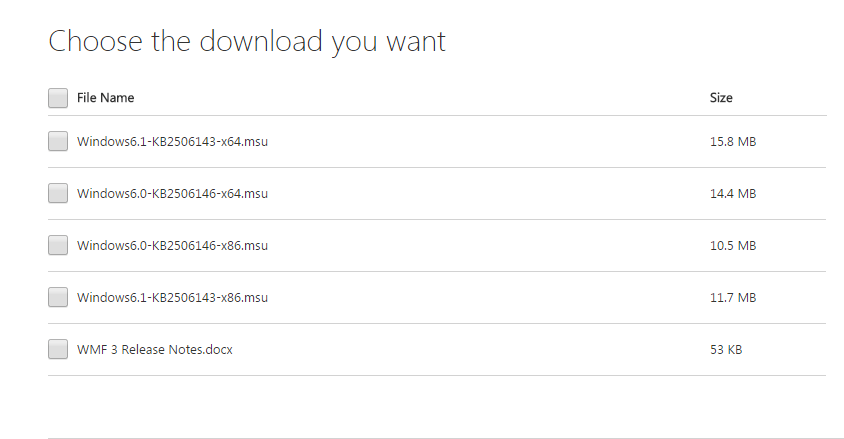
  1. Click on the download button on the link above and you will get a list of files to download as shown in the image below. Choose the one that best suits your operating system. In my case I installed KB2506143

                               For 32-bit operating system choose: x86

                              For 64-bit operating system choose: x64

1

3. Once you’re done downloading the appropriate file go ahead and install it in your computer. You will be prompted for a system restart to complete the installation.

4. The next step would be to install the “SharePoint Online Management Shell “module, please download that from the below mentioned link.

https://www.microsoft.com/en-us/download/details.aspx?id=35588

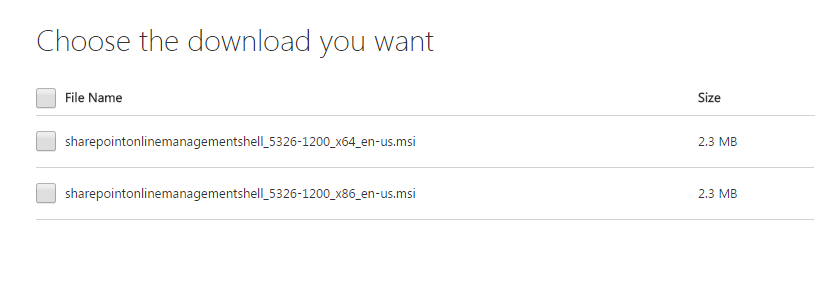
5. Click on the download button on the link above and you will get two files to download as shown in the image below. Choose the one that best suits your operating system.

                For 32-bit operating system choose: x86

                For 64-bit operating system choose: x64

26. Once you’re done downloading the appropriate file go ahead and install it in your computer. You won’t be prompted for a system restart this time.

7. After that’s done, Click Start–>All Programs–>Check for SharePoint Online Management Shell.

3

8. Open “SharePoint Online Management Shell”, and type the below mentioned command to connect to your SharePoint Online subscription and hit enter.

Connect-SPOService -Url https://vigx-admin.sharepoint.com -credential     vigganesan89@vigx.onmicrosoft.com

Note: Please note that the account which you’re using here should have SharePoint Online administration access. Else you won’t get the desired result

9. Where URL is the URL of your “SharePoint Online admin center “and the credential is your Office 365 account name and password.

Note: Please check the SharePoint Online admin center screenshot below, you can find the admin center url in the address field

4

10. Once you hit enter you will get a dialog box as shown below prompting for your Office 365 user name and password. Please go ahead and enter that and click on ok and be patient.

5.png

11. If the command succeeded it won’t return anything, else it will yell at you with bunch of errors (that’s the funny part about PowerShell!!!) .Here in my case, the command succeeded and hence it didn’t return anything.

6

12. Now in order to confirm whether you have successfully logged into SharePoint Online management shell, please go ahead and run the “Get-SPOSite” command and see if it returns the list of all SharePoint Online sites as shown in the image below.

7

Finally we are done with the task of setting up a SharePoint Online Management Shell environment.

Thanks for reading. Happy SharePointing!!!


Search Service application components in SharePoint Server 2013:


1.png

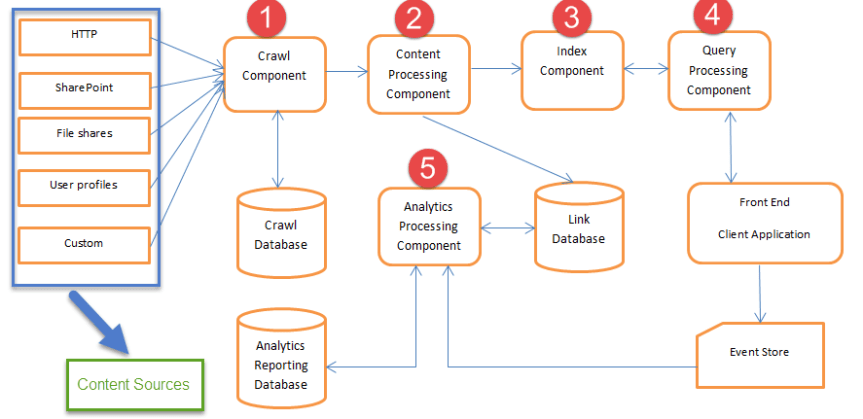
As you’re all aware ,there has been a major change in the search architecture on SharePoint Server 2013 when compared to SharePoint server 2010 and in this post I’ll  be discussing on the six different search service components in SharePoint 2013 .It’s very important that all these components are running fine without any issue for the Search service to function seamlessly and surface the results in the search page when a user executes a query in the search center.

Listed below are the six components available in SharePoint 2013 search service:

  1. Crawl Component
  2. Content processing component
  3. Indexing component
  4. Query processing component
  5. Analytics processing component
  6. Search administration component

 Now, let’s take a look on all these components separately …

1.Crawl Component :

This component takes care of crawling the content sources such as (SharePoint sites, websites & file shares etc…) and extracts the crawled properties and metadata and sends that to the content processing component.

2. Content processing component:

This component receives the information from the crawl component and then processes and sends it to the indexing component. It also interacts with the analytics processing component and is responsible for mapping crawled properties to the managed properties.

3. Indexing Component :

This component takes care of receiving the information from the content processing component and writes it to the search index. It also takes care of handling the queries and sends back the results to the Query processing component.

4. Query Processing Component:

This component handles incoming query requests and sends them to the indexing component for results. It also takes care of query optimization.

5. Analytics Processing Component :

This component takes care of analyzing what users are querying on and how they interact with the results.  This information is used to determine relevance, generate recommendations and also used for generating search reports.

6. Search administration Component:

This component manages administrative processes as well as changes to the search topology, such as adding or removing search components and servers.

Please note that these 6 search components can be distributed across multiple servers to provide high availability as well as improve performance as shown in the image below.

2.png

Search service application databases:

  • Search Administration database :The Search Administration database hosts the Search service application configuration and handles crawl state orchestration, including the content source crawl history.
  • Analytics Reporting database :The Analytics Reporting database stores the results for usage analysis reports and extracts information from the Link database when needed.
  • Crawl Store database :The Crawl Store database stores the state of each crawled item and provides the crawl queue for items currently being crawled.
  • Link database :The Link database stores the information that is extracted by the content processing component and the click through information.

Thanks for reading this post. Happy SharePointing!!!


Demystifying SharePoint server licensing:


1.png

So this post is to explain how SharePoint server licensing works. To be honest I often used to stumble around trying to understand how this entire thing works and after doing a lot of research in the internet I was able to understand how the entire licensing part works and hence I wanted to write an article on that hoping that it would help you all to have a better understanding about SharePoint Server licensing.

With that being said, I’ll be discussing about SharePoint server licensing in 2013 and Office 365 and how things are expected to change in SharePoint server 2016 as well. So before we get started let me go ahead and define certain terminologies that I’ll be using often in this post so that you can have a better understanding about those terms when I’m using that in this post later.

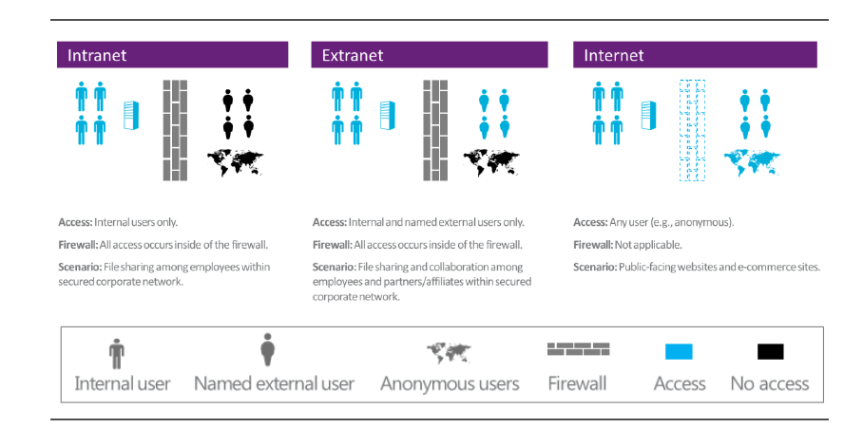
Internal Users: Users who are the licensee’s or its affiliates’ employees and on-site agents and contractors (i.e. Users who are present in your domain and have an account in AD)

External Users: Users who are not the licensee’s or its affiliates’ employees or on-site agents or contractors (i.e. Users who are not present in your domain and don’t have an account in AD).

Intranet: Website hosting content, information, or software that is accessible inside the firewall to internal users only (i.e. Within the company’s firewall).

Extranet: Website hosting content, information, or software that is accessible inside the firewall to internal users and named external users only.

Internet: Website hosting content, information, or software that is publicly accessible to all users (internal and external). (i.e. Outside the company’s firewall)

CAL:   Client Access License.
2.png

Microsoft licenses SharePoint server 2013 using the Server/Client Access License licensing model.  The Server/CAL licensing model requires both the server license on which it’s (i.e. SharePoint application) installed as well as the CALs for the users (or devices) that access the application. To be more clear you need license for each server on which SharePoint is installed and apart from that you also need licenses for the users (or devices) that access SharePoint. However, please note that the CAL requirements may vary based on user status and CALs are generally required for internal users to access all SharePoint server software. The only exception to this is, internal user access to Internet websites (public-facing websites such as e-commerce SharePoint sites) .In these cases, the SharePoint CAL requirement is waived. On the other hand, this is not the case for external users, you don’t need to purchase any extra license for external users and the server license by itself will take care of their access. Please note that there can be couple of ways to leverage access to external users to access SharePoint such as (Anonymous authentication, Forms-based authentication etc. …However, an external user who still has a user account in your AD won’t be considered as external as per SharePoint sever licensing model if he’s using his AD account to access SharePoint). So it’s very important to choose external users access carefully or else you might end up paying licenses for them as well.

I would also like to touch base on the “devices” part which I mentioned earlier so that you have an understanding about how that would have an impact on SharePoint licenses. Let’s consider a scenario where you’re accessing your SharePoint site from your workstation and at the same time you’re logged into the SharePoint site from your smartphone as well, then that’s two devices accessing the same site. SharePoint doesn’t consider that as a single license, its takes it as two different devices accessing the same site. This is where the device licenses come into picture. So it’s very important that you choose the correct licensing model.

User CALs:

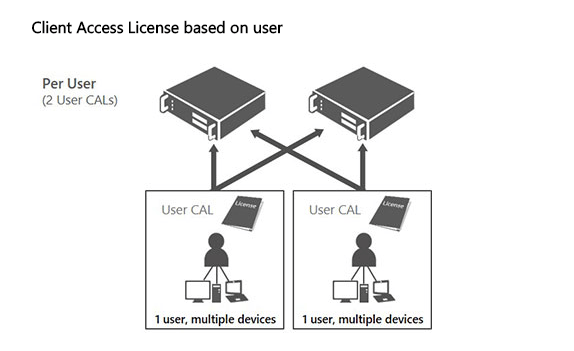
With the User CAL, you purchase a CAL for every user who accesses the server to use services such as file storage or printing, regardless of the number of devices they use for that access. Purchasing a User CAL might make more sense if your company’s employees need to have roaming access to the corporate network by using multiple devices, or from unknown devices, or if you simply have more devices than users in your organization.
3.png

Device CALs:

With a Device CAL, you purchase a CAL for every device that accesses your server, regardless of the number of users who use that device to access the server. Device CALs may make more economic and administrative sense if your company has workers who share devices, for example, on different work shifts.
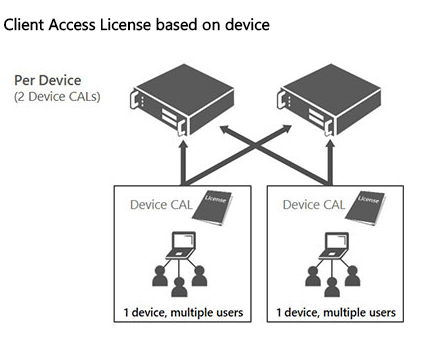
4.png

The following diagram depicted below illustrates whether a user needs a SharePoint CAL or not. “Restricted” refers to content stored inside the firewall for internal access and possibly limited, identified external user access. “Public/Internet” refers to content stored outside the firewall for broad, unrestricted access.
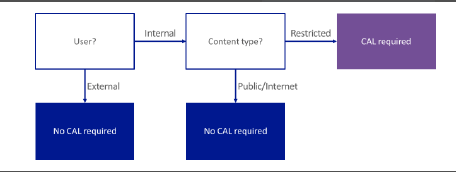
5.png

Now, let’s take a look at certain scenarios which can give us a better explanation on how the licensing part works for internal and external users.

Scenario A: Intranet

Description: Internal users accessing content, information, or applications inside the firewall through a local area network (LAN) or the Internet. No other users have access.

Example: A professional sports team sets up an intranet site that the manager, coach, and players access. It is also used for support staff such as the physiotherapist who is an on-site contractor rather than an employee, and for CAL requirements, an internal user. A news reporter trying to access the SharePoint Server site is denied access.

Licensing:

Server: One SharePoint Server 2013 license per running instance of the software.

Internal Users:  One CAL/user.
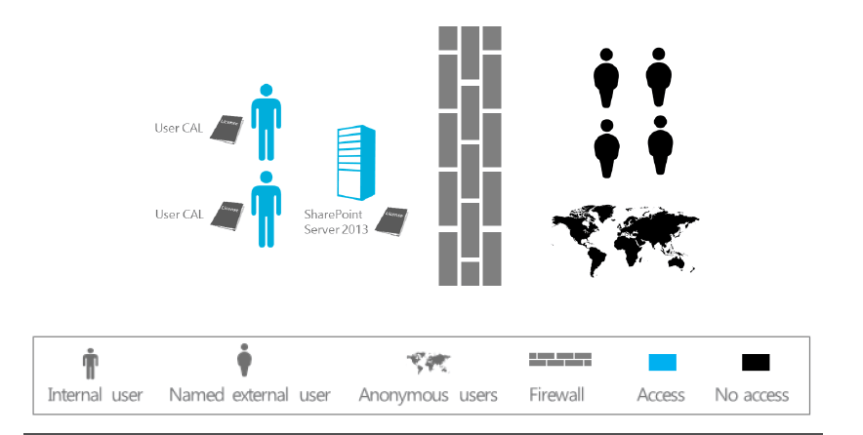
6.png

As shown in the above image, the internal users (the team’s managers, coach, players, and on-site therapist) each must be assigned a CAL. This requirement does not change if the same users are accessing the intranet site remotely from the team’s offices. Given that this is an intranet site, no external user access is permitted.

Scenario B: Extranet

Description: An organization extends access to otherwise restricted content inside the firewall to a limited number of identifiable external users.

Example: The Elm University publishes research papers that are available to specific educators from other universities (external users). This situation is an intranet plus extranet scenario.

Licensing:

Server: One SharePoint Server 2013 license per running instance of the software.

Internal Users: One CAL/user.

External Users: SharePoint CALS are not required; the server license permits external user access.
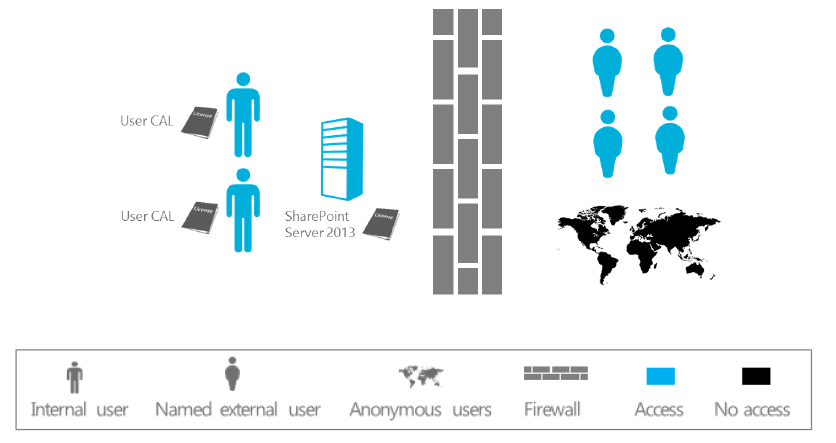
7.png

As shown in the above image, the internal users (the school’s faculty and staff) each must be assigned a SharePoint CAL. This requirement does not change if the same users access the site remotely while they are off-campus. The identifiable external users (educators from other universities) who are permitted to access otherwise restricted content inside the firewall do not require SharePoint CALs, because external user access is permitted under the server license. No other users are permitted to access the site.

Scenario C: Internet

Description: Internal users make content, information, and applications publicly available to users via the Internet (for example, on a public-facing company website). A mix of internal and external users anonymously accesses the site, including employees. No SharePoint CALs are required. External user access is permitted under the server license, and SharePoint CAL requirements for internal users are waived for access to content, information, and applications made publicly available via the Internet.

Licensing:

Server: One SharePoint Server 2013 license per running instance of the software.

Internal Users: CALs are not required.

External Users: CALs are not required.
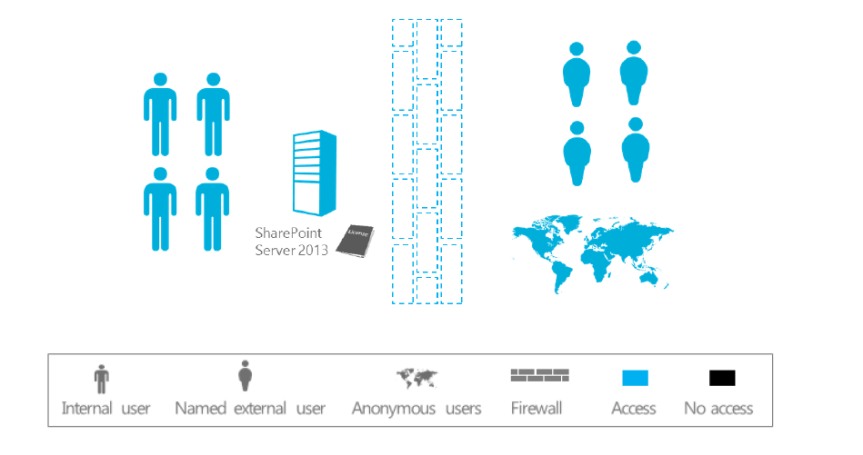
8.png

As shown in the above image, access is unrestricted. The only license required is the server license. SharePoint CALs are not required to access content, information, and applications made publicly available to users via the Internet (that is, not restricted to intranet or extranet scenarios). The same licensing applies for an e-commerce site where access is not strictly anonymous. Again, SharePoint CALs are not required to access content, information, and applications made publicly available to users via the Internet.

Licensing has been simplified in SharePoint 2013. SharePoint Server 2013 collapses internal and external use under a single licensing offering/model.

In addition to the points that we discussed above, there are certain classifications in the CAL that we need to be aware of as this will be very helpful in choosing the right version of SharePoint with the right features for your company. The CAL can be classified into two types 1.  Standard CAL and 2. Enterprise CAL. Check the table below to know the difference between Standard and Enterprise CAL.

Standard CAL You get features such as sites, communities, content and search in Standard CAL.


Enterprise CAL You get features such as such as Access Services, InfoPath Services, Power View, PerformancePoint Services, Excel Services, Reporting services and Visio Services.


SharePoint Standard CAL:

The Standard CAL delivers the core capabilities of SharePoint

Sites: a single infrastructure for all your business websites

Communities: an integrated collaboration platform

Content: enterprise content management (ECM) for the masses

Search: people and expertise search, visual previews, visual best bets


SharePoint Enterprise CAL:

The Enterprise CAL delivers the full capabilities of SharePoint

Sites: a single infrastructure for all your business websites

Communities: an integrated collaboration platform

Content: ECM for the masses

Search: standard search features plus entity extraction, video search, item recommendations

Business solutions (includes Access Services and InfoPath Services)

Business Intelligence for everyone (includes Power View, PerformancePoint Services, Excel Services, and Visio Services)

Check this link to have a detailed overview of all the features available in both the versions (i.e. Enterprise and Standard): _ http://www.fpweb.net/sharepoint-2013/compare-sharepoint-server-standard-enterprise/

Alright, I guess we have talked enough about SharePoint Server 2013 licensing, now let’s a look on how things are expected to change in SharePoint 2016.

SharePoint Server 2016 licensing:
9.png

For the most part the licensing is expected to remain the same in SharePoint server 2016 as well. You have the same server CAL license and user (or devices) licenses in SharePoint Server 2016 as well and this hasn’t changed. However, as you all are aware, SharePoint 2016 has a major change in terms of its architecture .We have a new concept called as “MinRoles” that was introduced in SharePoint Server 2016 .MinRole enables SharePoint Administrators to limit a SharePoint server to a specific role (i.e. front end, application server, distributed cache and custom). So using MinRole you can make a SharePoint server only do the specific role which it’s expected to do based on the role it has been assigned to .This will definitely lead to a downside in terms of licensing as using MinRole the server will only do a specified task .Let me explain this with an example ( If you have your current SharePoint 2013  application server in your production farm running search , user profile and MMS etc. ….you won’t be able to run all these services in a single app server once you migrate to SharePoint server 2016 .You have to assign a specific server only for SharePoint search ) .So obviously this will lead to  purchasing extra licenses if you need to utilize more services .

sql2016.jpg     windows_server_2016_gradient.jpg

Also in terms of the necessary software prerequisites, SharePoint Server 2016 requires Window server 21012 R2 or Windows Server 2016 as the underlying operating system and also coming to the backend SQL server you need 64-bit edition of SQL Server 2014 SP1 or SQL Server 2016. Another important point to note is, SharePoint 2016 doesn’t have any foundation version. You get only standard and enterprise version. Please note that there are few changes that has implemented in SQL Server 2016, you have a new component called PolyBase that has been introduced in SQL Server 2016. This mainly takes care of combining both relational data and non-relational data within SQL Server itself. You can also run queries on external data in Hadoop or Azure blob storage using this. The key factor to note here is that, “PolyBase “can run only on a single instance in a SQL Server. If you have multiple instances of SQL running on the same server then you may not able to run “PolyBase” on all the instances. So please the “PolyBase” configuration accordingly.

SharePoint Online and Hybrid:
HYBRID.gif

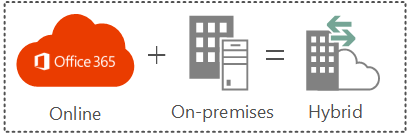
Let’s see how licensing works on SharePoint Online and Hybrid, it’s a known fact that SharePoint Online has become a buzzword over a period of time and we can see a lot of organizations moving their on-premises SharePoint workload to cloud. However, I’ve noticed a lot of SharePoint professionals as well as project managers having a confusion on how licensing works for SharePoint Online and what has to be done for a successful SharePoint Hybrid implementation.

So just to clear the confusions about this, SharePoint on-prem as already discussed is server/CAL license based whereas SharePoint Online is subscription based. As you all know, most of the cloud services today are subscription based and their licensing is totally different from on-prem platforms. Azure and Office 365 are good examples for cloud based platforms that works based on subscriptions. However, there is a minor difference in terms of subscription between these two products (i.e. Office 365 & Azure) and I’ll be discussing about that in a different post.

With Office 365 (SharePoint Online) you get two types of plans, i.e. Plan 1 and Plan 2. Please check this link below to have a proper understanding of the features involved in both these plans.

https://products.office.com/en-us/SharePoint/compare-sharepoint-plans?legRedir=true&CorrelationId=d1645733-7515-401f-904a-f75983522c29

It’s up to you and your business to choose the appropriate plan that best suits your business need.


Now, before discussing SharePoint hybrid licensing, let’s take a look at the traditional on-premises scenario. Historically, SharePoint on-premises customers were required to purchase a server license for each SharePoint server, with a client access license (CAL) required for each user or device that will be accessing those servers. There was also an optional Enterprise CAL, sold on a per-user base for accessing additional features (Ex: SSRS).

When cloud services are added to the mix, this relatively straightforward scenario becomes more complicated. As a subscription-based service, SharePoint Online is bought through a monthly per-user fee, instead of licensing.

Roughly around 2 years ago, Microsoft attempted to simplify licensing for hybrid SharePoint deployments by allowing Office 365 user licenses to be used as CALs for accessing SharePoint resources that reside on-premises. In other words, organizations that had both local and cloud-based SharePoint resources would have to purchase server licenses for each on-premises SharePoint server, but would not be responsible for purchasing CALs, as long as every user accessing the on-premises SharePoint resources had SharePoint Online as part of their Office 365 subscription.

But things have changed a bit now, if an organization runs SharePoint in its data center and decides to extend its deployment to the Office 365 cloud, verifying that the local environment is properly licensed is the first thing to do. As previously mentioned, each SharePoint server requires a server license. Unlike CALs, there is no “enterprise” upsell for the servers. Organizations must simply purchase a SharePoint server license, and any required dependency licenses, such as for Windows Server and SQL Server.

The organization will also have to purchase CALs for each person or device that will access SharePoint. Microsoft offers Standard CALs and Enterprise CALs. The Standard CAL provides access to SharePoint’s core capabilities, such as sites, communities, content management and search.

Organizations that need SharePoint capabilities beyond those covered by the Standard CAL should purchase an Enterprise CAL — in addition to the Standard CAL — for each user or device that will access those resources. The Enterprise CAL provides access to features such as Power View or Excel Services.

With the Hybrid scenarios in place now, choosing the correct license/subscription might be bit confusing. To make this simple, please take a closer look at SharePoint Online Plan 1 and Plan 2 once again. Plan 1 for SharePoint Online is more or less matched to the features that are delivered through a Standard CAL, while SharePoint Online Plan 2 is closely matched to the SharePoint Enterprise CAL. There are some minor differences between the Standard CAL and SharePoint Online Plan 1, just as there are some minor differences between SharePoint Online Plan 2 and the Enterprise CAL, but mostly these hosting plans are closely matched to their on-premises counterparts.

To be more precise, let’s consider a scenario where you want to implement Hybrid search in your environment and you’re confused to choose the appropriate plan. In such case, take a look at the type of search that has been implemented in your on-premises SharePoint Farm. Is it normal search or Enterprise search? For the most part I bet it would be Enterprise search, then in such case you need to assign Plan 2 license in SharePoint Online for all the end users as only then they would be able to see the search results from SharePoint on-premises or vice versa. To know more about Hybrid search, please click this link to take a look on my blog post about Hybrid search.

SimplifiedSharePointhybriddiagram_th[4].png

Last but not least, let’s take a look at licensing for SharePoint foundation. With SharePoint foundation, you don’t need to purchase any SharePoint license for SharePoint Foundation as it’s a free version. The only license you would need is the Windows server license on which SharePoint Foundation would be installed. You would also not require separate license for SQL Server as SharePoint foundation installs SQL Server express by itself while running the set up file.

Note: As already mentioned above, SharePoint 2016 doesn’t have any foundation version. You either get the Standard version or the Enterprise version.

Finally, to conclude, as SharePoint professionals it’s very important that you have a proper understanding of how licensing works in SharePoint on-premises and SharePoint Online as choosing the correct version/license is vital for any successful SharePoint implementation. If your organization uses SharePoint just to dump the documents and the usage is also very minimal where no enterprise features would be used, then choose the standard version. On the other hand, if you’re organization uses SharePoint for collaborating with customers /other stakeholders and also the dependency of enterprise features is more then choose the enterprise version. As far SharePoint Online/Hybrid is concerned choose the appropriate plan for the end users that best suits the business need. When it comes to migration where you would be migrating from on-premises version to the other one (preferably from 2013 to 2016) please make sure that considering the licenses for other supporting software’s also (i.e. SQL Server & Windows server).

Thanks for reading this post. Happy SharePointing!!!!


Steps to deploy a farm solution in a SharePoint Farm:

Steps to deploy a farm solution (wsp file) in a SharePoint Farm:

Please follow the steps below to deploy a “farm solution” in a SharePoint Farm (both 2010 & 2013). A farm solution is something that can have an impact on the entire farm when deployed and being a SharePoint Administrator you can activate this on a specific web application or (on multiple web applications if you use the full-trust model ).

  1. Login to the SharePoint WFE server using the “SharePoint Farm account “.
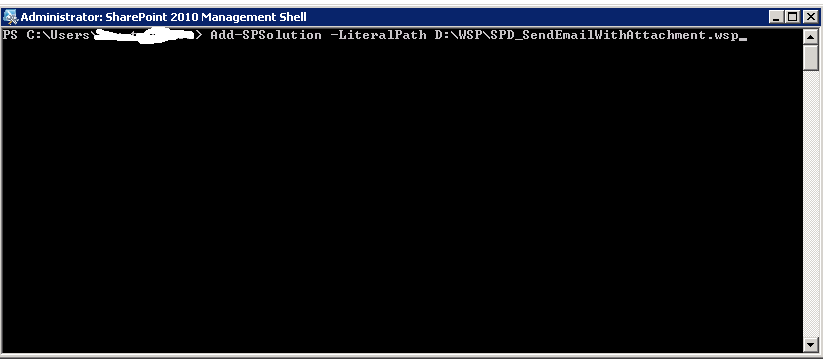
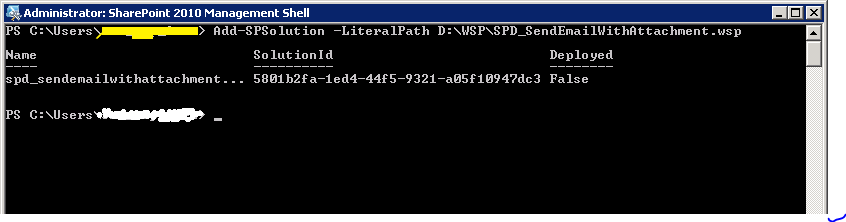
  2. Open the “SharePoint Management Shell “window with elevated permissions and type the below command as show in the screenshot.

“ Add-SPSolution –LiteralPath D:\WSP\SPD_SendEmailWithAttachment.wsp”

1.png

Literal Path –>  Mention the folder path where you have saved the .wsp file.

SPD_SendEmailWithAttachment –> Here in this scenario the name of the wsp file that we are deploying is “SendEmailwithAttachment” and hence it has been named so.

WSP –> WSP stands for Windows SharePoint.

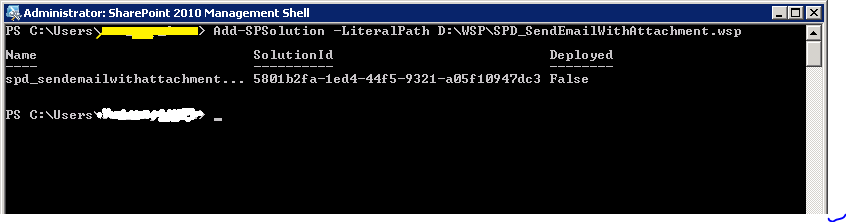
  1. Once you’re done typing the above command, hit “enter “and it will give you the details of the wsp file as shown below.

2.png

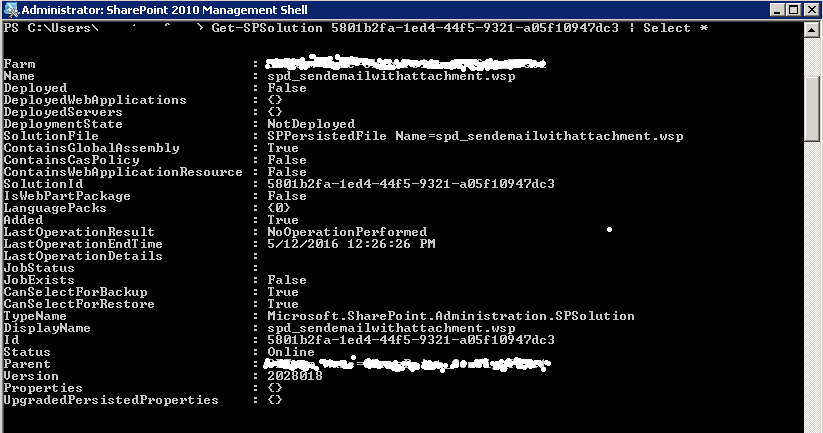
4. Once you’re done with that, run the below mentioned command to get the details of the .wsp file. Please make sure you’re copying the solution ID properly.

3.png

5. Now since you’re done with adding the farm solution, please go ahead and run the below mentioned command to install it. Please check the screenshot below for reference

“Install-SPSolution –Identity “solution ID” –GACDeployment”  (Solution ID would be the ID which you see in the screenshot below)

4.png

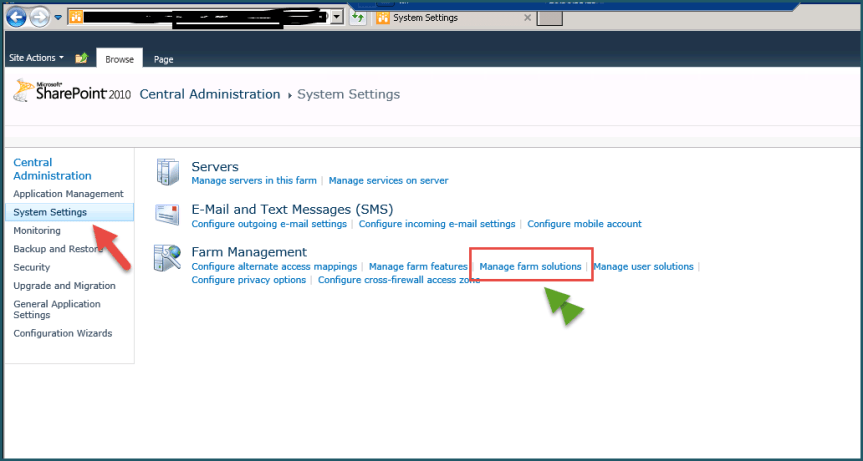
6. Finally, once you’re done installing the farm solution please navigate to “System settings” in Central Administration and click on “Manage farm solutions” as shown below.

5

7. Please check whether you’re able to see the wsp file that you currently deployed in the list of wsp files available there. In our scenario the wsp file name is “spd_sendemailwithattachment.wsp” and you can see that in the list of wsp files that has been deployed on the farm.

6.png

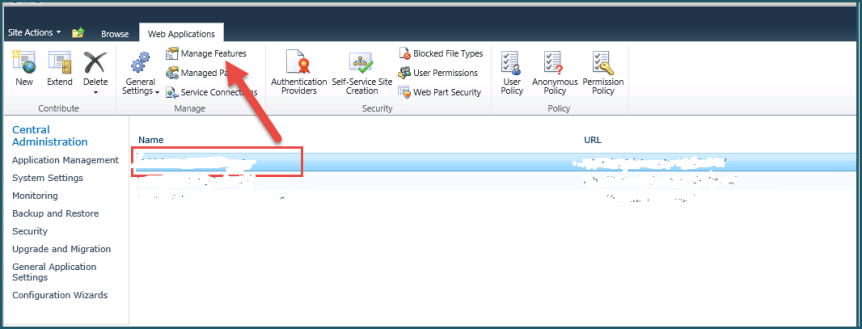
8. Since we have verified that the .wsp file has been deployed successfully, the next step would be to activate the feature on the web application. For this click on “Manage web applications” in Central Administration –>Select the web application on which you need to activate the feature –> click on Manage features on the top ribbon interface.

7.png

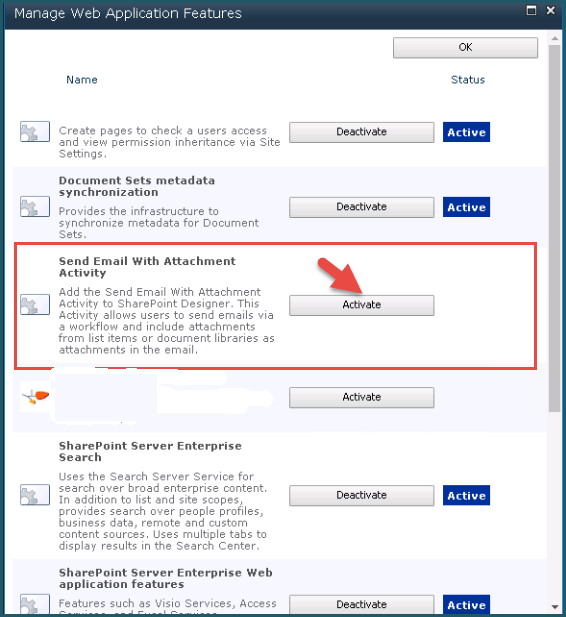
9. Finally check for the feature related to the solution that we deployed and click on activate (check screenshot below).

8


Thanks for reading this post . Happy SharePointing!!!


Monitoring Search service in SharePoint:

Alright are you one of those guys who manages the SharePoint infrastructure in your firm all alone? Do you think you’re really doing a good job in monitoring all the mission critical services such as Search, User profile services, Managed metadata, BI & BCS? Well if you’re already doing that then kudos to you but if you’re not then you definitely know how messier things could get if they break and you didn’t notice that .

So with that being said I’m going to discuss about monitoring Search service in this post. You see, the problem with search is, it always needs some extra caring and boosting when compared to other SharePoint services. If you just deploy search service and then test it and say “Alright…I’m done deploying search …It works fine, my users can get what they want and I’m a happy person now”…. then you’re making a very bad mistake .If there is any other application you treat this way then I just can’t think about how bad the aftermath would be.

Well ,I don’t mean to scare you guys ,but being SharePoint practitioners  don’t you guys think Search needs a little more extra caring ? I would say yes it does and the purpose of this post is to let you know about the inbuilt tools that SharePoint search service offers to diagnose/monitor it and how you guys can start doing that if you’re not doing that already.

As you all know, Search is really  mission critical for any successful SharePoint based intranet portal and it’s the job of the SharePoint engineer (you)  to perform the below mentioned steps  to check and ensure that the search service is running fine without any issue.

Note: It probably won’t be a good idea to do all these steps on daily basis unless you really want to spend couple of hours every day just in monitoring search .However, it would still make sense to perform step 2,7 & 14  everyday just to make sure that search is running fine . You can perform all the other steps on a weekly basis.

Alright now let’s get into the real meats and potatoes…..

1.Access the Search service application from the Central administration using the Farm admin account .(If you’re not given Farm admin rights, make sure you’re atleast given Search service application administration rights )

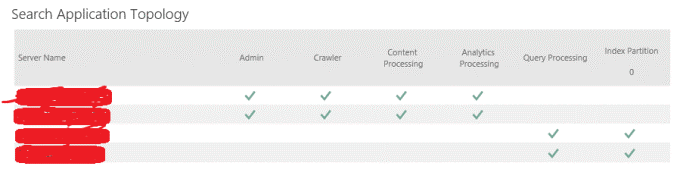
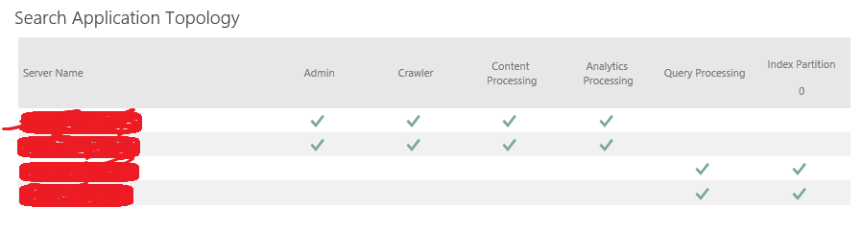
2. Once you’re in the “Search Administration “ page take a look at the Search Application topology section and make sure all the search components shows up green . Take a look at the screenshot below.

1

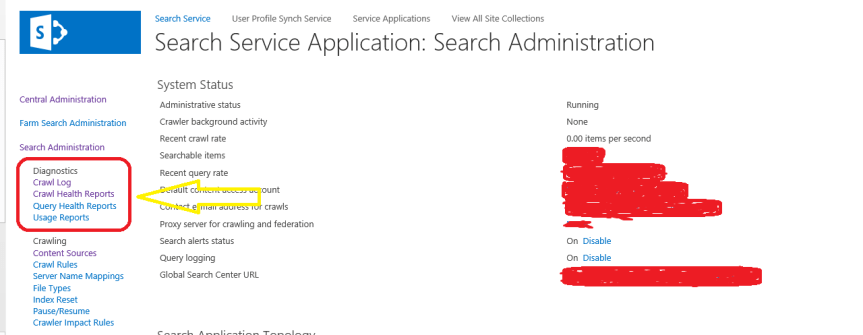
3. Once you confirmed that everything shows up green, now it’s time to take a look at the Crawl For this navigate to the “Diagnostics section in the Search administration page as shown in the screenshot below and take a look at the “Crawl Logs “ .

2

4. The search crawl logs can help you identify the below mentioned three things ….

a) Whether crawled content was successfully added to the index

b) Whether it was excluded because of a crawl rule

c) Whether indexing failed because of an error.

 5. Make sure you take a look at everything and ensure that the results are fine.

6. Also you get different views such as (Content Source, Host Name, Crawl History, Error Breakdown, Databases, URL View) for the Crawl logs in the diagnostics section. Take a look at all these sections and ensure that the results are fine .Check for Errors and see if the count is high, if yes take a look at what’s triggering the errors. I made a different post on working with Search crawl logs before, please click here to access it.

7. Once you’re done with that, take a look at the “Crawl Health reports “and check each and every section there. You get the reports on all the below mentioned areas.

  • Crawl Latency
  • Crawl Queue
  • Crawl Freshness
  • Content Processing Activity
  • CPU and Memory Load
  • Continuous Crawl

3

8. You also get to apply filters so that you can get a customized view.

9. Now let’s take a look at what information each and every criteria has under the Crawl health reports.

A) Crawl Rate

For a specified time interval, shows a graph and a summary of the following:

  • Number of content items crawled per minute. This includes:
  • Total content items
  • Modified items. These are content items that were changed and re-crawled.
  • Not modified items. These are content items that were not changed and were not crawled.
  • Security items. These are content items for which the security attributes were changed.
  • Deleted items. These are content items that were deleted from the content source and which must also be deleted from the index.
  • Average number of other crawl actions that were performed per minute. This includes:
  • Retries (crawl retries)
  • Errors (crawl errors)

You can filter this report by:

  • Start date/time
  • End date/time
  • Content sources (for example, Local SharePoint sites)
  • Machine

B)Crawl Latency:

For a specified time, shows a graph of the number of items that form the crawl load, for each of the following:

  • In Crawler Queue
  • Waiting to submit to content processing
  • Submitted to content processing
  • Waiting to Commit (SQL)

You can filter this report by machine only.

For a specified time interval, also shows a graph and a summary of the crawl latency; the amount of time in milliseconds that each content item is in each of the following subsystems in the feeding pipeline:

  • Crawler
  • Protocol handler (PH)
  • Repository
  • SQL Time

You can filter this report by:

  • Start date/time
  • End date/time
  • Content source (for example, Local SharePoint sites)
  • Machine

10. Pay close attention to the “Latency “and “CPU and Memory Load” section and make sure the graph looks fine without any abnormal spikes. You also have an option to apply filters, if necessary apply filters and take a look at all the search components.

11. Finally navigate to the crawling section as shown in the figure below and take a look at the content sources.

C) Crawl Queue:

For a specified time interval, shows the number of items in the following two crawl queues:

  • Links to process. This is the number of uncrawled URLs that are queued to be crawled.
  • Transactions queued. This is the number of crawled URLs that are queued to be processed in the crawl pipeline.

You can filter this report by start date/time and end date/time.

D) Crawl Freshness:

For a specified time interval, shows the freshness of the content that was being indexed by the search system. The last modified time stamp of each document is compared with the time specified in the graph. You can view the freshness of the content as follows:

  • Less than 1 month ago
  • Less than 1 week ago
  • Less than 1 day ago
  • Less than 4 hours ago

E) Content Processing Activity:

For a specified time interval, shows the amount of time that was spent in content processing for:

  • Content sources
  • Machines
  • Content processing components
  • Content processing activity

The graph shows the amount of time that was spent in various content processing activities, such as:

  • Linguistics processing
  • Document parsing
  • Document summary generation
  • Indexing

You can filter this report by:

  • Start date/time
  • End date/time
  • Content source
  • Machine
  • Content processing component name
  • Processing activity

F) CPU and Memory Load:

For a specified time interval, shows the percentage of CPU used, the memory use in megabytes and the system overview for these processes:

  • MSSDmn
  • MSSearch
  • NodeRunner
  • Timer

You can filter this report by:

  • Machine
  • Start date/time
  • End date/time

G) Continuous Crawl:

For a specified time interval, shows the time (in milliseconds) that the processes took with an overlay of discovery time (in minutes) for:

  • Time In Links Table
  • Time In Queue Table
  • Crawler Time
  • PH (Protocol Handler) Time
  • Repository Time
  • Content Pipeline Time
  • SQL Time

You can filter this report by:

  • Content sources
  • Start date/time
  • End date/time
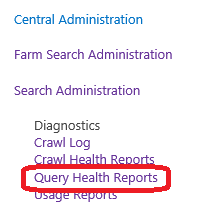
  1. Once you’re done checking the “Crawl Health Reports” now it’s time to take a look at the “Query Health reports “.For this click on the “Query Health Reports “link under Diagnostics section as shown in the image below.

4

11. Here you will get reports based on the below mentioned criteria’s and you can filter them as well as per your need.

  • Trend
  • Overall
  •  Main Flow
  • Federation
  • SharePoint Search Provider
  • People Search Provider
  • Index Engine

A)Trend (Query Latency Trend):
For a specified time interval, shows the query latency (in milliseconds) by percentile. For example, five percent of all queries had lower latency than the latency indicated by the fifth percentile line in the graph.

The graph includes an overlay of query rate during the specified time interval, where query rate is the number of queries per minute for which the query object model (OM) returned results.

The graph also includes an overlay of the crawl rate and the partial update rate for analytics.

You can filter this report by:

  • Start date/time
  • End date/time
  • Client type
  • Result page (search results page), which only shows if verbose logging is enabled.

By default, the graph displays data for all result pages in the Search service application.

B)Overall (Overall Query Latency):

For a specified time interval, shows the query rate (number of queries per minute) with an overlay of query latency in milliseconds.

Shows the query latency in each of the following areas:

  • Object model. This is the time it takes to communicate between the web server and the back-end.
  • This is the time it takes to transform the query, perform index look up, process results (such as removing duplicates), and return results to the object model.

You can filter this report by:

  • Start date/time
  • End date/time
  • Client Type
  • Result page (search results page), which only shows if verbose logging is enabled.

By default, the graph shows data for all result pages in the Search service application.

C)Main Flow (Default SharePoint Flow Query Latency):

For a specified time interval, shows the query latency (in milliseconds) in the main flow for query and result processing. This indicates how fast the system processes a query and returns results to the web server. The graph shows the query latency for:

  • Query rule condition matching
  • Query transformation
  • Query routing
  • Result mixing
  • Layout selection
  • Query logging
  • Other

The graph includes an overlay of query rate during the specified time interval.

You can filter this report by:

  • Start date/time
  • End date/time
  • Client Type

D)Federation (Federation Query Latency):

For a specified time interval, shows the query latency in milliseconds for all result source types.

By default, the graph shows data for all result pages in the Search service application.

You can filter this report by:

  • Start date/time
  • End date/time
  • Client type
  • Result page (search results page), which only shows if verbose logging is enabled.
  • Source type (result source type):
  • Best Bet Provider
  • Exchange Search Provider
  • Local People Provider
  • Local SharePoint Provider
  • OpenSearch Provider
  • Personal Favorites Provider
  • Remote People Provider

E)SharePoint Search Provider (Local SharePoint Search Flow Query Latency):

For a specified time interval, shows the query latency (in milliseconds) for all queries that are processed by the local SharePoint search provider. The graph shows the query latency for:

  • Keyword parsing
  • Linguistics
  • Recommendations Security Trimming
  • Security token construction
  • Index lookup
  • Result type processing
  • Custom security trimming
  • Summary generation
  • Other

The graph includes an overlay of query rate during the specified time interval.

You can filter this report by:

  • Start date/time
  • End date/time
  • Client type

 F)People Search Provider (People Search Flow Query Latency):

For a specified time interval, shows the query latency (in milliseconds) for all queries that are processed by the local people search provider. The graph shows the query latency in each of the following areas:

  • Keyword parsing
  • Linguistics
  • People pre-processing
  • Security token construction
  • Index lookup
  • Result type processing
  • Custom security trimming
  • Summary generation
  • Other

The graph includes an overlay of query rate during the specified time interval.

You can filter this report by:

  • Start date/time
  • End date/time
  • Client type

G)Index Engine (Index Engine Query Latency:

For a specified time interval, shows the query latency in milliseconds for each index server that you filter on. By default, the graph shows data for all result pages in the Search service application. You can filter this report by:

  • Start date/time
  • End date/time
  • Index server (a computer that hosts at least one index partition)
  • Result page (search results page), which only shows if verbose logging is enabled.

The graph includes an overlay of the index lookup time for the specified time interval in the past. Index lookup time is the average amount of time during a given minute that it took the index engine to return results. The index lookup time applies only to queries for which the index engine returned results.

13. Once you’re done with the “Query Health Reports “, now it’s time to take a look at the “Usage reports “in the diagnostics section. Similarly as the other reports, you can also filter these reports based on different criteria’s.

Note: The “Query Health” Reports can also be useful if you want to do some analysis on how your users are using search? What do they search for? What is the mostly searched content? etc. …This report can also be useful for you to enhance search as per your user’s search queries. Also if your users yell at you saying, “Search is really awful, I’m not able to find what exactly I need “…Then in those scenarios you probably need to do some tweaking with the Query Health reports.  You can also consider implementing “Query Rules” if necessary based on the reports.

A) Number of Queries:

This report shows the number of search queries performed. Use this report to identify search query volume trends and to determine times of high and low search activity.

B) Top Queries by Day:

This report shows the most popular search queries. Use this report to understand what types of information visitors are seeking.

C) Top Queries by Month:

This report shows the most popular search queries. Use this report to understand what types of information visitors are seeking.

D) Abandoned Queries by Day:

This report shows popular search queries that received low click-through. Use this report to identify search queries that might create user dissatisfaction and to improve the discoverability of content. Then, consider using query rules to improve the query’s results.

E) Abandoned Queries by Month:

This report shows popular search queries that received low click-through. Use this report to identify search queries that might create user dissatisfaction and to improve the discoverability of content. Then, consider using query rules to improve the query’s results.

F) No Result Queries by Day:

This report shows popular search queries that returned no results. Use this report to identify search queries that might create user dissatisfaction and to improve the discoverability of content. Then, consider using query rules to improve the query’s results.

G) No Result Queries by Month:

This report shows popular search queries that returned no results. Use this report to identify search queries that might create user dissatisfaction and to improve the discoverability of content. Then, consider using query rules to improve the query’s results.

H)Query Rule Usage by Day:

This report shows how often query rules trigger, how many dictionary terms they use, and how often users click their promoted results. Use this report to see how useful your query rules and promoted results are to users.

I)Query Rule Usage by Month:

This report shows how often query rules trigger, how many dictionary terms they use, and how often users click their promoted results. Use this report to see how useful your query rules and promoted results are to users.

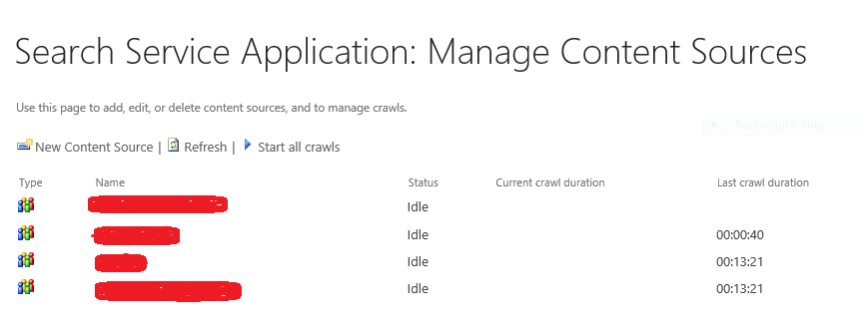
14. Finally as a best practice it would also make sense to take a look at the search content sources and ensure that the crawls are running fine (This step goes without saying and I guess you would be doing this in the initial phase of troubleshooting/monitoring SharePoint search).

6

15. Ensure that all the crawls are running fine and make sure the time difference between the previous and the next crawl is running on equal time intervals .If you see some abnormal time difference between the previous and the next consecutive crawl then obviously something is wrong and it would be really worthwhile to take a look at the crawl logs.

Thanks for reading this post .Happy SharePointing!!!

SharePoint Online limits across different Office 365 plans:

SharePointOnline2L-1

Found this good article on Tech Target Network about SharePoint Online limitations and wanted to share it with you guys ….

Depending on the Office 365 plan your business uses, there are several SharePoint Online limits to keep in mind when planning a SharePoint migration.

As with most software as a service deployments, Microsoft imposes limits on the SharePoint Online service across its various Office 365 plans. Organizations with the appropriate service plan can typically work within those limitations, but it’s important for IT planners to recognize restrictions in advance and ensure that any migration from a local SharePoint deployment to SharePoint Online will remain within the established limits. Otherwise, the online migration may experience problems or incur unexpected premium costs for additional resources.

SharePoint Online limits typically involve storage and maximums in the number of items, users, subsites and file sizes. Consider SharePoint Online in Office 365 Business Premium, which offers base storage of 10 GB per tenant plus up to 500 MB per subscribed user; additional storage can be purchased for a fee. For example, a business with 5,000 users would see a storage limit of about 2.5 TB. This might sound like a lot, but storage-intensive file collections across many users can easily consume a significant portion of that capacity. Other factors like Recycle Bin storage can also count against storage limits.

The Office 365 Business Premium plan imposes other limits such as up to 1 TB per site collection or group document library, synchronizing up to 5,000 items — such as folders and files — in site libraries, synchronizing up to 20,000 items in the OneDrive for Business library, and handling up to 500,000 site collections where each site collection can support up to 2,000 subsites. Users can upload files as large as 2 GB per file, but can only attach files up to 250 MB.

There are also SharePoint Online limits on site elements such as lists and libraries, pages and security. For example, a single wiki or webpage can only contain up to 25 Web parts, and a single user can belong to up to 5,000 security groups. Such limits may require changes to existing local SharePoint resources before migration.

The limits for other plans such as SharePoint Online in Office 365 Enterprise, Education and Government may differ from the Business Essentials or Business Premium plans. It’s always important to check the needs of your SharePoint deployment against the preferred plan to ensure that you’re getting the most appropriate and cost-effective service. It’s also worth checking the site elements to see which, if any, sites or wikis may require changes.

SharePoint 2016 IT Pro certifications:

Sharepoint2016-670x380-670x380


Microsoft has announced the IT Pro certifications for SharePoint 2016 and they are expected to be  out by July this year . Take a look at this link below to know more about these certifications .


https://www.microsoft.com/en-sg/learning/course.aspx?cid=20339-1

https://www.microsoft.com/en-sg/learning/course.aspx?cid=20339-2

Useful SQL Queries for SharePoint Practitioners:

The SQL queries listed below can be very useful for SharePoint Farm administrators to manage/administer the SharePoint content databases .

Note: The queries mentioned below are not specific only to SharePoint databases and can be used with any SQL database.

1.To get the total number of space utilized by all the SharePoint databases in SQL server:

SELECT CONVERT(DECIMAL(10,2),(SUM(size * 8.00) / 1024.00 / 1024.00)) As UsedSpace
FROM master.sys.master_files

2.To get the name of all the SharePoint databases in a SQL instance :

Select * from Sys.Databases

3.To get the total number of space utilized by all the SharePoint databases in SQL server:

SELECT CONVERT(DECIMAL(10,2),(SUM(size * 8.00) / 1024.00 / 1024.00)) As UsedSpace

FROM master.sys.master_files

4.To find the space used by a SharePoint DB and its free size :

*Replace MY_DB with the concerned database name

use “MY_DB”
exec sp_spaceused

5.To find the size consumed by SharePoint Databases individually in SQL Server:

SELECT DB_NAME(database_id) AS DatabaseName,


Name AS Logical_Name,


Physical_Name, (size*8)/1024 SizeMB


FROM sys.master_files

6.To get the total number of SharePoint databases in the SQL server:

select  * from sys.databases

or

select  COUNT(*) from sys.databases

7.To find the path for SQL Server error logs:

sp_readerrorlog

8.To get the total number of site collections in a Web application :

select  count(*) as ‘Total Site Collection’ from sites

Note: Point to the content database hosting that site collection and run this query

9.To get the total number of sites in a web application :

select count(*) from Webs

Note: Point to the content database hosting that site collection and run this query

10.To get the Site Title and Site ID :

select Title as ‘Site title’,FullUrl, SiteId as ‘Site Collection Id’ from Webs order by SiteId

11.To get the number of sites under each site collection in a web application :

select SiteId, count(*) as ‘Total Sub Sites’ from Webs inner join Sites on Sites.Id = Webs.SiteId group by SiteId

Note: Point to the content database hosting that site collection and run this query


Useful tools for SharePoint Practitioners:

This post brings you a list of useful tools which every SharePoint Practitioner should make use of to make his day to day life easier. I personally don’t know any of the developers who developed these tools so I’m not trying to do some marketing stuff for these tools. I just wanted to share the list with you guys so that you could get benefited out of it.

Note: There are hundreds of paid/free third party tools out there to administer/manage SharePoint and I have not really tried a lot of them .The list which I’ve put together below is something which I’ve been using for quite some time now and just wanted to let you guys know that these tools have been vetted carefully during usage and they are not potentially harmful by any means, plus they are free of cost too and most of them are from code plex.


  1. ULS Viewer

A windows application for viewing SharePoint ULS log files more easily. Supports filtering and easy viewing of data.

Download Link: _ https://ulsviewer.codeplex.com/


  1. SharePoint Manager

The SharePoint Manager 2013 is a SharePoint object model explorer. It enables you to browse every site on the local farm and view every property. Please be mindful that you should have this tool running on a machine which has SharePoint installed on it.

Download Link: _ https://spm.codeplex.com/


  1. Fiddler

The Fiddler tool helps you debug web applications by capturing network traffic between the Internet and test computers. The tool enables you to inspect incoming and outgoing data to monitor and modify requests and responses before the browser receives them. Fiddler also includes a powerful event-based scripting subsystem, which you can extend by using any .NET Framework language.

Download Link: _ http://www.telerik.com/fiddler

  1. Network Monitor

Network Monitor tool can be used for capturing network traffic and protocol analysis.

Download Link: _ https://www.microsoft.com/en-in/download/details.aspx?id=4865


  1. WinDirStat

WinDirStat is a disk usage statistics viewer and cleanup tool for various versions of Microsoft Windows.

Download Link: _ https://windirstat.info/index.html


  1. SharePoint Log Viewer

SharePoint Log Viewer is a Windows application for reading and filtering Microsoft SharePoint ULS Logs.

Key Features:

  • View multiple SharePoint log files at once
  • Search by any field
  • Filter the log by any field
  • File drag & drop support
  • Live monitoring for entire farm
  • Export filtered log entries
  • Bookmark log entries
  • Get popup notification of SharePoint log events from system tray
  • Receive email notifications on errors
  • Redirect log entries to event log
  • Supports SharePoint 2007, 2010 and 2013


Download Link: _ https://sharepointlogviewer.codeplex.com/


  1. SharePoint Feature Administration and Clean Up Tool :

Feature Administration is a tool for SharePoint administrators and developers to manage SP features. It finds and cleans faulty Feature Definitions and orphaned reminders.

The Feature Admin Tool finds faulty Feature Definitions and cleanly uninstalls them.
It finds feature remainders in sites, Site Collections, WebApps and in the Farm, caused e.g. by forcefully uninstalled Features from a farm without deactivating them before. These faulty features, never visible, cause errors.

Download Link: _ https://featureadmin.codeplex.com/


  1. SharePoint Command Builder :

As the name implies, you can use this tool to build SharePoint PowerShell commands that can simplify your daily work.

Link: _ https://www.microsoft.com/resources/TechNet/en-us/Office/media/WindowsPowerShell/WindowsPowerShellCommandBuilder.HTML

  1. SharePoint Manager 2013 Online :

If you’re using SharePoint Online, then this tool could be your best friend. SharePoint Manager 2013 Online, provides the user a quick and easy overview of the structure and data hidden behind the scenes. Unlike the server version on codeplex, this app only uses html and JavaScript leveraging the SharePoint REST API. The well-known navigation tree on the left side and a property panel on the right side deliver an extremely user-friendly interface, which allows the user to burrow into SharePoint Online structure and hidden gems.

Download Link: _ https://store.office.com/sharepoint-manager-2013-online-WA104025157.aspx?assetid=WA104025157


  1. SharePoint 2013 Search Query Tool:

After running the query, you can view all types of result sets returned; Primary Results, Refinement Results, Query Rules Results, Query Suggestions, in addition to the actual raw response received from the Search service.

This can be used both with SharePoint 2013 on-premises and SharePoint Online. I also explained in detail the usage of this tool in a previous blog post. Click here to read that.

Download Link: _ http://sp2013searchtool.codeplex.com/


  1. SharePoint Host name site collection creator :

The SharePoint Host named Site Collection (HNSC) Creator SharePoint Admins to create HNSC via a GUI instead of PowerShell. This can be used by two ways. One of them is a Windows Forms application that needs no installation, and the second one is a SharePoint 2013 farm solution that plugs in the Central Admin for a native SharePoint experience

Download Link: _ https://hnsc.codeplex.com/


  1. SharePoint Designer :

Microsoft SharePoint Designer (SPD), formerly known as Microsoft Office SharePoint Designer, is a discontinued HTML editor freeware specialized in creating or modifying Microsoft SharePoint sites, workflows and web pages. It is a part of Microsoft SharePoint family of products.

Please note that Microsoft has announced that SharePoint 2016 will not have SP Designer 2016 .That has been discontinued in the 2016 version.

Download link: _ https://www.microsoft.com/en-in/download/details.aspx?id=35491

13. Advanced REST Client plugin for Google Chrome:

SharePoint Developers would probably know the power of this tool . There’s an awesome plugin for Chrome called Advanced REST Client which allows you to investigate the REST calls and configure your queries pretty simply through the UI. You get to see the results and the request times directly in the browser and you can play with the parameters etc easily

Download link :_https://github.com/jarrodek/ChromeRestClient

14.  SharePoint Client Browser for SharePoint Online and SharePoint on premises:

Remote SharePoint development is getting more important. Especially with SharePoint Apps. To speed up development, find hidden lists/items/documents, discover the structure or specific artifact properties use the SharePoint Client Browser which supports SharePoint 2010, SharePoint 2013 and SharePoint Online (Office 365)

Uses of this tool?

  • Get insight in your site collection structure
  • Find hidden lists, items or documents
  • Discover artifact properties
  • Easily start PowerShell, via context menu, and run (scripted) queries against your remote site collection
  • Support for both SharePoint 2010 and SharePoint 2013
  • Connect to on-premise or SharePoint Online (Office 365) site collections
  • No installer
  • Remote access from your desktop to site collection via Client Side Object Model (CSOM)
  • Can run remote, no need to run on the SharePoint server itself

Download link : _ https://spcb.codeplex.com