Webinar on SharePoint Architectural Models:

15181617_1224110950996376_7487734758665217173_n

Hi all ,

Please join me for a webinar on Dec 3rd at 7 pm IST on ” The Different type of Architectural models in SharePoint” .

Agenda:

Types of Architectural models in SharePoint

  • SharePoint on-premises
  • SharePoint Online/ SaaS(Office 365)
  • SharePoint Hybrid
  • SharePoint in Azure/IaaS

I’ll be discussing in detail about all these models and when to choose it and when not to choose it and I’ll also be giving some deep insights on all these models .

Meeting detailshttp://www.c-sharpcorner.com/events/learn-architectural-models-in-sharepoint

Feature pack 1 for SharePoint server 2016 is out:

1.jpg

Just in case you haven’t heard the news yet, Microsoft has announced the release of Feature Pack 1 for SharePoint server 2016 on November 2016 and this release brings several enhancements based on the recent innovations in Office 365. Please find the details below.

Listed below are the new capabilities that was introduced in this release:

  1. Logging of administrative actions performed in Central Administration and with Windows PowerShell.
  2. Enhancements to MinRole to support small environments.
  3. A new OneDrive for Business user experience.
  4. Custom tiles in the SharePoint app launcher.
  5. Unified auditing across site collections on-premises and in Office 365.
  6. Unified taxonomy across on-premises and Office 365.
  7. OneDrive API 2.0.

Now let’s take a look at all these capabilities in a detailed manner,

Administrative actions logging:

As SharePoint administrators we spend a considerable amount of time troubleshooting administrative changes in the on-premises environment, which can result in failure conditions or other undesired effects. So for this Microsoft has introduced more insightful, granular logging in Feature Pack 1. The Feature Pack 1 introduces the logging of common administrative actions performed in the Central Administration website and with Windows PowerShell.

MinRole enhancements:

One of the infrastructure advancements in SharePoint Server 2016 was the concept of MinRole. MinRole is designed to transform architectural guidance into code, simplifying deployment and scale with SharePoint by ensuring a request is served end-to-end by the receiving server based on the origin of the request (i.e., end user or batch processing) and role of the destination server.

MinRole was originally optimized for larger farm topologies. With four server roles, the minimal requirement for a supported MinRole configuration was a four-server farm. A farm with high availability (HA) requires two servers for each role, making eight servers the minimal requirement for a HA MinRole configuration. However, customers have reported to Microsoft that they would like to have the benefits of MinRole with smaller farm topologies too. We listened to you and enhanced MinRole to address this request.

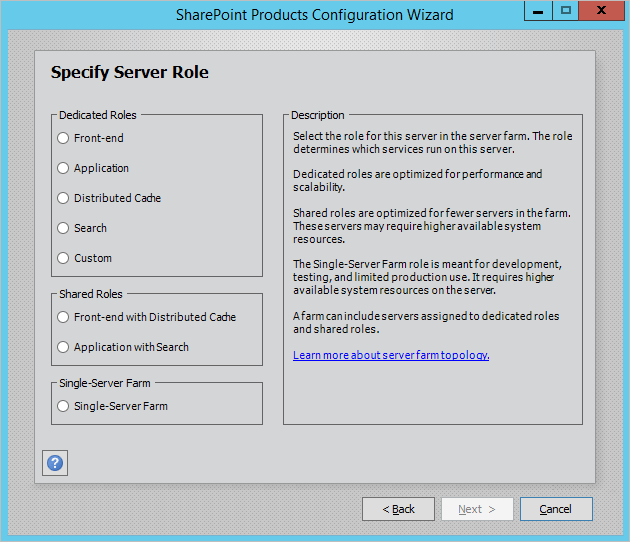
Once the new MinRole enhancements are enabled, you will notice that two additional server roles are available: “Front-end with Distributed Cache” and “Application with Search.” The Front-end with Distributed Cache role combines the Front-end and Distributed Cache roles together, while the Application with Search role combines the Application and Search roles together. These new roles let you host a multi-server MinRole farm with just two servers or four servers with HA.

2

A new OneDrive for Business user experience:

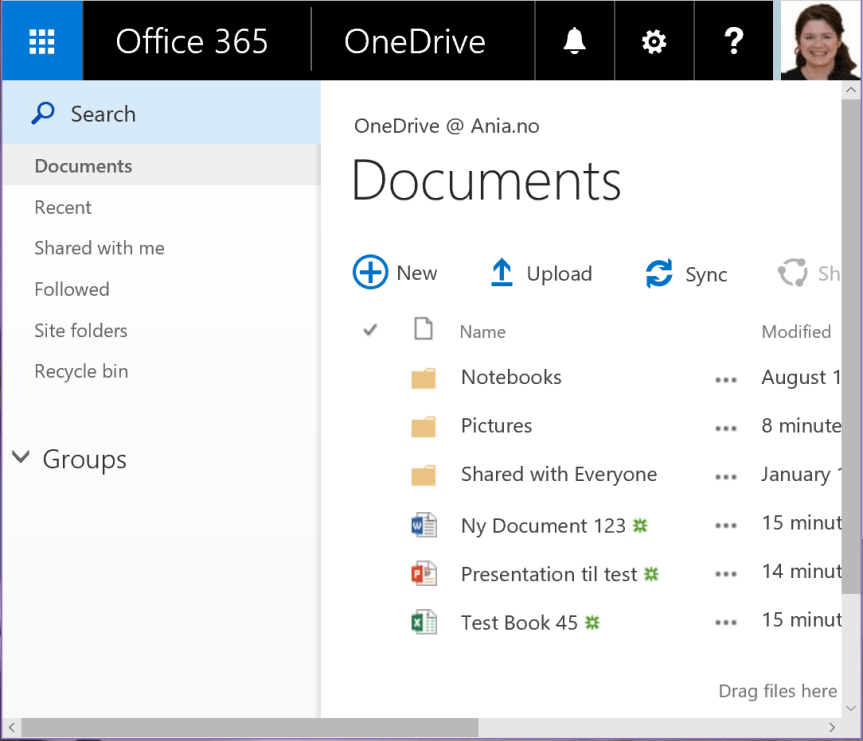
OneDrive for Business is an integral part of Office 365 and SharePoint Server. It provides a place where you can store, share and sync your work files. OneDrive for Business makes it easy to manage and share your documents from anywhere, and work together in real-time, on your favorite devices. Feature Pack 1 brings the modern OneDrive for Business user experience to SharePoint Server 2016. The new OneDrive user experience is a Software Assurance benefit.

old-scale.png


SharePoint App Launcher custom tiles:

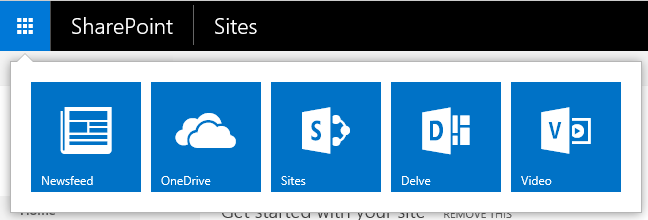
The App Launcher was introduced in SharePoint Server 2016 with the ability to extend the tiles with the SharePoint Hybrid App Launcher to include apps available in Office 365. The App Launcher provides a common location to discover new apps and navigate between on-premises SharePoint and Office 365 applications. Now, in addition to native SharePoint and Office 365 apps, you can also add your own custom tiles that point to other SharePoint sites, external sites, legacy apps and more. This makes it easy to find and navigate to the relevant sites, apps and resources to do your job.

4

Hybrid capabilities:

Unified auditing—Unified auditing gives SharePoint administrators’ detailed visibility into file access activities across all site collections, on-premises and in Office 365. With unified auditing in place, the Office 365 Security and Compliance Center can provide audit logs search for your SharePoint Server 2016 on-premises audit logs in addition to Office 365 audit logs.

This hybrid auditing capability—powered by Microsoft SharePoint Insights—enters preview with Feature Pack 1. Configuration is simple: a few clicks in Hybrid Scenario Picker wizard and you’re ready to start viewing and experiencing unified auditing.

Unified taxonomy:

SharePoint’s managed metadata service application makes it possible to create a taxonomy for information architecture across site collections and web applications. With Feature Pack 1, you can implement a unified taxonomy across a SharePoint Server 2016 farm and Office 365. You can seed the term store in SharePoint Online from your on-premises term store and then manage your taxonomy in SharePoint Online. Replication to on-premises SharePoint is performed by the hybrid taxonomy feature.

Developer enhancements:

OneDrive API 2.0—The OneDrive API provides a common API for access to files located on-premises and in the Office 365 cloud. The API provides access and enables developers to build solutions that target user data stored in OneDrive for Business and SharePoint document libraries

Things to know about a Cumulative Update:

sharepoint2013

In addition to the SharePoint patching installation guide that was published by me few days back I’ve come up with a new article that gives a detailed description about what a Cumulative Update is all about and the things you need to know about a CU.

Please find the details below …

What is a CU?

A  CU (i.e. Cumulative Update) is a software package which includes fixes for problems with Microsoft products that have been reported by customers to Microsoft support in the form of support cases.

What is included?

As the name says, the updates/fixes that are included in the package are always Cumulative (meaning, it includes all the new and all previously released fixes (CUs and PUs) since the oldest supported service pack (within the first 12 months after a Service Pack has been released the CU includes also fixes released after the previous service pack).

How often does Microsoft release SharePoint Cumulative Updates?

Microsoft releases Cumulative Updates (CUs) once in every month.

How does Microsoft test Cumulative Updates before deployment?

All Cumulative Updates are tested extensively before each public release. If an issue, such as a regression, is discovered on a CU that could potentially impact the application, the CU will be cancelled and will be rescheduled to a later CU.

Are CU’s Multilingual?

Yes. The CU package includes fixes for all the languages. So no matter whatever language you download the CU package on, the fixes/updates in the package will remain the same.

What is the prerequisite?

The oldest supported service pack. For instance, all the SharePoint CU‘s post the SP1 release need the SP1 to be installed for SP 2013 .In case of SP 2010, all the CU’s that were released post SP2 need SP2 to be installed first after which you can install those CU’s .

When to install?

CU’s should only be installed to resolve specific issues fixed with the CUs as mentioned in each CU KB article: “Apply this hotfix only to systems that are experiencing the problems described in this article. This hotfix might receive additional testing. Therefore, if you are not severely affected by this problem, we recommend that you wait for the next software update that contains this hotfix.” Or if advised to install by Microsoft Support.

Impact on future fixes: In general, a CU is not a prerequisite of future CUs and PUs. However this may not be the case always .There has been few scenarios where a CU that was released few months back tends to become a pre-requisite for the later CU’s. So before installing any CU please take a look at the related KB article and make sure you have all the necessary pre-requisites in place.

Installation sequence: Installing the CU doesn’t require any specific order, you can do it on any server in the farm and then go on by installing it on other servers in the farm (meaning you can do it on the WFE server first and then on the APP server). Although it’s ok to go ahead and install the CU in any order on the server based on my experience with installing the CU I would suggest you to do it on the WFE server first. Ensure that the WFE is taken out of the Load balancer pool so that it’s not serving user traffic and then go ahead and install the CU and reboot the server. Once the server comes back online verify whether all the components have been installed correctly under Control Panel and the Central administration site is accessible. This is just to ensure that the installed CU didn’t do any harm to the server. It’s ok to lose a WFE but not a APP server, I hope you’re getting the idea here J .Also by any chance if you’re patching the farm on the business hours (which might ideally not be the case unless it’s a TEST /UAT farm) then make sure that the server on which you’re installing the CU is taken out of the load balancer so that the user traffic doesn’t goes to that server. So, the idea to keep in mind is, do it on the WFE servers first and then on the APP server.

Running the SharePoint Configuration Wizard:

Unlike the CU installation you can’t run the “SharePoint Configuration Wizard” in any order, it must be running on the server which is hosting “Central Administration” site first and then on the WFE and APP servers.  It’s a 6-step process which might take an hour at the max (in an ideal scenario) to run and complete. Once it’s completed successfully on the server where CA is hosted, please try opening the CA site and make sure everything looks fine and make sure you’re able to access the SharePoint sites. By any chance if the CA site is not coming up, please stop right there and fix it. Without fixing the CA site issue, please don’t proceed further with running the Configuration wizard on the other servers. This is the basic thumb rule to be followed while patching a SharePoint farm. You need to follow the same procedure for all the servers in the farm.


Patching a SharePoint 2013 farm: Step-by-Step Installation guide.

sharepoint2013

I often to stumble around in my early days as a SharePoint administrator while patching a SharePoint farm with the latest Cumulative updates and after putting together some years of experience in SharePoint administration I finally reached a point where I could confidently patch a farm without encountering any issues.  So, if you’re a SharePoint guy who takes care of the SharePoint environment in your firm and one fine day you’ve been asked to patch the farm then this is the article that you need to follow.

As always you may not be able to get it right the first time but let’s not forget that practice makes a man perfect .  As always try to patch your UAT and TEST environment first and try to validate the farm post the CU installation. Once you confirm that everything looks good then proceed further to the PROD farm .Never ever patch a SharePoint PROD farm directly without testing the patch in other environments, that’s the basic thumb rule to follow as a SharePoint consultant. Now let’s look at the steps in a detailed manner.

ATTENTION:

Be aware that all Updates for SharePoint 2013 require SharePoint Server 2013 SP1 to be installed first.

  1. Downloading the Cumulative Update package from Microsoft site:

Before beginning, please be advised that SharePoint doesn’t need separate CU’s for foundation version as well as for server version. The CU for server version of the SharePoint application (i.e. SharePoint server 2013 enterprise/standard version) will include the fix for the foundation version as well.

Now let’s get started ….

Please look for the required Cumulative update which you want to install and then download it from the Microsoft website. For instance, if you’re planning to install the October 2016 CU for SharePoint server 2013 in your farm then just search as “October 2016 CU for SharePoint server 2013 “and you will get the link to download the package.

Ex: For October 2016 CU, this is the download link: _ https://support.microsoft.com/en-us/kb/3118366 .

In lieu to the MS site, you can also refer to Todd Klindt’s blog. This blog provides the list of all the CU’s and it provides the link to download the respective update. In addition to that Todd Klindt does an awesome job on reviewing all the CU’s that has been released for SharePoint. The reviews contain information such as the bugfixes involved in the CU, the issues that got newly introduced post installing that CU and what to do to fix the new issues.

Ex:  For October 2016 CU, you can refer this link in Todd Klindt’s blog site: _ http://www.toddklindt.com/blog/Regressions/sp2013oct2016cu.aspx

1

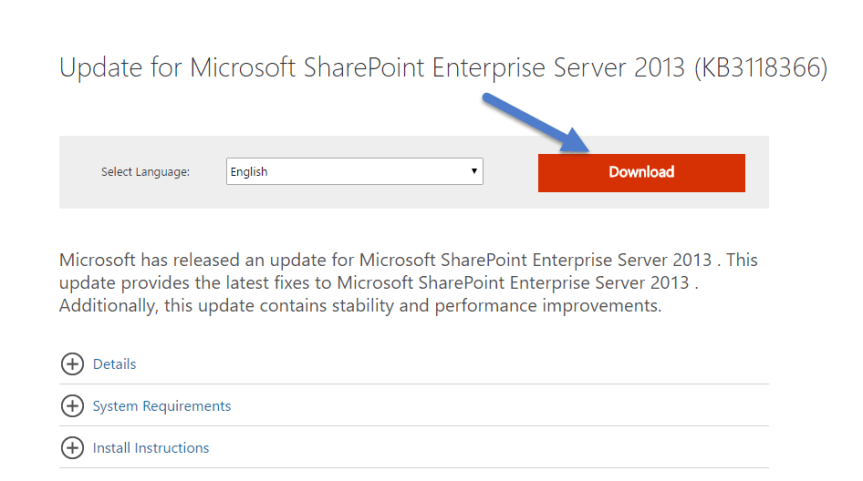
Now to download this CU, please click on the download link and you will be redirected to Microsoft site from where you need to download the CU. Choose the appropriate language and click on the “Download button” as shown in the image below.
2

The next page will ask to choose the files you need to download, please check all the three files and make sure that you’re downloading them to the same folder.
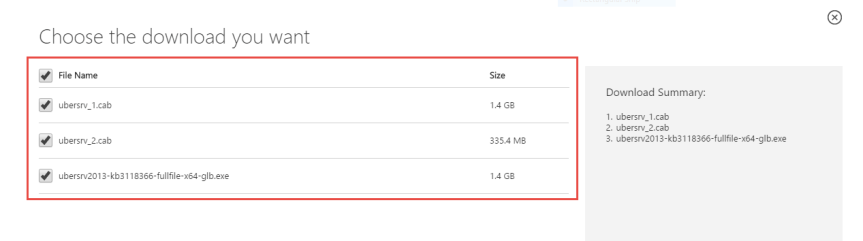
3So, till now we looked on how to download the CU packages, now let’s look at the things which has to be backed up prior to patching your farm.

2. Taking necessary backups:

There are certain things which has to be backed up prior to patching your environment and please find the details below.

a) First take a SharePoint farm backup using the backup option in Central Administration site. You can also do this using the below mentioned PowerShell command. Also refer this TechNet link to know in detail about the SharePoint farm backup.

Backup-SPFarm -Directory <BackupFolder> -BackupMethod {Full | Differential} [-Verbose]

b) You can schedule the Farm backup the night prior to CU installation hoping that no changes will be made to SharePoint farm post that . If you’re planning to patch the PROD farm on Saturday morning with appropriate downtime then please schedule a farm backup at midnight on Friday.

c) Take the necessary IIS backups.

d) Also take a backup of the web. config file in IIS. This is the place where all the customizations are saved. Take a look at this link to understand how to back up the web.config file in SharePoint using PowerShell.

https://sharepintblog.com/2011/09/15/backup-sharepoint-web-config-file-with-powershell/

e) Optionally you can also backup all the customizations in the farm if your SharePoint farm is heavily customized. Take a look at the TechNet article link mentioned below to know in detail about backing up the customizations in a SharePoint farm.

https://technet.microsoft.com/en-us/library/ee748642.aspx

f) Also back up all the WSP files that’s deployed in the farm. This is not a mandatory step but if you feel that this is required, you can do this using the below mentioned PowerShell script.

                                       $farm = Get-SPFarm

                           $file = $farm.Solutions.Item(“solution.wsp”).SolutionFile

                                       $file.SaveAs(“c:\Solution.wsp”)

g) Finally once all the backups have been taken the most important thing to do is to have a Snapshot of all your SharePoint servers and if possible the backend SQL server too. Though you have a complete farm backup in place, please note that it’s not enough to do a complete farm restoration if something goes wrong and in such cases you might need to rely upon the snapshots for restoration. Take a look at this link below to know in detail about SharePoint Snapshots.

https://blogs.msdn.microsoft.com/mossbiz/2013/01/14/sharepoint-vs-snapshots/

3. Pre-Installation Steps:

There are certain pre-requisites that you need to do prior to installing the package and one among them is to run the “Robust Office Inventory Scan” script to find out the status of SharePoint/Office products installed in the server. The script will generate a log by which we can find if there is any patch or chained product missing. If so, you need to fix that issue first. If the log does not mention any errors under “Review items” section, we are good to go. You can also download the script from the below mentioned link

https://gallery.technet.microsoft.com/office/68b80aba-130d-4ad4-aa45-832b1ee49602

Once this is done and you verified that there are no errors reported under “Review items” section in the logs, please go ahead and suspend the “Search service “.

Suspending the Search service is a very important step to do prior to installing the CU and failing to do so might break the search crawl. It may be possible that when you check, there is no crawl running. However, if a crawl is triggered by schedule which occurs during the installation, the search application may crash or lead to inadvertent results. In worst case, you might end up rebuilding the entire search application.

Hence to make sure there is no crawl running currently and no crawl will be triggered during the installation, pause the search application. For this, open “SharePoint 2013 Management Shell” using the farm service account and then execute the below command.

Suspend-SPEnterpriseSearchServiceApplication –Identity “SearchServiceApplicationName”
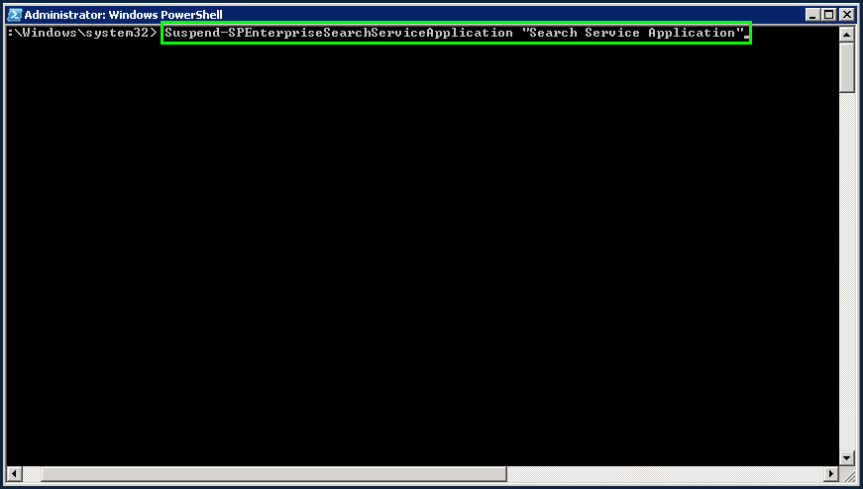
4

 This command will take a couple of minutes to execute. Once it is executed, navigate to the search service application in CA and verify that its status is showing as “Paused: for external request” as shown in the image below

5.png

If you go to Content Sources, you should see the status as “Paused by system”.

6

 4. Installing the Cumulative Update Package:

Once you’ve confirmed that the above mentioned pre-requisites have been taken care, now it’s time to go ahead and install the CU. Please follow the steps mentioned below to install the CU package.

Note: Installing the CU doesn’t require any specific order, you can do it on any server in the farm and then go on by installing it on other servers in the farm (meaning you can do it on the WFE server first and then on the APP server). However, that’s not the case when you would be rebooting the server post the installation or when you would be running the “SharePoint Configuration Wizard”. There’s a specific order to be followed while doing that and I’ll be discussing in detail about that later in this article.

1.  Navigate to the folder where you have downloaded the package and double-click on the package to install it. Please note that it’s mandatory to keep all the three executables (package as well as Cabinet files) in the same folder as shown in the screenshot below.

7.png

2. On the “End user license agreement page”, select the accept check box and click continue.

8

3. Now it will start the installation. Installation will take around 20-30 minutes. It will first start with extracting the files as shown in the screenshot below.
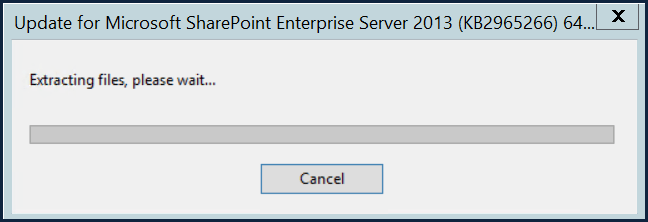
9

4. On the next screen, it will be loading the files to be updated as shown in the image below.
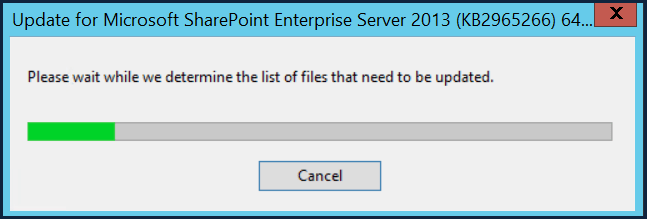
10

5. In the next screen, it will be installing the package as shown in the image below.
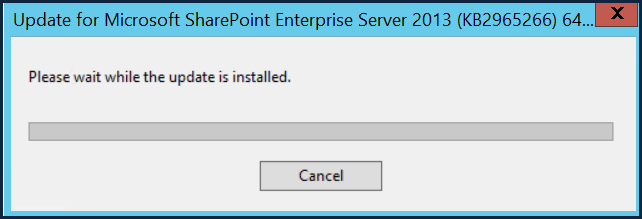
11

6. Post installation, if it prompts for reboot, click Yes as shown in the image below.

12

7. Finally, once the installation is complete, go to Control Panel and verify whether the package has been installed correctly as shown in the image below. For some reason if it’s not showing up here you need to troubleshoot and identify what’s causing the trouble.

13

5. Running the SharePoint Configuration Wizard:

Once you’ve confirmed that the CU package has been installed successfully and it’s showing up correctly under Control Panel now it’s time to go ahead and run the SharePoint Configuration Wizard. However, before doing so I would like to talk a bit about the order to be followed while installing the CU.

As I previously mentioned in this article, it’s ok to go ahead and install the CU in any order on the server. However, based on my experience with installing the CU I would suggest you all to do it on the WFE server first. Ensure that the WFE is taken out of the Load balancer pool so that it’s not serving user traffic and then go ahead and install the CU and reboot the server. Once the server comes back online verify whether all the components have been installed correctly under Control Panel and the Central administration site is accessible. This is just to ensure that the installed CU didn’t do any harm to the server. It’s ok to lose a WFE but not a APP server, I hope you’re getting the idea here .Also by any chance if you’re patching the farm on the business hours (which might ideally not be the case unless it’s a TEST /UAT farm) then make sure that the server on which you’re installing the CU is taken out of the load balancer so that the user traffic doesn’t goes to that server. So, the idea to keep in mind is, do it on the WFE servers first and then on the APP server.

Point to note while running the SharePoint Configuration Wizard:

Unlike the CU installation you can’t run the “SharePoint Configuration Wizard” in any order, it must be running on the server which is hosting “Central Administration” site first and then on the WFE and APP servers.  It’s a 6-step process which might take an hour at the max (in an ideal scenario) to run and complete. Once it’s completed successfully on the server where CA is hosted, please try opening the CA site and make sure everything looks fine and make sure you’re able to access the SharePoint sites. By any chance if the CA site is not coming up, please stop right there and fix it. Without fixing the CA site issue, please don’t proceed further with running the Configuration wizard on the other servers. This is the basic thumb rule to be followed while patching a SharePoint farm.

Now, let’s look at the steps to run the SharePoint Configuration Wizard….

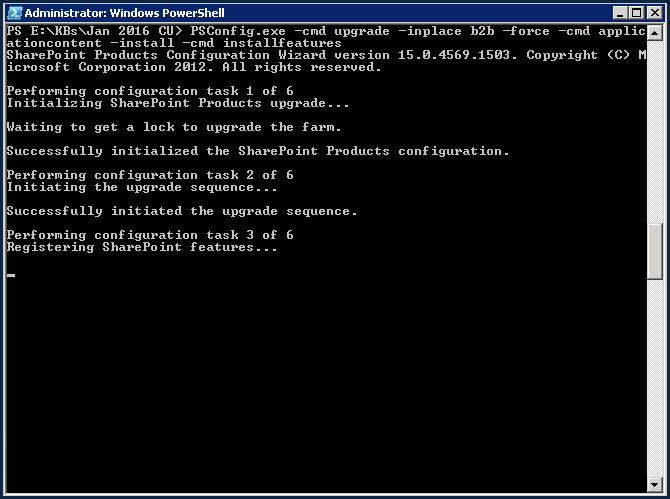
  1. Open SharePoint management shell with elevated permissions using the farm service account and run the below mentioned command as shown in the image below.

PSConfig.exe -cmd upgrade -inplace b2b -force -cmd applicationcontent -install -cmd installfeatures

14

2. It will take few seconds and start the upgrade process.

15

3. It’s time to go for a coffee now as it will start running a series of 6 steps to finish the configuration. Please check the steps below.

16

17

18

  1. The configuration wizard will have 6 steps which will be executed one by one. It should complete all 6 steps successfully. If it fails somewhere in the middle, you will need to check the “PSDiagnostics Logs” in the ULS logs folder. Find the issue, fix it first and then run the above command once again. Once all the steps are completed successfully, you are done.
  2. Repeat the above mentioned 4 steps on all the servers in the farm.

Once the Configuration wizard is successfully done running all the 6-steps it’s time to go ahead and do some post-installation steps ,let’s look at them.

6.Post Installation steps:

  1. Verify all the SharePoint and IIS services are up and running. If not, start them.
  2. Go to IIS Manager and verify application pools and sites are in started/running state.
  3. Open CA and the web applications and make sure they are opening fine
  4. Go to “Manage servers in the farm” section in CA and check for the version number on Configuration database version and make sure it’s showing the version number correctly. Ex: For January 2016 CU, it should show the version number as 15.0.4787.1000 as shown in the image below.

19

5. Check “Manage Servers in this Farm” page in Central administration. This page will also tell you if you need to run the SharePoint Products Configuration Wizard on a server to complete the upgrade process. Make sure every server in your SharePoint farm is upgraded and displays the status as “No Action Required” as shown in the image below.

patch 3.png


6. You can check the patch status on each and every individual server with “Manage patch status page” (Central Administration >> Upgrade and Migration >> Check product and patch installation status)

patch 1.PNG

patch-2


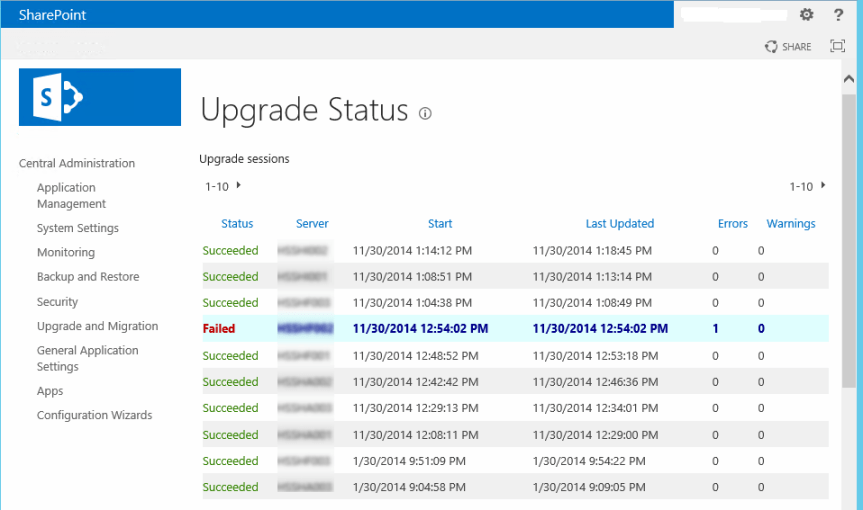
7. Also check the “Check upgrade status” page which will give you the detailed information on upgrade status as shown in the image below.
patch-4


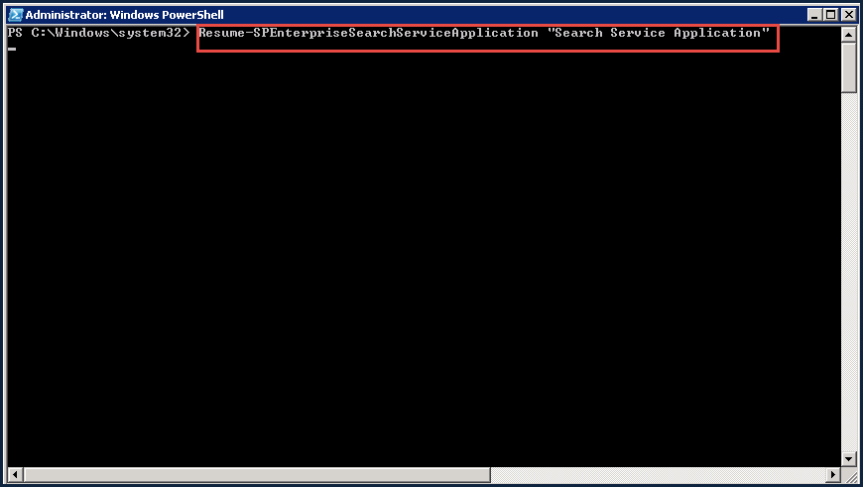
8. Finally, resume the search service application using the below mentioned PowerShell command

Resume-SPEnterpriseSearchServiceApplication –Identity “SearchServiceApplicationName”
20

  1. Verify search service application is not paused and it’s in running state.

21

10. Also, please go to the content sources section in the Search administration page and kick start a full-crawl.

11. Now add the servers back to the Load balancer pool so that they start serving user traffic and try to load the SharePoint sites from PC’s which belong to different geographical locations and check the time taken to open the site.

12. Also, check the custom functionalities in the site such as third party WSP’s, site features, custom web parts, custom site templates etc. and make sure everything works fine.

13. You could also run the ROIScan tool post the patching and verify the status of all the patches that has been installed and ensure that nothing is showing up under “Review items” section in the logs.

So finally, once you confirm that everything remains fine and the SharePoint farm remains intact post patching then this confirms that you’ve successfully patched the SharePoint farm. As I already mentioned in the beginning, you may encounter some issues as well as some errors while patching the farm and please don’t feel bad or demotivated by that. It takes a lot to successfully patch a SharePoint farm and by experience you can master in that.

If you ever feel that the patching task takes a lot of time and you need to find an alternative solution for that, please take a look at this link to know about the scripted way of patching a SharePoint farm.

https://blogs.msdn.microsoft.com/russmax/2013/04/01/why-sharepoint-2013-cumulative-update-takes-5-hours-to-install/

Thanks for reading this post ……. Happy SharePointing!!!!!!


October 2016 CU for SharePoint Server 2013 CU is out :Fix for Follow count web part issue is included in this CU

Microsoft has released the October 2016 CU for SharePoint server 2013 and it’s available for download from the below mentioned link .

https://support.microsoft.com/en-us/kb/3118366

As previously mentioned in my blog, the fix for the “Follow count web part” issue has been included on this CU. You can verify that by taking a look at the “Improvement and Fixes” section of this CU.

Improvement and Fixes: _ https://support.microsoft.com/en-us/kb/3118355

Please check this link to know in detail about the “Follow count web part” issue which got introduced in August 2015 CU. I’ve given a detailed explanation about this issue on a previous blog post .

So the bottom line here is , if you’re facing the “ Follow count web part “ issue in your environment where-in clicking on the “Follow count web part” throws you an error stating “Followed Count Web Part can’t be displayed because of null reference exception” then patching your environment with October 2016 CU should fix it .

Happy SharePointing !!!       Thanks for reading this post .

Is it worth choosing SharePoint over file server?


1

So this post is on a well-known topic which has been going on for years now as a debate. I’m pretty sure a lot of you would have read many articles/blog posts on this topic .However, in this post I’ll be discussing about my point of view on choosing “SharePoint” over “file server”. So in order to get started, let’s ask this question for ourselves whether SharePoint can be the right alternative solution for a file server? Let’s assume that you’re the IT person in your company and the business comes to you stating that we need to decommission all the File servers and go ahead with SharePoint for storing user’s contents and they want you to do some research on whether SharePoint can be the right alternative for a file server, then the contents that I’ll be discussing on this article should suffice your need. Well I understand that it’s too late for me to come up with an article on this topic considering the fact that SharePoint has been a successful product for years now .However, I still see a lot of companies who are actively working on migrating their contents from a file server to SharePoint and still most of them are doing a lot of research on whether SharePoint is the right platform for file storage & collaboration when compared to a file server and I hope this article will give them some insights.

So let’s get into business now ….

First let’s try to understand what a file server is all about and why any firm would use a file server to store contents.

File server:

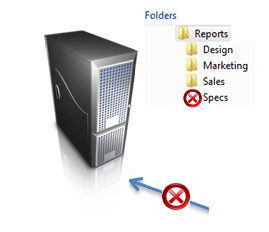
In a computing environment a file server is nothing but a heavily configured computer which is connected to a network that has the primary purpose of providing a location for shared disk access, i.e. shared storage of computer files (such as documents, sound files, photographs, movies, images, databases, etc.) that can be accessed by the workstations that are connected to the same computer network.

2.png

So as said in the above definition , the file server will be connected to the same network where all the end user’s work station has been connected and the users can store the documents from their PC’s file system to the file server so that it’s accessed by all . Let’s consider a scenario where a group of employees are working on a project and they want to store some documents, videos and audio files etc. …about the client and they want to store it in a place which can be made accessible by everyone then a file server would suffice that purpose. Let’s take a look on the features of a file server to understand more about the use of a file server.

3.jpg

Features of a file server:

  1. Has large disk space and RAM size to store a large number of files of any type ( provided that your firm’s IT department has not restricted any specific file type )
  2. It has been given access to all the employees or a specific team (i.e. HR, finance team) in your domain so that they can use it for storing and accessing contents.
  3. It has NTFS file and folder level permissions configured within it so that user’s don’t get to access other team’s content (meaning users have access only to a specific file or folder).
  4. Users can map a folder from the file server to their workstations as network paths so that they can directly dump their files to the file server using few mouse clicks.
  5. It can be used to store software packages, executables and also large multimedia files.

Now once you take a look at the basic features of a file server it’s quite obvious that you would have a question within your mind as …Isn’t SharePoint much cooler than this? The answer is yes but with certain drawbacks and I will discuss about this later on this article.

Let’s take a look at the basic functionalities of SharePoint and see how it’s different from a file server.

SharePoint:

4

To be more specific SharePoint is mainly an enterprise collaboration platform rather than a content storage platform .So what I mean by this is, you can obviously store your contents in SharePoint with certain limitations but SharePoint is brilliant in terms of collaboration when compared to a file server. This would make some sense if we take a look at the features of SharePoint.

Features of SharePoint:

  1. Can be used as a one stop for end users to store their documents and also to collaborate within themselves.
  2. It has some out of the box functionalities such as workflows, two –stage recyclebin and it also maintains document versions which is not feasible in a file server.
  3. SharePoint gives you a web based access to your files from anywhere (work, home, the airport) and from anything (PC, MAC, Tablet, mobile devices, whatever) – in a Web browser or familiar Explorer view.
  4. It can provide you Check-In/Check-Out abilities – when a file is checked out, others that try to edit the file will be informed that you have it, and it will prevent them from overwriting the changes you have made to the document that you’ve been working on.
  5. You can have alerts configured for a document library, list or SharePoint site so that you get mail alerts to our mailbox for all the modifications.
  6. You can access your SharePoint site from anywhere and from any device which is not the case with a file server. All you need is an internet connection and you can access all your files from any device.
  7. You can work on a document offline and sync that with SharePoint once you’ve made all the necessary modifications to the document.
  8. More than anything else the “ search functionality “ in SharePoint is such a cool feature which can help you search for a document in whichever way you require and it makes search very easy for the end user. I hope we’re all aware how painful it is to search for a file in a file server using the windows search box.

So by comparing the functionalities of both SharePoint and file server anybody would obviously say that SharePoint is the right go to platform for content storage and collaboration. But let’s also be aware that SharePoint as a product comes with certain limitations and boundaries and it’s quite hard to break them.

The links below should help you understand about the software boundaries and limitations in each version of SharePoint .It’s quite important that you abide by these boundaries and limits for the optimal performance of your SharePoint farm.

Software boundaries and limitations for SharePoint 2010:_ http://www.jeremytaylor.net/2010/10/03/sharepoint-2010-boundaries-thresholds-and-supported-limits/

Software boundaries and limitations for SharePoint 2013: _ https://technet.microsoft.com/en-IN/library/cc262787.aspx

Software boundaries and limitations for SharePoint online: _ https://support.office.com/en-us/article/SharePoint-Online-software-boundaries-and-limits-8f34ff47-b749-408b-abc0-b605e1f6d498

Once you take a look at this boundaries I believe you may start wondering whether SharePoint is the right candidate for large content storage and that’s exactly the point that I’m trying to make here. There are certain scenarios that I’ve outlined below for which the file server would be the right candidate when compared to SharePoint.

  1. File servers are preferred for large document storage. SharePoint best handles documents in the 50- to 300-MB range and can handle documents up to 2 GB with configuration modifications, but documents over 2 GB must be stored on a file server. (This limits have changed in the later versions of SharePoint. However you can’t have very large files as you do in a file server)
  2. Software distribution points for hot-fixes, updates, and application distribution is handled much well from a file server.
  3. File servers are better suited for My Documents redirection and backups. Many companies use group policies to redirect the location of users’ My Documents so that they can back up their content each night. Creating mapped drives to document libraries and then using policies to redirect users’ My Documents to those libraries is an untested and unsupported scenario in SharePoint. File servers should be used for this purpose and are supported.
  4. Storing databases in a SharePoint list is the same as storing a database within a database and is not recommended. If your data need triggers or stored procedures, you may look at the workflows and events as mechanisms for this process, but creating triggers or stored procedures inside the SharePoint databases is not supported.
  5. Database type files such as .mdf, .pst, and .ost are best stored on a file server rather than a SharePoint server.
  6. Developer source control of emerging assemblies and new code files are better managed in Visual Studio Team Services, which requires a file server.
  7. Archive files that will not change and will not be included in future collaboration are best stored on file servers.

Also from a licensing perspective when we talk about SharePoint we are not just talking about SharePoint alone as an application, we are indeed talking about the Windows server license (i.e. CAL)  which will acts as the underlying Operating system, SharePoint license and also the backend SQL server’s license . Let’s take a look at the different topologies available in SharePoint so that we can understand about how licensing works in SharePoint and also to know more about the logical architecture of SharePoint.

A SharePoint farm can  deployed on one, two, or three tiers, as follows and this can increase based on how you want to scale out your SharePoint farm for optimal performance .

Single-tier deployment:

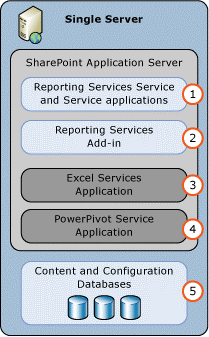
In a single-tier deployment, SharePoint server and the database server are installed on one computer as shown in the image below.

5.gif

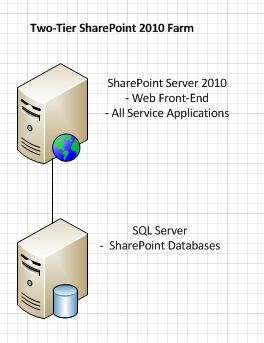
Two-tier deployment:

In a two-tier deployment, SharePoint components and the database are installed on separate servers. This kind of deployment is mostly called as a small farm. The front-end Web servers are on the first tier and the database server is located on the second tier.

6.png

Three-tier or multi-tier deployment:

In a three-tier deployment, the front-end Web servers are on the first tier, the application servers are on the second tier, which is known as the application tier, and the database server is located on the third tier. This is mostly used for medium and large farms.

7.png

I’ve also written a detailed post on how licensing works on SharePoint and you can take a look at that post to know more about SharePoint licensing.

Now that we have seen a lot about licensing and the topology it’s clear that SharePoint is expensive when compared to a file server and you really need make a correct decision on when to choose SharePoint and when not to .The cost of SharePoint farm may increase depending on the size of the farm that you choose to build. Also please note that you need to invest on Network load balancers as well such as F5 for so that user traffic is managed properly .It would also be worthwhile to have clear understanding about the strengths and limitations of SharePoint so that you can choose the right platform for your company.

As far as the strengths are concerned, listed below are the major strengths of SharePoint:

  1. Collaboration & Document Management –>SharePoint is the best tool in the market as far as collaboration is concerned because it’s very useful for users who work on the same document for their day to day work.
  2. Integration–>SharePoint can integrate very well with other Microsoft products such as Exchange server and Skype for business server and in addition to that it can also be integrated with other ERP applications such as SAP and Oracle.
  3. Automate–> One good example for this is the workflow feature which comes OOTB with SharePoint.
  4. Backups–> You can have backups configured for your SQL databases that host the SharePoint data in it so that your data is always safe.
  5. Versioning–> Document versioning is once again a cool feature where you can have multiple versions of the same document and SharePoint does a brilliant job in saving this on the SQL database without consuming much disk space on the SQL server.
  6. Upgradation –>You can always go ahead and upgrade your SharePoint server with latest CU’s so that you get all the latest functionalities and bug fixes released by Microsoft and in addition to that you can also upgrade your SharePoint application from one version to another to meet business needs ( i.e. from SharePoint 2010 to 2013 or from SharePoint 2010 to Office 365 )
  7. Hybrid functionality  –>You can have a server version of SharePoint running on your datacenter and the same can be integrated with the cloud version of SharePoint ( i.e. SharePoint Online –Office 365) and hence leverage the functionalities of SharePoint Online from your on-premises environment itself .
  8. Accessibility –> You can access the files in your SharePoint from anywhere and from any device .All you need is a good internet connection
  9. Right Business Product –>SharePoint is not something which is just used for content storage and collaboration .Its other major purpose is for creating portals and many companies use SharePoint as their Intranet portal.

Now let’s see the limitations in SharePoint:

  1. Storage capacity –>As already discussed above, SharePoint as a product comes with some inbuilt limitations and the storage capacity is one among them. It’s not really a good idea to break these limits.
  2. File sizes –> Once again another issue with SharePoint is the file size .It doesn’t support files that has large size.
  3. File names –>SharePoint has a known limit of 256 characters for a file name (this includes the complete path which includes the site name, document library name as well as the file name for a file.)
  4. File types–>SharePoint doesn’t support all the file types (meaning you can’t go ahead and upload an executable file to a SharePoint document library) .There is list of supported file types in SharePoint.You can check that by clicking here.
  5. Technical skillset –>Working on SharePoint needs some proper skillset .Without having the required skillset it’s not possible for your end users to use SharePoint effectively.

So in order to conclude before choosing SharePoint over file serve to store contents for collaboration it’s always better to reconsider the exact need of the business and ask yourself whether SharePoint will support them. If not then you’re probably wasting your time and money in implementing SharePoint .Of course SharePoint is a great platform but it can be great only when it’s used for the right purpose.

To put it in simple words if the business need is to have a platform to suffice the below mentioned needs then SharePoint is the right go to platform.

  1. To store Customer related information
  2. To work on documents related to a specific Projects
  3. To schedule some Tasks
  4. To store documents which speaks about Processes and Procedures
  5. You need ability to have versioning, auditing or retention policies
  6. Provide search extensibility on documents for easier finding or navigation
  7. Your end users are looking for some automation.
  8. Your end users are aware of how to use SharePoint and they have the technical skillset to access SharePoint and they know where to go to get what they want.

On the other hand if the business is looking for a platform just to store documents , store contents with large file size, store executable file and is also looking for some cost cutting then it’s better to choose a file server .

On my years of experience till now, I’ve seen a lot of successful SharePoint implementations and I’ve seen some failed one too. So it’s always good to have a proper knowledge on both the platforms and choose the one that best suits your needs.

Thanks for reading this post …..Happy SharePointing!!!


Removing an External user from SharePoint Online using SharePoint Online management Shell:

1

This post discusses about the steps that are supposed to be followed to remove an external user from SharePoint Online (Office 365). An external user is one who’s not a part of your domain (meaning his/her user account won’t be present in your on-premises Active Directory which later got synced with Azure AD nor would be present on Azure AD alone). To be more elaborative…An external user is someone outside your organization (i.e. domain) who can access your SharePoint Online sites and documents but does not have a proper license assigned to him to access SharePoint Online or any other Microsoft Office 365 services. These so called “External users” are not employees, contractors, or onsite agents for you or your affiliates.

External users inherit the use rights of the SharePoint Online customer who is inviting them to collaborate. For example, if an organization purchases an E3/E5 Enterprise plan, and builds a site that uses enterprise features, the external user is granted rights to use and/or view the enterprise features within the site they are invited to. While external users can be invited as extended project members to perform a full range of actions on a site, they will not have the exact same capabilities as a full, paid, licensed member within your organization.

So let’s take a look at the steps to remove an external user using SharePoint Online Management Shell…

Note: Before proceeding further, make sure you have installed and configured SharePoint Online management shell in your PC. I’ve created a post on that and please check this link to access that.

  1. Start the SharePoint Online Management Shell.
  2. Type the following cmdlet:

$credential  =  Get-Credential

Once you enter this cmdlet you would get a windows dialog box asking for your Office 365 credentials, please enter your credentials and then validate it by using the $credential cmdlet . This will return the UPN with which you signed in.

2.png

3. Once done, run the below mentioned cmdlet to connect to your SharePoint Online tenant.

Connect-SPOService -Url https://365vignesh-admin.sharepoint.com -Credential (Get-Credential)

3.png

  1. Get the external user’s information (i.e. the one whom you want to remove) by running the below mentioned cmdlet.

 $user = Get-SPOExternalUser -Filter user@domain.no  #Provide the email address of the user

4.png

 5. Now once you have retrieved the external user’s information run the below mentioned cmdlet to remove the user as shown below

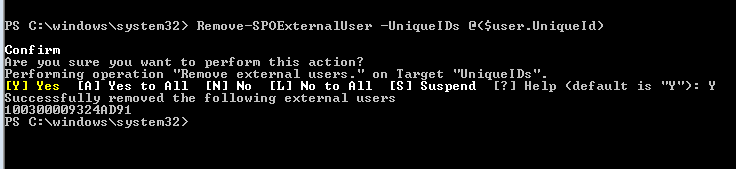
 Remove-SPOExternalUser -UniqueIDs @($user.UniqueId)

Click Y to confirm to remove user as shown in the screen-shot below.

5

 6. Once done, in order to remove the user from all the SharePoint Online site collections you need to run the below mentioned cmdlet. Please note that this command has to be ran for all the site collections where the user has been granted access to.

Get-SPOUserSite https://365vignesh.sharepoint.com/teams/no02 -LoginName alan_eric-nolen.no#ext#@365vignesh.onmicrosoft.com

Here the login name is what you get when you search for this user on “Manage user profiles” section in SharePoint admin center.

6

7. Now remove the external user using the below mentioned cmdlet.

Remove-SPOUser -Site https://365vignesh.sharepoint.com/teams/no02  LoginName alan_eric-nolen.no#ext#@365vignesh.onmicrosoft.com

7

8. You can verify whether the user has been removed successfully by running the “Get-SPOUser” that we ran in the previous step and it should return an error stating that the user cannot be found. This confirms that the user has been removed successfully.

9. Now in addition to all the above mentioned steps you need to remove the user from the UserInfo list as well so that the user doesn’t show up in the people picker field when you search for that user. For that go to the site collection URL in question and edit the URL by adding the following string to the end of it.

_layouts/15/people.aspx/membershipGroupId=0

 For example if the site collection name is https://<vignesh&gt;.sharepoint.com then this is how you need to edit the URL by adding the string.

https://.sharepoint.com/_layouts/15/people.aspx/membershipGroupId=0

10. Finally, once the user has been removed from SharePoint Online as well as the site collection in question, the external user’s profile will still show up under “Manage user profiles” section in SharePoint admin center. This is quite normal and please wait for SharePoint Online to remove the user’s profile from the SharePoint admin center. This task will take couple of hours and hence please check the status of that user’s account in SharePoint Online admin center after few hours .You would notice that the user’s profile has been removed successfully.

8.png

11. Once you have confirmed that the user’s account has been removed successfully, you need to clear the browser cache. Please note that SharePoint Online uses browser caching in several scenarios, including the People Picker. Even though a user was fully removed from the system, he or she may still remain in the browser cache. Clearing the browser cache should resolve this issue

Thanks for reading this post ….Happy SharePointing!!!


Great opportunity for Office 365 folks:

office 365.png

Microsoft has  planned and set up 8 different Office 365 Labs webcasts that will be delivered during September and these are the topics that will be discussed in the webcast.

1. Office 365 Labs – Using PowerShell to automate tasks
2. Office 365 Labs – Mastering Azure AD Connect
3. Office 365 Labs – Mail flow
4. Office 365 Labs – Getting the best out of Outlook and Exchange Online
5. Office 365 Labs – OneDrive Synchronization 101
6. Office 365 Labs – Sharing and collaboration with internal and external users in SharePoint Online
7. Office 365 Labs – AD FS and multi-factor authentication explained
8. Office 365 Labs – Exchange Online compliance features (In-Place Archive, In-Place Hold, eDiscovery)

Please use this link below to enroll yourself for these sessions

Office 365 Labs webcasts coming in September

Clearing the myths between Request Management service in SharePoint 2013 and Network Load balancer:

Alright. So the heading of this article would have pretty much given a brief explanation about what this post would be about and hence I’m not going to write a brief introduction session here about this post. I’m pretty sure that a lot of SharePoint Geeks out there have written a lot about Request Management service in SharePoint 2013 and Load balancer configuration for a SharePoint 2013 farm, however there seems to be a lot of confusion among SharePoint practitioners in understanding the difference between these two .I didn’t mean to offend anybody here but the features and functionalities of these two are so similar so that anybody would possibly get confused. So in this post I’ll be explaining what these two mean in detail and how they differ from each other (meaning where the boundary for Request Management service stops when compared to a load balancer).

Now let’s get into the meats and potatoes ….

1. Request Management service in SharePoint 2013 :

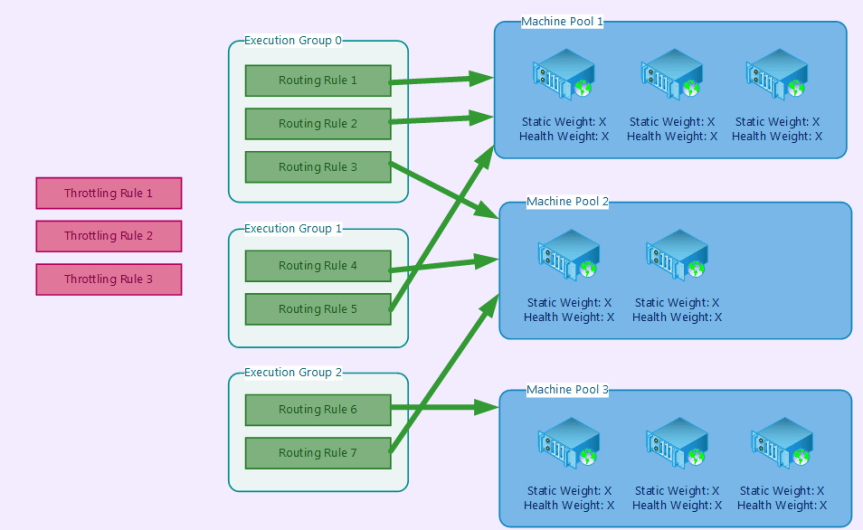
For those who are new to SharePoint 2013 or if you’re hearing about “Request Management service”  for the first time , please go ahead and take a look at my blog post on Request Management service .  I’ve given a detailed explanation on what “Request Management service” is all about and how it works. However, to put it in simple words….Request Management service take care of managing  incoming requests by evaluating the logic rules set against them in order to determine which action to take, and which machine or machines in the farm (if any) should handle the incoming requests . Now there’s a lot of mechanism which happens in RM service, please take a look on Spencer Harber’s article on Request Management service to know about that in detail. As always Spencer has did a fabulous job in explaining it on detail.

In addition to this there are couple of other important points that one should be aware of as far as Request Management service is concerned.

  1. Request manager is the first code that runs in response to HTTP requests. It is implemented in SPRequestModule
  2. Request Manager requires the SharePoint foundation web application service to be started on the server.
  • Request manager service should only be started on a server that’s acting as a WFE, else it’s of no use.

1.png

2.Load balancer for SharePoint :

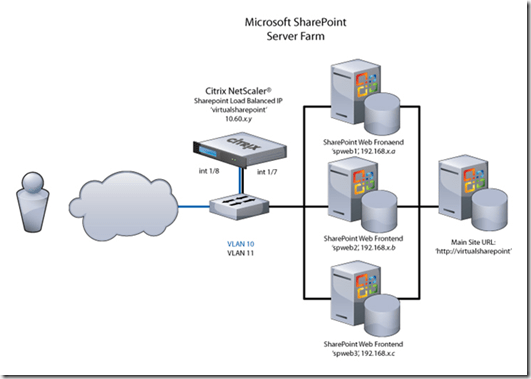
Now as you’re aware high availability in SharePoint is achieved in the web tier level by deploying multiple front end servers to serve web pages and host web parts. A load balancer directs traffic across these servers, monitors health and ensures that the best possible target is used for individual requests. The default SharePoint architecture works in such a manner that any server in the farm which has the “SharePoint foundation web application service “turned on will be acting as a Web Front end server. Hence you can go ahead and turn off this service on a server that is acting as an App server. However, if your servers have enough resources then there shouldn’t be any harm on leaving it on, as in case if you WFEs go down you can let APP server handle user web requests temporarily.

2.png

Now let’s discuss on how they differ from each other so that we don’t get confused by their similar functionalities:

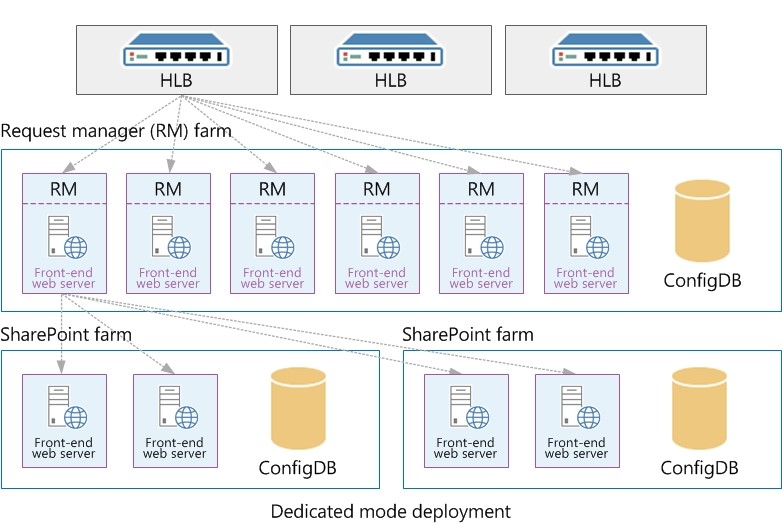
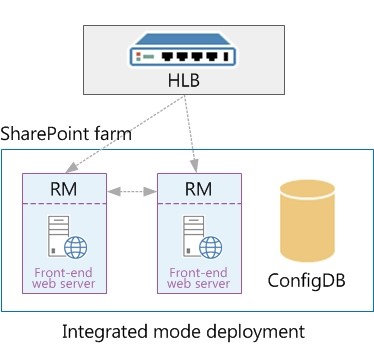
The first thing which we need to understand is that the Request Management service becomes effective only when the user request gets passed the Network Load balancer which takes care of handling user traffic . As you’re aware the NLB is the one which takes care of handling user traffic and if a user’s request doesn’t even gets passed the load balancer then technically it means that the user’s request is not hitting the SharePoint farm where the Request management service is configured .To put it in simple words the user’s request need to pass the 1st gate which is the NLB and only upon the successful completion of that the user’s request will hit the appropriate Web front servers where the Request Management service will be configured . So once the user’s request hits the SharePoint farm then the RM service will validate the request and will then act accordingly. I believe the image below will give you a clear understanding of how this is configured for a SharePoint 2013 farm.

Dedicated mode:

3.jpgIntegrated Mode:

4.jpg

In both the modes you can notice that the user traffic first has to go through the HLB before it reaches the SharePoint 2013 farm where the Request Management service is configured. Now if you’re more curious in understanding the difference between the above said two modes ….In the first mode (i.e. Dedicated mode) you will have a SharePoint farm configured only for Request management service (meaning all the servers in that farm will have only the RM service turned on the WFE’s) .In this mode the SharePoint farm which has the RM service configured will be configured in such a way that it’s kept between the LB and the actual PROD server where the user’s content exist. The second one is called the (Integrated mode) where you will find the RM service being turned on all the WFE servers in the SharePoint farm. The first mode is pretty expensive bearing in mind the license costs and will be mostly used in very large SharePoint farm implementations .The second mode is pretty affordable because in this mode all the WFE servers which are part of the actual farm will have the RM service turned on in it.

To conclude RM service and NLB/HLB are two different things altogether and they don’t suffice the same purpose .The NLB/HLB takes care of sending the user request to the appropriate WFE’s whereas the Request management service takes care of how to handle that incoming request which is sent to the WFE server . Both these are optimal for any successful SharePoint implementation.

Thanks for reading this post …..Happy SharePointing!!!


Fix for follow web part broken issue in SharePoint My site:

Alright as mentioned in my previous blog post , we heard back from Microsoft about the fix for this issue and looks like Microsoft will be rolling out the fix for this in October 2016 CU for SharePoint server 2013. So if you’re facing this issue in your environment please wait for October 2016 CU as that should include the fix for this.

Happy SharePointing!!!

foloow 1