


If your company or school uses Microsoft Intune for Mobile Device Management and Mobile application management, you can enroll your iOS device to get access to company email, files, and other resources. When you enroll your devices, your IT department can manage the resources, keep them secure, and give you the freedom to use your preferred device to get your work done.
The steps mentioned below should be followed by all users who hold an Apple device to enroll their iPhone/iPad with Microsoft Intune so that your device can be managed by Microsoft Intune.
Note:
- Please make sure that your device has a good Wi-Fi connectivity or a good 3G/4G connection before doing the below mentioned steps.
- Please ensure that your iOS version is not less than 8.0
Detailed steps:
- Open the App Store and search for Microsoft Intune company portal app as shown in the image below.

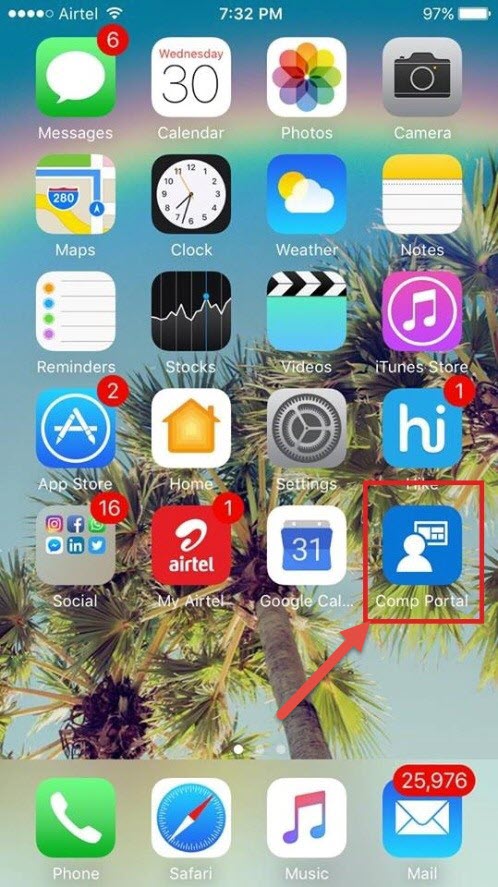
- Download and install the Microsoft Intune Company Portal app. Once done you should be able to see it in your Apple device home screen as shown in the image below.
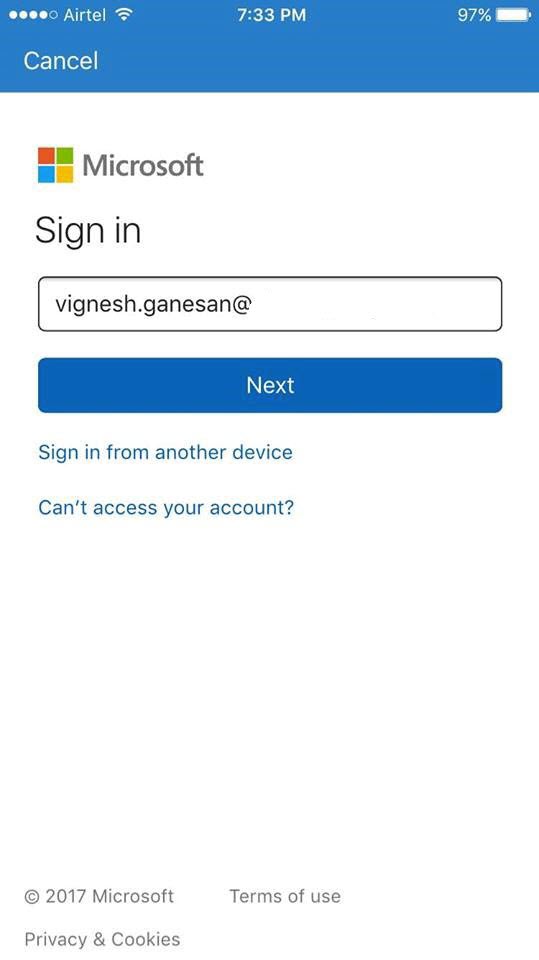
3. Open the Intune company portal app and sign in with your Office 365 UPN address as shown in the image below.
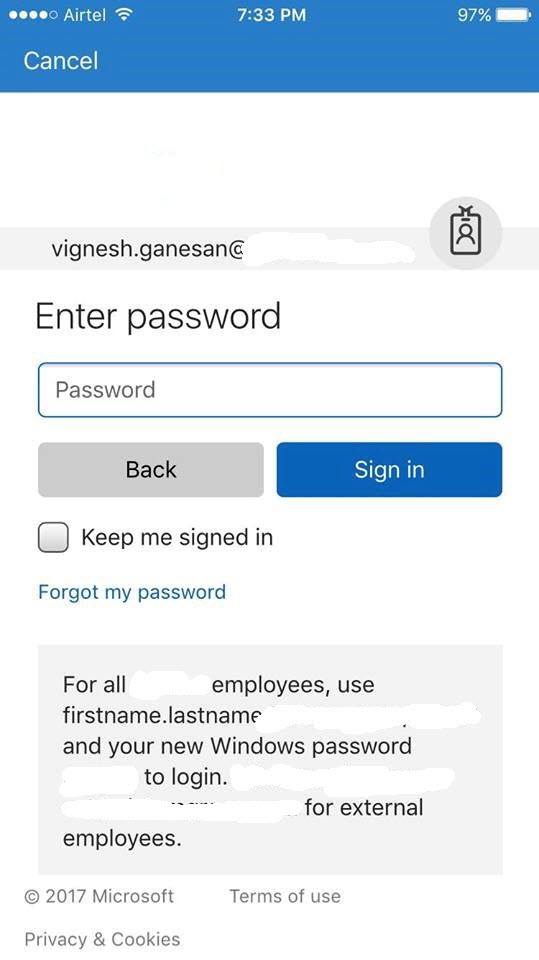
- Enter your Office 365 UPN password as well as shown in the image below.
5. Once done you would be redirected to the Company Access setup page as shown in the image below.
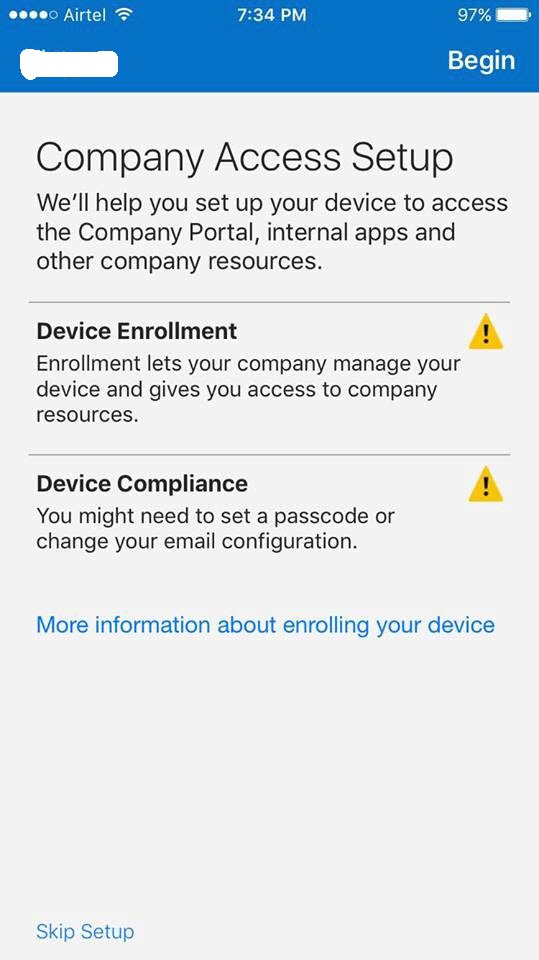
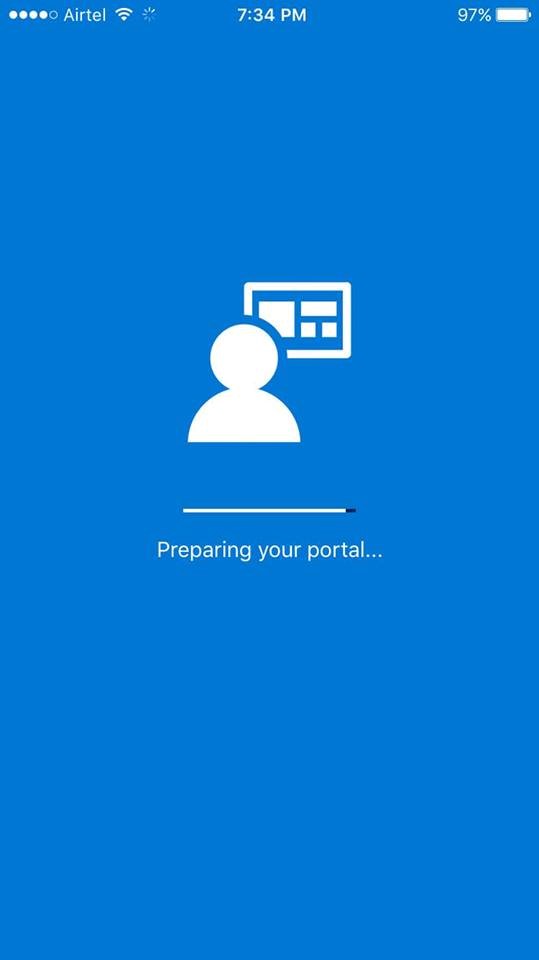
6. Click on Begin on the top right corner of the screen and this will start preparing your portal as shown in the image below.
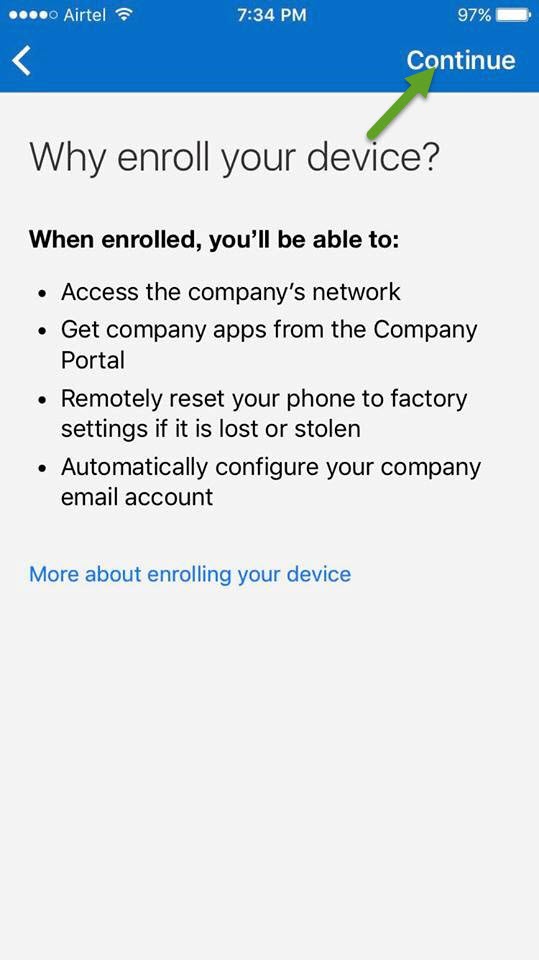
7. You would be taken to a screen which describes why you need to enroll your device , you can go through the guidelines if required and click on continue as shown in the image below.
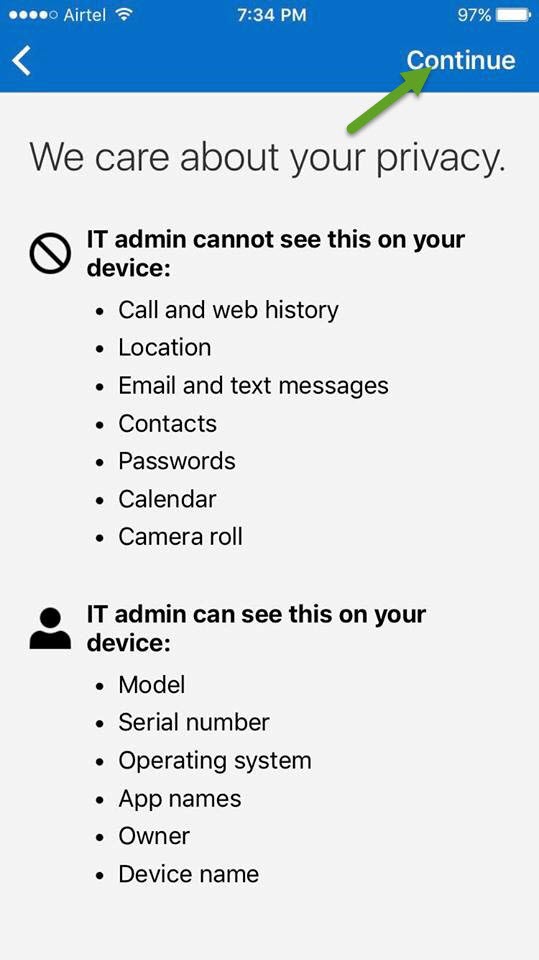
8.The next screen will tell you what can be viewed by your IT Admin once the device has been enrolled with Intune and what cannot be viewed by the IT Admin. You can go through all the details if you’re concerned about your privacy and click on continue.
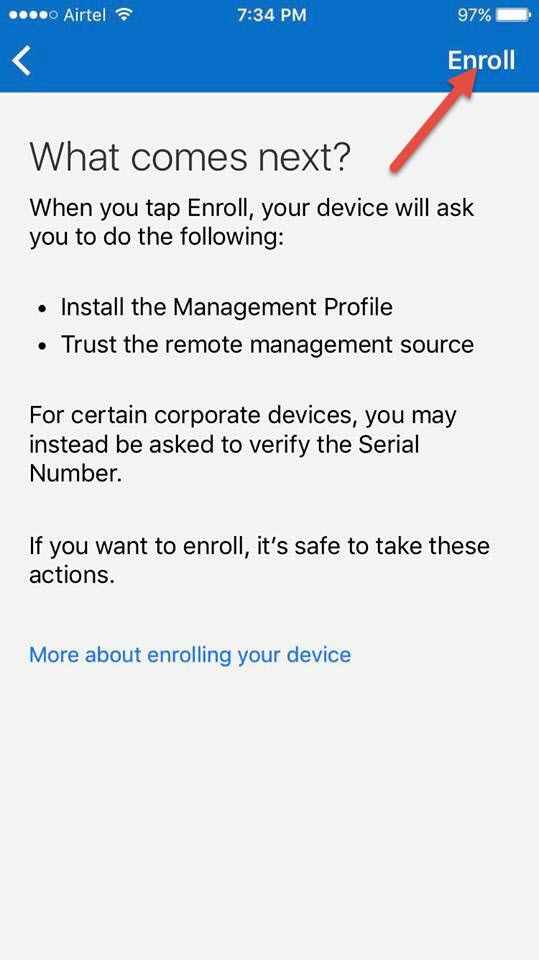
9. Now the next screen will ask you to click on “Enroll” to enroll your device with Intune, please go ahead and click on Enroll.
- Once done the next screen will prompt your for Multi-Factor Authentication which is nothing but an extra layer of security just to ensure that your connection is legitimate.
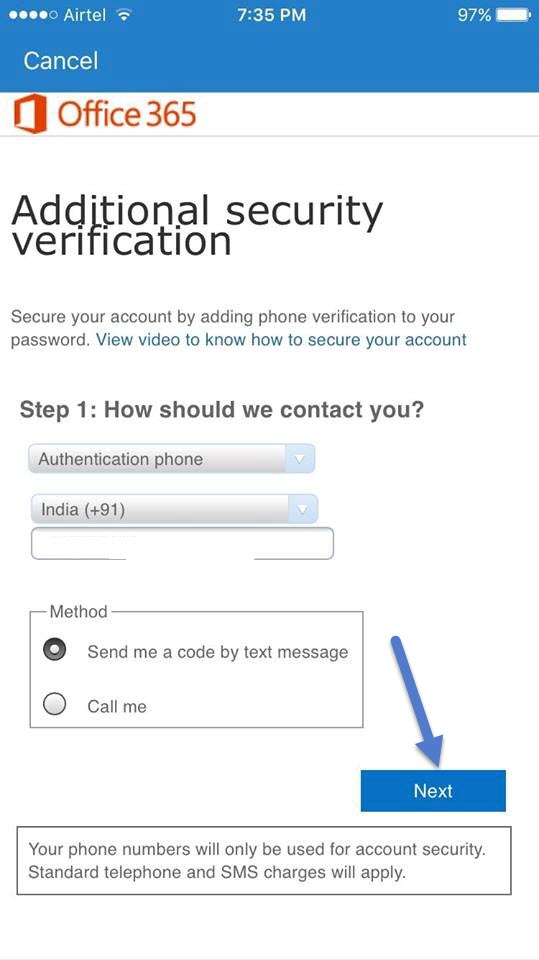
11. Based on which option you chose above you would either get a text message or a phone call with a passcode, please go ahead and enter the code correctly and click on next as shown in the image below.
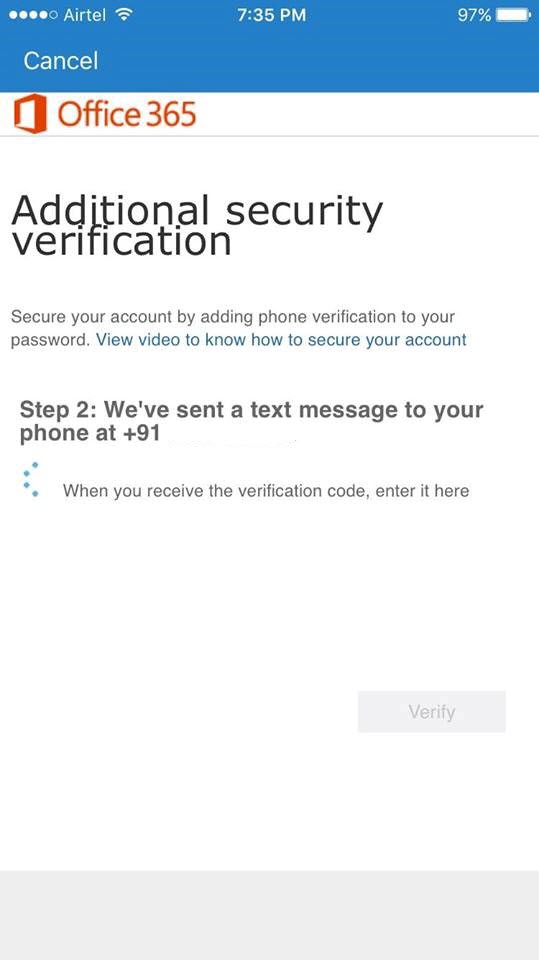
12. Once done the device enrollment process will start and you would see the below mentioned screen.
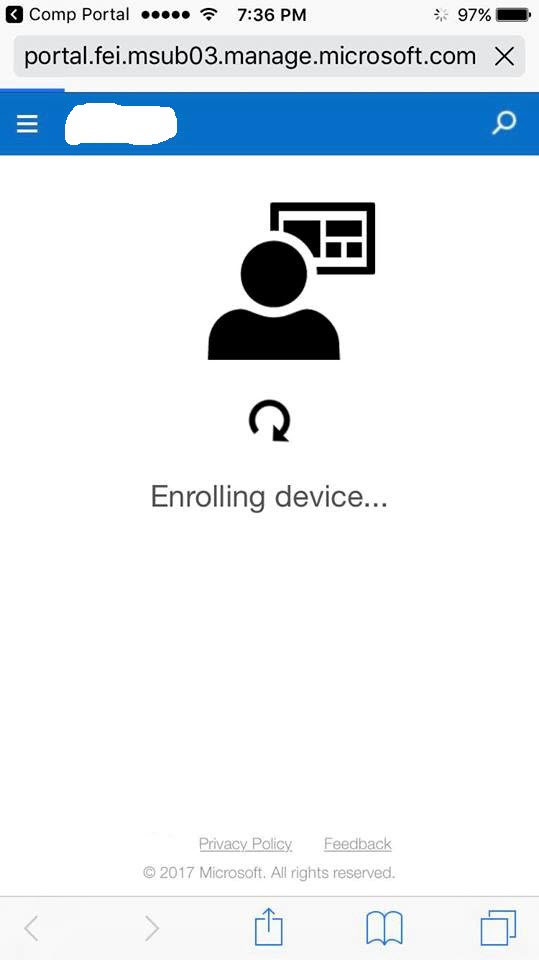
13. After that would get the below mentioned screen asking you to install the profile for Mobile Device management, please go ahead and click on install as shown in the image below .
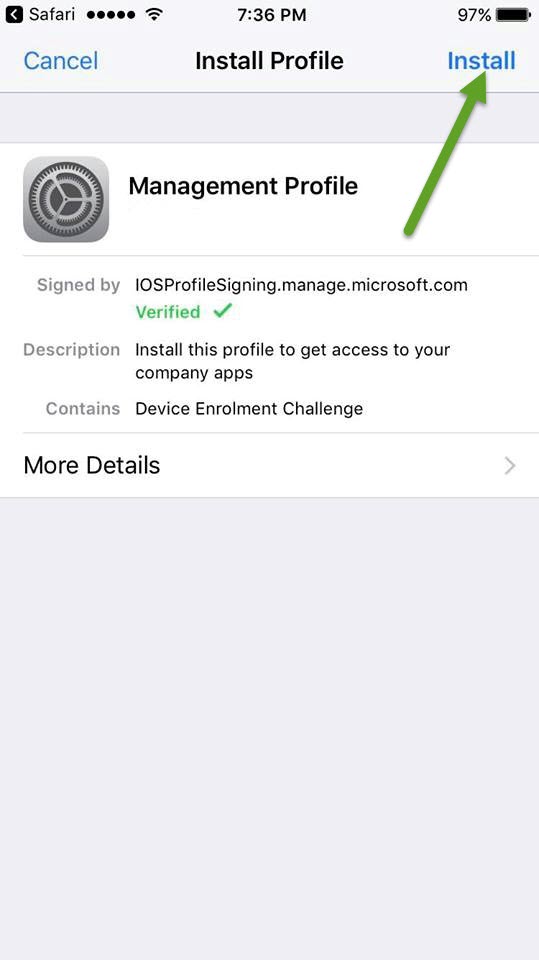
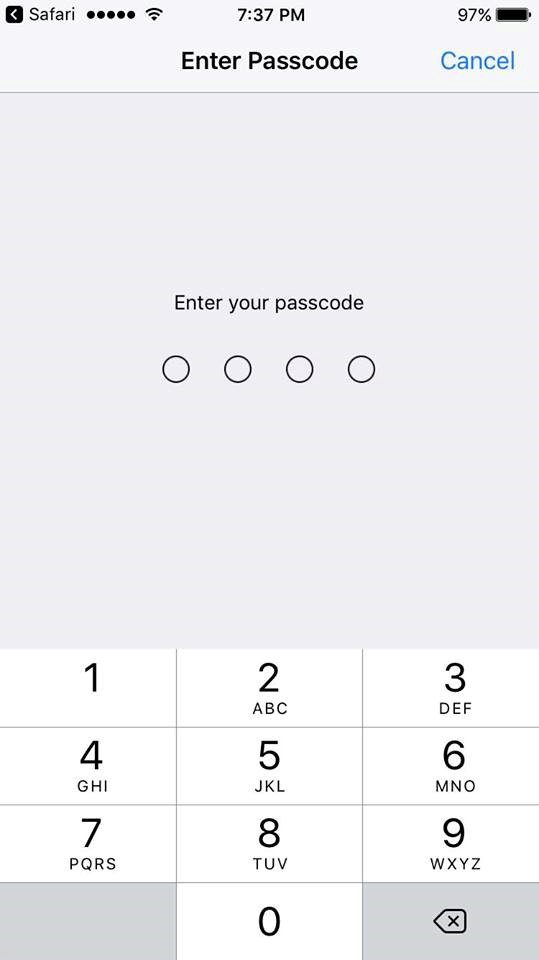
14. You would also get the installation prompt in the next few screens, please go ahead and click on install on the next screens. Once done if you already have a passcode for your device it would prompt for that, please key-in that passcode as shown in the image below .
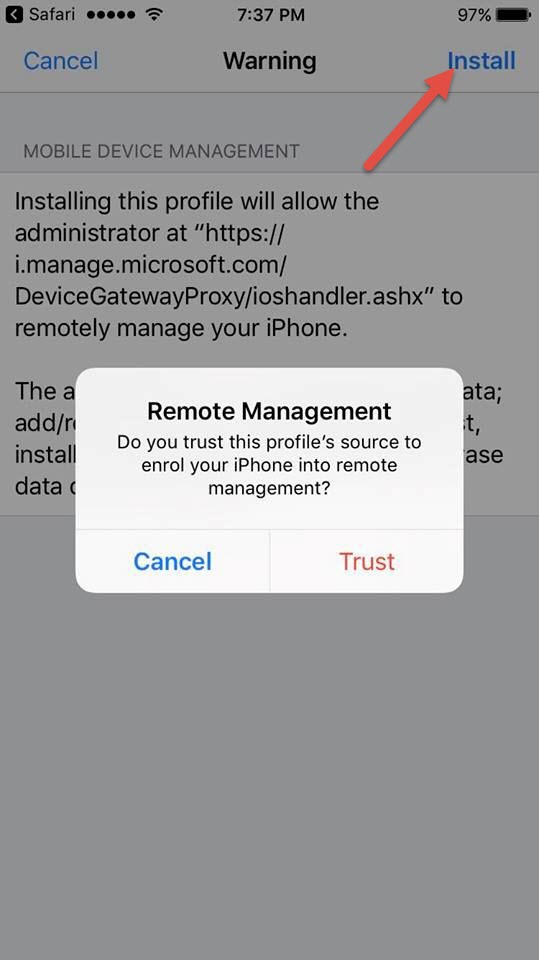
15. On the next screen you would be asked if you trust this profile for Mobile device management, please go ahead and click on Trust as shown in the image below.
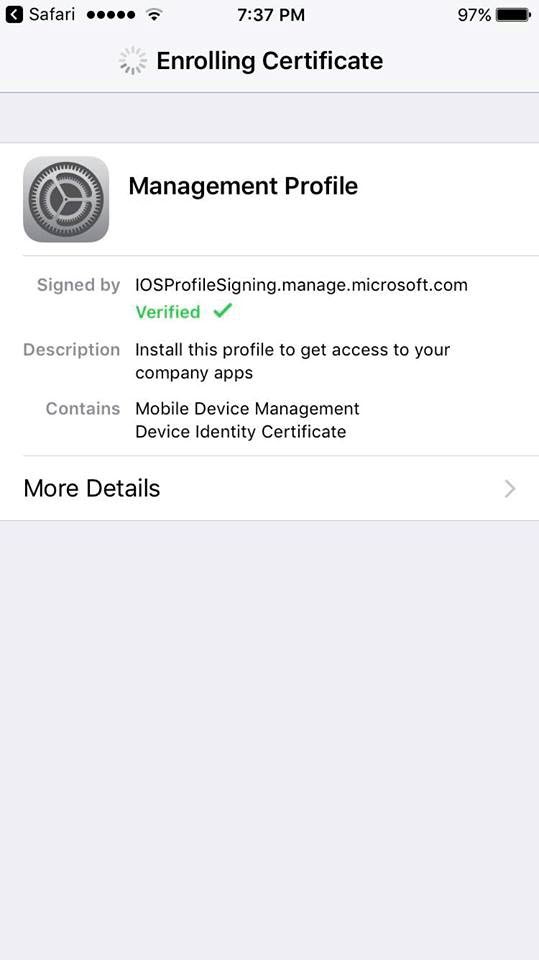
16. You would be taken to the certificate enrollment process in the next screen as shown in the image below.
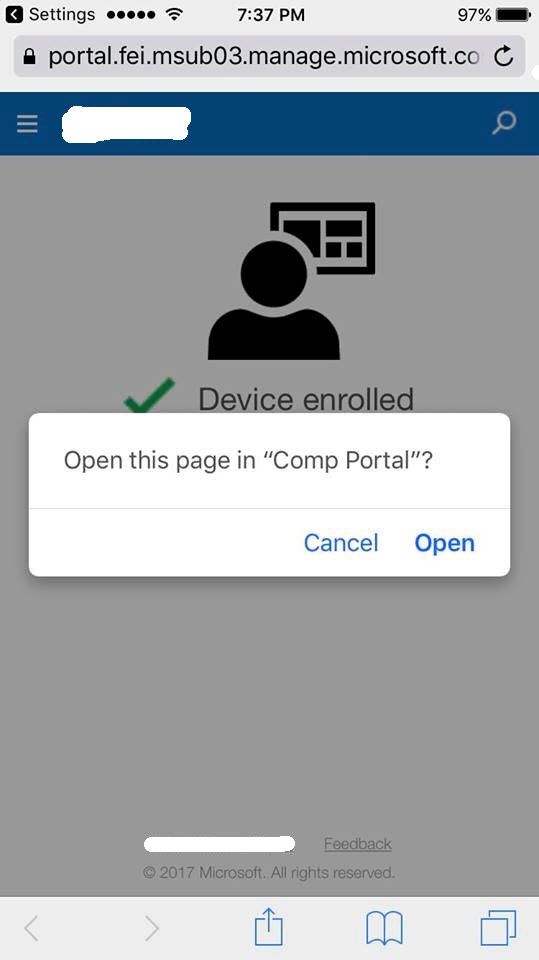
17. Once done you would be taken to the below mentioned screen asking you to open the Company portal app as shown in the image below. Please go ahead and click on open.
18. After that’s completed you would get the below screen where you can notice that the portal is getting prepared.
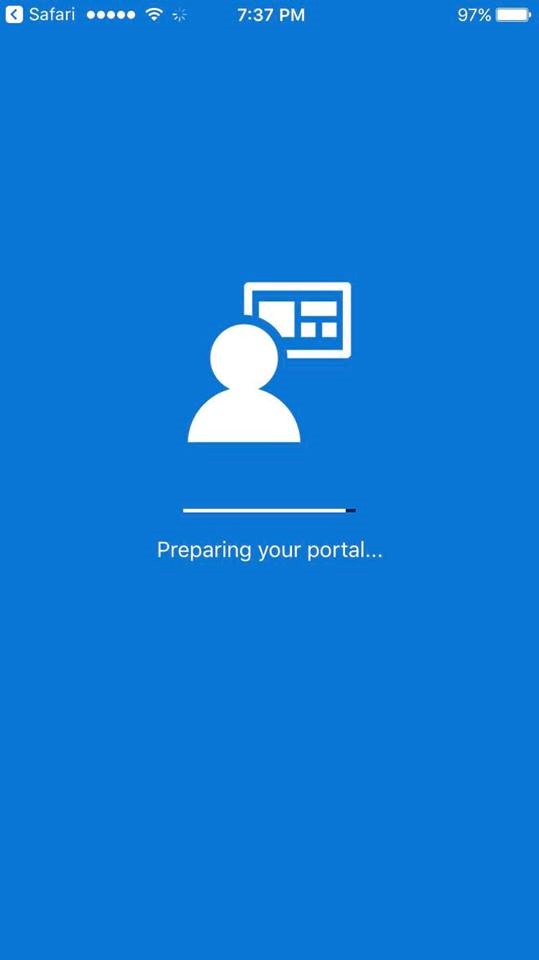
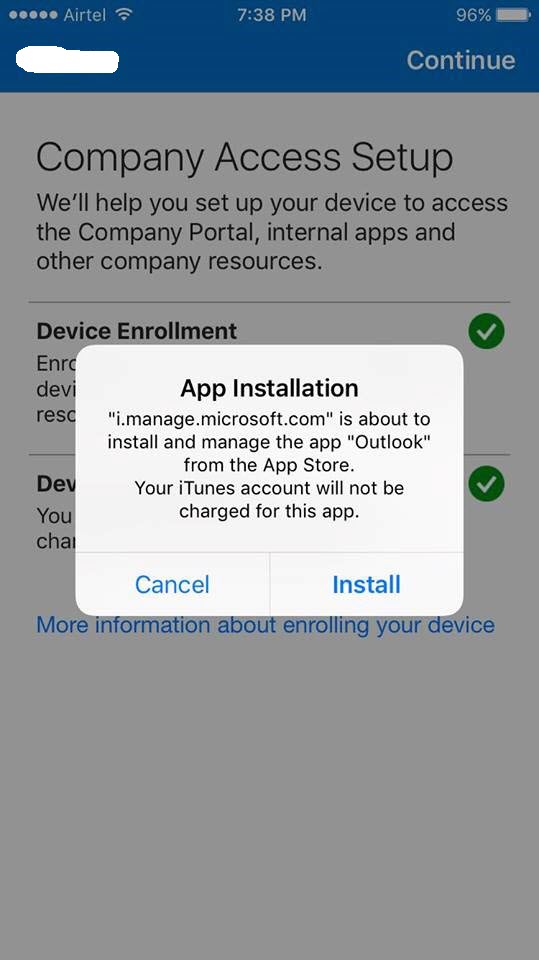
19. You would get the below mentioned screen post that, please go ahead and click on install as shown in the image below.
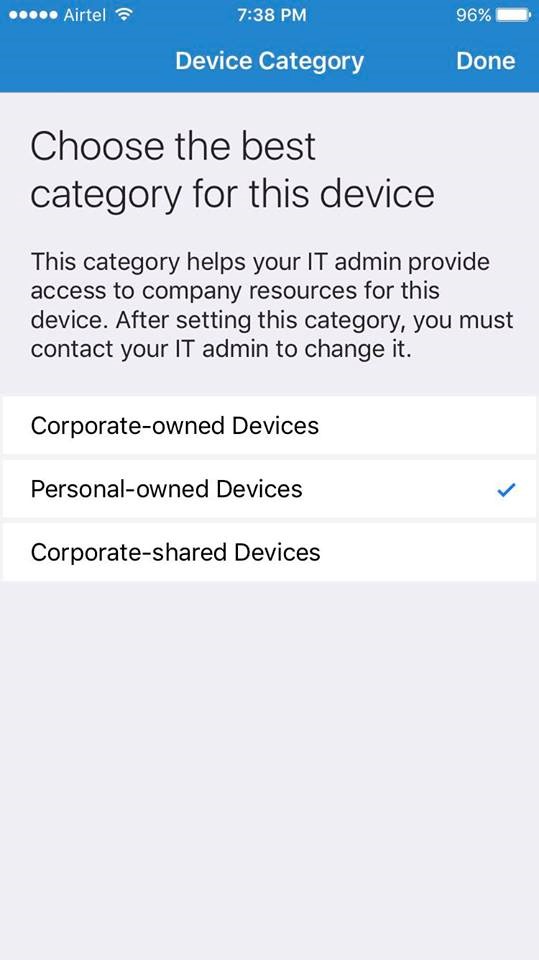
20. The next screen will ask you to choose your device category, please go ahead and choose the correct option. In my case I’ve chosen “personal-owned device “ as I’m enrolling my personal iPhone with Intune .
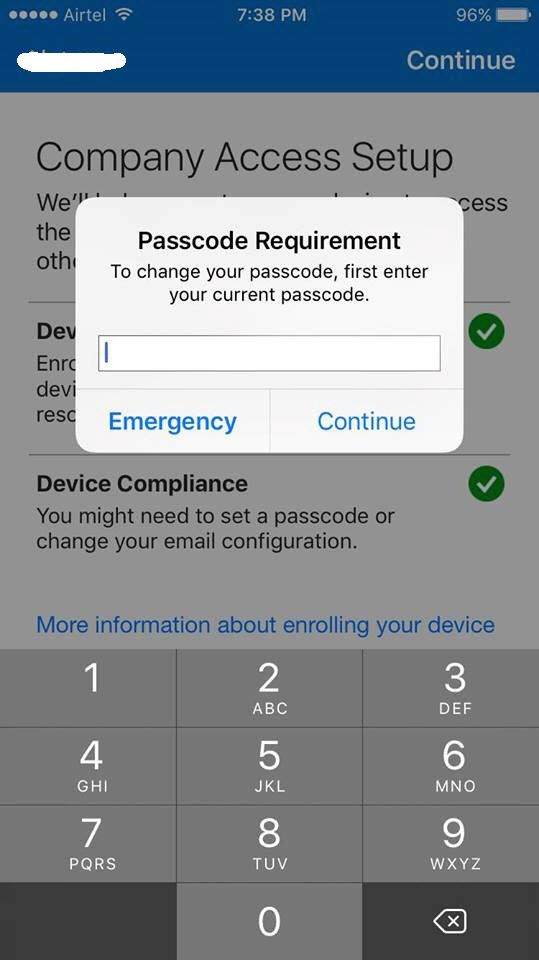
21. Once done you would be prompted to change your passcode as shown in the image below, please go ahead and change it and confirm it once again as shown in the image below.
Note: Please make sure that you don’t forgot your passcode
22. After confirming the passcode, you would be taken to the below mentioned screen which confirms that your device has been successfully enrolled with Intune.
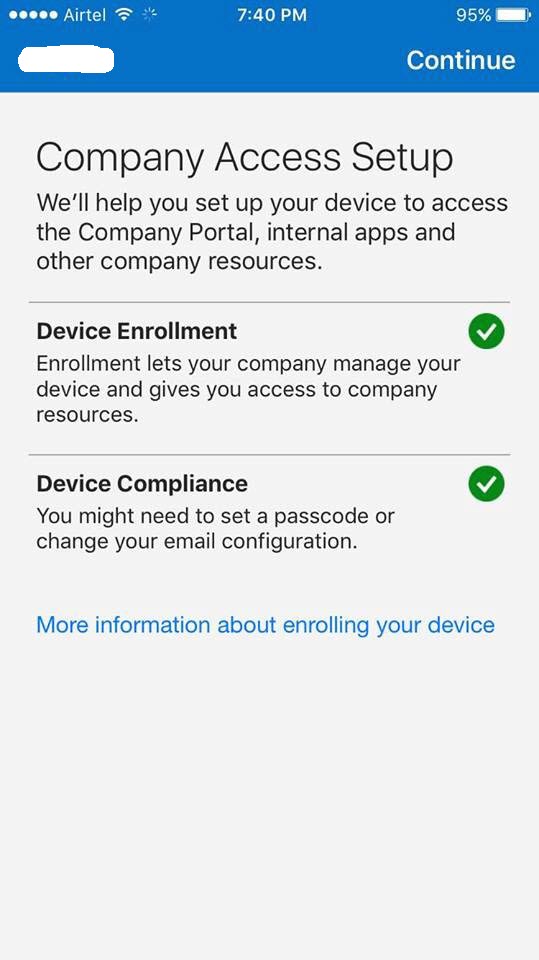
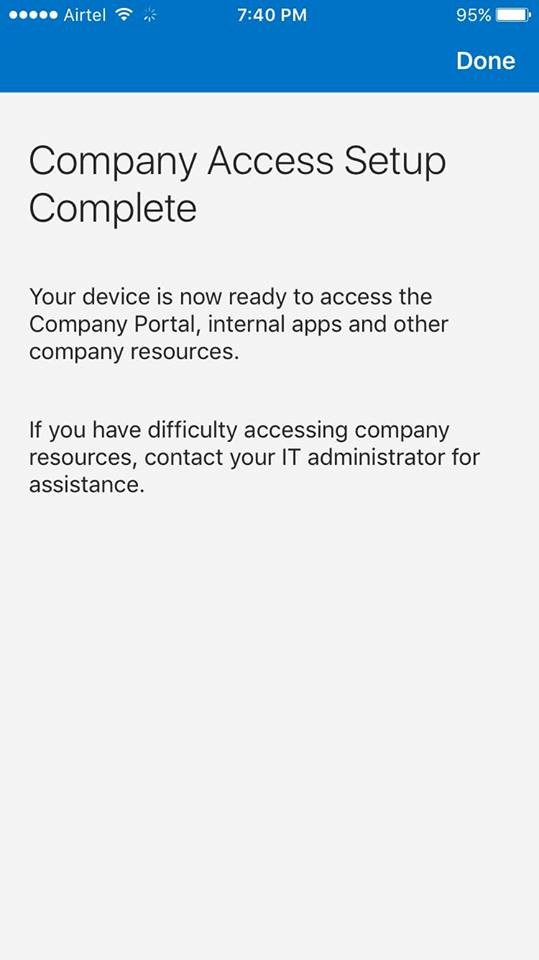
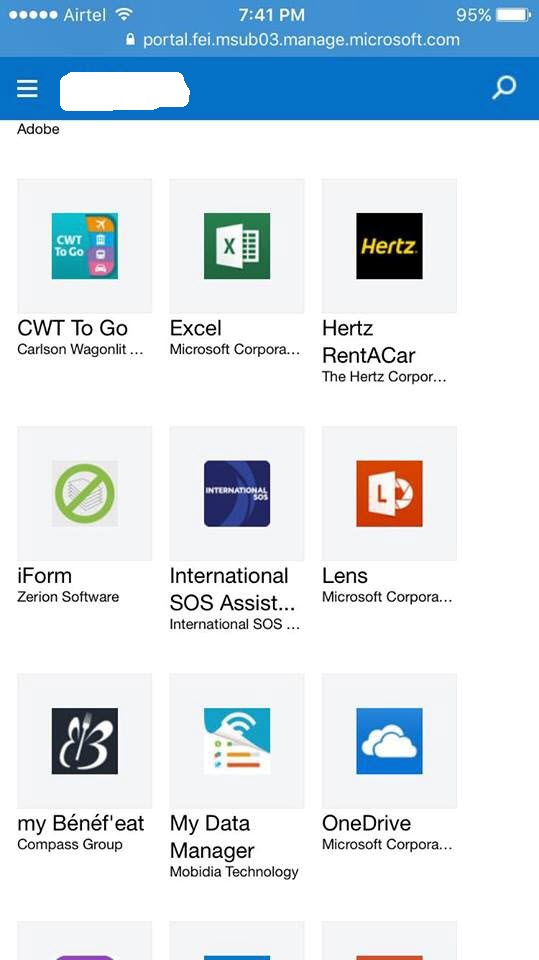
23. Now go back to home screen in your iPhone and open the Intune company portal app .You can check the list of apps which are available for download from company portal app as shown in the image below.
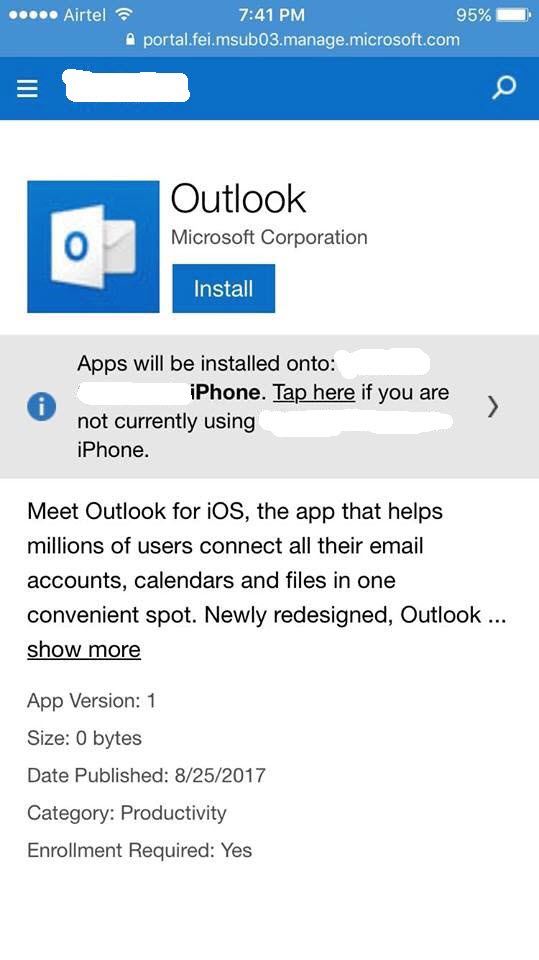
24. Now you can search for the “Outlook” mobile app in the portal and install it as shown in the image below.
Note: If you’re IT admin has configured a policy in Intune such that you should only be using the Outlook mobile app that’s available in the Intune Company portal to configure your emails, then you won’t be able to download and use the Outlook mobile app that’s available in the App store. This is part of Mobile application management in Intune. In addition to that you won’t be able to do the below mentioned things based on the policies which your IT admin has enforced.
- A user tries to copy the content from his Office 365 mailbox and tries to paste it in his personal email account (i.e. Gmail, Hotmail etc..) and Intune restricts it.
- ii) A user tries to download an attachment from his Office 365 mailbox and tries to save it to his Drop box or personal OneDrive and Intune restricts it.
Please go through the link below to know more about the MAM policies in Intune :_ https://docs.microsoft.com/en-us/intune-classic/deploy-use/configure-and-deploy-mobile-application-management-policies-in-the-microsoft-intune-console
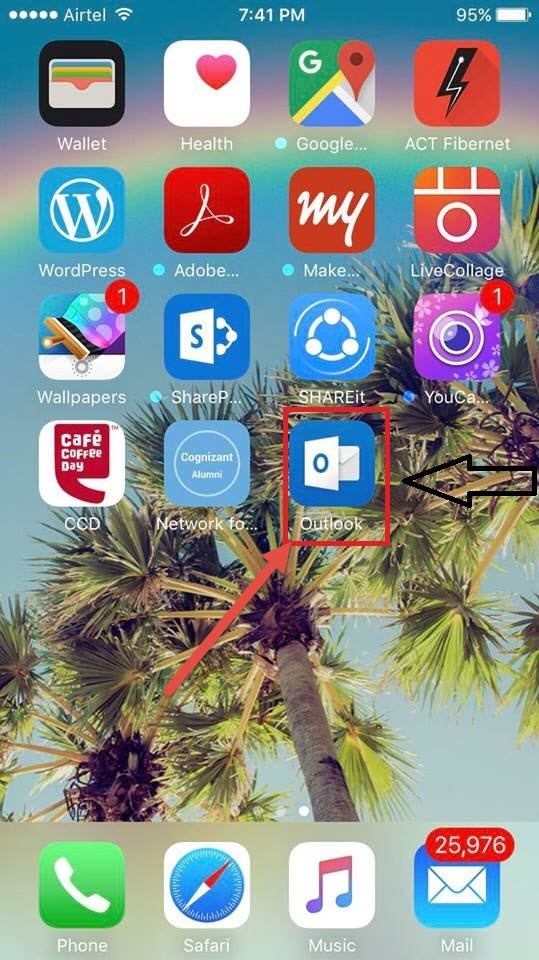
25. Once you’re done installing the “Outlook” mobile app from the Intune company portal, please go back to the home screen and open the “Outlook” app as shown in the image below.
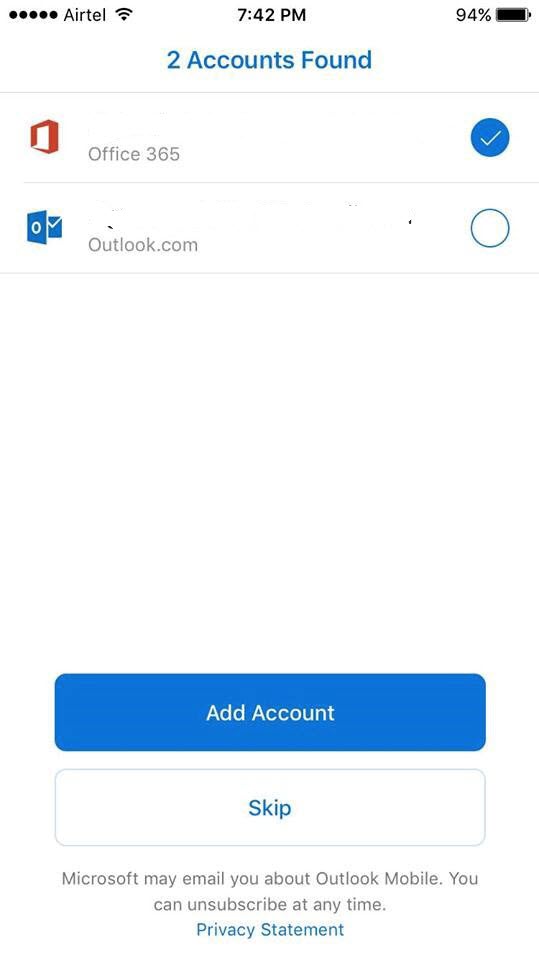
26. Open the Outlook mobile app, you would be prompted to choose the email account which you want to setup. In my case it prompts to either add both my Office 365 email account as well as my Hotmail account. I’ve chosen to configure Office 365 email account only as shown in the image below. In your case you might only see your Office 365 email account.
Note: Even if you have added your Hotmail account , Intune will take care of only your Office 365 mail address and not your Hotmail account .
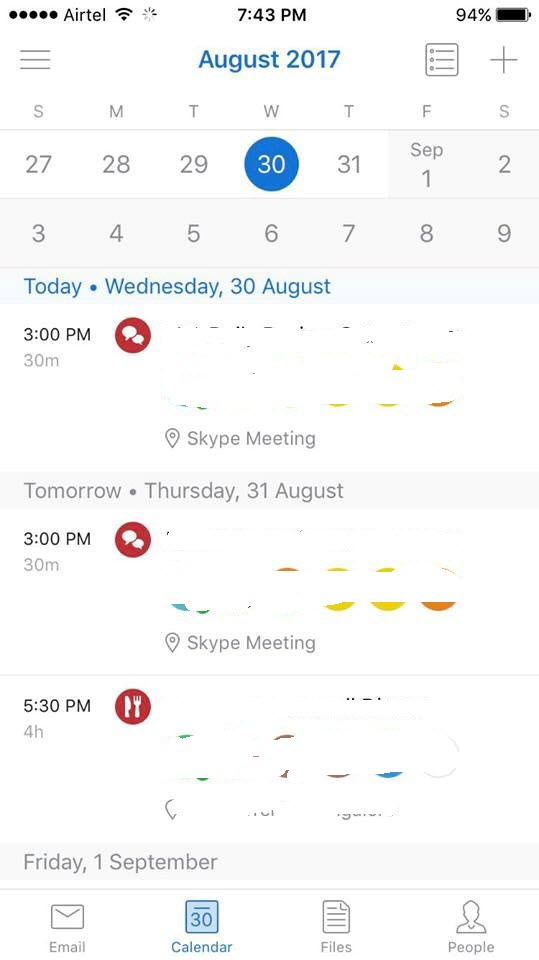
- Once you’ve chosen your Office 365 email account, please give it some time and your mailbox will start downloading all the emails, contacts and meetings etc. as shown in the image below.
28. You can also use some cool features like @mentions and focused inbox in Office 365 as shown in the image below.

29. In addition to this you can also remotely manage your mobile device from your laptop or PC once it’s enrolled with Intune by accessing the Intune Company portal site. In order to do that, please login to the below mentioned URL using your Office 365 UPN address and password.
https://portal.manage.microsoft.com/
30 .Once done you should be able to see your Apple device which has been enrolled with Intune as shown in the image below.
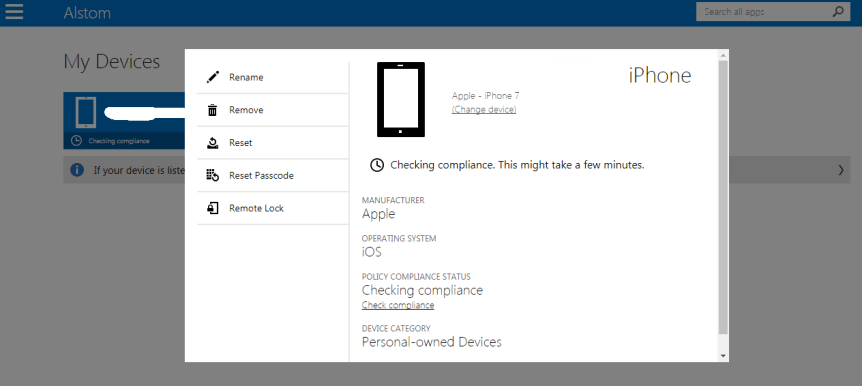
31. You can rename, remove, reset the passcode as well as remotely lock your device from your laptop/PC from here. So if you ever encounter a scenario where your device has been lost/stolen you can remotely wipe if from here.
Thanks for reading this post!!! Good luck with Intune.


 Yep you read it correctly, it’s not Microsoft Office 365 and its Microsoft 365. Well by saying so I didn’t mean that Microsoft Office 365 is going away or it’s getting renamed as Microsoft 365. This is a new service which was introduced by Satya Nadella 2 days back on
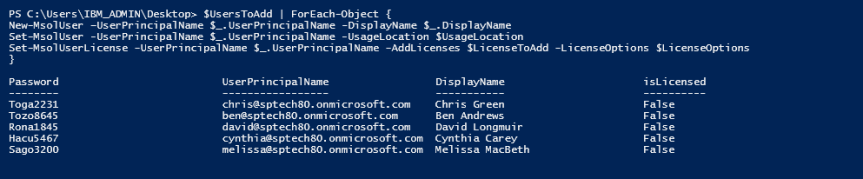
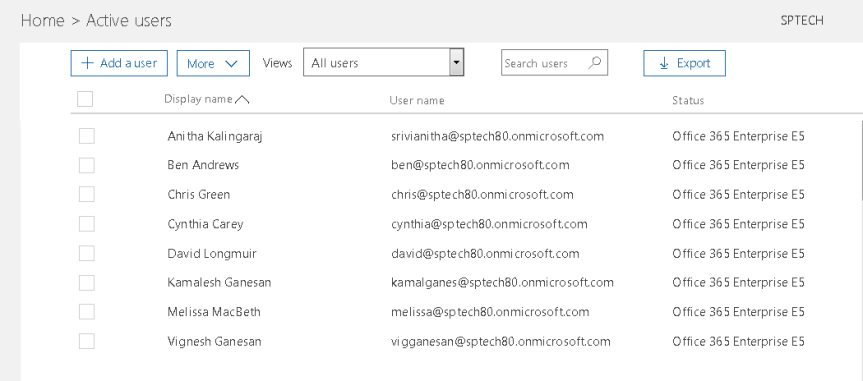
 Office 365 is a SaaS platform which is being used by many organizations these days and it becomes quite hard for IT administrators to on-board their users to Office 365 manually .Of course , this may not be the case when your user identities gets synced to Azure AD from on-premises AD using AAD connect tool .However, if you’re one of the organizations who totally buried all your IT infrastructure implementation and decided to go with a Cloud implementation completely then possibilities are such that you as an IT administrator should take care of on-boarding your users to Azure AD .As we all know , this is indeed quite a time consuming task if we have to do it manually and then assign the appropriate licenses to all the users . So, to surpass all those manual effort, I’ve put together this PowerShell script which will do the magic for you. Alright, let’s get into the details ….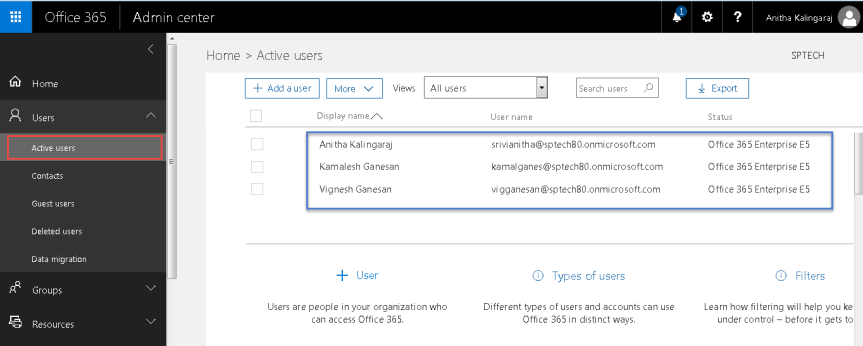




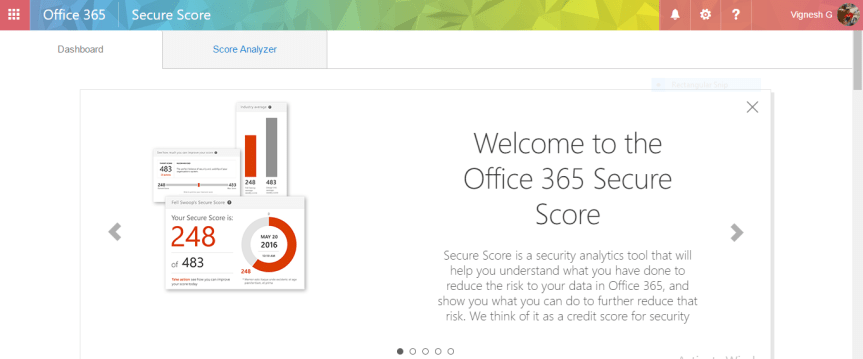
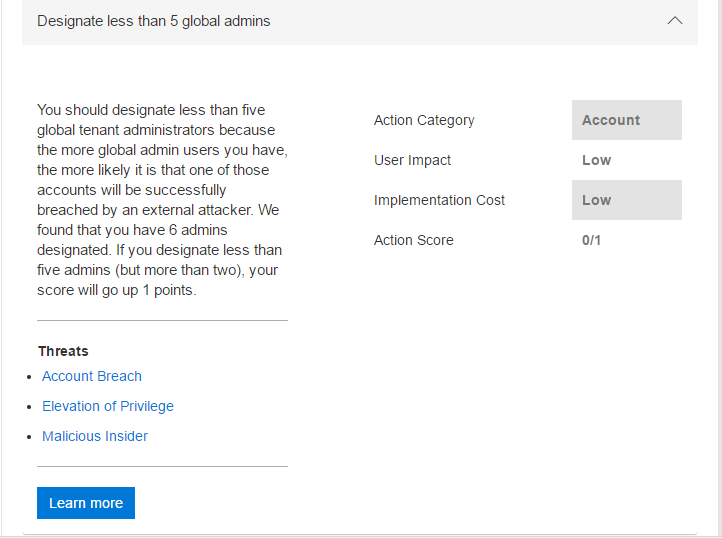
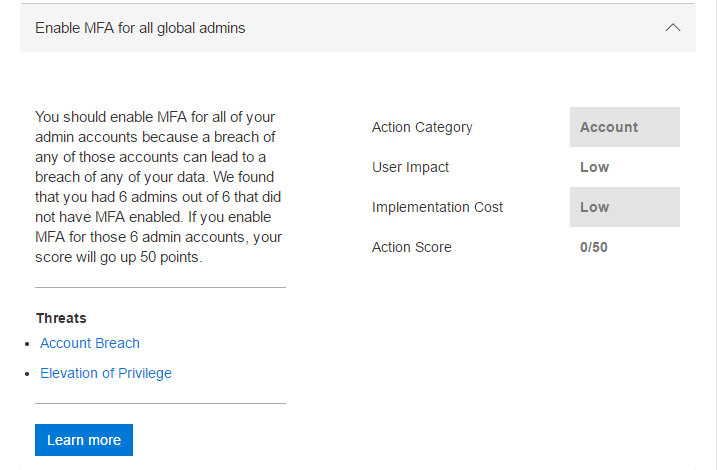
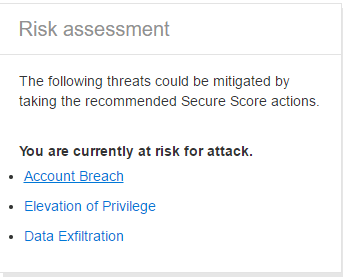
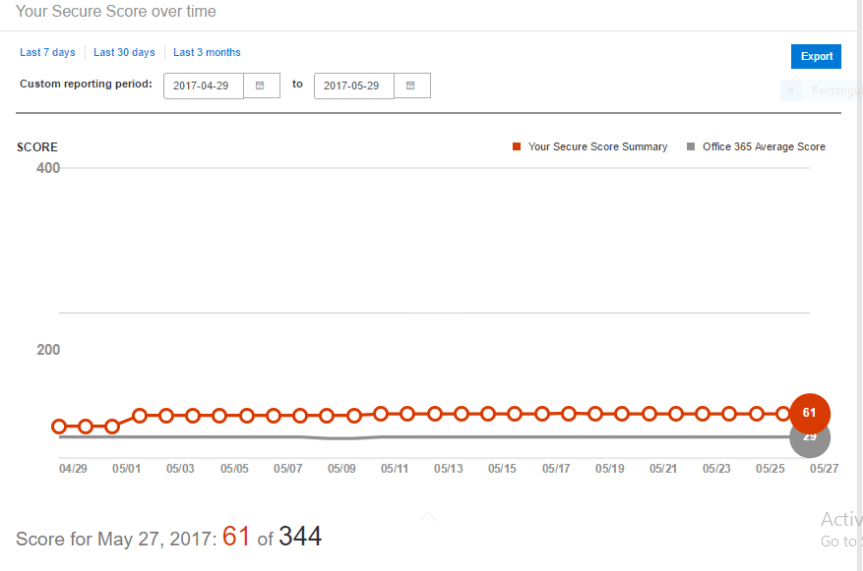
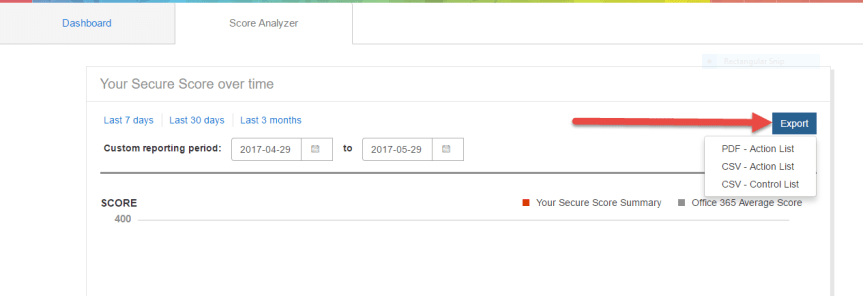
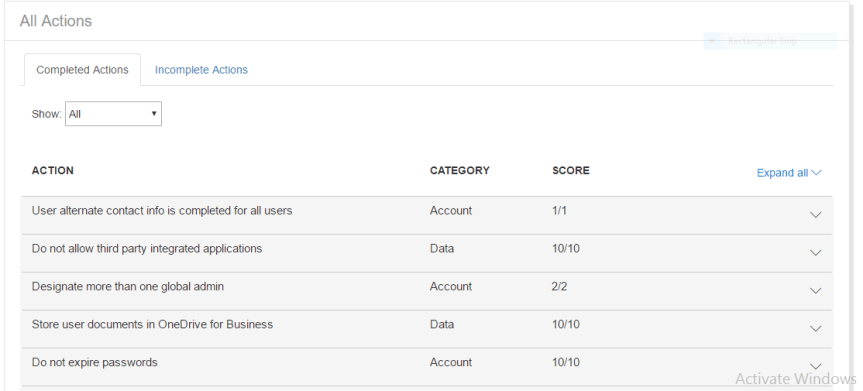
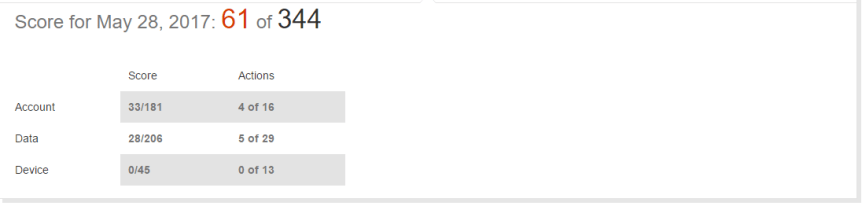
 Compare your score: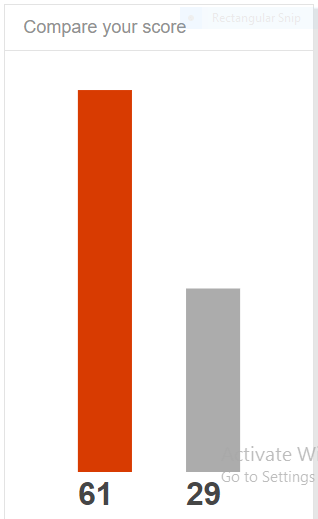
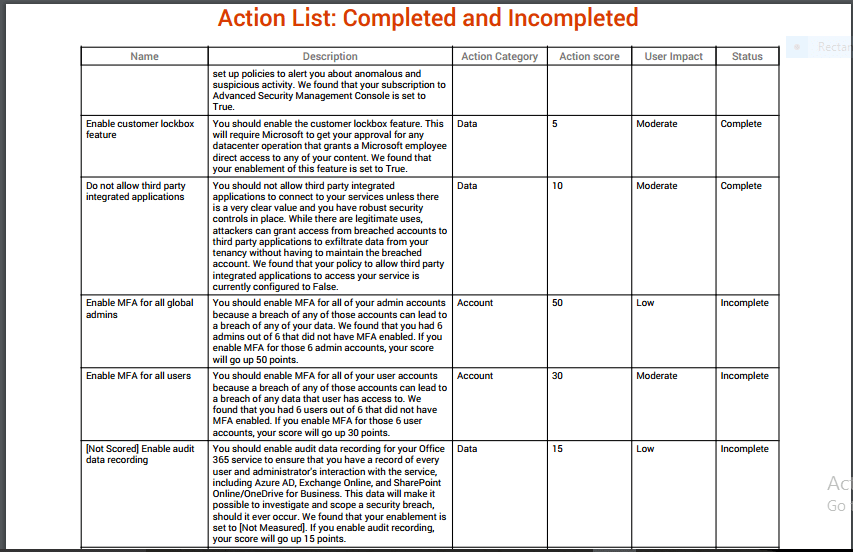


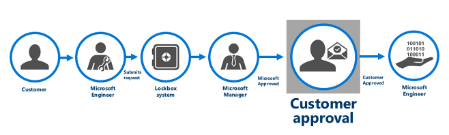
 “Customer Lock box” –This terminology was something new to me until I heard it at Microsoft Tech Summit this year .There was one of these sessions which I was attending on Office 365 and the speaker was talking about this feature .Sadly only few folks in the room were aware of it and I was one among those folks who haven’t heard that terminology before.
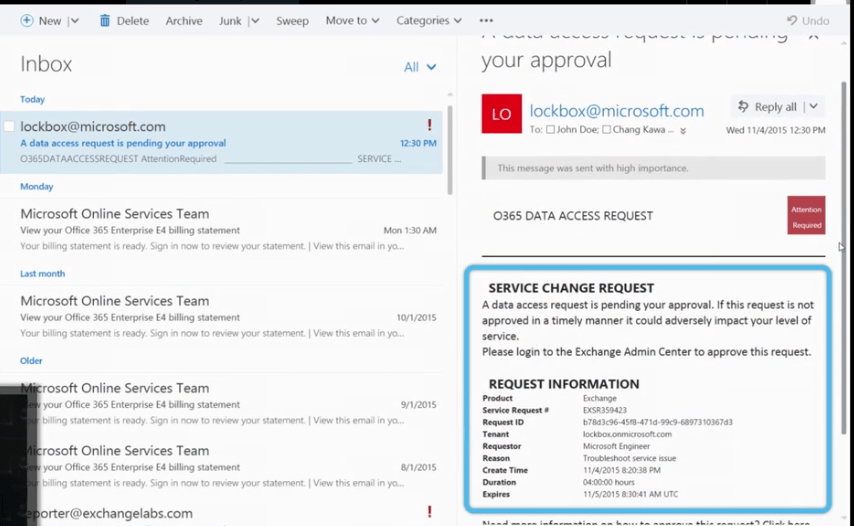
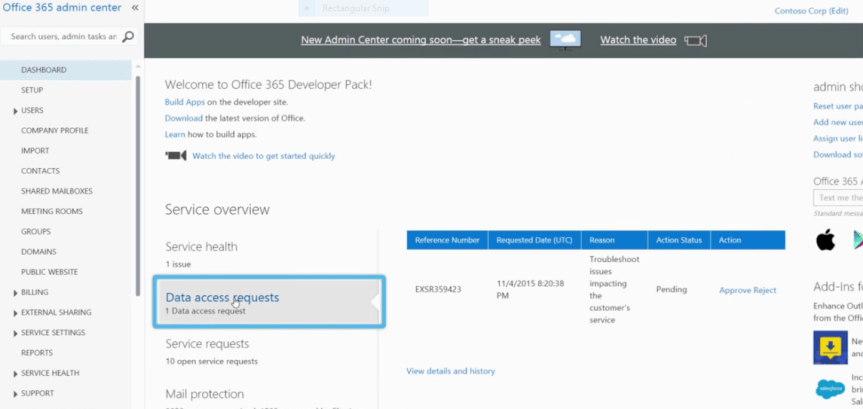
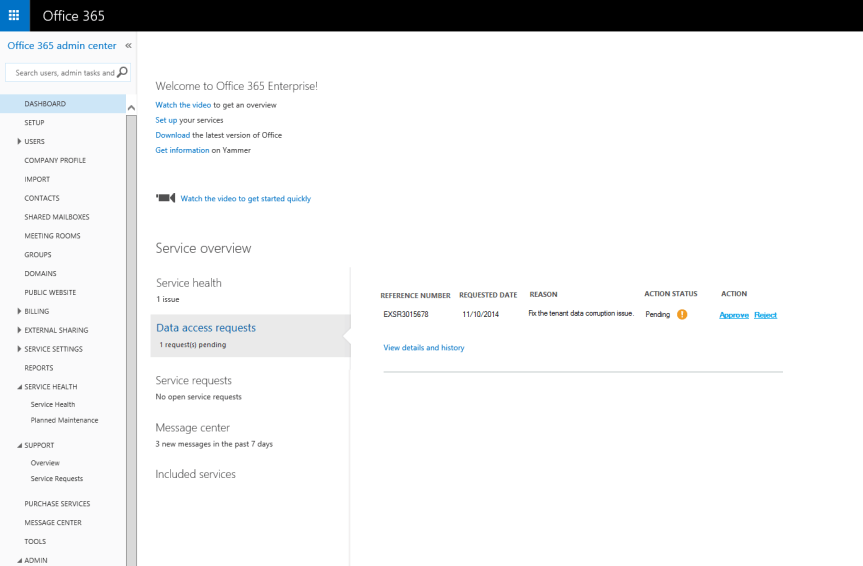

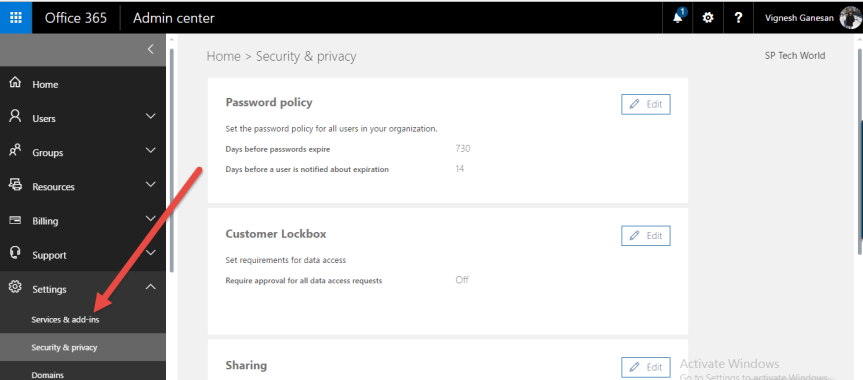
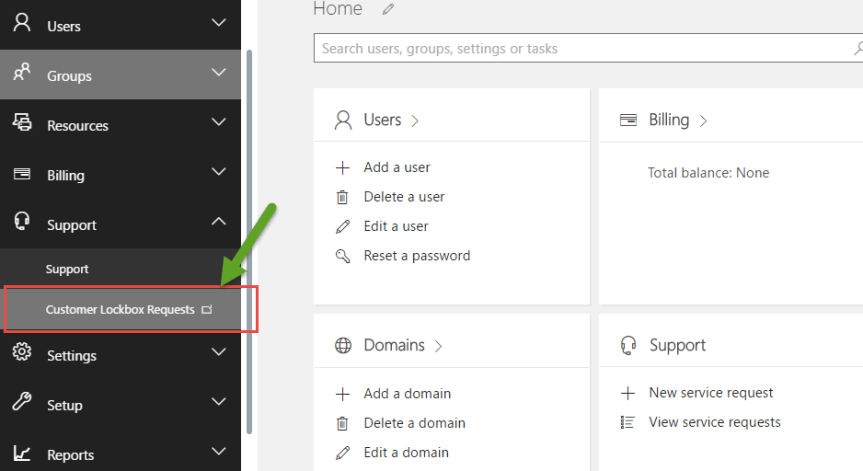
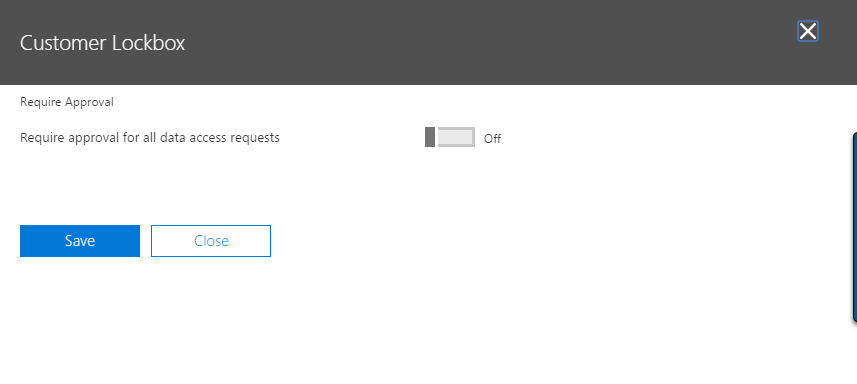 Approve or deny a Customer Lock box request in the Office 365 admin center: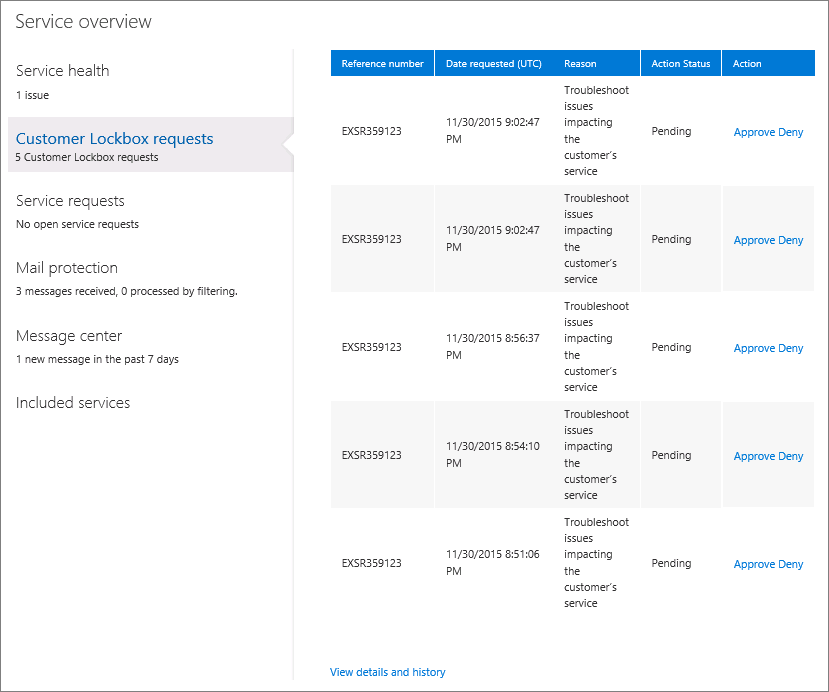

 Vignesh's SharePoint Thoughts