Office 365 Identity Management

I often used to stumble around in understanding the Office 365 Identity Management process and hence I spent some time today trying to do some research on this topic and gained some knowledge about the Identity management process followed in Office 365.

Now this post is for those who are new to Office 365 and would like to understand how the identity management process works and what are the three main models involved in it.

There are basically three main models that can be used for Office 365 Identity management and it’s up to you and your business to analyze and choose the one which suits your need.

Office 365 Identity management models:

  1. Cloud Identity
  2. Synchronized Identity
  3. Federated identity

IM 1

Now, let’s take a look at these models …..

Cloud Identity:

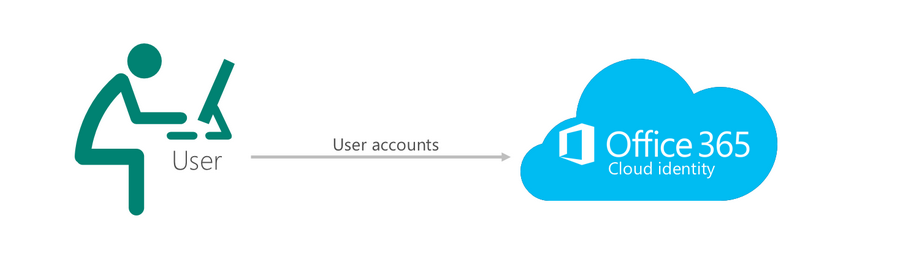
In this model users are created and managed in Windows Azure Active Directory (WAAD) i.e. In the Office 365 Admin center on the “Users” tab.  There is no connection to any other directory.  This is the simplest model as there is no integration to any other directory.  Each user has an account created in the cloud which does not synchronize anywhere else. Also the password created for this account will be verified by Azure Active Directory and the password policies applied for these accounts is strictly limited only to the Azure Active Directory. However, note that you will still typically need additional on-premises credentials to gain access to a local workstation and local resources. These accounts can’t help you to login to a PC or access a printer that has been joined to the domain.

IM2

Synchronized Identity:

In this model users are created and managed in the on-premises directory and then get synchronized to Office 365 so they can access Office 365 resources. Typically this means running the DirSync appliance or in some cases FIM with the Windows Azure Active Directory Connector.  The newer builds of DirSync allow for the user’s password hash to be synchronized up to Office 365. However, please note this does not say clear text password. So using this model users can logon to Office 365 using the same credentials as on-premises with no additional infrastructure. The user enters the same on-premises password as they do in the cloud and during the sign-in this password will be verified by Azure Active Directory.

Note: This is a one way sync from on-premises AD to Azure active directory and hence any change made to a user’s synced account in Office 365 won’t be valid.

Sign-in procedure:  The web browser is redirected to the Office 365 sign-in service, where you type the user name and password for your work account. The sign-in service authenticates your credentials and generates a service token, which the web browser posts to the requested service and logs you in.

IM 3

Federated Identity:

This model is similar to the synchronized identity but with one change to that model: the user password is verified by the on-premises identity provider. This means that the password hash does not need to be synchronized to Azure Active Directory. This model uses Active Directory Federation Services (AD FS) or a third- party identity provider. This is often referred to as single sign-on.

Sign-in procedure: Federation relies on directory synchronization so that WAAD is populated. When the authentication request is presented to Office 365, the service will then contact the on-premises ADFS infrastructure so that AD is responsible for authenticating the request.

IM 4

In addition to these there are many third party identity providers that can be used to implement single sign-on, please take a look at this TechNet link to know more about them: _ https://msdn.microsoft.com/en-us/library/azure/jj679342.aspx

SharePoint Online: Features & Limitations

  1. Number of items that can be synced: You can sync up to 20,000 items total across all synchronized libraries. This includes One Drive for Business libraries, Team Site libraries, or both. This includes folders and files. Separately from the overall sync limit, there are limits to the number of items that can be synchronized for each library type.You can sync up to 20,000 items in an One Drive for Business library. This includes folders and files.You can sync up to 5,000 items in a SharePoint library. This includes folders and files. These are libraries that you find on various SharePoint sites, such as team sites and community sites, libraries that other people created, or that you created from your Sites page. You can sync multiple SharePoint libraries. Any team sites that you sync will also count against the overall 20,000 item limit across all synchronized libraries.
  1. Size limit for syncing files: In any SharePoint library, you can sync files of up to 2 gigabytes (GB).


  1. Character limit for files and folders:  These limits apply to files and folders that you add to a synced library folder for uploading to SharePoint. In SharePoint Server 2013, file names can have up to 128 characters. In SharePoint On line, file names can have up to 256 characters. Folder names can have up to 250 characters. Folder name and file name combinations can have up to 250 characters.
  1. Invalid characters : 

The following characters in file or folder names aren’t supported when you sync OneDrive for Business with SharePoint On line:

\

/

:

*

?

<

>

|

#

%

Additionally, a file or folder name that begins with a tilde (~) isn’t supported.

5. Unsupported folder names: When you sync One Drive for Business with SharePoint Online or SharePoint 2013, a folder named “forms” isn’t supported at the root level for a list or library. This occurs because “forms” is a hidden default folder that’s used to store templates and forms for the library. Additionally, a folder that contains the string _vti_ is reserved by SharePoint, and isn’t supported.

The following folder names can be synchronized in One Drive for Business and SharePoint On-line. However, if they’re synchronized, they won’t appear when you view the library on the SharePoint Online or OneDrive for Business webpage. With some of these restrictions, you may be unable to add files or folders that have these characters while in the OneDrive for Business folder. However, if you create the files or folders outside OneDrive for Business and then drag those files or folders into the OneDrive for Business folder, the files and folders will sync but the files won’t appear on the webpage.

*_files:

*_Dateien

*_fichiers

*_bestanden

*_file

*_archivos

*_tiedostot

*_pliki

*_soubory

*_elemei

*_ficheiros

*_arquivos

*_dosyalar

*_datoteke

*_fitxers

*_failid

*_fails

*_bylos

*_fajlovi

*_fitxategiak

*_private

6. GUID strings as file names

The GUID string structure is supported in SharePoint Online.

The following GUID string structure isn’t supported for file names in SharePoint 2013:

‘{‘ + 8 hexadecimal + ‘-‘ + 4 hexadecimal + ‘-‘ + 4 hexadecimal + ‘-‘ + 4 hexadecimal + ‘-‘ + 12 hexadecimal +’}’

For example, a GUID that matches this structure resembles the following:

{9b6634a7-26b7-40a2-a48e-6f967d89c29e}

7. You can’t upload files that have a *.tmp or *.ds_store extension, and you can’t upload desktop.ini, thumbs.db, or ehthumbs.db files.

8. Additionally, you can’t upload files whose file types are blocked on the SharePoint site. If your organization is running SharePoint Server, the list of blocked files may vary, depending on what your administrator sets up. If your organization is running SharePoint Online, the default list of blocked files is fixed and can’t be changed. To see a list of the default blocked files, go to the following Microsoft website: _ File types that cannot be added to a list or library

9.Outlook PST files

Whereas PST files aren’t actively blocked by OneDrive for Business, syncing PST files that are in an open state isn’t supported. If you decide to sync PST files (for example, an archive PST file that you don’t load or view in Outlook), they can’t be in an open state at any time by any application while they’re in the OneDrive for Business sync folder. A PST file that’s connected to Outlook will be updated regularly and therefore if synchronized, can result in too much network traffic and growth of the Office File Cache on your local drive.

 10.OneNote notebooks

Because OneNote notebooks have their own sync mechanism, they aren’t synced by the OneDrive for Business sync client. You can upload OneNote notebooks to a SharePoint Online page. However, they won’t sync with through the OneDrive for Business sync client application. Additionally, if you add a OneNote notebook to a local folder that syncs with SharePoint Online, the notebook won’t sync with the SharePoint site and may cause other sync errors within the local folder.

Open files can’t be synced. Any file that’s currently open by an application (for example, an Excel .xlsx file) can’t be synced by OneDrive for Business. To sync the file, close any application where the file is currently being used, and then sync the file.

12. Lookup columns in a library:

.The SharePoint Online or OneDrive for Business library can’t exceed the lookup column threshold. For more information, go to the following Microsoft Knowledge Base article:

2927386   “We couldn’t sync this library” error when you use the OneDrive for Business sync client

“Fix it” tool to help in renaming files and folders to prepare or fix the naming of items in a local folder or OneDrive for Business folder

13. To get files to sync successfully, you may have to rename a wide range and large number of files if their names contain unsupported characters. This Fix it tool for Windows automatically renames files and folders whose current names contain any unsupported characters. The tool also generates a report of those changes and of any files that are violating other restrictions that are called out in this article, and shows which folders were scanned by the tool.

14. Supported changes by this tool apply only to SharePoint Online. SharePoint Server 2013 may have a separate set of restrictions that were set by your administrator.

15.The Fix it tool currently performs the following tasks on the OneDrive for Business folder or local folder that you specify:

Removes unsupported characters from file or folder names. For example, a file that’s named This%is%a%test.doc will be renamed Thisisatest.doc.

If an item has only invalid characters, it will be renamed Invalid Renamed File. If the item is a folder, it will be renamed Invalid Renamed Folder.

If a file or a folder is renamed, and the renamed file or folder conflicts with an existing item on the same directory path, the item will be renamed by appending an <x> to the name. The <x> placeholder represents is an integer, starting with the number 1, until all rename actions are completed for that folder.

For example, assume that a folder has two files that are named HelloWorld.doc and Hello%World.doc. Because % is an unsupported character, the second file is renamed HelloWorld.doc. To avoid duplication in the same folder, the name of the renamed file will be changed to HelloWorld1.doc.

In addition to file names being changed by this Fix it tool, several other rules are run to check for any additional limitations that you may encounter when it’s syncing. A report that documents the issues that were found is generated and put on your desktop for you to review. A new log file will be generated every time that you run the Fix it tool.

16. The Fix it tool won’t change file and folder names that have unsupported characters or generate warnings in the log file for the following items:

OneNote notebook names

Open files

Lookup columns

Maximum path character count for an uploaded file

(The character count is not validated.)

17. External Users

Per MS: “An external user is a person who has been granted access to your SharePoint Online site, but who is not a licensed user within your organization. External users are users who are not employees, contractors, or onsite agents for either you or your affiliates.”

Maximum number of external users: 10,000

External users cannot create their own My Sites or OneDrive Pro

Cannot change their profile, edit picture or see tasks

Cannot be an administrator for a site collection

Cannot access search center or execute searches against “everything”

18. Missing: Search Control and Index

Unable to set crawl schedules

Unable to initiate crawl (default is ~5 minutes)

Unable to create custom solutions against Search Index

Unable to add entity extraction (custom refiners)

Unable to enhance relevancy (custom ranking models)

No federated search

19. Missing: Cross site publishing

Per MS: “Cross-site publishing is a new publishing method that lets you create and maintain content in one or more authoring site collections and publish this content in one or more publishing site collections by using Search Web Parts. Cross-site publishing complements the already existing publishing method, author-in-place, where you use a single site collection to author content and make it available to readers of your site.”

20.Missing: Content by search

(Content by search allows content to be displayed in a web part via search.  One of the top features of SP13.)

21. Unavailable SharePoint Services

Access Services 2010

PerformancePoint Service

PowerPoint Automation Service

State Service

User and Health Data Collection Service*

*(Office 365 provides separate health info in admin center)

Word Automation Service

Work Management Service

Microsoft Foundation Subscription Settings Service

22. Branding Limitations

Adding a custom design to the internal site “Team Site” is a bit counter intuitive.  The option to select a “MasterPage” is not available under “Site Settings.”  You must upload the MasterPage to the MasterPage gallery, along with a “Preview” file.  Then, you must create a “Composed” look.  From there it will be available under the “Change the Look” feature.

Office 365 On-boarding/Troubleshooting Tools and Resources

Office 365 On-boarding/Troubleshooting  Tools and Resources:

While we indeed have a lot of tools out there for troubleshooting Office 365 and which can also be used for a successful Office 365 deployment the below mentioned one’s are the widely used tools to troubleshoot/deploy Office 365 .

Office OnRamp–>  OnRamp for Office 365 is an automated assistance tool that helps you gather configuration requirements and perform deployment readiness checks against your on-premises environment.  OnRamp can accelerate the deployment timeline, especially for organizations with requirements such as identity federation or hybrid deployment . OnRamp can be accessed via https://onramp.office365.com/ or  you can access it from within your Office 365 tenant by navigating to the Tools section .

Fast Track–>  As part of the FastTrack program, you’ll receive personalized assistance from a Microsoft onboarding expert who will ensure that your Office 365 service is provisioned and ready to use. All Office 365 enterprise customers are eligible for FastTrack with the purchase of 150 or more eligible seats.

HRC Checks (Health, Readiness and Connectivity Checks) :_   This is a  recommended practice by Microsoft where  you’re supposed to run  health, readiness, and connectivity checks before you set up Office 365.

Here’s why:

  • Checks can find settings in your current environment that might cause problems when you start to set up or use your services.
  • If you know where the potential roadblocks are before you start, you can fix or work around them to make your deployment path easier to complete.

This is just a read only check and this won’t make any changes to the environment , hence the users won’t be affected .

Microsoft Remote Connectivity Analyzer : _ The Office 365 Support and Recovery Assistant helps users troubleshoot and fix their account or profile related Outlook issues. The assistant performs a series of diagnostics tests to identify the root cause of issues, such as verifying users’ credentials, licenses, updates to Outlook clients, and whether Outlook servers are reachable. Depending on the test results, it can offer to automatically fix problems for users or provide instruction on recommended solutions. All the diagnostics results are saved in a log file for users to share with their Outlook admin or support engineers for further investigation. Each time you run Office 365 Support and Recovery Assistant, it automatically gets updated to its latest version, so it can troubleshoot any new Outlook problems.

Link for Remote Connectivity Analyzer :_ https://testconnectivity.microsoft.com/

IDFix: IdFix is used to perform discovery and remediation of identity objects and their attributes in an on-premises Active Directory environment in preparation for migration to Office 365. IdFix is mainly used by the Active Directory administrators who are responsible for DirSync with the Office 365 service.

Link for IdFix Tool :_ http://www.microsoft.com/en-us/download/details.aspx?id=36832

Lync Connectivity Analyzer :  This tool is used to determine whether the connections support Office 365 and On-premises Lync service .

Link for Lync Connectivity Analyzer: _ http://www.microsoft.com/en-in/download/details.aspx?id=36536

MOSDAL (Microsoft Online Services Diagnostics and Logging Support Toolkit) :_  The Microsoft Online Services Diagnostics and Logging (MOSDAL) Support Toolkit is used to perform  network diagnostics and collects system configuration, network configuration, and logging information for applications that are used to  Microsoft Office 365. The logs and diagnostic information that the tool generates provide data that helps technical support professionals troubleshoot configuration, network, installation, and other service-related issues.

The MOSDAL Support Toolkit collects log files, registry keys, and configuration settings that would otherwise require time-consuming and labor-intensive collection by using separate tools.

Link for MOSDAL Support Toolkit :_ https://support.office.com/en-us/article/Using-the-MOSDAL-Support-Toolkit-b6c079c4-5d54-465d-bbea-74732c48dc58

In addition to the above mentioned tools you can also use  other tools to support Office 365 , please check this link to get the list of all the tools :_ https://community.office365.com/en-us/w/diagnostic_tools/

Part 1 : Useful Office 365 commands

List of useful Office 365 commands :

1.To get the list of O365 users : get-msoluser

msol user

2.To create a new user: new-msoluser -UserPrincipalName test@vign.onmicrosoft.com -displayname “Test User”

new user

3.To remove an existing user: remove-msoluser -UserPrincipalName kamalag@vign.onmicrosoft.com

4.To get the Office 365 license information : get-msolaccountsku

msol accountsku

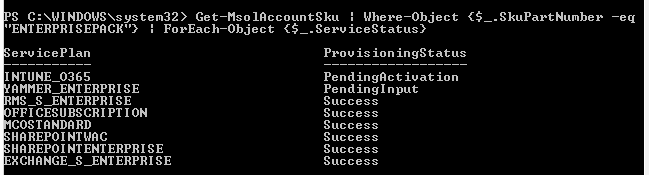
5.To get the details about the enterprise pack and the services included in it: Get-MsolAccountSku | Where-Object {$_.SkuPartNumber -eq “ENTERPRISEPACK”} | ForEach-Object {$_.ServiceStatus}

Enterprise pack

6. To get the details of the users and the license assigned to them : get-msoluser -all | ft displayname, licenses | Out-file “C:\userlicenses.csv”

Note : *Running this command will generate a csv file in the specified path  which has the details in it .

7. To assign license to a specific user : set-msoluserlicense -UserPrincipalName kamalag@vign.onmicrosoft.com -AddLicenses “vign:enterprisepack”

8. To remove license assigned to a specific user: set-msoluserlicense -UserPrincipalName kamalag@vign.onmicrosoft.com -RemoveLicenses “vign:enterprisepack”

9. To create a new security group: new-msolgroup -DisplayName “Groupname” -Description “Group Description”

New group

Note : *Specify the Groupname in the “Groupname” field and mention the group description in the “Group Description” field .In the above case “Vignesh” is the group name and “Desktop Technicians” is the group description.

10. To get the list of security groups: get-msolgroup

msolgroup

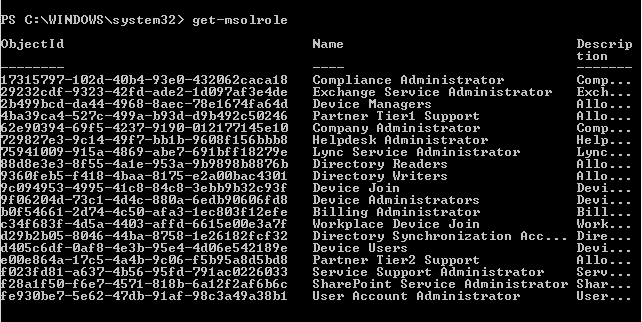
11. To get the list of roles in your tenant: get-msolrole

msolrole

12. To add a user to a roleadd-msolrolemember -rolename “User Account Administrator” -rolememberemailaddress “testuser@vign.onmicrosoft.com”

13. To set a password for a user : set-msoluserpassword -UserPrincipalName “kamalag@vign.onmicrosoft.com” -newpassword “P@ssw0rd2015”

password