

List of office updates released in October 13,2015 CU : _ https://support.microsoft.com/en-us/kb/3099951
Tag: SharePoint;SharePoint Server 2016;
Quick Edit option not working on SharePoint List:
This post discusses on a known issue where the “quick edit “option is greyed out in a “SharePoint custom list”. Please note that the contents discussed on this post only applies for a “SharePoint custom list “ , this may or may not be true for the other list types in SharePoint .

Reasons why the quick edit option is greyed out:
While there can be couple of reasons for this option to be disabled/greyed out in a SharePoint List , the below mentioned one’s are the known possibilities and its always suggested to go and take a look at this when the “quick edit “ option is greyed out in a SharePoint custom List .
- The “Quick Edit “ option not being turned on under “Advanced settings” option in “List settings “ .
- The list has “grouping “enabled and this will disable the “quick edit “option.
- The “Allow individual item “check-box not being checked on “Tabular view “.
Now given these reasons, let’s take a look at how to fix them ….
- The “Quick Edit “ option not being turned on under “Advanced settings” option in “List settings “
1. Go to list settings –> Advanced settings
2. On Advanced settings you will have an option as shown below .Make sure this is set to “ Yes “

2. The list has “grouping “enabled and this will disable the “quick edit “option.
If the list has “ grouping “ enabled then the quick edit option will not be displayed and in order to fix this you need to remove the “ grouping “ option from the list .
1. Go to “Modify view “option in the top ribbon interface as shown below and click on it.

2. Once you’re on the “Modify view “ screen ,please scroll all the way down to “ Group By” and make sure that all the options are set to “ None “ here .

3. By any chance if you see any “group by “settings made here, please remove that for the “quick edit” option to work.
3. The “Allow individual item “checkbox not being checked on “Tabular view “.
1. Go to the “Tabular view “option under “Modify view “and make sure that the “Allow individual item check-box “is checked.

Things to know about SharePoint Hybrid Search
Things to know about SharePoint Hybrid Search:
This post is mainly intended for those who want to understand about those services that can go Hybrid on SharePoint Server 2013 and I’ll be mainly discussing specifically about “SharePoint Server Hybrid search” here ….
The below mentioned SharePoint services can go hybrid:
- One drive for business
- SharePoint Search
- Business Connectivity service
- Duet for enterprises
TechNet link for Hybrid SharePoint Services: _ https://technet.microsoft.com/en-us/library/dn197168.aspx
Now as mentioned before I’ll be discussing about “SharePoint Hybrid search” alone in this post and will be discussing about other SharePoint services that can go hybrid in a different post.
I’m going to keep this post simple by discussing only about what “SharePoint Hybrid search” is all about and the different topologies it has. The configuration part will be discussed on an upcoming new post.
What is SharePoint Hybrid Search?
To put it in simple words the term “Hybrid “here refers to using both on-premises + office 365 (SharePoint online) in your SharePoint deployment .If you have an environment where both your SharePoint server and office 365 (i.e. SharePoint Online) is integrated then it’s likely to be called as a “Hybrid SharePoint environment “.
Different topologies available in SharePoint Hybrid search:
There are three different topologies to speak about that are available for configuring SharePoint Hybrid search and it’s up to you as a SharePoint administrator to choose the right topology that suits the business requirement .
The 3 different topologies are …..
- One-way outbound search
- One-way inbound search
- Two way (bidirectional) –> (I’m not sure if this is supported by Microsoft as of now .However I’ve discussed about this method also )
One-way outbound search:
In this model the user executes a search query in the SharePoint on-premises search center site and the query component looks for the results from the SharePoint on-premises site as well as from Office 365 and displays it for the user in the search results .
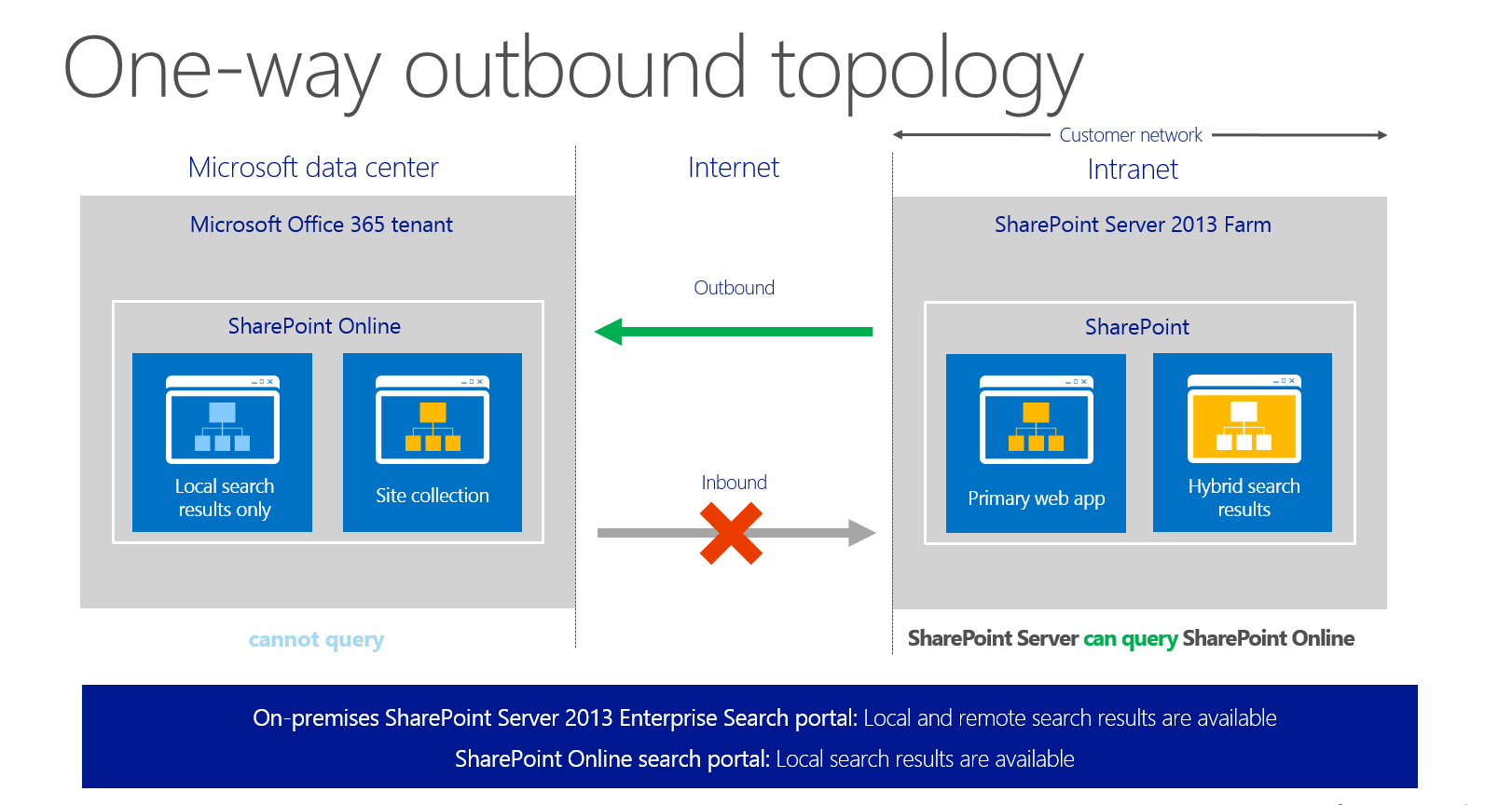
Note: The users should SharePoint online license assigned to them to be able to get the search results from SharePoint Online.
One-way inbound search:
In this model the user executes a search query in the SharePoint online search site and the query component looks for the results from the SharePoint online sites as well as from SharePoint on-premises site and displays it for the user in the search results.
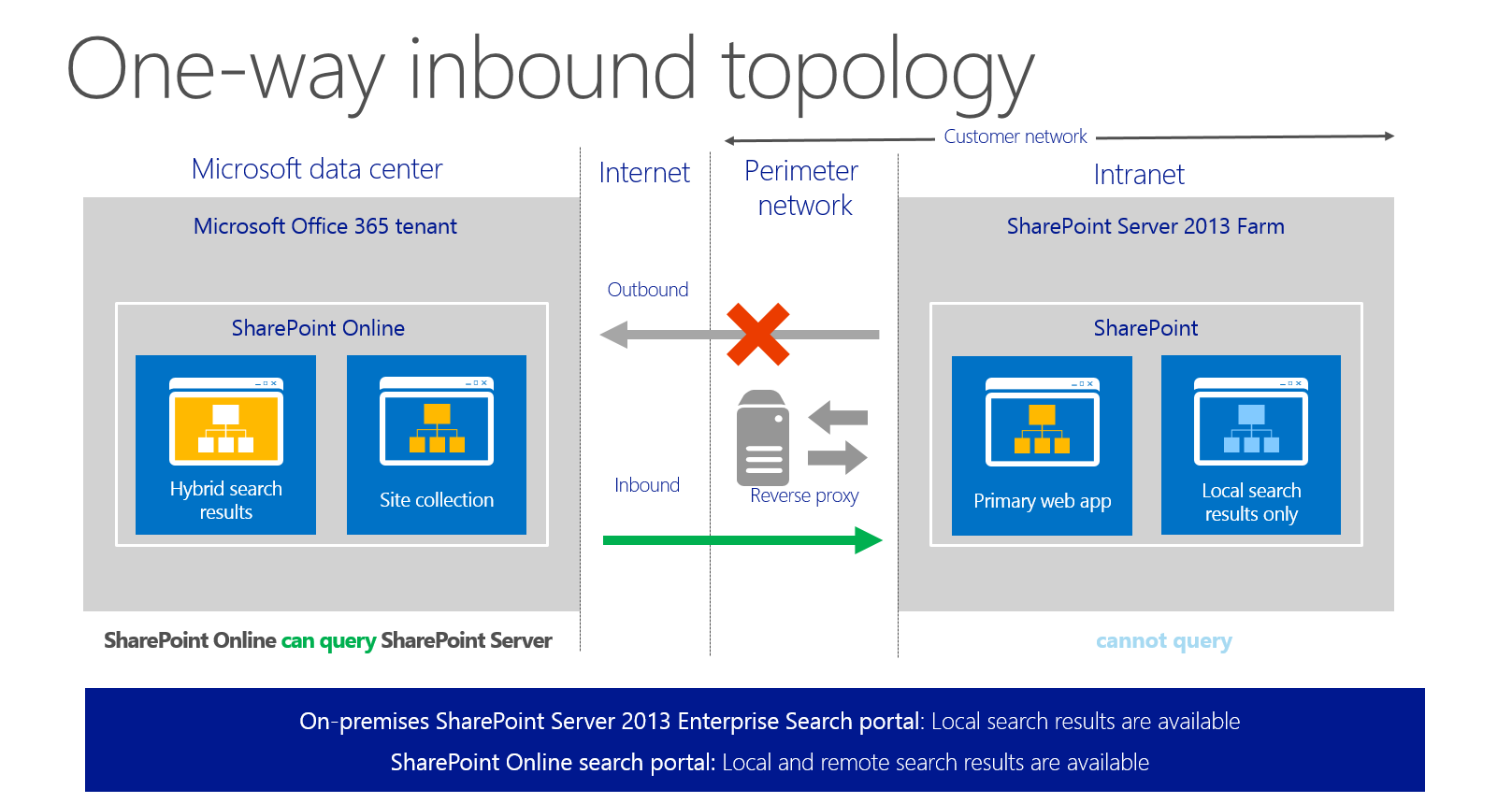
Note: The users should SharePoint online license assigned to them to be able to get the search results from SharePoint Online.
Two-way (bidirectional) topology:
The name speaks for itself. In this model the user will be able to execute a search query in the SharePoint on-premises search site and get results from SharePoint server as well as from Office 365 (i.e. SharePoint online). Similarly, a user who executes a search query in SharePoint online will be able to get search results from SharePoint online as well as from SharePoint Server.
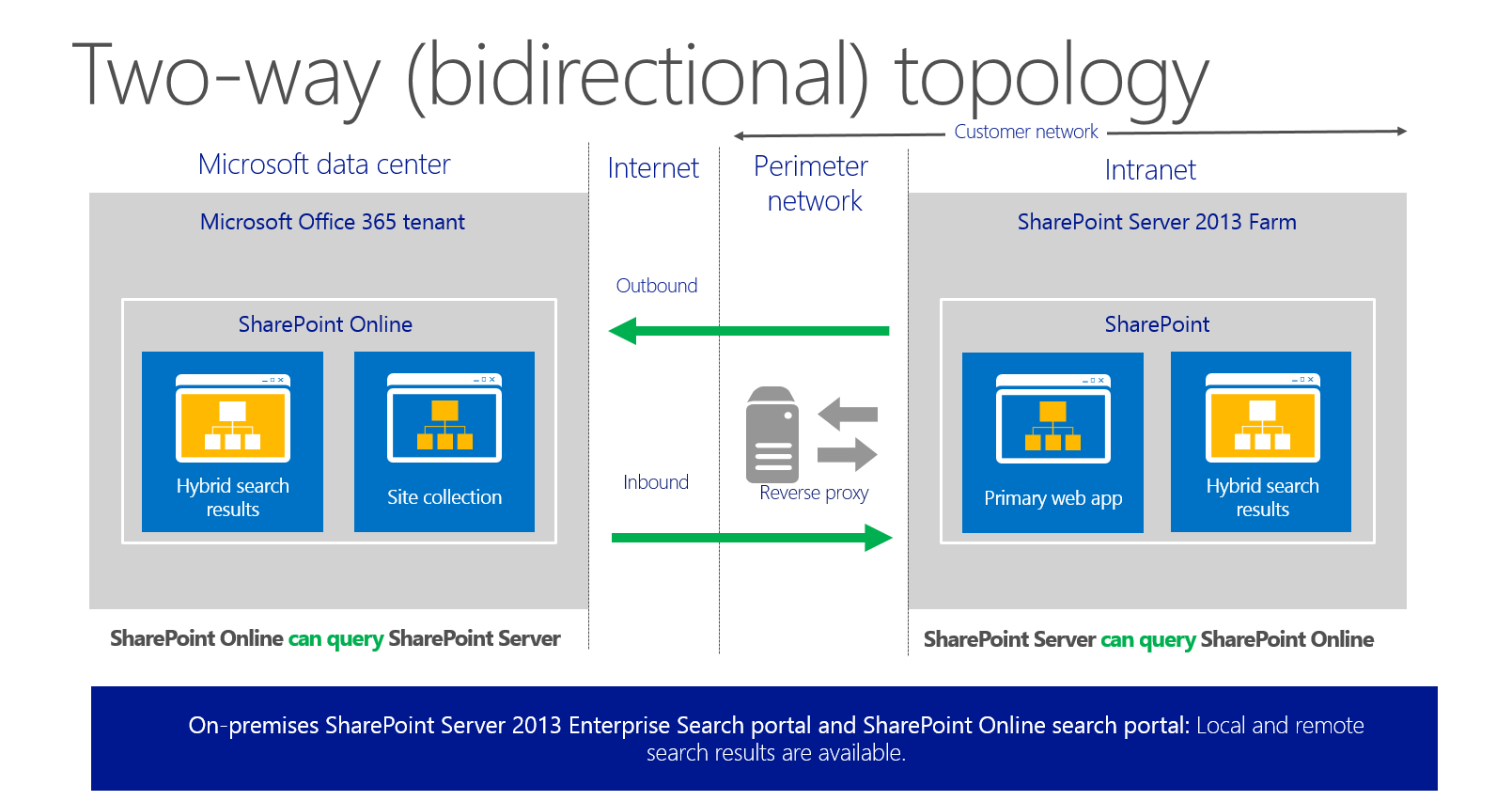
Note: The users should SharePoint online license assigned to them to be able to get the search results from SharePoint Online.
End user experience in the search center:
The below illustration shows how a user will see the results in the search center when his SharePoint environment is configured for Hybrid search ….

Search model for a Hybrid-search environment:
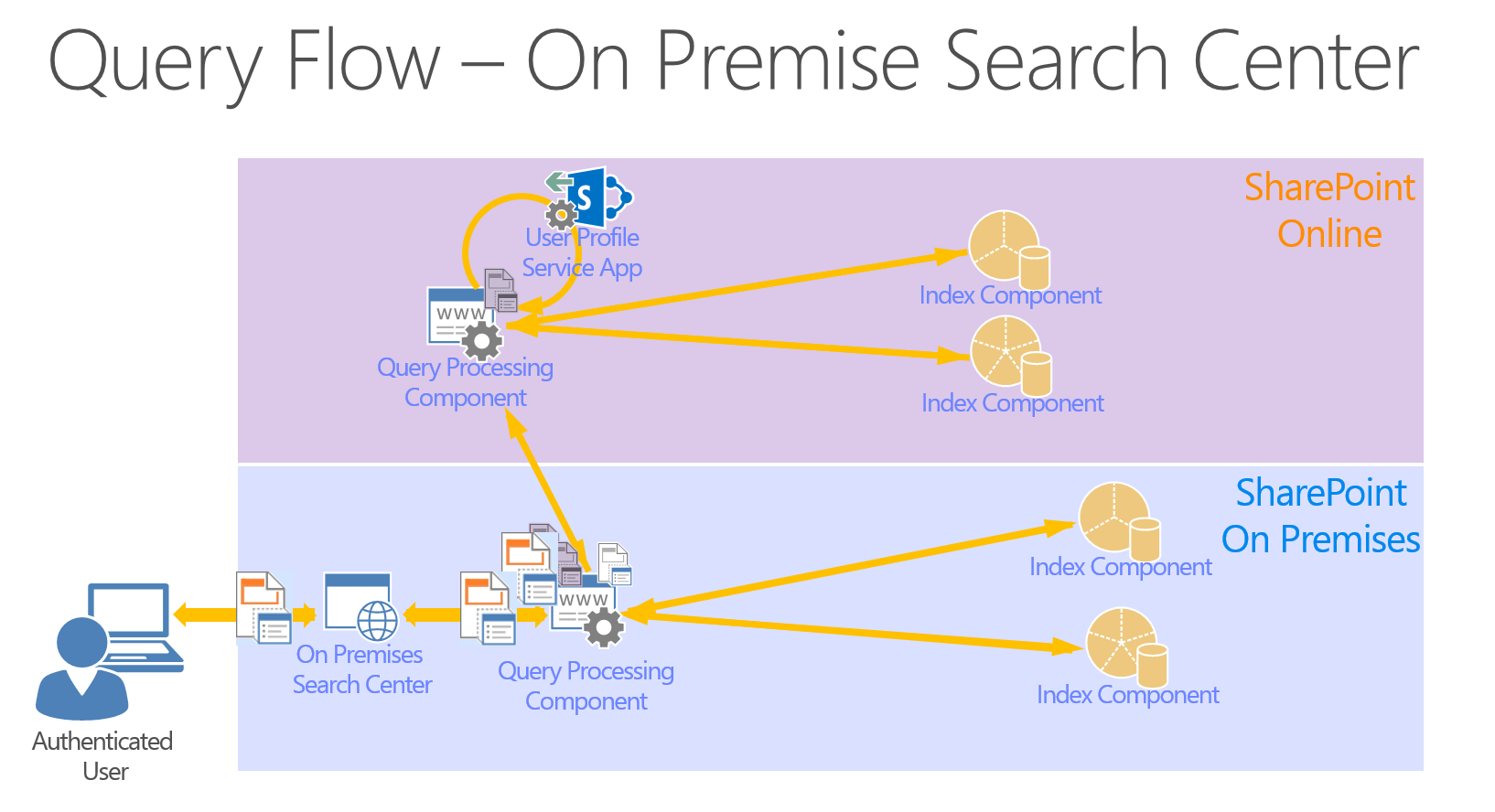
Also, if you haven’t gone through the video in the link below, I highly recommend you to take a look at this to understand about SharePoint server Hybrid search and how it works :
https://channel9.msdn.com/Events/SharePoint-Conference/2014/SPC320
SharePoint Online: Features & Limitations
- Number of items that can be synced: You can sync up to 20,000 items total across all synchronized libraries. This includes One Drive for Business libraries, Team Site libraries, or both. This includes folders and files. Separately from the overall sync limit, there are limits to the number of items that can be synchronized for each library type.You can sync up to 20,000 items in an One Drive for Business library. This includes folders and files.You can sync up to 5,000 items in a SharePoint library. This includes folders and files. These are libraries that you find on various SharePoint sites, such as team sites and community sites, libraries that other people created, or that you created from your Sites page. You can sync multiple SharePoint libraries. Any team sites that you sync will also count against the overall 20,000 item limit across all synchronized libraries.
- Size limit for syncing files: In any SharePoint library, you can sync files of up to 2 gigabytes (GB).
- Character limit for files and folders: These limits apply to files and folders that you add to a synced library folder for uploading to SharePoint. In SharePoint Server 2013, file names can have up to 128 characters. In SharePoint On line, file names can have up to 256 characters. Folder names can have up to 250 characters. Folder name and file name combinations can have up to 250 characters.
- Invalid characters :
The following characters in file or folder names aren’t supported when you sync OneDrive for Business with SharePoint On line:
\
/
:
*
?
”
<
>
|
#
%
Additionally, a file or folder name that begins with a tilde (~) isn’t supported.
5. Unsupported folder names: When you sync One Drive for Business with SharePoint Online or SharePoint 2013, a folder named “forms” isn’t supported at the root level for a list or library. This occurs because “forms” is a hidden default folder that’s used to store templates and forms for the library. Additionally, a folder that contains the string _vti_ is reserved by SharePoint, and isn’t supported.
The following folder names can be synchronized in One Drive for Business and SharePoint On-line. However, if they’re synchronized, they won’t appear when you view the library on the SharePoint Online or OneDrive for Business webpage. With some of these restrictions, you may be unable to add files or folders that have these characters while in the OneDrive for Business folder. However, if you create the files or folders outside OneDrive for Business and then drag those files or folders into the OneDrive for Business folder, the files and folders will sync but the files won’t appear on the webpage.
*_files:
*_Dateien
*_fichiers
*_bestanden
*_file
*_archivos
*_tiedostot
*_pliki
*_soubory
*_elemei
*_ficheiros
*_arquivos
*_dosyalar
*_datoteke
*_fitxers
*_failid
*_fails
*_bylos
*_fajlovi
*_fitxategiak
*_private
6. GUID strings as file names
The GUID string structure is supported in SharePoint Online.
The following GUID string structure isn’t supported for file names in SharePoint 2013:
‘{‘ + 8 hexadecimal + ‘-‘ + 4 hexadecimal + ‘-‘ + 4 hexadecimal + ‘-‘ + 4 hexadecimal + ‘-‘ + 12 hexadecimal +’}’
For example, a GUID that matches this structure resembles the following:
{9b6634a7-26b7-40a2-a48e-6f967d89c29e}
7. You can’t upload files that have a *.tmp or *.ds_store extension, and you can’t upload desktop.ini, thumbs.db, or ehthumbs.db files.
8. Additionally, you can’t upload files whose file types are blocked on the SharePoint site. If your organization is running SharePoint Server, the list of blocked files may vary, depending on what your administrator sets up. If your organization is running SharePoint Online, the default list of blocked files is fixed and can’t be changed. To see a list of the default blocked files, go to the following Microsoft website: _ File types that cannot be added to a list or library
9.Outlook PST files
Whereas PST files aren’t actively blocked by OneDrive for Business, syncing PST files that are in an open state isn’t supported. If you decide to sync PST files (for example, an archive PST file that you don’t load or view in Outlook), they can’t be in an open state at any time by any application while they’re in the OneDrive for Business sync folder. A PST file that’s connected to Outlook will be updated regularly and therefore if synchronized, can result in too much network traffic and growth of the Office File Cache on your local drive.
10.OneNote notebooks
Because OneNote notebooks have their own sync mechanism, they aren’t synced by the OneDrive for Business sync client. You can upload OneNote notebooks to a SharePoint Online page. However, they won’t sync with through the OneDrive for Business sync client application. Additionally, if you add a OneNote notebook to a local folder that syncs with SharePoint Online, the notebook won’t sync with the SharePoint site and may cause other sync errors within the local folder.
Open files can’t be synced. Any file that’s currently open by an application (for example, an Excel .xlsx file) can’t be synced by OneDrive for Business. To sync the file, close any application where the file is currently being used, and then sync the file.
12. Lookup columns in a library:
.The SharePoint Online or OneDrive for Business library can’t exceed the lookup column threshold. For more information, go to the following Microsoft Knowledge Base article:
2927386 “We couldn’t sync this library” error when you use the OneDrive for Business sync client
“Fix it” tool to help in renaming files and folders to prepare or fix the naming of items in a local folder or OneDrive for Business folder
13. To get files to sync successfully, you may have to rename a wide range and large number of files if their names contain unsupported characters. This Fix it tool for Windows automatically renames files and folders whose current names contain any unsupported characters. The tool also generates a report of those changes and of any files that are violating other restrictions that are called out in this article, and shows which folders were scanned by the tool.
14. Supported changes by this tool apply only to SharePoint Online. SharePoint Server 2013 may have a separate set of restrictions that were set by your administrator.
15.The Fix it tool currently performs the following tasks on the OneDrive for Business folder or local folder that you specify:
Removes unsupported characters from file or folder names. For example, a file that’s named This%is%a%test.doc will be renamed Thisisatest.doc.
If an item has only invalid characters, it will be renamed Invalid Renamed File. If the item is a folder, it will be renamed Invalid Renamed Folder.
If a file or a folder is renamed, and the renamed file or folder conflicts with an existing item on the same directory path, the item will be renamed by appending an <x> to the name. The <x> placeholder represents is an integer, starting with the number 1, until all rename actions are completed for that folder.
For example, assume that a folder has two files that are named HelloWorld.doc and Hello%World.doc. Because % is an unsupported character, the second file is renamed HelloWorld.doc. To avoid duplication in the same folder, the name of the renamed file will be changed to HelloWorld1.doc.
In addition to file names being changed by this Fix it tool, several other rules are run to check for any additional limitations that you may encounter when it’s syncing. A report that documents the issues that were found is generated and put on your desktop for you to review. A new log file will be generated every time that you run the Fix it tool.
16. The Fix it tool won’t change file and folder names that have unsupported characters or generate warnings in the log file for the following items:
OneNote notebook names
Open files
Lookup columns
Maximum path character count for an uploaded file
(The character count is not validated.)
17. External Users
Per MS: “An external user is a person who has been granted access to your SharePoint Online site, but who is not a licensed user within your organization. External users are users who are not employees, contractors, or onsite agents for either you or your affiliates.”
Maximum number of external users: 10,000
External users cannot create their own My Sites or OneDrive Pro
Cannot change their profile, edit picture or see tasks
Cannot be an administrator for a site collection
Cannot access search center or execute searches against “everything”
18. Missing: Search Control and Index
Unable to set crawl schedules
Unable to initiate crawl (default is ~5 minutes)
Unable to create custom solutions against Search Index
Unable to add entity extraction (custom refiners)
Unable to enhance relevancy (custom ranking models)
No federated search
19. Missing: Cross site publishing
Per MS: “Cross-site publishing is a new publishing method that lets you create and maintain content in one or more authoring site collections and publish this content in one or more publishing site collections by using Search Web Parts. Cross-site publishing complements the already existing publishing method, author-in-place, where you use a single site collection to author content and make it available to readers of your site.”
20.Missing: Content by search
(Content by search allows content to be displayed in a web part via search. One of the top features of SP13.)
21. Unavailable SharePoint Services
Access Services 2010
PerformancePoint Service
PowerPoint Automation Service
State Service
User and Health Data Collection Service*
*(Office 365 provides separate health info in admin center)
Word Automation Service
Work Management Service
Microsoft Foundation Subscription Settings Service
22. Branding Limitations
Adding a custom design to the internal site “Team Site” is a bit counter intuitive. The option to select a “MasterPage” is not available under “Site Settings.” You must upload the MasterPage to the MasterPage gallery, along with a “Preview” file. Then, you must create a “Composed” look. From there it will be available under the “Change the Look” feature.
Fix for the “search issue” in August 2015 CU for SharePoint 2013 :
As mentioned in my previous post about the “search issue” which is caused by the August 2015 CU for SharePoint 2013, we were finally able to find the fix for that. We tried the steps as mentioned in Stefan’s Blog and we were finally able to get rid of the search issue which was a great relief.
Please try the below mentioned steps,
Once done running the August 2015 CU for SharePoint 2013, please run the below mentioned command on all the servers in the farm to get rid of this issue.
IISRESET
PSConfig.exe -cmd upgrade -inplace b2b -wait -cmd applicationcontent -install -cmd installfeatures -cmd secureresources
Running this command should help you to get rid of the below mentioned error which you would get when you try to execute a search query in the SharePoint Search center.
Field or property “TimeZoneId” does not exist
Reason for August 2015 CU to fail silently while you’re trying to run the package file: _ http://blogs.technet.com/b/stefan_gossner/archive/2015/09/08/important-august-2015-cu-for-sp-2013-might-have-failed-silently-when-using-specific-installation-methods.aspx
Managing “User property fields” in SharePoint 2013
Managing “User property fields” in SharePoint 2013:
We happened to work on a project where we were supposed to fix the FIM sync errors related to “User property fields” in our SharePoint Farms. The user property fields in the SharePoint user profile were not displaying the values properly and as a result of that we were not able to see the details (i.e. City, Address, Location etc.…) in the user property fields. It was just blank and it failed to write the information from FIM to the SharePoint user profile .This article describes the steps which we performed in our Q & A environment to overcome this issue.
Issue Description:
SharePoint user profiles were not displaying the user’s details such as City, Address, Location,company etc.. … in their profile and it just remained blank as show in the image below.

Root cause:
The root cause of this was nothing else but the default character limit which was specified for these “User property fields” was not adequate enough and hence FIM failed to write these information to the SharePoint user profile. Basically, in our environment FIM does the job of creating user profiles by retrieving the user’s information from Active Directory and it pushes the user profile to SharePoint. Since the supported character length of these user properties was less in length it didn’t display the values in the user property fields.
“User property field” character length comparison :
| Before Increasing the Character length | After increasing the character length |
| Address–> 25 characters | Address–> 100 characters |
| City–> 25 characters | City–> 100 characters |
| Company–>100 | Company–>100 |
| Department–>250 | Department–>250 |
| Office–>250 | Office–>250 |
| Title–>150 | Title–>150 |
| First Name–>250 | First Name–>250 |
| Last Name–>250 | Last Name–>250 |
| SPS-Location–>25 | SPS-Location–>25 |
*We changed the character length of the all the user properties less than 100 to 100.
Resolution:
We went ahead and increased the character length of these user properties in the SharePoint User Profile Service application so that FIM starts to write the values to the SharePoint user profile. Now the catch here is, we can’t edit the property in the user profile as the length setting is greyed out and it cannot be changed. So the only way to change the length is to go ahead and delete the property completely and recreate it by increasing the character length to suit your needs.
Steps performed to implement this change:
- Open the Central admin with your farm admin account.
- Navigate to the Manage service applications option and click on User Profile sync service.
- Once you click on the “User profile sync service “click on the “Manage” button in the top ribbon.
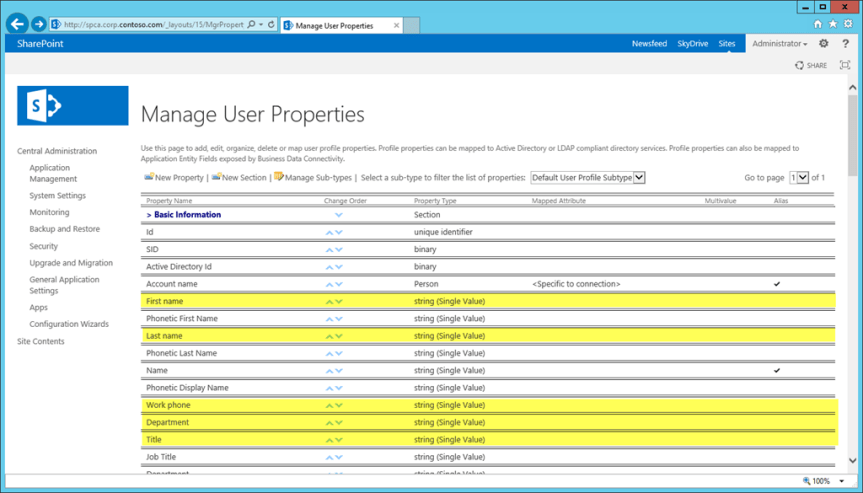
- This should take you to the “Manage Profile service” UI and then click on ‘Manage User properties” under “People” section.
- This would display the list all the user properties in your SharePoint farm.
- Click on the drop down arrow on the property which you want to delete and click on “delete”

- This would delete the user property and now you can go ahead and create a new property by clicking on “Create new property” option.
- Specify the “Name”, “display name” and length for the new property as shown below.

9. Specify the privacy settings for this property here.

10. Specify the display settings for this property here.

- Once done, click on “Ok” and this will create the new user property for you.
- Once the next sync job completes it will start displaying the values in these fields as shown in the image below.
Observations:
After completing this activity the SharePoint user profile started to display the values correctly in the User property fields and after making this change we were able to notice some change in the ordering of the user properties in the SharePoint profile page UI .So basically what happened was, it changed the order of these properties in the profile page UI so that the recently created new user properties got added to the last.
However, this change didn’t have any impact on the “Contact” section which is displayed on the user’s “My site” .The user property fields ordering didn’t change there as that’s a BR custom code which is taking care of the ordering .
On the other hand the other lesson learnt was, we can’t delete the “SPS-Location” user property to recreate it. The reason for this is, it’s a default property and is checked on rendering the “My Profile” page .If this property does not exist, the page will fail and throw an error stating that the property is missing. To know more about this, check this article.
Updating the user property fields in Danaher Connect:
As shown in the following illustration, user profiles can be composed of properties that are imported from a directory service, imported from business systems, and supplied by users.

For example, a directory service could supply important information that is needed across the organization, such as users’ account names, work telephone numbers, titles, and work e-mail addresses. Business systems could supply business-related information, such as the customer accounts or product lines managed by each team member. Users could supply supplemental information about themselves, such as their areas of expertise or hobbies.
Conclusion:
We were finally able to get this issue fixed in our DEV farm by deleting and recreating the “user property fields” as that’s the only option to increase the character length.
PowerShell Command to identify the quota size of all the site collections per web application
The below mentioned power shell command is used to get the quota size of all the site collections per web application .Now , its a known fact that there are couple of ways to do this , but this command is very simple and neat and gives the result as expected .I was able to find the Power shell command to get the list of all the site collections in a farm and its quota size in the internet ,but the problem with that is, its also going to display the “My sites” as well in the result and it might take a while consuming heavy server resource to pull all the results from the farm .This command below is specific to a single web application and you just need to specify the web application url which you need . Please try it for yourself…..If you’re into a situation where you need to pull up the quota size of all the site collections in a single a web application , then this is the right tool for that.
Syntax:
Get-SPSite -Limit All | Where-Object{$_.Webapplication.url –like “https://vig.sharepoint.com/”} | select url, @{label=”Size in MB”;Expression={$_.usage.storage/1MB}} | Sort-Object -Descending -Property “Size in MB” | Format-Table –AutoSize
Detailed Description:
The above mentioned PowerShell Command is used to identify the quota size of all the site collections per web application in SharePoint and will display the size in Megabytes.
Parameters to specify in the Command:
- Web application url
- Limit All – Please include this if you want the command to display the list of all site collections in the web application, else you would be getting only few results.
New and improved features in SharePoint Server 2016 IT Preview

Visit the post for more.
Source: New and improved features in SharePoint Server 2016 IT Preview
New and improved features in SharePoint Server 2016 IT Preview
Deprecated or removed features in SharePoint Server 2016 IT Preview
This technet link gives a detailed explanation of the deprecated or removed features in SharePoint Server 2016 IT Preview.
https://technet.microsoft.com/en-us/library/mt346112(v=office.16).aspx
Note: Since this is only the preview version I think this list is subjected to change in the mere future . Also please be mindful that the “Tags” and “Notes” feature is removed in SharePoint Online too.
 Vignesh's SharePoint Thoughts