Office 365 On-boarding/Troubleshooting Tools and Resources

Office 365 On-boarding/Troubleshooting  Tools and Resources:

While we indeed have a lot of tools out there for troubleshooting Office 365 and which can also be used for a successful Office 365 deployment the below mentioned one’s are the widely used tools to troubleshoot/deploy Office 365 .

Office OnRamp–>  OnRamp for Office 365 is an automated assistance tool that helps you gather configuration requirements and perform deployment readiness checks against your on-premises environment.  OnRamp can accelerate the deployment timeline, especially for organizations with requirements such as identity federation or hybrid deployment . OnRamp can be accessed via https://onramp.office365.com/ or  you can access it from within your Office 365 tenant by navigating to the Tools section .

Fast Track–>  As part of the FastTrack program, you’ll receive personalized assistance from a Microsoft onboarding expert who will ensure that your Office 365 service is provisioned and ready to use. All Office 365 enterprise customers are eligible for FastTrack with the purchase of 150 or more eligible seats.

HRC Checks (Health, Readiness and Connectivity Checks) :_   This is a  recommended practice by Microsoft where  you’re supposed to run  health, readiness, and connectivity checks before you set up Office 365.

Here’s why:

  • Checks can find settings in your current environment that might cause problems when you start to set up or use your services.
  • If you know where the potential roadblocks are before you start, you can fix or work around them to make your deployment path easier to complete.

This is just a read only check and this won’t make any changes to the environment , hence the users won’t be affected .

Microsoft Remote Connectivity Analyzer : _ The Office 365 Support and Recovery Assistant helps users troubleshoot and fix their account or profile related Outlook issues. The assistant performs a series of diagnostics tests to identify the root cause of issues, such as verifying users’ credentials, licenses, updates to Outlook clients, and whether Outlook servers are reachable. Depending on the test results, it can offer to automatically fix problems for users or provide instruction on recommended solutions. All the diagnostics results are saved in a log file for users to share with their Outlook admin or support engineers for further investigation. Each time you run Office 365 Support and Recovery Assistant, it automatically gets updated to its latest version, so it can troubleshoot any new Outlook problems.

Link for Remote Connectivity Analyzer :_ https://testconnectivity.microsoft.com/

IDFix: IdFix is used to perform discovery and remediation of identity objects and their attributes in an on-premises Active Directory environment in preparation for migration to Office 365. IdFix is mainly used by the Active Directory administrators who are responsible for DirSync with the Office 365 service.

Link for IdFix Tool :_ http://www.microsoft.com/en-us/download/details.aspx?id=36832

Lync Connectivity Analyzer :  This tool is used to determine whether the connections support Office 365 and On-premises Lync service .

Link for Lync Connectivity Analyzer: _ http://www.microsoft.com/en-in/download/details.aspx?id=36536

MOSDAL (Microsoft Online Services Diagnostics and Logging Support Toolkit) :_  The Microsoft Online Services Diagnostics and Logging (MOSDAL) Support Toolkit is used to perform  network diagnostics and collects system configuration, network configuration, and logging information for applications that are used to  Microsoft Office 365. The logs and diagnostic information that the tool generates provide data that helps technical support professionals troubleshoot configuration, network, installation, and other service-related issues.

The MOSDAL Support Toolkit collects log files, registry keys, and configuration settings that would otherwise require time-consuming and labor-intensive collection by using separate tools.

Link for MOSDAL Support Toolkit :_ https://support.office.com/en-us/article/Using-the-MOSDAL-Support-Toolkit-b6c079c4-5d54-465d-bbea-74732c48dc58

In addition to the above mentioned tools you can also use  other tools to support Office 365 , please check this link to get the list of all the tools :_ https://community.office365.com/en-us/w/diagnostic_tools/


Part 1 : Useful Office 365 commands

List of useful Office 365 commands :

1.To get the list of O365 users : get-msoluser

msol user

2.To create a new user: new-msoluser -UserPrincipalName test@vign.onmicrosoft.com -displayname “Test User”

new user

3.To remove an existing user: remove-msoluser -UserPrincipalName kamalag@vign.onmicrosoft.com

4.To get the Office 365 license information : get-msolaccountsku

msol accountsku

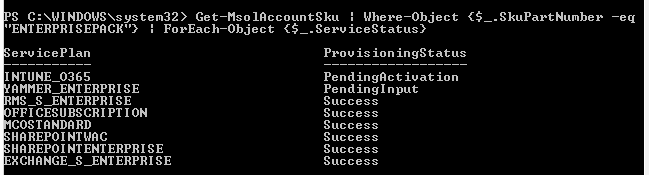
5.To get the details about the enterprise pack and the services included in it: Get-MsolAccountSku | Where-Object {$_.SkuPartNumber -eq “ENTERPRISEPACK”} | ForEach-Object {$_.ServiceStatus}

Enterprise pack

6. To get the details of the users and the license assigned to them : get-msoluser -all | ft displayname, licenses | Out-file “C:\userlicenses.csv”

Note : *Running this command will generate a csv file in the specified path  which has the details in it .

7. To assign license to a specific user : set-msoluserlicense -UserPrincipalName kamalag@vign.onmicrosoft.com -AddLicenses “vign:enterprisepack”

8. To remove license assigned to a specific user: set-msoluserlicense -UserPrincipalName kamalag@vign.onmicrosoft.com -RemoveLicenses “vign:enterprisepack”

9. To create a new security group: new-msolgroup -DisplayName “Groupname” -Description “Group Description”

New group

Note : *Specify the Groupname in the “Groupname” field and mention the group description in the “Group Description” field .In the above case “Vignesh” is the group name and “Desktop Technicians” is the group description.

10. To get the list of security groups: get-msolgroup

msolgroup

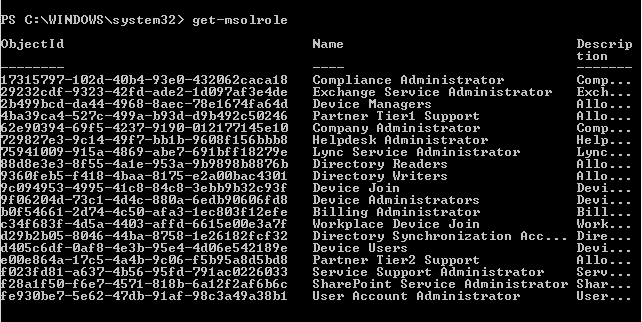
11. To get the list of roles in your tenant: get-msolrole

msolrole

12. To add a user to a roleadd-msolrolemember -rolename “User Account Administrator” -rolememberemailaddress “testuser@vign.onmicrosoft.com”

13. To set a password for a user : set-msoluserpassword -UserPrincipalName “kamalag@vign.onmicrosoft.com” -newpassword “P@ssw0rd2015”

password

New and improved features in SharePoint Server 2016 IT Preview

Visit the post for more.

Source: New and improved features in SharePoint Server 2016 IT Preview

New and improved features in SharePoint Server 2016 IT Preview

https://technet.microsoft.com/en-us/library/mt346121(v=office.16).aspx

Deprecated or removed features in SharePoint Server 2016 IT Preview

This  technet link gives a detailed explanation of the deprecated or removed features in SharePoint Server 2016 IT Preview.

https://technet.microsoft.com/en-us/library/mt346112(v=office.16).aspx

Note: Since this is only the preview version I think this list is subjected to change in the mere future . Also please be mindful that the “Tags” and “Notes” feature is removed in SharePoint Online too.

SharePoint 2013 Permission Report: Check Access Rights for a Specific User

I’m pretty sure that by now many of the SharePoint SME’s out there would have tried the “Check access rights script for a specific user” . Now if you’re new to this , please take a look at the link below to understand what this script is all about .It’s a very powerful tool with some limitations.  I happened to work with this script recently and listed below is my experience with this script .

https://gallery.technet.microsoft.com/scriptcenter/SharePoint-Permission-2840f327

  1. It doesn’t get really granular and looks for all the bits and pieces and retrieve the complete information we are looking for .For instance it can’t get the permission assigned on a list item and its just stops at the list level .In addition to that it doesn’t look for the security groups too. 
  2. The script takes atleast not less than 30 mins to 1 hour to run depending upon the size of the FARM and the contents it has as it has to go through all the contents in the FARM . So its better you run this script on a server which is properly scaled out .
  3. Another annoying fact about this script is , the final report displays the list of all the sites where the “NTAuthority\Authenticates users” group and the “Everyone” group is added . For sure every user in the domain would be a part of this group and its really annoying to see the  report displaying  all those results which we don’t really need . Moreover it would be  great if the result just displays the list of the sites where the user was explicitly added . 

Powershell command to manually create a user’s “My site” in SharePoint

Powershell command to manually create a “My site” in SharePoint:

The “My site” in SharePoint normally gets created by the instantiation process when a user tries to access his/her “My site” for the first time .Now this process depends on how you have configured this functionality to work in your environment. It could either be configured in a way such that the “My site” is already created for the users in the FARM or may be the users need to access their “My site” for the first time and then the instantiation process would run which will then create a “My site” for the user.

This can also be done manually using Powershell .

Mentioned below is the Powershell command which is used to manually create a user’s “My site” …

$site=Get-SPSite “https://my.sharepoint.com”
$serviceContext = Get-SPServiceContext -Site $site
$userProfileConfigManager = New-Object Microsoft.Office.Server.UserProfiles.UserProfileManager($serviceContext)
$testuser = $userProfileConfigManager.GetUserProfile(“domain\username”)
$testuser.PersonalSiteInstantiationState
$testuser.CreatePersonalSite()

Note: Please make sure that you’re logged into the SharePoint server using the FARM account while running this command .Also make sure that the account running this command has enough permissions in the user profile service application too. 

SharePoint Server 2016 IT Preview

SharePoint2016

SharePoint Server 2016 IT Preview:

Ever since Microsoft announced the next on-premises of SharePoint ( i.e. SharePoint Server 2016) on Ignite this May , the term ” SharePoint 2016″ has caught the attention of many SharePoint geeks and everyone is keenly looking for its release date ….Now its quite obvious and a well known fact that Microsoft has added many advanced features to this release version which can add more value to the business and also offer a lot to IT Pros and Developers .

Today Microsoft has announced the availability of both SharePoint Server 2016 IT Preview and the new cloud hybrid search preview for SharePoint Server 2013 and 2016. Please check the Blog below for complete info:

https://blogs.office.com/2015/08/24/announcing-availability-of-sharepoint-server-2016-it-preview-and-cloud-hybrid-search/

Download link for SharePoint Server 2016 Preview : 

http://www.microsoft.com/en-us/download/details.aspx?id=48712

Some useful documentation on SharePoint Server 2016 IT Preview :

https://technet.microsoft.com/en-us/library/cc303422(v=office.16).aspx