Troubleshooting Distributed Cache in SharePoint Server 2013

The Distributed Cache plays an important role in SharePoint Server 2013 as it’s a key component for performance and caching. Distributed Cache is not a SharePoint service, it’s a standalone service called AppFabric 1.1 for Windows Server. SharePoint Server 2013 requires Windows Server App Fabric and the App Fabric 1.1 CU 1 (KB 2671763) to be installed .It takes care and improves the performance of the following features in SharePoint Server 2013:

  • Authentication
  • Newsfeeds
  • OneNote client access
  • Security Trimming
  • Page load performance

It’s always quite comfortable to manage Distributed Cache in SharePoint Server 2013 using PowerShell and the same applies while troubleshooting it also .This articles discusses on the useful PowerShell commands that can be used to troubleshoot Distributed Cache service in SharePoint Server 2013.

                     Command                    Explanation
                  Use-CacheCluster This is used to enable cache administration via PowerShell.
                  Get-CacheHost This would get you the list of every server in the cluster as well as the state of the service on that server.
      Get-CacheHostConfig <HostName> <Port> This would give you the general configuration details about a specific host in the cache cluster. All Windows Server AppFabric cache hosts use TCP/IP to communicate with each other and support the cache cluster. The SharePoint distributed cache is an AppFabric cache behind the scenes and  it uses the default AppFabric ports for server to server communication. These ports should be allowed through your firewalls for the cacheservice  to function correctly.
           Get-CacheAllowedClientAccounts This would tell which accounts/groups have rights to connect to the cache cluster as clients. This seems to be the standard configuration in SharePoint 2013.
                   Get-Cache Gets a listing of all the default caches in the farm. All caches have the Id (Guid) of the farm appended to the name.
       Get-CacheConfig <CacheName> Gives you the details about a specific cache instance
         Restart-CacheCluster This will restart the distributed cache service on all servers in the cluster and it will also clear the contents of the cache.
  Stop-SPDistributedCacheServiceInstance -Graceful This will stop the distributed cache service on an individual machine. The Graceful parameter will allow the cache service to migrate cached items to another host in the cluster.
 Remove-SPDistributedCacheServiceInstance Removes a cache host from the cluster. The best practice is to stop the cache service before you remove it.
  Add-SPDistributedCacheServiceInstance This command will add the cache host back to the cluster. If there is more than one host in the cluster, it will take a few minutes for the service to start and for any cached items to be synchronized to the new host.
   Get-CacheClusterHealth  Returns health statistics for all of the named caches in the cache cluster.
    Clear-CacheLogging  This command is used to disable all logging for the current admin
    Get-CacheStatistics Gives the statistics for a Cache or for a Cache Host.
     Start-CacheHost This would start the Caching Service on the specified cache host. If no cache hosts are up in the cache cluster, use the Start-CacheCluster command instead
     Stop-CacheCluster Stops the Caching Services on all cache hosts in the cluster.
    Stop-CacheHost Stops the specified cache host service.
   Test-CacheConfigAvailability Tests the connection with the cache cluster configuration store. This command will throw an exception if the connection fails.

In addition to the commands listed above there are couple of other things which you’re supposed to know while troubleshooting Distributed Cache Service/App Fabric.

  1. Query AppFabric for Caching Servers/Statuses :

To get the list of servers that AppFabric thinks there should in the cluster run “Get-CacheHost” (use “Use-CacheCluster” if necessary). This command gives us the list of the servers and also their availability status as far as AppFabric’s concerned.

  1. Query SharePoint for Caching Servers/Statuses :

To do the same for SharePoint, run:

Get-SPServiceInstance | ? {($_.service.tostring()) -eq “SPDistributedCacheService Name=AppFabricCachingService”} | select Server, Status

This will give you the same kind of data but from SharePoint perspective.  Make sure all the servers show the status as “Online” but more importantly that both SP & AF have the same names between them. If you see “cacheHostInfo is null” somewhere then it’s quite likely there’s a mismatch here.

What if one or more App Fabric Service Instance is disabled?

Run the below mentioned PowerShell command …..

Get-SPServiceInstance | ? {($_.service.tostring()) -eq “SPDistributedCacheService Name=AppFabricCachingService”} | select Server, Status

If any status shows as “disabled” then we have a problem and in that case please perform the below mentioned steps:

  1. Remove the service-instance (see above).
  2. Try re-adding it with Add-SPDistributedCacheServiceInstance
  3. Verify the new service-instance is “online”.

If for some reason Add-SPDistributedCacheServiceInstance doesn’t give you a healthy endpoint, try running Remove-SPDistributedCacheServiceInstance then Add-SPDistributedCacheServiceInstance on the server in question. If you still can’t get a healthy endpoint then it needs some serious consideration.


Command to Stop and Start the Distributed Cache service:

To start the Distributed Cache service by using Windows PowerShell:

At the Windows PowerShell command prompt, run the following command:

$instanceName =”SPDistributedCacheService Name=AppFabricCachingService”

$serviceInstance = Get-SPServiceInstance | ? {($_.service.tostring()) -eq $instanceName -and ($_.server.name) -eq $env:computername}

$serviceInstance.Provision()

To stop the Distributed Cache service by using Windows PowerShell :

At the Windows PowerShell command prompt, run the following command:

$instanceName =”SPDistributedCacheService Name=AppFabricCachingService”

$serviceInstance = Get-SPServiceInstance | ? {($_.service.tostring()) -eq $instanceName -and ($_.server.name) -eq $env:computername}

$serviceInstance.Unprovision()

October 13, 2015, update for Office

List of office updates released in October 13,2015 CU : _ https://support.microsoft.com/en-us/kb/3099951

Quick Edit option not working on SharePoint List:

This post discusses on a known issue where the “quick edit “option is greyed out in a “SharePoint custom list”. Please note that the contents discussed on this post  only applies for a “SharePoint custom list “ , this may or may not be true for the other list types in SharePoint .

0

Reasons why the quick edit option is greyed out:

While there can be couple of reasons for this option to be disabled/greyed out in a SharePoint List , the below mentioned one’s are the known possibilities and its always suggested to go and take a look at this when the “quick edit “ option is greyed out in a SharePoint custom List .

  1. The “Quick Edit “ option not being turned on under “Advanced settings” option in “List settings “ .
  2. The list has “grouping “enabled and this will disable the “quick edit “option.
  3. The “Allow individual item “check-box not being checked on “Tabular view “.

Now given these reasons, let’s take a look at how to fix them ….

  1. The “Quick Edit “ option not being turned on under “Advanced settings” option in “List settings “ 

1. Go to list settings –> Advanced settings

2. On Advanced settings you will have an option as shown below .Make sure this is set to “ Yes “

1

 2.   The list has “grouping “enabled and this will disable the “quick edit “option.

           If the list has “ grouping “ enabled then the quick edit option will not be displayed and in order to fix this you need to remove the “ grouping “ option from the list .

1. Go to “Modify view “option in the top ribbon interface as shown below and click on it.

2

2.  Once you’re on the “Modify view “ screen ,please scroll all the way down to “ Group By” and make sure that all the options are set to “ None “ here .

3

3. By any chance if you see any “group by “settings made here, please remove that for the “quick edit” option to work.

3.  The “Allow individual item “checkbox not being checked on “Tabular view “.

1. Go to the “Tabular view “option under “Modify view “and make sure that the “Allow individual item check-box “is checked.

4

October 2015 CU for SharePoint Server 2013 :

The October 2015 CU for SharePoint Server 2013 has been released today .

Please find the link here :  https://support.microsoft.com/en-us/kb/3085582

Do note that this has the fix for most of the issues that was introduced on the August 2015 CU.

Things to know about SharePoint Hybrid Search

Things to know about SharePoint Hybrid Search:

This post is mainly intended for those who want to understand about those services that can go Hybrid on SharePoint Server 2013 and I’ll be mainly discussing specifically about “SharePoint Server Hybrid search” here ….

The below mentioned SharePoint services can go hybrid:

  1. One drive for business
  2. SharePoint Search
  3. Business Connectivity service
  4. Duet for enterprises

 TechNet link for Hybrid SharePoint Services: _ https://technet.microsoft.com/en-us/library/dn197168.aspx

Now as mentioned before I’ll be discussing about “SharePoint Hybrid search” alone in this post and will be discussing about other SharePoint services that can go hybrid in a different post.

I’m going to keep this post simple by discussing only about what “SharePoint Hybrid search” is all about and the different topologies it has. The configuration part will be discussed on an upcoming new post.

What is SharePoint Hybrid Search?

To put it in simple words the term “Hybrid “here refers to using both on-premises + office 365 (SharePoint online) in your SharePoint deployment .If you have an environment where both your SharePoint server and office 365 (i.e. SharePoint Online) is integrated then it’s likely to be called as a “Hybrid SharePoint environment “.

Different topologies available in SharePoint Hybrid search:

There are three different topologies to speak about that are available for configuring SharePoint Hybrid search and it’s up to you as a SharePoint administrator to choose the right topology that suits the business requirement .

The 3 different topologies are …..

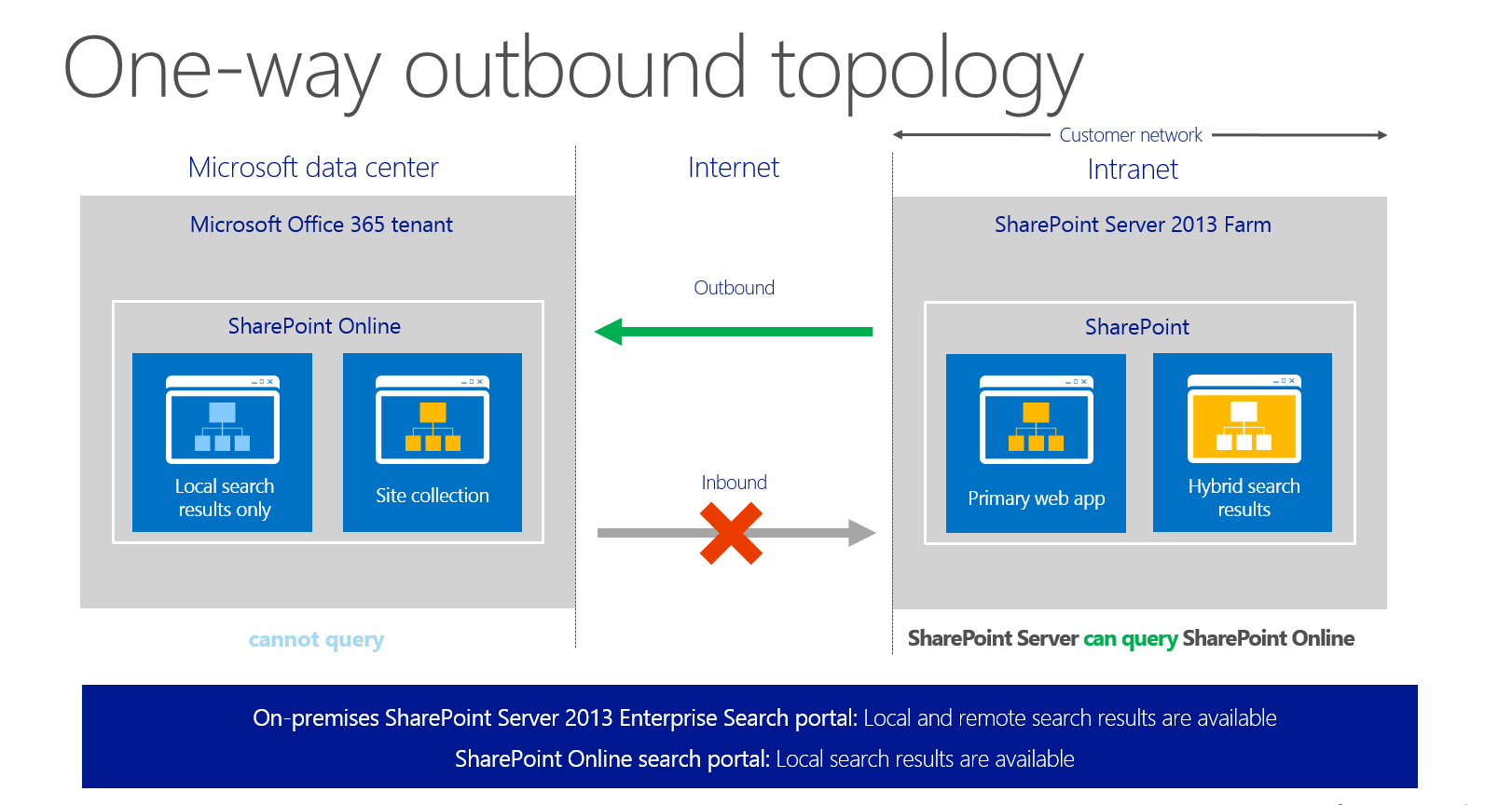
  1. One-way outbound search
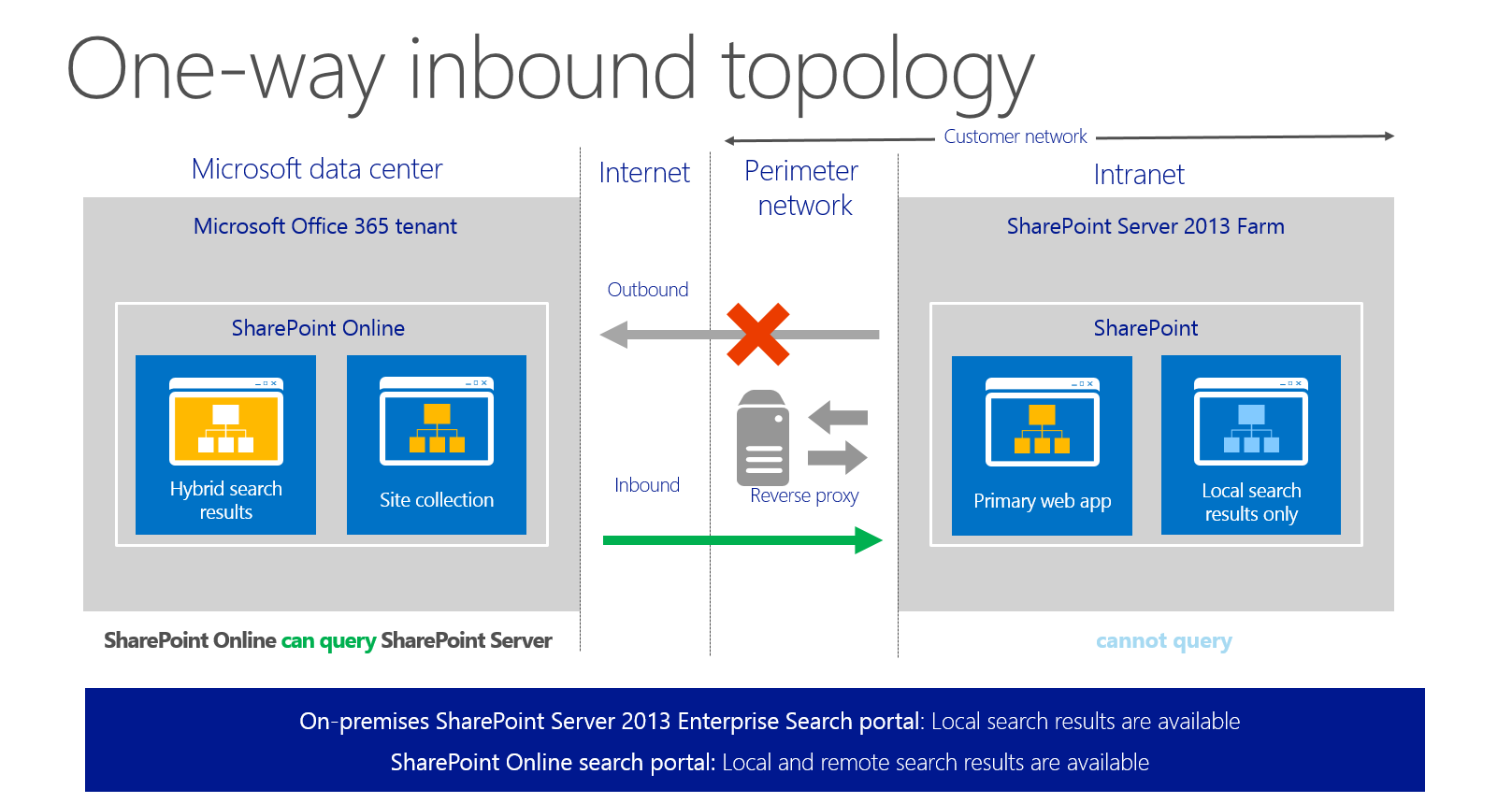
  2. One-way inbound search
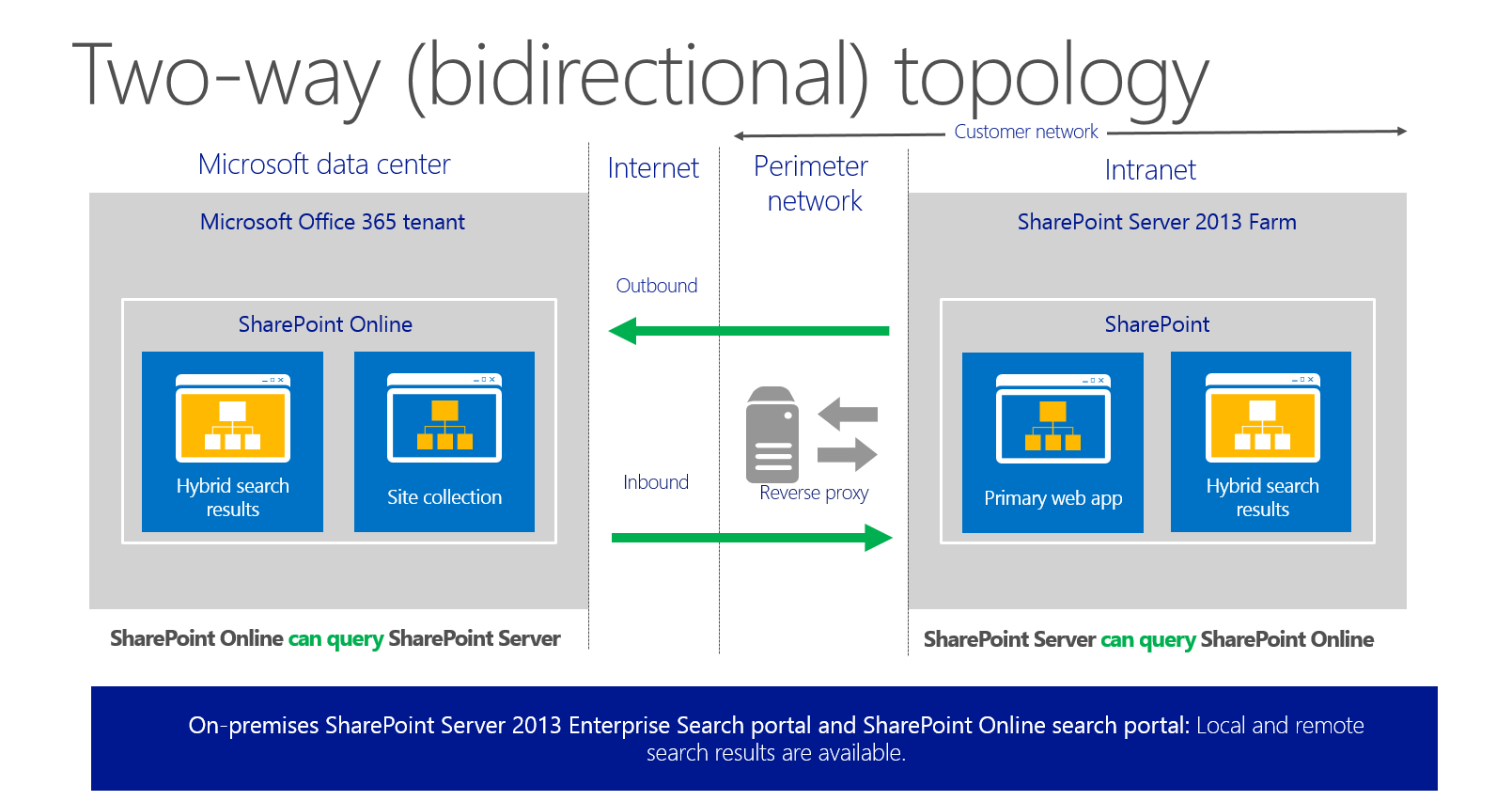
  3. Two way (bidirectional) –> (I’m not sure if this is supported by Microsoft as of now .However I’ve discussed about this method also )

One-way outbound search:

   In this model the user executes a search query in the SharePoint on-premises search center site and the query component looks for the results from the SharePoint on-premises site as well as from Office 365 and displays it for the user in the search results .

out

Note: The users should SharePoint online license assigned to them to be able to get the search results from SharePoint Online.

One-way inbound search:

     In this model the user executes a search query in the SharePoint online search site and the query component looks for the results from the SharePoint online sites as well as from SharePoint on-premises site and displays it for the user in the search results.

inbound

Note: The users should SharePoint online license assigned to them to be able to get the search results from SharePoint Online.

Two-way (bidirectional) topology:

    The name speaks for itself. In this model the user will be able to execute a search query in the SharePoint on-premises search site and get results from SharePoint server as well as from Office 365 (i.e. SharePoint online). Similarly, a user who executes a search query in SharePoint online will be able to get search results from SharePoint online as well as from SharePoint Server.

bi

Note: The users should SharePoint online license assigned to them to be able to get the search results from SharePoint Online.

End user experience in the search center:

The below illustration shows how a user will see the results in the search center when his SharePoint environment is configured for Hybrid search ….

ue

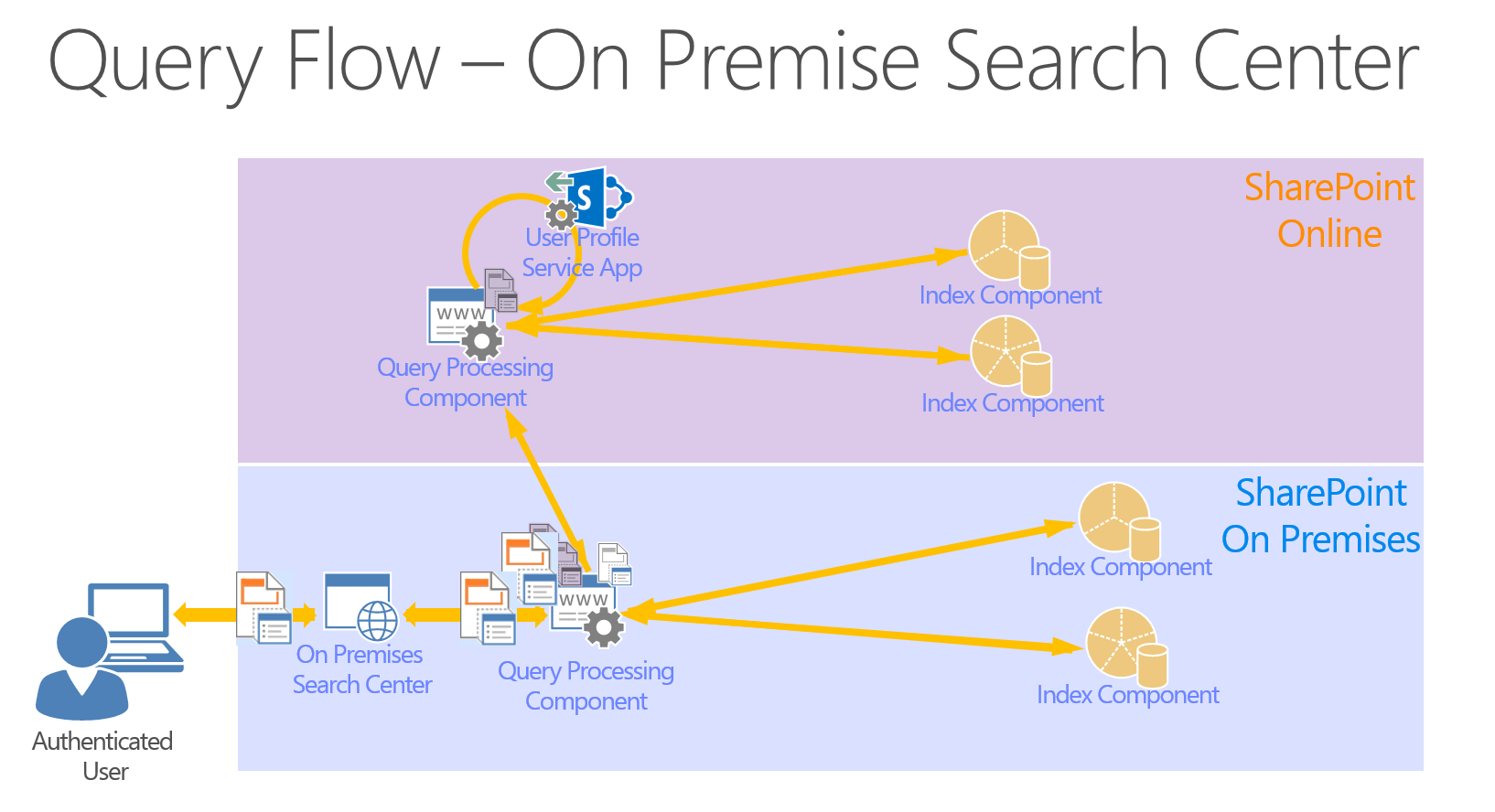
Search model for a Hybrid-search environment:

qf

Also, if you haven’t gone through the video in the link below, I highly recommend you to take a look at this to understand about SharePoint server Hybrid search and how it works :

https://channel9.msdn.com/Events/SharePoint-Conference/2014/SPC320


Fix for the “search issue” in August 2015 CU for SharePoint 2013 :

As mentioned in my previous post about the “search issue” which is caused by the August 2015 CU for SharePoint 2013, we were finally able to find the fix for that. We tried the steps as mentioned in Stefan’s Blog and we were finally able to get rid of the search issue which was a great relief.

Please try the below mentioned steps, 

Once done running the August 2015 CU for SharePoint 2013, please run the below mentioned command on all the servers in the farm to get rid of this issue.

IISRESET

PSConfig.exe -cmd upgrade -inplace b2b -wait -cmd applicationcontent -install -cmd installfeatures -cmd secureresources

Running this command should help you to get rid of the below mentioned error which you would get when you try to execute a search query in the SharePoint Search center.

Field or property “TimeZoneId” does not exist 

Reason for August 2015 CU to fail silently while you’re trying to run the package file: _ http://blogs.technet.com/b/stefan_gossner/archive/2015/09/08/important-august-2015-cu-for-sp-2013-might-have-failed-silently-when-using-specific-installation-methods.aspx


Managing “User property fields” in SharePoint 2013

Managing “User property fields” in SharePoint 2013:

We happened to work on a project where we were supposed to fix the FIM sync errors related to “User property fields” in our SharePoint Farms. The user property fields in the SharePoint user profile were not displaying the values properly and as a result of that we were not able to see the details (i.e. City, Address, Location etc.…) in the user property fields. It was just blank and it failed to write the information from FIM to the SharePoint user profile .This article describes the steps which we performed in our Q & A environment to overcome this issue.

Issue Description:

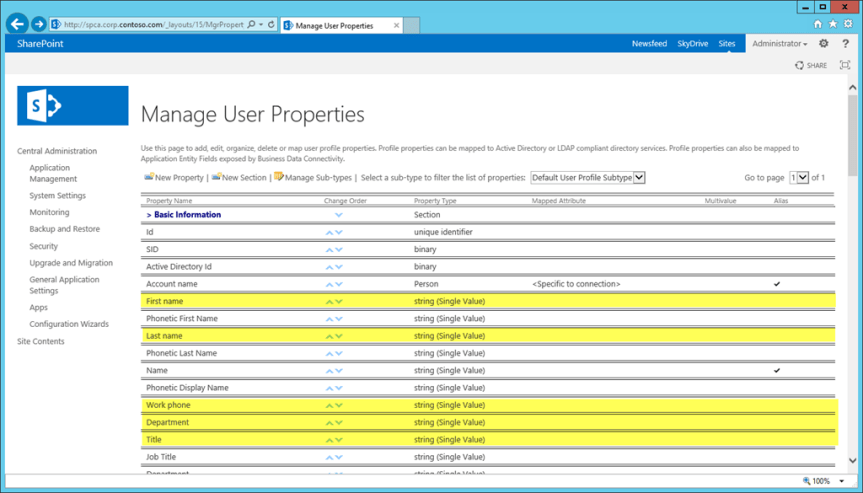
SharePoint user profiles were not displaying the user’s details such as City, Address, Location,company etc.. … in their profile and it just remained blank as show in the image below.

10

 Root cause:

The root cause of this was nothing else but the default character limit which was specified for these “User property fields” was not adequate enough and hence FIM failed to write these information to the SharePoint user profile. Basically, in our environment FIM does the job of creating user profiles by retrieving the user’s information from Active Directory and it pushes the user profile to SharePoint. Since the supported character length of these user properties was less in length it didn’t display the values in the user property fields.

 “User property field” character length comparison :

Before Increasing the Character length   After increasing the character length
Address–> 25 characters Address–> 100 characters
City–> 25 characters City–> 100 characters
Company–>100 Company–>100
Department–>250 Department–>250
Office–>250 Office–>250
Title–>150 Title–>150
First Name–>250 First Name–>250
Last Name–>250 Last Name–>250
SPS-Location–>25 SPS-Location–>25


*We changed the character length of the all the user properties less than 100 to 100.


Resolution:

We went ahead and increased the character length of these user properties in the SharePoint User Profile Service application so that FIM starts to write the values to the SharePoint user profile. Now the catch here is, we can’t edit the property in the user profile as the length setting is greyed out and it cannot be changed. So the only way to change the length is to go ahead and delete the property completely and recreate it by increasing the character length to suit your needs.

Steps performed to implement this change:

  1. Open the Central admin with your farm admin account.
  2. Navigate to the Manage service applications option and click on User Profile sync service.
  3. Once you click on the “User profile sync service “click on the “Manage” button in the top ribbon.
  4. This should take you to the “Manage Profile service” UI and then click on ‘Manage User properties” under “People” section.
  5. This would display the list all the user properties in your SharePoint farm.
  6. Click on the drop down arrow on the property which you want to delete and click on “delete”

2

  1. This would delete the user property and now you can go ahead and create a new property by clicking on “Create new property” option.
  2. Specify the “Name”, “display name” and length for the new property as shown below.

3

9. Specify the privacy settings for this property here.

4

10. Specify the display settings for this property here.

5

  1. Once done, click on “Ok” and this will create the new user property for you.
  2. Once the next sync job completes it will start displaying the values in these fields as shown in the image below.

Observations:

       After completing this activity the SharePoint user profile started to display the values correctly in the User property fields and after making this change we were able to notice some change in the ordering of the user properties in the SharePoint profile page UI .So basically what happened was, it changed the order of these properties in the profile page UI so that the recently created new user properties got added to the last.

However, this change didn’t have any impact on the “Contact” section which is displayed on the user’s “My site” .The user property fields ordering didn’t change there as that’s a BR custom code which is taking  care of the ordering .

On the other hand the other lesson learnt was, we can’t delete the “SPS-Location” user property to recreate it. The reason for this is, it’s a default property and is checked on rendering the “My Profile” page .If this property does not exist, the page will fail and throw an error stating that the property is missing. To know more about this, check this article.

Updating the user property fields in Danaher Connect:

As shown in the following illustration, user profiles can be composed of properties that are imported from a directory service, imported from business systems, and supplied by users.

8

For example, a directory service could supply important information that is needed across the organization, such as users’ account names, work telephone numbers, titles, and work e-mail addresses. Business systems could supply business-related information, such as the customer accounts or product lines managed by each team member. Users could supply supplemental information about themselves, such as their areas of expertise or hobbies.

Conclusion:

We were finally able to get this issue fixed in our DEV farm by deleting and recreating the “user property fields” as that’s the only option to increase the character length.

September 8, 2015, update for SharePoint Server 2013 (KB3085481)

Finally is good to see Microsoft addressing most of the known issues in the Sept 8 ,2015 update .

September 8, 2015, update for SharePoint Server 2013 (KB3085481)

Improvements and fixes

  • Improves the hybrid user experience to let hybrid user profiles be redirected to their profiles in Office 365. Learn more.
  • Improves the translations of some terms in multiple languages to make sure the accuracy of the meaning.
  • Updates English proofing tools.
  • Fixes performance and correctness issues in Windows Azure plugin.
  • Fixes the following issues:
    • After you go to the Per-Location view settings page, some custom views aren’t displayed on the ellipsis menu for the list view web part.
    • When you attach a picture to your reply post for a trending tag in My Site, you experience an error if you have not followed the trending tag.
    • The Show more posts link does not work as expected on the Everyone page of Newsfeed in My Site.
    • When a user profile is deleted from My Site, an email is sent to the user’s manager. However, this email contains a link to the user’s root My Site which no longer exists. In addition, you receive the following error message:

User not found.

    • When you try to search something in a SharePoint Server 2013 list that has a rich text column, HTML tags instead of the content of the column are displayed in the search result if the column name contains special characters.
    • After you type multiline text in a rich text field of a list, the text is unsearchable separately.
    • If the number of items in a document library exceeds the list view threshold, you can’t update or delete a document set in the document library.
    • Some text in pdf files is extracted incorrectly (for example, trim line endings in encrypted documents).
    • Some text in pdf files is extracted and indexed incorrectly.
    • Unicode text in pdf files that contains some special characters may be interpreted incorrectly.

https://support.microsoft.com/en-us/kb/3085481

PowerShell Command to identify the quota size of all the site collections per web application

The below mentioned power shell command is used to get the quota size of all the site collections per web application .Now , its a known fact that there are couple of ways to do this , but this command is very simple and neat and gives the result as expected .I was able to find the Power shell command to get the list of all the site collections in a farm and its quota size in the internet ,but the problem with that is, its also going to display the “My sites” as well in the result and it might take a while consuming heavy server resource to pull all the results from the farm .This command below is specific to a single web application and you just need to specify the web application url which you need . Please try it for yourself…..If you’re into a situation where you need to pull up the quota size of all the site collections in a single a web application , then this is the right tool for that.

Syntax:

Get-SPSite -Limit All | Where-Object{$_.Webapplication.url –like “https://vig.sharepoint.com/”} | select url, @{label=”Size in MB”;Expression={$_.usage.storage/1MB}} | Sort-Object -Descending -Property “Size in MB” | Format-Table –AutoSize

Detailed Description: 

The above mentioned PowerShell Command is used to identify the quota size of all the site collections per web application in SharePoint and will display the size in Megabytes.

Parameters to specify in the Command:

  1. Web application url
  2. Limit All – Please include this if you want the command to display the list of all site collections in the web application, else you would be getting only few results.

SharePoint 2013 Trending Tags Webpart: How this works?

I recently happened to work on an issue where the “Trending Tags” web part which you see in your SharePoint My site wasn’t working as expected in our environment and we had to get that fixed.

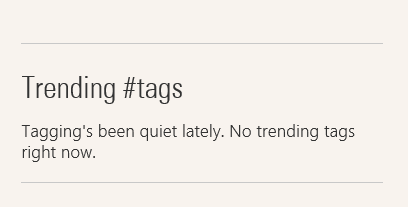
This post is mainly intended for those who have now idea about the “Trending Tags web part “ and for those who have this functionality broken in their environment and see a notification as shown below .

Trending tags

What’s the Trending Tags web part all about?

For those of you who are not aware of the “Trending Tags web part” , this is nothing but a web part which is displayed on the bottom right corner of your SharePoint “My site” page and it displays the most widely used top 5 #Tags in your SharePoint environment .

Where can the # Tags be used?

This can be used by user’s on conversations while posting new updates on their Newsfeed/Site’s Newsfeed  and also while replying to someone’s post . A #Tag can be followed and once it’s followed it brings all the conversations related to that #Tag to your Newsfeed.

How does this web part work?

The contents displayed on this web part is mainly based on the search content sources and search crawl. So for any given reason if this not working in your environment, then please make sure that you check your search content source is being crawled properly.

Which crawl does this web part depend on?

This is not specific to any specific crawl .If you’re environment is using continuous crawl which runs every 15 minutes, then the next continuous crawl will pick this #Tag and displays it in the web part or the value of the total number of times this(i.e. specific #Tag)  has been used will increase .For instance, if it’s a new #Tag it will display that as 1 use in the web part .If that specific #Tag has already been used by others then it will simply increase the usage count . However , please remember that this web part will only display the most widely used top 5 #Tags in your environment and if you don’t see the one which you mentioned in a post then it’s pretty obvious that the #Tag which you used ranks lower than the other #Tags which are displayed in the “Trending Tags” web part .

Note:  Don’t panic if you still see the “Tagging’s been quiet lately. No trending tags right now” notification in the web part even after confirming that your search crawl is running well .This could be simply because that no one in your environment is using #Tags .

What happens behind the scenes?

As I already mentioned earlier, I happened to work with my PFE on this and he was able to help me understand how this stuff works behind the scene.

Listed below is the point mentioned in his blog and please go through it if you’re curious to know how this works:

Listed below is what happens behind the scenes on this webpart:

1.When you browse to your SharePoint mysite, the trending tags webpart appears.

2. The web part checks the Distributed Cache to see if data is there about trending tags, and renders it, if there’s data. If there isn’t, it queries search for the most recent tags AND puts that data into the DC.

a.The search query will only find tags that have been crawled/indexed, so make sure your crawls are running. Any type of crawl should be sufficient.

b.To see what search sees for trending tags, see the next section.

3.The Trending Tags data lives in the DC for 15 minutes. After 15 minutes, the data expires and is evicted from the cache. New data will not enter the cache until the PeopleManager.GetTrendingTags method is called. From what I can tell, only the trending tags web part calls this method. It’s a client side call/CSOM, so you could call it manually if you have a need.  a.PeopleManager.GetTrendingTags  : https://msdn.microsoft.com/EN-US/library/office/jj665759.aspx

4.The activity feed timer jobs do not appear to call this method, so they will not update trending tags data in the cache if run manually. (They shouldn’t need to do this work)

Finding trending tags via search:

1.Download the SharePoint 2013 search query tool : http://sp2013searchtool.codeplex.com/

2.Set Connection String and authentication info. (You can run this tool anywhere since it uses CSOM)

3.Enter the following query text. Modify date/time to desired. (the webpart shows the last 7 days)a. ContentTypeId:0x01FD* write>=”2015-07-01 00:00:00Z”

4.Add the following to the Refiners box. By default we show up to 20, most to least popular.​Tags(filter=20/0/*,sort=frequency/descending)

5.Click the run button and view the results

6.The refinement tab will show the tags. The “Refinement Name” and “Refinement Value” show the actual tag. There is a GUID in front of it.