PowerShell Command to identify the quota size of all the site collections per web application

The below mentioned power shell command is used to get the quota size of all the site collections per web application .Now , its a known fact that there are couple of ways to do this , but this command is very simple and neat and gives the result as expected .I was able to find the Power shell command to get the list of all the site collections in a farm and its quota size in the internet ,but the problem with that is, its also going to display the “My sites” as well in the result and it might take a while consuming heavy server resource to pull all the results from the farm .This command below is specific to a single web application and you just need to specify the web application url which you need . Please try it for yourself…..If you’re into a situation where you need to pull up the quota size of all the site collections in a single a web application , then this is the right tool for that.

Syntax:

Get-SPSite -Limit All | Where-Object{$_.Webapplication.url –like “https://vig.sharepoint.com/”} | select url, @{label=”Size in MB”;Expression={$_.usage.storage/1MB}} | Sort-Object -Descending -Property “Size in MB” | Format-Table –AutoSize

Detailed Description: 

The above mentioned PowerShell Command is used to identify the quota size of all the site collections per web application in SharePoint and will display the size in Megabytes.

Parameters to specify in the Command:

  1. Web application url
  2. Limit All – Please include this if you want the command to display the list of all site collections in the web application, else you would be getting only few results.

DNS Records

An “A” record, which stands for “address” is the most basic type of syntax used in DNS records, indicating the actual IP address of the domain. The “AAAA” record is an IPV6 address record that maps a hostname to a 128-bit Ipv6 address.  Regular DNS addresses are mapped for 32-bit IPv4 addresses.

The “CNAME” record stands for “canonical name” and serves to make one domain an alias of another domain. CNAME is often used to associate new subdomains with an existing domain’s DNS records.

The “MX” record stands for “mail exchange” and is basically a list of mail exchange servers that are to be used for the domain.

The “PTR” record stands for “pointer record” and maps an Ipv4 address to the CNAME on the host.

The “NS” record stands for “name server” and indicates which Name Server is authoritative for the domain.

An “SOA” record stands for “State of Authority” and is easily one of the most essential DNS records because it stores important information like when the domain was last updated and much more.

An “SRV” record stands for “service” and is used to define a TCP service on which the domain operates.

A “TXT” record lets the administrator insert any text they’d like into the DNS record, and it is often used for denoting facts about the domain.

SharePoint 2013 Trending Tags Webpart: How this works?

I recently happened to work on an issue where the “Trending Tags” web part which you see in your SharePoint My site wasn’t working as expected in our environment and we had to get that fixed.

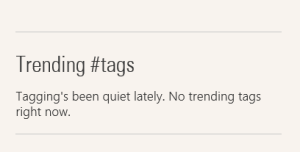
This post is mainly intended for those who have now idea about the “Trending Tags web part “ and for those who have this functionality broken in their environment and see a notification as shown below .
Trending tags

What’s the Trending Tags web part all about?

For those of you who are not aware of the “Trending Tags web part” , this is nothing but a web part which is displayed on the bottom right corner of your SharePoint “My site” page and it displays the most widely used top 5 #Tags in your SharePoint environment .

Where can the # Tags be used?

This can be used by user’s on conversations while posting new updates on their Newsfeed/Site’s Newsfeed  and also while replying to someone’s post . A #Tag can be followed and once it’s followed it brings all the conversations related to that #Tag to your Newsfeed.

How does this web part work?

The contents displayed on this web part is mainly based on the search content sources and search crawl. So for any given reason if this not working in your environment, then please make sure that you check your search content source is being crawled properly.

Which crawl does this web part depend on?

This is not specific to any specific crawl .If you’re environment is using continuous crawl which runs every 15 minutes, then the next continuous crawl will pick this #Tag and displays it in the web part or the value of the total number of times this(i.e. specific #Tag)  has been used will increase .For instance, if it’s a new #Tag it will display that as 1 use in the web part .If that specific #Tag has already been used by others then it will simply increase the usage count . However , please remember that this web part will only display the most widely used top 5 #Tags in your environment and if you don’t see the one which you mentioned in a post then it’s pretty obvious that the #Tag which you used ranks lower than the other #Tags which are displayed in the “Trending Tags” web part .

Note:  Don’t panic if you still see the “Tagging’s been quiet lately. No trending tags right now” notification in the web part even after confirming that your search crawl is running well .This could be simply because that no one in your environment is using #Tags .

What happens behind the scenes?

As I already mentioned earlier, I happened to work with my PFE on this and he was able to help me understand how this stuff works behind the scene.

Listed below is the point mentioned in his blog and please go through it if you’re curious to know how this works:

Listed below is what happens behind the scenes on this webpart:

1.When you browse to your SharePoint mysite, the trending tags webpart appears.

2. The web part checks the Distributed Cache to see if data is there about trending tags, and renders it, if there’s data. If there isn’t, it queries search for the most recent tags AND puts that data into the DC.

a.The search query will only find tags that have been crawled/indexed, so make sure your crawls are running. Any type of crawl should be sufficient.

b.To see what search sees for trending tags, see the next section.

3.The Trending Tags data lives in the DC for 15 minutes. After 15 minutes, the data expires and is evicted from the cache. New data will not enter the cache until the PeopleManager.GetTrendingTags method is called. From what I can tell, only the trending tags web part calls this method. It’s a client side call/CSOM, so you could call it manually if you have a need.  a.PeopleManager.GetTrendingTags  : https://msdn.microsoft.com/EN-US/library/office/jj665759.aspx

4.The activity feed timer jobs do not appear to call this method, so they will not update trending tags data in the cache if run manually. (They shouldn’t need to do this work)

Finding trending tags via search:

1.Download the SharePoint 2013 search query tool : http://sp2013searchtool.codeplex.com/

2.Set Connection String and authentication info. (You can run this tool anywhere since it uses CSOM)

3.Enter the following query text. Modify date/time to desired. (the webpart shows the last 7 days)a. ContentTypeId:0x01FD* write>=”2015-07-01 00:00:00Z”

4.Add the following to the Refiners box. By default we show up to 20, most to least popular.​Tags(filter=20/0/*,sort=frequency/descending)

5.Click the run button and view the results

6.The refinement tab will show the tags. The “Refinement Name” and “Refinement Value” show the actual tag. There is a GUID in front of it.

Issues with August 2015 CU for SharePoint 2013

We happened to patch our Q&A environment with August 2015 CU and we noticed few issues while installing the CU and also while testing the farm after the successful installation of the August 2015 CU for SharePoint 2013 . It’s a know fact that starting from SharePoint Server 2013 , it is no longer necessary to install the Foundation CU before the Server CU .The server CU already has the fixes for the foundation version and hence you can directly install the SharePoint Server 2013 CU .Now, lets talk about the issues which we noticed while installing the CU …..

Link for the CU :_ https://support.microsoft.com/en-us/kb/3055009

  1. The August 2015 CU for SharePoint 2013 doesn’t get installed properly when you attempt to do so .It fails for the first time giving no clue of what caused the failure to happen and once again it fails in the second attempt .Finally, if you try to run it for the third time it installs smoothly without any error .This is weird but at this point Microsoft has accepted this as an issue and hasn’t announced any fix for this yet .

It’s good to see that Microsoft has already documented this issue :_ http://blogs.msdn.com/b/tehnoonr/archive/2015/08/28/sharepoint-2013-august-2015-cumulative-update-package-fails-to-install.aspx

2. Now the second issue is with the “Search” .As you must be already aware that the August 2015 CU is mainly focused on hybrid search. The August 2015 CU seems to cause some trouble to the search centre after its installed .

Steps to repro the issue which I’m talking about related to search:
1. Go to search and type a user’s name in the search box .
2. When the results are presented , retype or change the query and run a search again , this time you will get an error which says “Field or property “TimeZoneId” does not exist and also a correlation ID related to that error . You can repro this if you try to toggle between the “Result sources” i.e. “Everything” and “ Associates “ in the search page.
3. You won’t get this error when you do the search query for the first time , just try to repeat it again and toggle between the “result sources” and then you will notice this error. Also if you switch between different user names in the search box you will notice this error .

Looks like many users have noticed this issue and this issue was supposed to be fixed with the July 2015 CU and it hasn’t been fixed yet.  Please check the “comments” area in the below mentioned blog to know more about this :  http://blogs.technet.com/b/stefan_gossner/archive/2015/08/11/august-2015-cu-for-sharepoint-2013-is-available-for-download.aspx

3. I carried on my testing once again and found another issue as well . Looks like Microsoft has reported this as a Bug and no fix has been announced yet . Please check the link below to know about this issue :

https://social.technet.microsoft.com/Forums/office/en-US/5dc44e6e-b5bd-47f8-a75d-71c9841f9ace/august-2015-cu-list-attachments-give-file-names-cant-contain-the-following-characters-message?forum=sharepointadmin

Hope Microsoft comes up with a fix for this bugs ASAP .

New and improved features in SharePoint Server 2016 IT Preview

Visit the post for more.

Source: New and improved features in SharePoint Server 2016 IT Preview

New and improved features in SharePoint Server 2016 IT Preview

https://technet.microsoft.com/en-us/library/mt346121(v=office.16).aspx

Deprecated or removed features in SharePoint Server 2016 IT Preview

This  technet link gives a detailed explanation of the deprecated or removed features in SharePoint Server 2016 IT Preview.

https://technet.microsoft.com/en-us/library/mt346112(v=office.16).aspx

Note: Since this is only the preview version I think this list is subjected to change in the mere future . Also please be mindful that the “Tags” and “Notes” feature is removed in SharePoint Online too.

SharePoint 2013 Permission Report: Check Access Rights for a Specific User

I’m pretty sure that by now many of the SharePoint SME’s out there would have tried the “Check access rights script for a specific user” . Now if you’re new to this , please take a look at the link below to understand what this script is all about .It’s a very powerful tool with some limitations.  I happened to work with this script recently and listed below is my experience with this script .

https://gallery.technet.microsoft.com/scriptcenter/SharePoint-Permission-2840f327

  1. It doesn’t get really granular and looks for all the bits and pieces and retrieve the complete information we are looking for .For instance it can’t get the permission assigned on a list item and its just stops at the list level .In addition to that it doesn’t look for the security groups too. 
  2. The script takes atleast not less than 30 mins to 1 hour to run depending upon the size of the FARM and the contents it has as it has to go through all the contents in the FARM . So its better you run this script on a server which is properly scaled out .
  3. Another annoying fact about this script is , the final report displays the list of all the sites where the “NTAuthority\Authenticates users” group and the “Everyone” group is added . For sure every user in the domain would be a part of this group and its really annoying to see the  report displaying  all those results which we don’t really need . Moreover it would be  great if the result just displays the list of the sites where the user was explicitly added . 

Powershell command to manually create a user’s “My site” in SharePoint

Powershell command to manually create a “My site” in SharePoint:

The “My site” in SharePoint normally gets created by the instantiation process when a user tries to access his/her “My site” for the first time .Now this process depends on how you have configured this functionality to work in your environment. It could either be configured in a way such that the “My site” is already created for the users in the FARM or may be the users need to access their “My site” for the first time and then the instantiation process would run which will then create a “My site” for the user.

This can also be done manually using Powershell .

Mentioned below is the Powershell command which is used to manually create a user’s “My site” …

$site=Get-SPSite “https://my.sharepoint.com”
$serviceContext = Get-SPServiceContext -Site $site
$userProfileConfigManager = New-Object Microsoft.Office.Server.UserProfiles.UserProfileManager($serviceContext)
$testuser = $userProfileConfigManager.GetUserProfile(“domain\username”)
$testuser.PersonalSiteInstantiationState
$testuser.CreatePersonalSite()

Note: Please make sure that you’re logged into the SharePoint server using the FARM account while running this command .Also make sure that the account running this command has enough permissions in the user profile service application too.