Useful tools for SharePoint Practitioners:

This post brings you a list of useful tools which every SharePoint Practitioner should make use of to make his day to day life easier. I personally don’t know any of the developers who developed these tools so I’m not trying to do some marketing stuff for these tools. I just wanted to share the list with you guys so that you could get benefited out of it.

Note: There are hundreds of paid/free third party tools out there to administer/manage SharePoint and I have not really tried a lot of them .The list which I’ve put together below is something which I’ve been using for quite some time now and just wanted to let you guys know that these tools have been vetted carefully during usage and they are not potentially harmful by any means, plus they are free of cost too and most of them are from code plex.


  1. ULS Viewer

A windows application for viewing SharePoint ULS log files more easily. Supports filtering and easy viewing of data.

Download Link: _ https://ulsviewer.codeplex.com/


  1. SharePoint Manager

The SharePoint Manager 2013 is a SharePoint object model explorer. It enables you to browse every site on the local farm and view every property. Please be mindful that you should have this tool running on a machine which has SharePoint installed on it.

Download Link: _ https://spm.codeplex.com/


  1. Fiddler

The Fiddler tool helps you debug web applications by capturing network traffic between the Internet and test computers. The tool enables you to inspect incoming and outgoing data to monitor and modify requests and responses before the browser receives them. Fiddler also includes a powerful event-based scripting subsystem, which you can extend by using any .NET Framework language.

Download Link: _ http://www.telerik.com/fiddler

  1. Network Monitor

Network Monitor tool can be used for capturing network traffic and protocol analysis.

Download Link: _ https://www.microsoft.com/en-in/download/details.aspx?id=4865


  1. WinDirStat

WinDirStat is a disk usage statistics viewer and cleanup tool for various versions of Microsoft Windows.

Download Link: _ https://windirstat.info/index.html


  1. SharePoint Log Viewer

SharePoint Log Viewer is a Windows application for reading and filtering Microsoft SharePoint ULS Logs.

Key Features:

  • View multiple SharePoint log files at once
  • Search by any field
  • Filter the log by any field
  • File drag & drop support
  • Live monitoring for entire farm
  • Export filtered log entries
  • Bookmark log entries
  • Get popup notification of SharePoint log events from system tray
  • Receive email notifications on errors
  • Redirect log entries to event log
  • Supports SharePoint 2007, 2010 and 2013


Download Link: _ https://sharepointlogviewer.codeplex.com/


  1. SharePoint Feature Administration and Clean Up Tool :

Feature Administration is a tool for SharePoint administrators and developers to manage SP features. It finds and cleans faulty Feature Definitions and orphaned reminders.

The Feature Admin Tool finds faulty Feature Definitions and cleanly uninstalls them.
It finds feature remainders in sites, Site Collections, WebApps and in the Farm, caused e.g. by forcefully uninstalled Features from a farm without deactivating them before. These faulty features, never visible, cause errors.

Download Link: _ https://featureadmin.codeplex.com/


  1. SharePoint Command Builder :

As the name implies, you can use this tool to build SharePoint PowerShell commands that can simplify your daily work.

Link: _ https://www.microsoft.com/resources/TechNet/en-us/Office/media/WindowsPowerShell/WindowsPowerShellCommandBuilder.HTML

  1. SharePoint Manager 2013 Online :

If you’re using SharePoint Online, then this tool could be your best friend. SharePoint Manager 2013 Online, provides the user a quick and easy overview of the structure and data hidden behind the scenes. Unlike the server version on codeplex, this app only uses html and JavaScript leveraging the SharePoint REST API. The well-known navigation tree on the left side and a property panel on the right side deliver an extremely user-friendly interface, which allows the user to burrow into SharePoint Online structure and hidden gems.

Download Link: _ https://store.office.com/sharepoint-manager-2013-online-WA104025157.aspx?assetid=WA104025157


  1. SharePoint 2013 Search Query Tool:

After running the query, you can view all types of result sets returned; Primary Results, Refinement Results, Query Rules Results, Query Suggestions, in addition to the actual raw response received from the Search service.

This can be used both with SharePoint 2013 on-premises and SharePoint Online. I also explained in detail the usage of this tool in a previous blog post. Click here to read that.

Download Link: _ http://sp2013searchtool.codeplex.com/


  1. SharePoint Host name site collection creator :

The SharePoint Host named Site Collection (HNSC) Creator SharePoint Admins to create HNSC via a GUI instead of PowerShell. This can be used by two ways. One of them is a Windows Forms application that needs no installation, and the second one is a SharePoint 2013 farm solution that plugs in the Central Admin for a native SharePoint experience

Download Link: _ https://hnsc.codeplex.com/


  1. SharePoint Designer :

Microsoft SharePoint Designer (SPD), formerly known as Microsoft Office SharePoint Designer, is a discontinued HTML editor freeware specialized in creating or modifying Microsoft SharePoint sites, workflows and web pages. It is a part of Microsoft SharePoint family of products.

Please note that Microsoft has announced that SharePoint 2016 will not have SP Designer 2016 .That has been discontinued in the 2016 version.

Download link: _ https://www.microsoft.com/en-in/download/details.aspx?id=35491

13. Advanced REST Client plugin for Google Chrome:

SharePoint Developers would probably know the power of this tool . There’s an awesome plugin for Chrome called Advanced REST Client which allows you to investigate the REST calls and configure your queries pretty simply through the UI. You get to see the results and the request times directly in the browser and you can play with the parameters etc easily

Download link :_https://github.com/jarrodek/ChromeRestClient

14.  SharePoint Client Browser for SharePoint Online and SharePoint on premises:

Remote SharePoint development is getting more important. Especially with SharePoint Apps. To speed up development, find hidden lists/items/documents, discover the structure or specific artifact properties use the SharePoint Client Browser which supports SharePoint 2010, SharePoint 2013 and SharePoint Online (Office 365)

Uses of this tool?

  • Get insight in your site collection structure
  • Find hidden lists, items or documents
  • Discover artifact properties
  • Easily start PowerShell, via context menu, and run (scripted) queries against your remote site collection
  • Support for both SharePoint 2010 and SharePoint 2013
  • Connect to on-premise or SharePoint Online (Office 365) site collections
  • No installer
  • Remote access from your desktop to site collection via Client Side Object Model (CSOM)
  • Can run remote, no need to run on the SharePoint server itself

Download link : _ https://spcb.codeplex.com


Demystifying the SharePoint My site “Social List”

So this post is regarding the “Social List” which you might have noticed in your SharePoint My site. I’m purposely using the term “might have *” because not everyone would have payed attention to that list in the SharePoint My site. That being said, the purpose of this post is to make you understand what’s the “Social list “in your SharePoint My site and how it works.

Let’s begin with where I find it ….

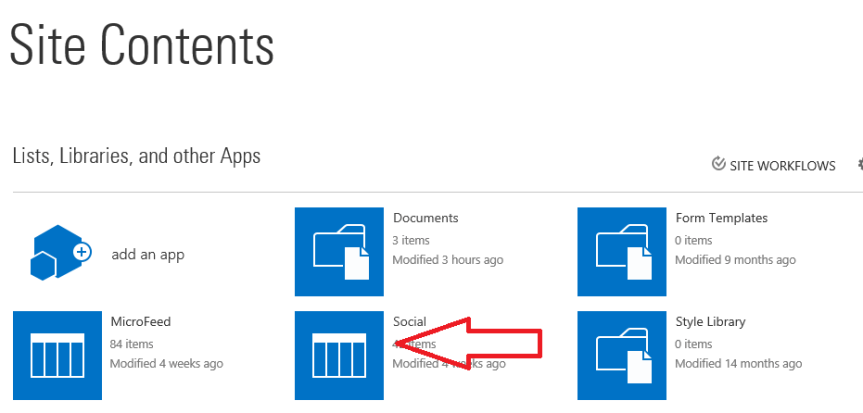
Go to your SharePoint My site –>Site contents –>Take a look at the items there. You should be able to find the “Social List “as shown in the image below.

1

What’s a social list?

It’s a default list that’s present in your SharePoint “My site” that displays all the content you’re following.

The url for this will look like: _ https://mysite.sharepoint.com/personal/vignesh/Social/FollowedContent.aspx

At times you might see some weird issues while opening your SharePoint My site and the error will say something about the follow feature/social feature not working … Remember in scenarios like that , the culprit could be the “ Social List “ . For some reason if this list gets corrupted, then you might face issues while opening your SharePoint “My site “.

Feature that activates this list:

A hidden feature named “Social Data Storage “in your SharePoint My site takes care of turning on this list. Hence if this feature is deactivated then you won’t be able to find this list in your SharePoint “My site” and would end up facing problems while accessing the my site. I’ll discuss in detail about this feature later on this post.

What’s present inside the “Social list”?

Well , if you need to take a look at what’s present inside this list , please use “ SharePoint Designer “ and try to open it .

This is what you would find inside the “Social list” ….

2

3

Social Data storage feature:

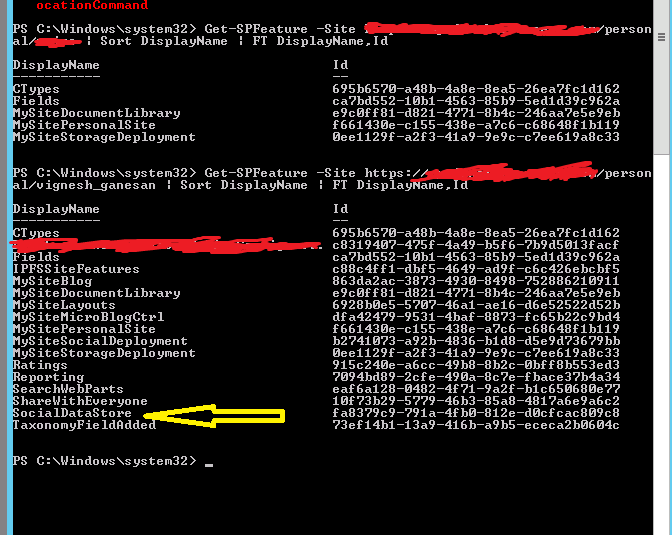
As mentioned earlier, the Social data storage feature takes care of turning on this list. The GUID of this feature is “FA8379C9-791A-4FB0-812E-D0CFCAC809C8”.

While troubleshooting “My site” or “following” issues, please make sure that this feature is activated on your My site.

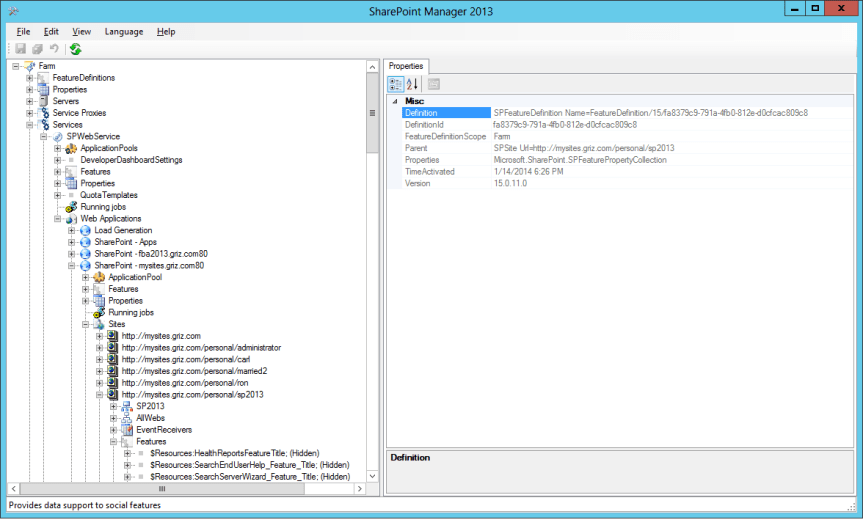
Since this is a hidden feature, you need to use a tool called “SharePoint Manager ” from Codeplex or PowerShell to check if this feature is activated in your My site.

Using SharePoint Manager:

  1. Install this in a machine which has SharePoint on it and expand the Mysite web app .
  2. Expand the sites option
  3. Search for the problematic user’s Mysite
  4. Expand the list of features
  5. Look for a green plus symbol next to the feature

Check the screenshot below ….

4

5

Using PowerShell command:

Get-SPFeature -Site https://mysite.sharepoint.com/personal/username  | Sort DisplayName | FT DisplayName,Id

6

Things to know:

  1. There are certain features that gets activated in a user’s My site only when a user tries to visit his My site for the first time, during this process  SharePoint will trigger the “My site  instantiation process” which will create the user’s My site . In addition to that there are few other features in your  My site which doesn’t get activated until you start using it (Ex: Your My site Blog). The feature related to the My site blog won’t be activated in your My site until you start using the Blog in your My site.


  1. A user cannot follow a site, a person, a tag or a document without having a My site set up for him first. If you try to do, SharePoint will throw an error stating that you don’t have a My site yet and will prompt you to create one.

SharePoint 2016 RTM to go live soon… Maybe March 14

Dreams do come true: The final version of SharePoint 2016 could be here in less than five weeks.

Earlier today, Gregory Appel, in response to a question posed by a participant in his seminar on Excel Services and BI in SharePoint 2016, said SharePoint 2016 RTM (Release-To-Manufacturing) should be available by March 14.

He also said Office Online Server would be pushed to RTM at the same time.

RTM versions of software are versions that are released to hardware manufacturers, typically before general release to work out any remaining bugs.

Appel is a senior program manager in Excel and based in the Microsoft Israel Development Center. He was addressing participants in an Unity Connect session. In response to a question, Appel replied:

2016_10_02 SharePoint RTM Tweet

His statement was tweeted from the seminar by session participant Rainer Jeschor.

While Microsoft has yet to confirm the date for the RTM or the full general release that will follow, March 14 is in keeping with the spring timetable that Microsoft confirmed when it unveiled the Release Candidate in January.

The RC is as close as you can get to a full release. And it is “mostly feature complete,” Bill Baer, senior product manager for the SharePoint team, noted in a blog post at the time.

Appel did not go into any more details as to what might have changed since then, but it’s unlikely that it will be much different than the RC.


SharePoint 2016 : Zero down time patching

I honestly couldn’t refrain myself from sharing the below mentioned two blogs where the author has did a wonderful job in explaining Zero down time patching in SharePoint 2016.Please take look ….


http://sharepointpromag.com/sharepoint/sharepoint-2016-what-you-need-know-about-zero-downtime-patching

http://sharepointpromag.com/sharepoint/sharepoint-2016-what-patch


Issues with MDS feature in SharePoint 2013:

This post is related to the previous post I made in my blog describing the “Issues involved with Minimal Download Strategy feature”. I’m not going to really get into the meats and potatoes of that issue here once again .However , if you want to create a KB article for your end users letting them know that this is a known issue in SharePoint 2013 , then this would be the article for that ….

The Minimal Download Strategy  (MDS) feature in SharePoint 2013 can introduce the below mentioned two issues when you enable it in a team site. It’s a known fact that MDS will be turned on by default in a team site in SharePoint 2013.

Issue 1Deleting a document from a document library will produce an error as shown in the screenshot below.

MDS 1

Explanation:

When you go to a document library in a team site which has the MDS feature turned on and try to delete a document, it’s going to produce an error as shown in the screenshot above.

Repro steps:

Go to a document library in a team site which has the MDS feature activated (remember this feature will be activated by default in a SharePoint Team site) and try to delete a document from a document library by clicking on the “ellipsis” –>“Delete document “BUTTON, you will see an error as shown below without any correlation ID. However, the document would still get deleted from the document library.

Now, this error is not because of any bad configuration in your SharePoint Farm or due to any feature dependency for the MDS feature to work seamlessly .This seems to be a problem with the product itself and looks like this hasn’t been fixed yet.

Workaround:

  1. This error doesn’t show up when you try to delete the document using the “delete document”button in the top ribbon interface.

MDS 2

  1. Also if you try to by-pass your load balancer by changing the host file of your PC to point a specific WFE, this error won’t show up.

Issue 2: Trying to create a new view in a document library will produce an error as shown in the screenshot below

MDS 3

URL will show this error code:  _vti_bin/owssvr.dll?CS=65001

Explanation:

When you go to a document library in a team site which has the MDS feature turned on and try to create a new view, it’s going to produce an error as shown in the screenshot above and the site url will also display this error code : vti_bin/owssvr.dll?CS=65001

Repro steps:

Go to a document library in a team site which has the MDS feature activated (remember this feature will be activated by default in a SharePoint Team site) and try to create a new view by clicking on the “ellipsis” –>“Create a new view “BUTTON, you will see an error as shown below without any correlation ID. However, the new view will still get created.

Workaround:

There is no workaround identified for this as of now, as the error pops up even if you use the “Create view “option in the top ribbon interface. However as already mentioned above the view would still get created.

Note: This error wouldn’t show up if you try to by-pass your load balancer by changing the host file of your PC to point a specific WFE

Conclusion:

We have did our troubleshooting on this issue by working with Microsoft and this seems to be a bug in the product. The F5 load balancer which takes care of handling user requests to the portal seems to be causing the trouble here.

Signing up for Office 365 trial plan:

This is going to be a simple article where I’ll be explaining  how to sign up for a free Office 365 trial plan and make use of its services. As you must be aware, Office 365 gives you a one month free trial version where you can sign in for Office 365 and play around with the services and gain some knowledge on what Office 365 is all about, what are the services it offers and  how to manage users/services etc.…

I’m going to make this post pretty  basic by just discussing the steps involved in signing up for an Office 365 trial version and utilizing the services offered by it. So if you’re someone who is new to Office 365 and would like to understand how to get started with using Office 365 services, then this article would be a good primer article for you guys …..

Alright let’s jump in …

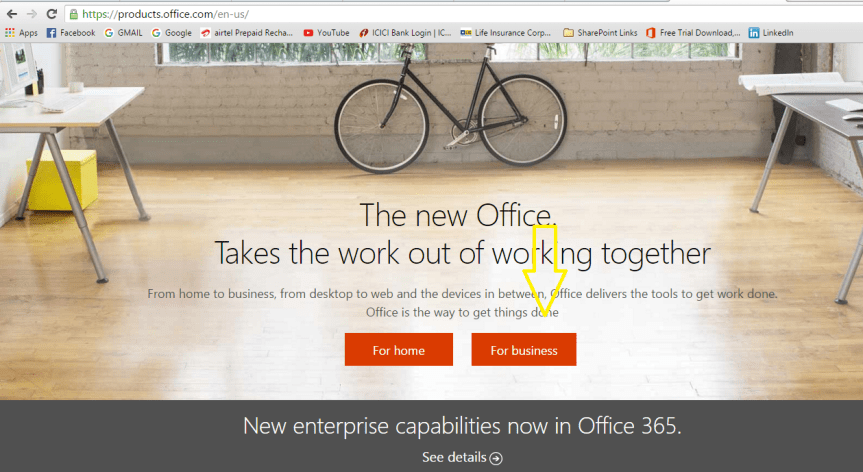
  1. Please go to https://products.office.com as shown in the screenshot below.

1

2. Choose “For business” option, it will take you to a screen as show below. You can also choose “For home” if you would like to explore the features in that plan. I’m going with the business option here as it gives you more features when compared with the home plan.

2

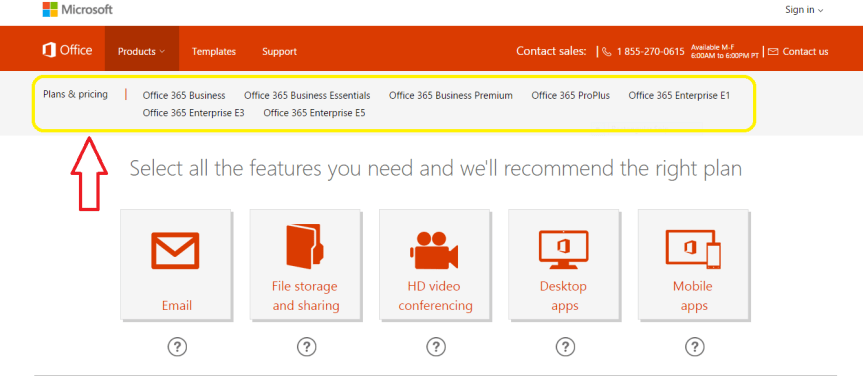
3. Once you’re done clicking “For business” option, it’s going to take you to a screen as shown below. You can notice all the available Office 365 business plans here …If you scroll down it would give you a detailed explanation about what’s included in each plan and the licensing cost. So carefully take a look at the plans before choosing it.

3

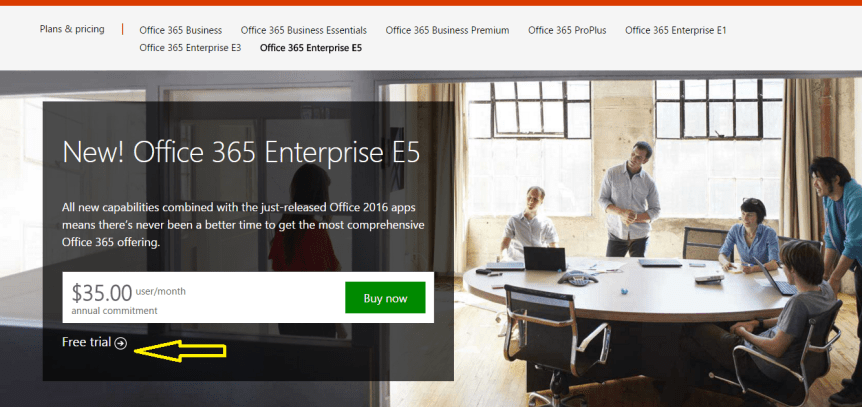
4. I’m choosing the “Office 365 Enterprise E5 “free trial plan as you can see in the screenshot below. You need to click on the “Free trial “button if you want to subscribe for a trail version. Also please notice that the free trail plan is valid only for one month.

4.PNG

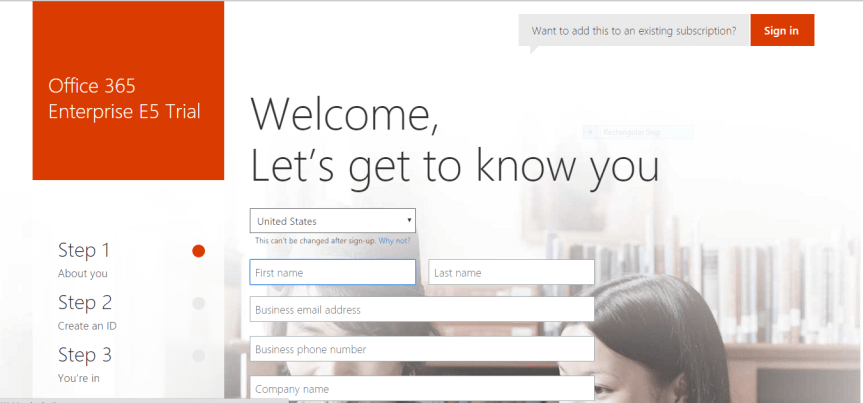
5. You would be taken to a form as shown in the screenshot below asking for your details. Please fill in the appropriate information and click next. Also please bear in mind that you won’t be able to change your country after you have successfully signed up for Office 365.

5

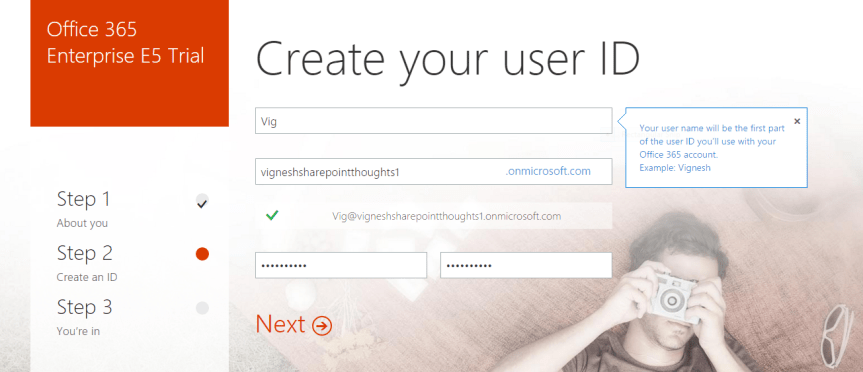
6. The next screen would be asking your username, password & Company name .Please key in those values and click next

Note: The Company name which you key in here will become a part of your Office 365 tenant url , SharePoint Online sites url , Skype for Business meeting url &  Email addresses of those users who are synced with Office 365.  Also while entering the Company name, please make sure that you’re entering an imaginary name or the name of a domain that you own and not a real company name .It’s strictly not recommended to enter your company name without consulting your IT team .

7

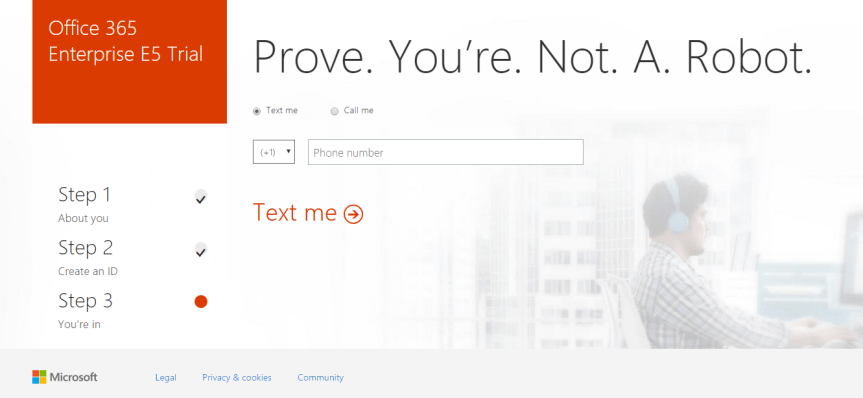
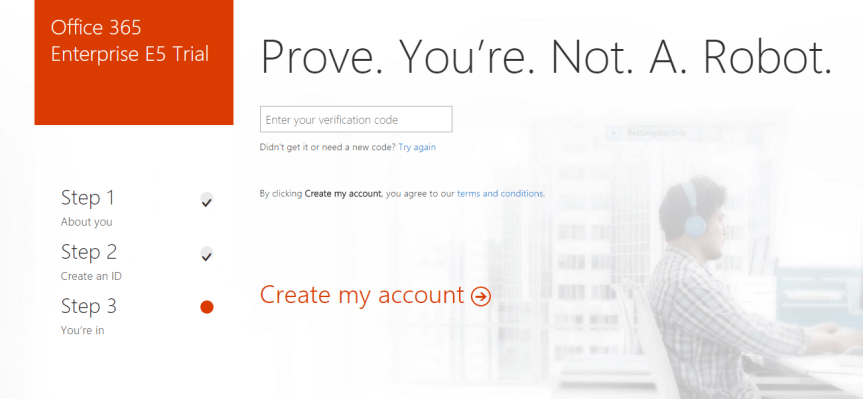
7. Once you’re done entering the values, click next and it’s going to ask you to enter your mobile number just to make sure that you’re not a robot. So enter your mobile number and then key in the verification code which is sent to you as a text.

8

9

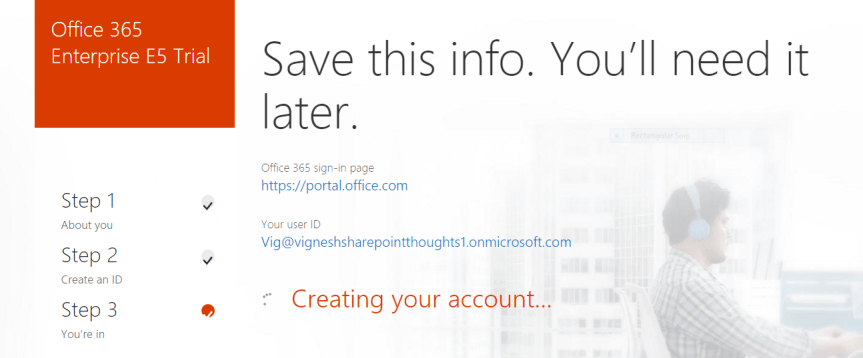
8. Once you’re done entering all these details you’re all set now and you will see the below mentioned screen which says that its saving all your details …

109. Please remain patient for few mins until your Office 365 tenant is completely set up, you will get a screen like this as shown in the screenshot below.
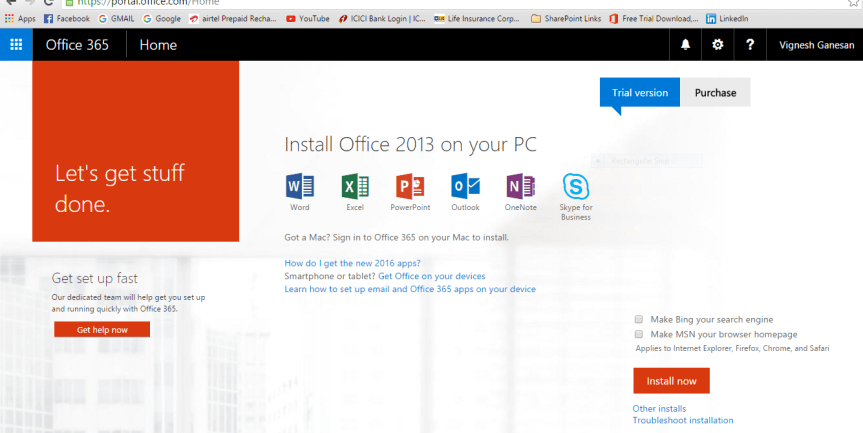
11

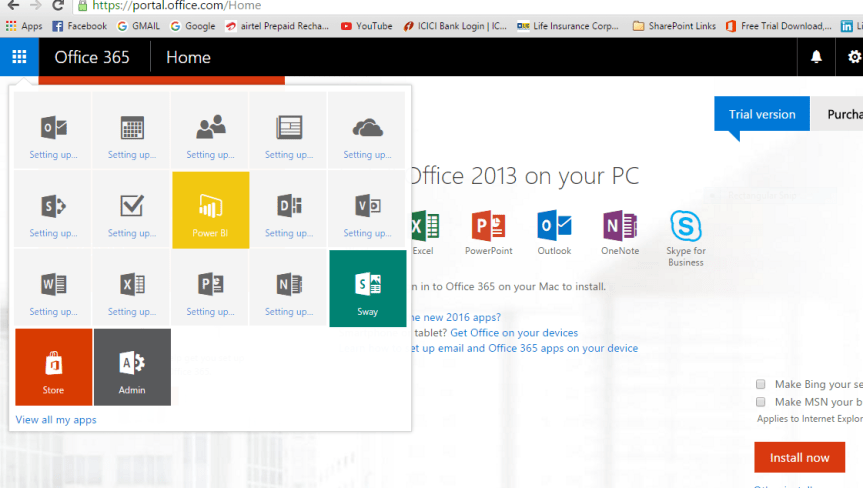
10 .However , please note that by this time your Office 365 tenant is not yet completely set up .The app launcher is still configuring things for you …so please remain patient for few more minutes . You can click the app launcher and check the status….

You can see the note which says, “Setting up “.

12

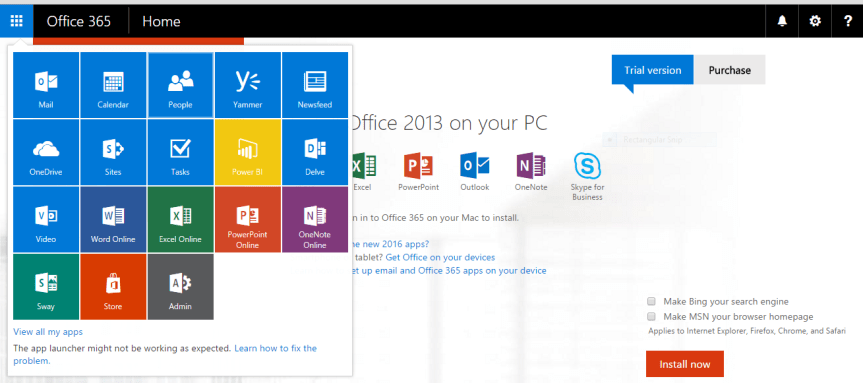
11. So finally after few minutes, you can notice the apps getting displayed in the app launcher indicating that your Office 365 tenant is set up successfully.

13

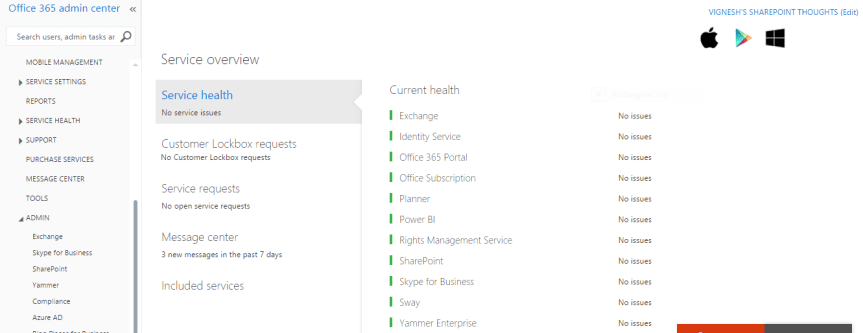
12. You can also take a look at the “service overview” page to check the health status of all the services.

14

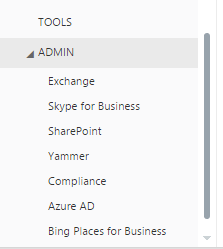
13. Please click on the “Admin” option towards your left hand side to access all the services.

admin page

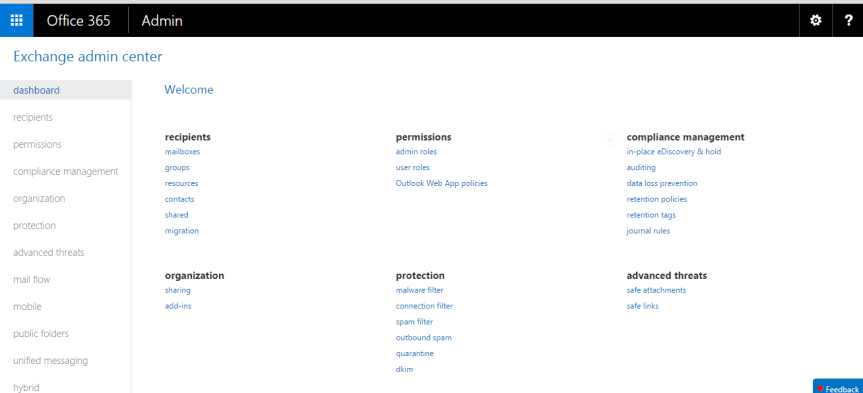
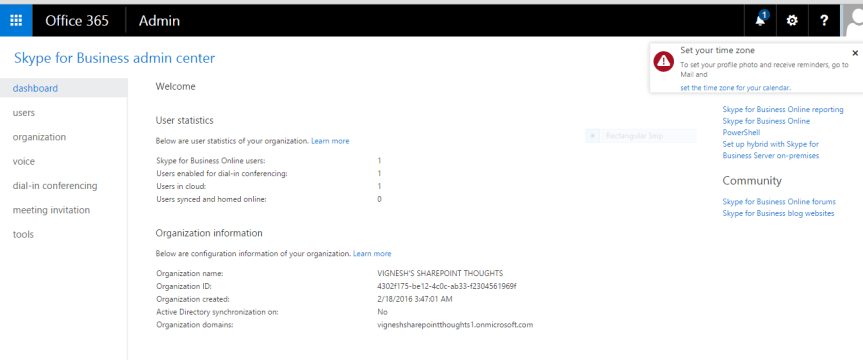
14. This is how the admin center for each service looks like ….

For Exchange

Exchnage admin centre

For SharePoint

SharePoint Admin centre


For Skype for Business

Sfb admin centre

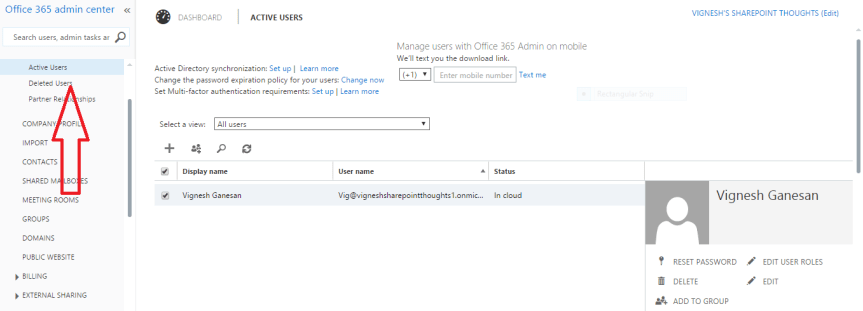
15. You can use the “USERS” option towards your left hand side to manage users and their licenses in the Office 365 admin center.

Managing users.PNG

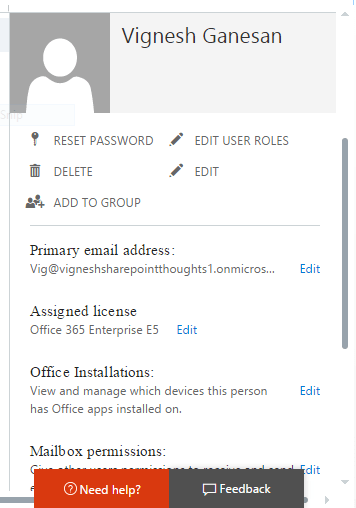
16. To make any changes to a user’s account such as resetting his/her password , edit the user’s details and to assign licenses etc. …please select the user first and then it will give you an option towards your right hand side to do that …(please see below )

User info.png

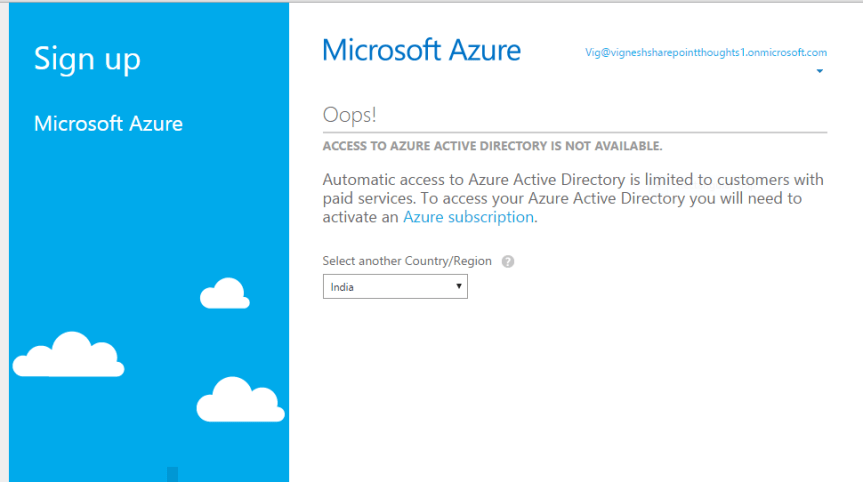
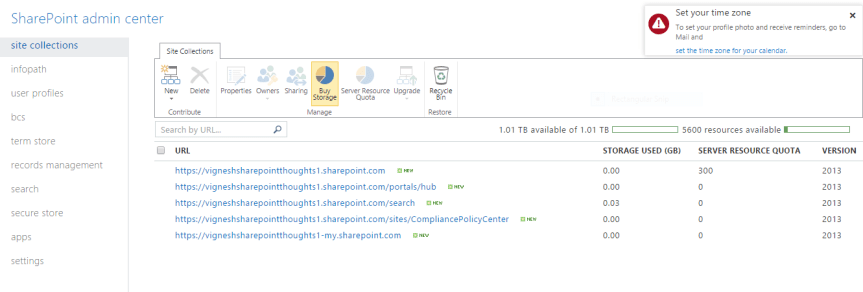
17. Azure Active Directory is only available for paid customers, so if you’re trying to access it on a trial version you’re likely gonna end up with the error as shown in the screenshot below.
Azure for AD

18. I’ve also created few more articles in my blog about Office 365 Identity management, Office 365 Troubleshooting tools, Useful Office 365 PowerShell commands & Required ports for Office 365 implementation…Please go through the below mentioned links to read them.

Office 365 Identity management

Office 365 Troubleshooting Tools

Useful Office 365 commands

Required ports for Office 365

Thanks for reading this post!!!


February 9, 2016, cumulative update for SharePoint Server 2013 is out -(KB3114726

Feb CU seems to have security fixes that take care of the Word and Excel functionality and these fixes are pushed via the Windows Update.

Please find the links for the CU’s below :

SharePoint 2013 Feb CUhttps://support.microsoft.com/en-us/kb/3114726

OWA security update :  https://support.microsoft.com/en-us/kb/3114338

SharePoint CU fix notes : 

  1. If you start a crawl of a content source, the mssearch.exe process causes high CPU usage.
  2. If the claim map cache fills up in SharePoint Server 2013, a race condition occurs that causes a poor user experience.
  3. After you delete a SharePoint group from a site, the SQL database may be locked. When the SQL database is locked, farm availability issues occur
  4. After you install security update 3114503 (MS16-004), you can’t view items in custom lists. (When you install the security fix ONLY)
  5. When you try to follow a site or a document in a multi-farm environment
  6. Incorrect ranked results are returned

SharePoint 2010:

Security fix for Word and Excel has been released for SharePoint 2010

Feb 9, CU for SharePoint 2010 : https://support.microsoft.com/en-us/kb/3114558

OWA Security Update :  https://support.microsoft.com/en-us/kb/3114407

SharePoint 2007 :

Security update for SharePoint 2007 :_  https://support.microsoft.com/en-us/kb/3114432


Yammer Enterprise to be activated by default on all Office 365 tenants

To all the Office 365 Admins out there , please watch out for this new announcement made by Microsoft for Yammer Enterprise ….

https://blogs.office.com/2016/02/02/get-ready-for-yammer/

yammer-logo-ps3


SharePoint 2013 Bug: Access denied error while activating “Following Content” feature

Alright…This post is regarding a bug with the “SharePoint site follow feature “that we recently happened to encounter in our environment. This specific bug which I’m going to discuss about in this article later has already been acknowledged by Microsoft as a bug which was later fixed in Office 365 ( SharePoint Online ) . I’m not sure if this is known issue but if this is something new to you , please try to go through this article to have a clear understanding about this issue .

So before we could start discussing about this bug ,how about a small introduction on the “ follow” feature and what it does and how to activate it …

Activating this feature:

  1. Go to site settings à Manage site features à Activate following content feature.1
  2. Doing this will turn on the follow feature on the site and will display the “follow” button on the top right corner of your site.

What happens when I follow a site and what’s the permission level needed to follow a site?

You at least need “Read “permissions on the site you’re trying to follow. Following a site will bring the conversations being discussed on the Site’s feed to your “My site” News feed section.  Make sure you have the “Site Feed “feature turned on to add the “Site Feed” web part to the main site .This is where the conversations take place.

2

What else can be followed?

The below mentioned four things can be followed in SharePoint.

  1. Site –>This will bring the conversations happening on the site’s feed which you’re following to your “My site” Newsfeed section.

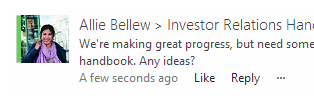
3

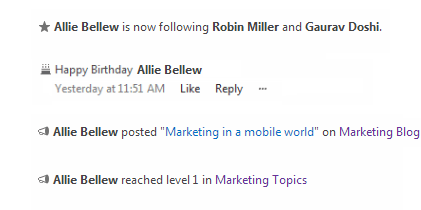
2.People–>Following a person will start showing the things they do, they say, and the things that happen to them (for example, job title changes).

4

3. Documents–> Following a document will display any changes made to that document in your Newsfeed .This way you can have a track of all the changes made to a document your currently working on and following .

5

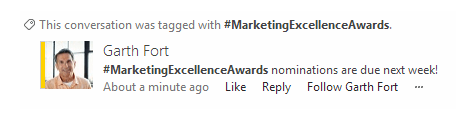
4. #Tags–>Following a #Tag will bring all the conversations that include that #Tag to your Newsfeed even though you don’t have any idea about the person who is using that #Tag in a conversation .Also please note that a #Tag should always be in a single word only .It can’t be in two words.6

In addition to this you have a special section called “Trending Tags” in your “My site” which displays the heavily used Top 5 #tags in your farm. This web part works based on search content crawling. I have written an article about this on my blog site already, please go through that article by clicking here.

Now, since we discussed about the “follow” feature and its uses, let’s jump into the Bug that I pointed about before in this article…

Bug in the site “follow” feature:

When you try to go to the site settings and activate the “Following content” feature you would end up getting an “Access denied error”. Now this is not the case all the time, but during some special scenarios where only the person who created the site would be able to activate this feature.

7

8I confirmed that I’m the site collection admin in the site where I’m trying to activate this feature and still it won’t allow me to do it. I tried removing myself from the SCA group, removed my account from ‘People & Groups” section and added myself back again and still it didn’t allow me to activate this feature. I tried couple of times and also asked the other SCA’s of the site to activate this feature and still it gave the same error …Weird isn’t it?
So after spending quite some time in trying to activate this feature we started to dig into the uls logs by turning on verbose logging and this is what we found….

SPRequest.GetFileAndFolderProperties: UserPrincipalName=i:0).w|s-1-5-21-962155459-1177681987-1237804090-74654, AppPrincipalName= ,bstrUrl=http://<my site>/personal/<user account> ,bstrStartUrl=Social/Private/FollowedSites,ListDocsFlags=24584 ,bThrowException=False       a0fa9d9c-f590-6094-c775-fb7648d76852

System.UnauthorizedAccessException: <nativehr>0x80070005</nativehr><nativestack></nativestack>Access is denied., StackTrace:    at Microsoft.SharePoint.SPWeb.GetFileOrFolderProperties(String strUrl, ListDocsFlags listDocsFlags, Boolean throwException, SPBasePermissions& permMask)     at Microsoft.SharePoint.SPFolder.PropertiesCore(Boolean throwException)     at Microsoft.SharePoint.SPFolder.get_Exists()     at Microsoft.Office.Server.UserProfiles.SPSocialDataStore.EnsureNamespaceExists(String ns, String scopeName, Boolean secured)     at Microsoft.Office.Server.UserProfiles.SPSocialDataStore.WriteFollowedItem(FollowedItem item, FollowedItemData data)     at Microsoft.Office.Server.UserProfiles.SPSocialDataStore.Follow(FollowedItem item, FollowedItemData data, Boolean checkLimit)     at Mic…    a0fa9d9c-f590-6094-c775-fb7648d76852

…rosoft.Office.Server.UserProfiles.FollowedContent.FollowItem(FollowedItem item, Boolean isInternal)     at Microsoft.Office.Server.UserProfiles.FollowedContent.Follow(Uri url, FollowedItemData data)     atMicrosoft.SharePoint.Portal.ContentFollowingFeatureReceiver.AutoFollowWeb(SPWeb web)     at Microsoft.SharePoint.Portal.ContentFollowingFeatureReceiver.FeatureActivated(SPFeatureReceiverProperties properties)     at Microsoft.SharePoint.SPFeature.DoActivationCallout(Boolean fActivate, Boolean fForce)     at Microsoft.SharePoint.SPFeature.Activate(SPSite siteParent, SPWeb webParent, SPFeaturePropertyCollection props, SPFeatureActivateFlags activateFlags, Boolean fForce)

System.UnauthorizedAccessException: Access denied., StackTrace:  

 at Microsoft.SharePoint.SPWeb.GetFileOrFolderProperties(String strUrl, ListDocsFlags listDocsFlags, Boolean throwException, SPBasePermissions& permMask)   

 at Microsoft.SharePoint.SPFolder.PropertiesCore(Boolean throwException)   

 at Microsoft.SharePoint.SPFolder.get_Exists()   

 at Microsoft.Office.Server.UserProfiles.SPSocialDataStore.EnsureNamespaceExists(String ns, String scopeName, Boolean secured)   

 at Microsoft.Office.Server.UserProfiles.SPSocialDataStore.WriteFollowedItem(FollowedItem item, FollowedItemData data)   

 at Microsoft.Office.Server.UserProfiles.SPSocialDataStore.Follow(FollowedItem item, FollowedItemData data, Boolean checkLimit)   

 at Microsoft.Office.Server.UserProfiles.FollowedContent.FollowItem(FollowedItem item, Boolean isInternal)   

 at Microsoft.Office.Server.UserProfiles.FollowedContent.Follow(Uri url, FollowedItemData data)   

 at Microsoft.SharePoint.Portal.ContentFollowingFeatureReceiver.AutoFollowWeb(SPWeb web)   

 at Microsoft.SharePoint.Portal.ContentFollowingFeatureReceiver.FeatureActivated(SPFeatureReceiverProperties properties)   

 at Microsoft.SharePoint.SPFeature.DoActivationCallout(Boolean fActivate, Boolean fForce)   

 at Microsoft.SharePoint.SPFeature.Activate(SPSite siteParent, SPWeb webParent, SPFeaturePropertyCollection props, SPFeatureActivateFlags activateFlags, Boolean fForce)   

 at Microsoft.SharePoint.SPFeatureCollection.AddInternal(SPFeatureDefinition featdef, Version version, SPFeaturePropertyCollection properties, SPFeatureActivateFlags activateFlags, Boolean force, Boolean fMarkOnly)   

 at Microsoft.SharePoint.SPFeatureCollection.AddInternalWithName(Guid featureId, Int32 compatibilityLevel, String featureName, Version version, SPFeaturePropertyCollection properties, SPFeatureActivateFlags activateFlags, Boolean force, Boolean fMarkOnly, Boolean fIgnoreMissing, SPFeatureDefinitionScope featdefScope)   

 at Microsoft.SharePoint.WebControls.FeatureActivator.ActivateFeature(Guid featid, Int32 compatibilityLevel, SPFeatureDefinitionScope featdefScope)   

 at Microsoft.SharePoint.WebControls.FeatureActivatorItem.ToggleFeatureActivation()   

 at System.Web.UI.WebControls.Button.RaisePostBackEvent(String eventArgument)   

 at System.Web.UI.Page.ProcessRequestMain(Boolean includeStagesBeforeAsyncPoint, Boolean includeStagesAfterAsyncPoint)   

 at System.Web.UI.Page.ProcessRequest(Boolean includeStagesBeforeAsyncPoint, Boolean includeStagesAfterAsyncPoint)   

 at System.Web.UI.Page.ProcessRequest()   

 at System.Web.UI.Page.ProcessRequest(HttpContext context)   

 at System.Web.HttpApplication.CallHandlerExecutionStep.System.Web.HttpApplication.IExecutionStep.Execute()   

 at System.Web.HttpApplication.ExecuteStep(IExecutionStep step, Boolean& completedSynchronously)   

 at System.Web.HttpApplication.PipelineStepManager.ResumeSteps(Exception error)   

 at System.Web.HttpApplication.BeginProcessRequestNotification(HttpContext context, AsyncCallback cb)   

 at System.Web.HttpRuntime.ProcessRequestNotificationPrivate(IIS7WorkerRequest wr, HttpContext context)   

 at System.Web.Hosting.PipelineRuntime.ProcessRequestNotificationHelper(IntPtr rootedObjectsPointer, IntPtr nativeRequestContext, IntPtr moduleData, Int32 flags)   

 at System.Web.Hosting.PipelineRuntime.ProcessRequestNotification(IntPtr rootedObjectsPointer, IntPtr nativeRequestContext, IntPtr moduleData, Int32 flags)   

 at System.Web.Hosting.UnsafeIISMethods.MgdIndicateCompletion(IntPtr pHandler, RequestNotificationStatus& notificationStatus)   

 at System.Web.Hosting.UnsafeIISMethods.MgdIndicateCompletion(IntPtr pHandler, RequestNotificationStatus& notificationStatus)   

 at System.Web.Hosting.PipelineRuntime.ProcessRequestNotificationHelper(IntPtr rootedObjectsPointer, IntPtr nativeRequestContext, IntPtr moduleData, Int32 flags)   

 at System.Web.Hosting.PipelineRuntime.ProcessRequestNotification(IntPtr rootedObjectsPointer, IntPtr nativeRequestContext, IntPtr moduleData, Int32 flags) 

So as you can see in the uls logs it’s throwing an Unauthorized access exception error  while you’re trying to activate the feature and it points to a different user’s My site social list and not to the current user’s My site social list who’s trying to activate the feature .

If you’re wondering where to find the social list , you can find it in your “My site”…

social list

So now when we asked the user who was shown as exception to activate the feature it worked perfectly fine, the user was able to activate it. So we started researching about this in the internet and after loads of effort we were finally able to find a blog article where the author clearly described about what happens in the background when you’re trying to activate this feature on a site.

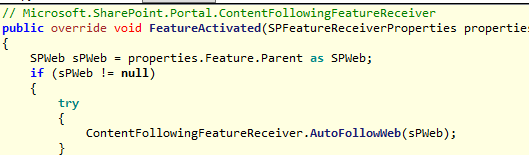
So this is what exactly happens when you’re trying to activate a site feature and mentioned below (screenshot below) is the code for the site feature activate method.

9

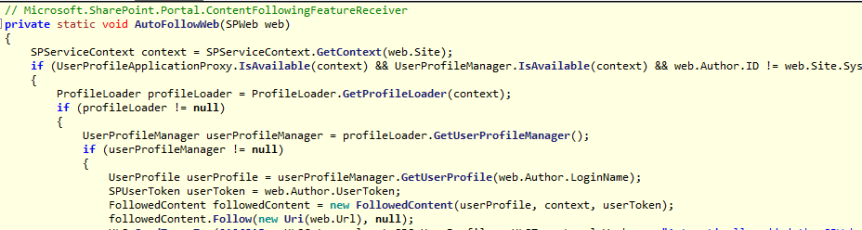
It makes a call to the AutoFollowWeb() and mentioned below is the code for that…

10

Now, please notice the last few lines in the above code….It’s looking for the author (person who created this site) of the site to activate the feature and not the current logged on user …

UserProfile userProfile = userProfileManager.GetUserProfile(web.Author.LoginName);

       SPUserToken userToken = web.Author.UserToken;

       FollowedContent followedContent = new FollowedContent(userProfile, context, userToken)

So this means only the author (the person who created this site) would be able to activate this feature and not others even though they are added as SCA’s.

Few Gotchas…

  1. Only the person who created the site would be able to activate this feature and not others, even though they are present in the SCA group.
  2. The “site follow” feature will by default look only for the author of the site and not the person who’s trying to activate this feature.
  3. Once the author activates this feature then other users would be able to click on the “follow” button and follow the site.

I bet now you would have had a clear understanding about this issue. If you’re facing this issue in your environment then I would suggest to open a support case with Microsoft and work with them on this issue. Also I guess if you try to add yourself as a  site collection admin to the author’s personal site collection then I believe you would be able to activate this feature on all the sites which was created by that user (However, I haven’t tried that option yet ) .

Thanks for reading this post …Happy SharePointing!!!!