Fix for the “search issue” in August 2015 CU for SharePoint 2013 :

As mentioned in my previous post about the “search issue” which is caused by the August 2015 CU for SharePoint 2013, we were finally able to find the fix for that. We tried the steps as mentioned in Stefan’s Blog and we were finally able to get rid of the search issue which was a great relief.

Please try the below mentioned steps, 

Once done running the August 2015 CU for SharePoint 2013, please run the below mentioned command on all the servers in the farm to get rid of this issue.

IISRESET

PSConfig.exe -cmd upgrade -inplace b2b -wait -cmd applicationcontent -install -cmd installfeatures -cmd secureresources

Running this command should help you to get rid of the below mentioned error which you would get when you try to execute a search query in the SharePoint Search center.

Field or property “TimeZoneId” does not exist 

Reason for August 2015 CU to fail silently while you’re trying to run the package file: _ http://blogs.technet.com/b/stefan_gossner/archive/2015/09/08/important-august-2015-cu-for-sp-2013-might-have-failed-silently-when-using-specific-installation-methods.aspx


Managing “User property fields” in SharePoint 2013

Managing “User property fields” in SharePoint 2013:

We happened to work on a project where we were supposed to fix the FIM sync errors related to “User property fields” in our SharePoint Farms. The user property fields in the SharePoint user profile were not displaying the values properly and as a result of that we were not able to see the details (i.e. City, Address, Location etc.…) in the user property fields. It was just blank and it failed to write the information from FIM to the SharePoint user profile .This article describes the steps which we performed in our Q & A environment to overcome this issue.

Issue Description:

SharePoint user profiles were not displaying the user’s details such as City, Address, Location,company etc.. … in their profile and it just remained blank as show in the image below.

10

 Root cause:

The root cause of this was nothing else but the default character limit which was specified for these “User property fields” was not adequate enough and hence FIM failed to write these information to the SharePoint user profile. Basically, in our environment FIM does the job of creating user profiles by retrieving the user’s information from Active Directory and it pushes the user profile to SharePoint. Since the supported character length of these user properties was less in length it didn’t display the values in the user property fields.

 “User property field” character length comparison :

Before Increasing the Character length   After increasing the character length
Address–> 25 characters Address–> 100 characters
City–> 25 characters City–> 100 characters
Company–>100 Company–>100
Department–>250 Department–>250
Office–>250 Office–>250
Title–>150 Title–>150
First Name–>250 First Name–>250
Last Name–>250 Last Name–>250
SPS-Location–>25 SPS-Location–>25


*We changed the character length of the all the user properties less than 100 to 100.


Resolution:

We went ahead and increased the character length of these user properties in the SharePoint User Profile Service application so that FIM starts to write the values to the SharePoint user profile. Now the catch here is, we can’t edit the property in the user profile as the length setting is greyed out and it cannot be changed. So the only way to change the length is to go ahead and delete the property completely and recreate it by increasing the character length to suit your needs.

Steps performed to implement this change:

  1. Open the Central admin with your farm admin account.
  2. Navigate to the Manage service applications option and click on User Profile sync service.
  3. Once you click on the “User profile sync service “click on the “Manage” button in the top ribbon.
  4. This should take you to the “Manage Profile service” UI and then click on ‘Manage User properties” under “People” section.
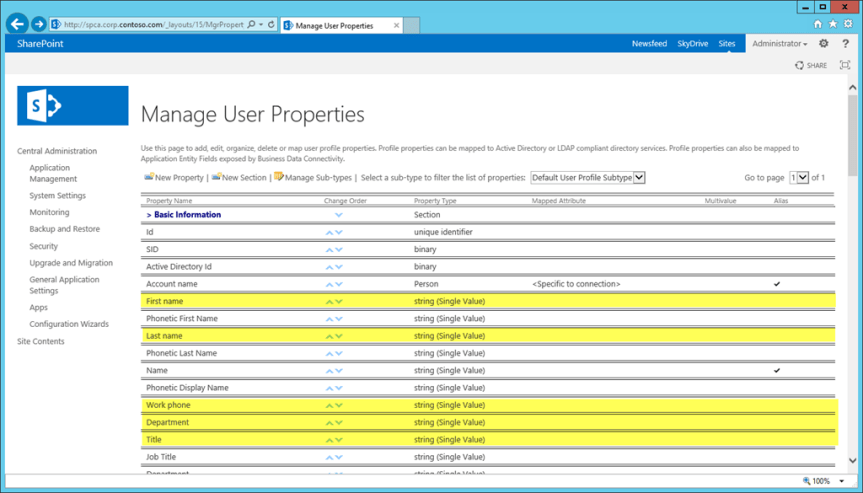
  5. This would display the list all the user properties in your SharePoint farm.
  6. Click on the drop down arrow on the property which you want to delete and click on “delete”

2

  1. This would delete the user property and now you can go ahead and create a new property by clicking on “Create new property” option.
  2. Specify the “Name”, “display name” and length for the new property as shown below.

3

9. Specify the privacy settings for this property here.

4

10. Specify the display settings for this property here.

5

  1. Once done, click on “Ok” and this will create the new user property for you.
  2. Once the next sync job completes it will start displaying the values in these fields as shown in the image below.

Observations:

       After completing this activity the SharePoint user profile started to display the values correctly in the User property fields and after making this change we were able to notice some change in the ordering of the user properties in the SharePoint profile page UI .So basically what happened was, it changed the order of these properties in the profile page UI so that the recently created new user properties got added to the last.

However, this change didn’t have any impact on the “Contact” section which is displayed on the user’s “My site” .The user property fields ordering didn’t change there as that’s a BR custom code which is taking  care of the ordering .

On the other hand the other lesson learnt was, we can’t delete the “SPS-Location” user property to recreate it. The reason for this is, it’s a default property and is checked on rendering the “My Profile” page .If this property does not exist, the page will fail and throw an error stating that the property is missing. To know more about this, check this article.

Updating the user property fields in Danaher Connect:

As shown in the following illustration, user profiles can be composed of properties that are imported from a directory service, imported from business systems, and supplied by users.

8

For example, a directory service could supply important information that is needed across the organization, such as users’ account names, work telephone numbers, titles, and work e-mail addresses. Business systems could supply business-related information, such as the customer accounts or product lines managed by each team member. Users could supply supplemental information about themselves, such as their areas of expertise or hobbies.

Conclusion:

We were finally able to get this issue fixed in our DEV farm by deleting and recreating the “user property fields” as that’s the only option to increase the character length.

September 8, 2015, update for SharePoint Server 2013 (KB3085481)

Finally is good to see Microsoft addressing most of the known issues in the Sept 8 ,2015 update .

September 8, 2015, update for SharePoint Server 2013 (KB3085481)

Improvements and fixes

  • Improves the hybrid user experience to let hybrid user profiles be redirected to their profiles in Office 365. Learn more.
  • Improves the translations of some terms in multiple languages to make sure the accuracy of the meaning.
  • Updates English proofing tools.
  • Fixes performance and correctness issues in Windows Azure plugin.
  • Fixes the following issues:
    • After you go to the Per-Location view settings page, some custom views aren’t displayed on the ellipsis menu for the list view web part.
    • When you attach a picture to your reply post for a trending tag in My Site, you experience an error if you have not followed the trending tag.
    • The Show more posts link does not work as expected on the Everyone page of Newsfeed in My Site.
    • When a user profile is deleted from My Site, an email is sent to the user’s manager. However, this email contains a link to the user’s root My Site which no longer exists. In addition, you receive the following error message:

User not found.

    • When you try to search something in a SharePoint Server 2013 list that has a rich text column, HTML tags instead of the content of the column are displayed in the search result if the column name contains special characters.
    • After you type multiline text in a rich text field of a list, the text is unsearchable separately.
    • If the number of items in a document library exceeds the list view threshold, you can’t update or delete a document set in the document library.
    • Some text in pdf files is extracted incorrectly (for example, trim line endings in encrypted documents).
    • Some text in pdf files is extracted and indexed incorrectly.
    • Unicode text in pdf files that contains some special characters may be interpreted incorrectly.

https://support.microsoft.com/en-us/kb/3085481

PowerShell Command to identify the quota size of all the site collections per web application

The below mentioned power shell command is used to get the quota size of all the site collections per web application .Now , its a known fact that there are couple of ways to do this , but this command is very simple and neat and gives the result as expected .I was able to find the Power shell command to get the list of all the site collections in a farm and its quota size in the internet ,but the problem with that is, its also going to display the “My sites” as well in the result and it might take a while consuming heavy server resource to pull all the results from the farm .This command below is specific to a single web application and you just need to specify the web application url which you need . Please try it for yourself…..If you’re into a situation where you need to pull up the quota size of all the site collections in a single a web application , then this is the right tool for that.

Syntax:

Get-SPSite -Limit All | Where-Object{$_.Webapplication.url –like “https://vig.sharepoint.com/”} | select url, @{label=”Size in MB”;Expression={$_.usage.storage/1MB}} | Sort-Object -Descending -Property “Size in MB” | Format-Table –AutoSize

Detailed Description: 

The above mentioned PowerShell Command is used to identify the quota size of all the site collections per web application in SharePoint and will display the size in Megabytes.

Parameters to specify in the Command:

  1. Web application url
  2. Limit All – Please include this if you want the command to display the list of all site collections in the web application, else you would be getting only few results.

DNS Records

An “A” record, which stands for “address” is the most basic type of syntax used in DNS records, indicating the actual IP address of the domain. The “AAAA” record is an IPV6 address record that maps a hostname to a 128-bit Ipv6 address.  Regular DNS addresses are mapped for 32-bit IPv4 addresses.

The “CNAME” record stands for “canonical name” and serves to make one domain an alias of another domain. CNAME is often used to associate new subdomains with an existing domain’s DNS records.

The “MX” record stands for “mail exchange” and is basically a list of mail exchange servers that are to be used for the domain.

The “PTR” record stands for “pointer record” and maps an Ipv4 address to the CNAME on the host.

The “NS” record stands for “name server” and indicates which Name Server is authoritative for the domain.

An “SOA” record stands for “State of Authority” and is easily one of the most essential DNS records because it stores important information like when the domain was last updated and much more.

An “SRV” record stands for “service” and is used to define a TCP service on which the domain operates.

A “TXT” record lets the administrator insert any text they’d like into the DNS record, and it is often used for denoting facts about the domain.

SharePoint 2013 Trending Tags Webpart: How this works?

I recently happened to work on an issue where the “Trending Tags” web part which you see in your SharePoint My site wasn’t working as expected in our environment and we had to get that fixed.

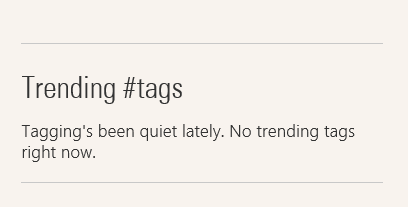
This post is mainly intended for those who have now idea about the “Trending Tags web part “ and for those who have this functionality broken in their environment and see a notification as shown below .

Trending tags

What’s the Trending Tags web part all about?

For those of you who are not aware of the “Trending Tags web part” , this is nothing but a web part which is displayed on the bottom right corner of your SharePoint “My site” page and it displays the most widely used top 5 #Tags in your SharePoint environment .

Where can the # Tags be used?

This can be used by user’s on conversations while posting new updates on their Newsfeed/Site’s Newsfeed  and also while replying to someone’s post . A #Tag can be followed and once it’s followed it brings all the conversations related to that #Tag to your Newsfeed.

How does this web part work?

The contents displayed on this web part is mainly based on the search content sources and search crawl. So for any given reason if this not working in your environment, then please make sure that you check your search content source is being crawled properly.

Which crawl does this web part depend on?

This is not specific to any specific crawl .If you’re environment is using continuous crawl which runs every 15 minutes, then the next continuous crawl will pick this #Tag and displays it in the web part or the value of the total number of times this(i.e. specific #Tag)  has been used will increase .For instance, if it’s a new #Tag it will display that as 1 use in the web part .If that specific #Tag has already been used by others then it will simply increase the usage count . However , please remember that this web part will only display the most widely used top 5 #Tags in your environment and if you don’t see the one which you mentioned in a post then it’s pretty obvious that the #Tag which you used ranks lower than the other #Tags which are displayed in the “Trending Tags” web part .

Note:  Don’t panic if you still see the “Tagging’s been quiet lately. No trending tags right now” notification in the web part even after confirming that your search crawl is running well .This could be simply because that no one in your environment is using #Tags .

What happens behind the scenes?

As I already mentioned earlier, I happened to work with my PFE on this and he was able to help me understand how this stuff works behind the scene.

Listed below is the point mentioned in his blog and please go through it if you’re curious to know how this works:

Listed below is what happens behind the scenes on this webpart:

1.When you browse to your SharePoint mysite, the trending tags webpart appears.

2. The web part checks the Distributed Cache to see if data is there about trending tags, and renders it, if there’s data. If there isn’t, it queries search for the most recent tags AND puts that data into the DC.

a.The search query will only find tags that have been crawled/indexed, so make sure your crawls are running. Any type of crawl should be sufficient.

b.To see what search sees for trending tags, see the next section.

3.The Trending Tags data lives in the DC for 15 minutes. After 15 minutes, the data expires and is evicted from the cache. New data will not enter the cache until the PeopleManager.GetTrendingTags method is called. From what I can tell, only the trending tags web part calls this method. It’s a client side call/CSOM, so you could call it manually if you have a need.  a.PeopleManager.GetTrendingTags  : https://msdn.microsoft.com/EN-US/library/office/jj665759.aspx

4.The activity feed timer jobs do not appear to call this method, so they will not update trending tags data in the cache if run manually. (They shouldn’t need to do this work)

Finding trending tags via search:

1.Download the SharePoint 2013 search query tool : http://sp2013searchtool.codeplex.com/

2.Set Connection String and authentication info. (You can run this tool anywhere since it uses CSOM)

3.Enter the following query text. Modify date/time to desired. (the webpart shows the last 7 days)a. ContentTypeId:0x01FD* write>=”2015-07-01 00:00:00Z”

4.Add the following to the Refiners box. By default we show up to 20, most to least popular.​Tags(filter=20/0/*,sort=frequency/descending)

5.Click the run button and view the results

6.The refinement tab will show the tags. The “Refinement Name” and “Refinement Value” show the actual tag. There is a GUID in front of it.

Issues with August 2015 CU for SharePoint 2013

We happened to patch our Q&A environment with August 2015 CU and we noticed few issues while installing the CU and also while testing the farm after the successful installation of the August 2015 CU for SharePoint 2013 . It’s a know fact that starting from SharePoint Server 2013 , it is no longer necessary to install the Foundation CU before the Server CU .The server CU already has the fixes for the foundation version and hence you can directly install the SharePoint Server 2013 CU .Now, lets talk about the issues which we noticed while installing the CU …..

Link for the CU :_ https://support.microsoft.com/en-us/kb/3055009

  1. The August 2015 CU for SharePoint 2013 doesn’t get installed properly when you attempt to do so .It fails for the first time giving no clue of what caused the failure to happen and once again it fails in the second attempt .Finally, if you try to run it for the third time it installs smoothly without any error .This is weird but at this point Microsoft has accepted this as an issue and hasn’t announced any fix for this yet .

It’s good to see that Microsoft has already documented this issue :_ http://blogs.msdn.com/b/tehnoonr/archive/2015/08/28/sharepoint-2013-august-2015-cumulative-update-package-fails-to-install.aspx

2. Now the second issue is with the “Search” .As you must be already aware that the August 2015 CU is mainly focused on hybrid search. The August 2015 CU seems to cause some trouble to the search centre after its installed .

Steps to repro the issue which I’m talking about related to search:
1. Go to search and type a user’s name in the search box .
2. When the results are presented , retype or change the query and run a search again , this time you will get an error which says “Field or property “TimeZoneId” does not exist and also a correlation ID related to that error . You can repro this if you try to toggle between the “Result sources” i.e. “Everything” and “ Associates “ in the search page.
3. You won’t get this error when you do the search query for the first time , just try to repeat it again and toggle between the “result sources” and then you will notice this error. Also if you switch between different user names in the search box you will notice this error .

Looks like many users have noticed this issue and this issue was supposed to be fixed with the July 2015 CU and it hasn’t been fixed yet.  Please check the “comments” area in the below mentioned blog to know more about this :  http://blogs.technet.com/b/stefan_gossner/archive/2015/08/11/august-2015-cu-for-sharepoint-2013-is-available-for-download.aspx

3. I carried on my testing once again and found another issue as well . Looks like Microsoft has reported this as a Bug and no fix has been announced yet . Please check the link below to know about this issue :

https://social.technet.microsoft.com/Forums/office/en-US/5dc44e6e-b5bd-47f8-a75d-71c9841f9ace/august-2015-cu-list-attachments-give-file-names-cant-contain-the-following-characters-message?forum=sharepointadmin

Hope Microsoft comes up with a fix for this bugs ASAP .

Office 365 On-boarding/Troubleshooting Tools and Resources

Office 365 On-boarding/Troubleshooting  Tools and Resources:

While we indeed have a lot of tools out there for troubleshooting Office 365 and which can also be used for a successful Office 365 deployment the below mentioned one’s are the widely used tools to troubleshoot/deploy Office 365 .

Office OnRamp–>  OnRamp for Office 365 is an automated assistance tool that helps you gather configuration requirements and perform deployment readiness checks against your on-premises environment.  OnRamp can accelerate the deployment timeline, especially for organizations with requirements such as identity federation or hybrid deployment . OnRamp can be accessed via https://onramp.office365.com/ or  you can access it from within your Office 365 tenant by navigating to the Tools section .

Fast Track–>  As part of the FastTrack program, you’ll receive personalized assistance from a Microsoft onboarding expert who will ensure that your Office 365 service is provisioned and ready to use. All Office 365 enterprise customers are eligible for FastTrack with the purchase of 150 or more eligible seats.

HRC Checks (Health, Readiness and Connectivity Checks) :_   This is a  recommended practice by Microsoft where  you’re supposed to run  health, readiness, and connectivity checks before you set up Office 365.

Here’s why:

  • Checks can find settings in your current environment that might cause problems when you start to set up or use your services.
  • If you know where the potential roadblocks are before you start, you can fix or work around them to make your deployment path easier to complete.

This is just a read only check and this won’t make any changes to the environment , hence the users won’t be affected .

Microsoft Remote Connectivity Analyzer : _ The Office 365 Support and Recovery Assistant helps users troubleshoot and fix their account or profile related Outlook issues. The assistant performs a series of diagnostics tests to identify the root cause of issues, such as verifying users’ credentials, licenses, updates to Outlook clients, and whether Outlook servers are reachable. Depending on the test results, it can offer to automatically fix problems for users or provide instruction on recommended solutions. All the diagnostics results are saved in a log file for users to share with their Outlook admin or support engineers for further investigation. Each time you run Office 365 Support and Recovery Assistant, it automatically gets updated to its latest version, so it can troubleshoot any new Outlook problems.

Link for Remote Connectivity Analyzer :_ https://testconnectivity.microsoft.com/

IDFix: IdFix is used to perform discovery and remediation of identity objects and their attributes in an on-premises Active Directory environment in preparation for migration to Office 365. IdFix is mainly used by the Active Directory administrators who are responsible for DirSync with the Office 365 service.

Link for IdFix Tool :_ http://www.microsoft.com/en-us/download/details.aspx?id=36832

Lync Connectivity Analyzer :  This tool is used to determine whether the connections support Office 365 and On-premises Lync service .

Link for Lync Connectivity Analyzer: _ http://www.microsoft.com/en-in/download/details.aspx?id=36536

MOSDAL (Microsoft Online Services Diagnostics and Logging Support Toolkit) :_  The Microsoft Online Services Diagnostics and Logging (MOSDAL) Support Toolkit is used to perform  network diagnostics and collects system configuration, network configuration, and logging information for applications that are used to  Microsoft Office 365. The logs and diagnostic information that the tool generates provide data that helps technical support professionals troubleshoot configuration, network, installation, and other service-related issues.

The MOSDAL Support Toolkit collects log files, registry keys, and configuration settings that would otherwise require time-consuming and labor-intensive collection by using separate tools.

Link for MOSDAL Support Toolkit :_ https://support.office.com/en-us/article/Using-the-MOSDAL-Support-Toolkit-b6c079c4-5d54-465d-bbea-74732c48dc58

In addition to the above mentioned tools you can also use  other tools to support Office 365 , please check this link to get the list of all the tools :_ https://community.office365.com/en-us/w/diagnostic_tools/