SharePoint 2016 : Zero down time patching

I honestly couldn’t refrain myself from sharing the below mentioned two blogs where the author has did a wonderful job in explaining Zero down time patching in SharePoint 2016.Please take look ….


http://sharepointpromag.com/sharepoint/sharepoint-2016-what-you-need-know-about-zero-downtime-patching

http://sharepointpromag.com/sharepoint/sharepoint-2016-what-patch


Issues with MDS feature in SharePoint 2013:

This post is related to the previous post I made in my blog describing the “Issues involved with Minimal Download Strategy feature”. I’m not going to really get into the meats and potatoes of that issue here once again .However , if you want to create a KB article for your end users letting them know that this is a known issue in SharePoint 2013 , then this would be the article for that ….

The Minimal Download Strategy  (MDS) feature in SharePoint 2013 can introduce the below mentioned two issues when you enable it in a team site. It’s a known fact that MDS will be turned on by default in a team site in SharePoint 2013.

Issue 1Deleting a document from a document library will produce an error as shown in the screenshot below.

MDS 1

Explanation:

When you go to a document library in a team site which has the MDS feature turned on and try to delete a document, it’s going to produce an error as shown in the screenshot above.

Repro steps:

Go to a document library in a team site which has the MDS feature activated (remember this feature will be activated by default in a SharePoint Team site) and try to delete a document from a document library by clicking on the “ellipsis” –>“Delete document “BUTTON, you will see an error as shown below without any correlation ID. However, the document would still get deleted from the document library.

Now, this error is not because of any bad configuration in your SharePoint Farm or due to any feature dependency for the MDS feature to work seamlessly .This seems to be a problem with the product itself and looks like this hasn’t been fixed yet.

Workaround:

  1. This error doesn’t show up when you try to delete the document using the “delete document”button in the top ribbon interface.

MDS 2

  1. Also if you try to by-pass your load balancer by changing the host file of your PC to point a specific WFE, this error won’t show up.

Issue 2: Trying to create a new view in a document library will produce an error as shown in the screenshot below

MDS 3

URL will show this error code:  _vti_bin/owssvr.dll?CS=65001

Explanation:

When you go to a document library in a team site which has the MDS feature turned on and try to create a new view, it’s going to produce an error as shown in the screenshot above and the site url will also display this error code : vti_bin/owssvr.dll?CS=65001

Repro steps:

Go to a document library in a team site which has the MDS feature activated (remember this feature will be activated by default in a SharePoint Team site) and try to create a new view by clicking on the “ellipsis” –>“Create a new view “BUTTON, you will see an error as shown below without any correlation ID. However, the new view will still get created.

Workaround:

There is no workaround identified for this as of now, as the error pops up even if you use the “Create view “option in the top ribbon interface. However as already mentioned above the view would still get created.

Note: This error wouldn’t show up if you try to by-pass your load balancer by changing the host file of your PC to point a specific WFE

Conclusion:

We have did our troubleshooting on this issue by working with Microsoft and this seems to be a bug in the product. The F5 load balancer which takes care of handling user requests to the portal seems to be causing the trouble here.

Signing up for Office 365 trial plan:

This is going to be a simple article where I’ll be explaining  how to sign up for a free Office 365 trial plan and make use of its services. As you must be aware, Office 365 gives you a one month free trial version where you can sign in for Office 365 and play around with the services and gain some knowledge on what Office 365 is all about, what are the services it offers and  how to manage users/services etc.…

I’m going to make this post pretty  basic by just discussing the steps involved in signing up for an Office 365 trial version and utilizing the services offered by it. So if you’re someone who is new to Office 365 and would like to understand how to get started with using Office 365 services, then this article would be a good primer article for you guys …..

Alright let’s jump in …

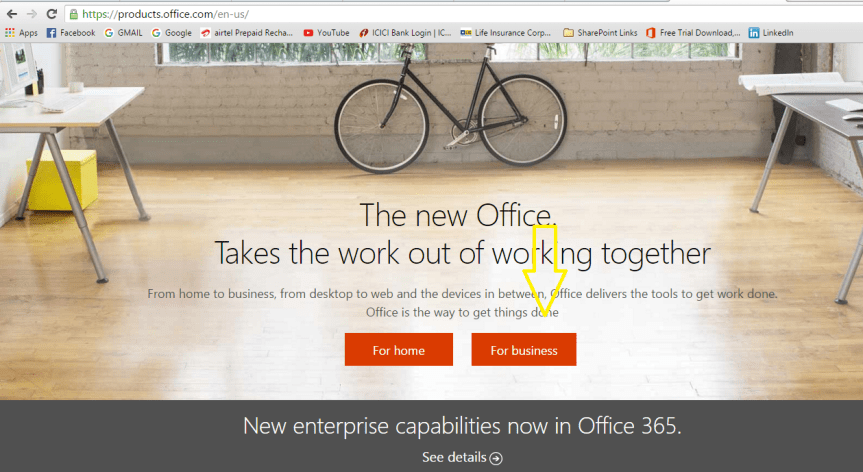
  1. Please go to https://products.office.com as shown in the screenshot below.

1

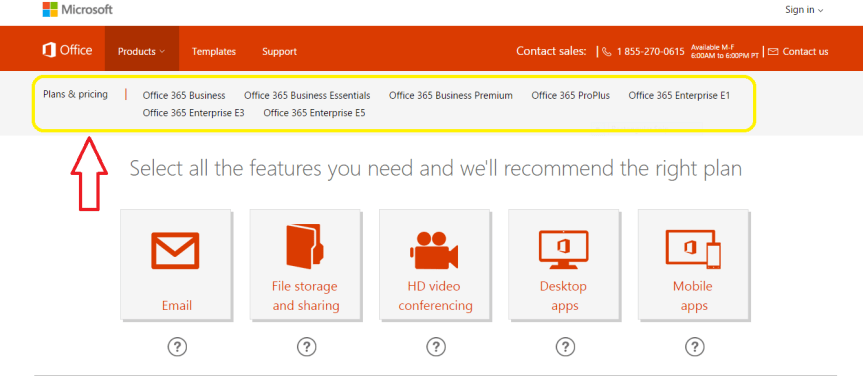
2. Choose “For business” option, it will take you to a screen as show below. You can also choose “For home” if you would like to explore the features in that plan. I’m going with the business option here as it gives you more features when compared with the home plan.

2

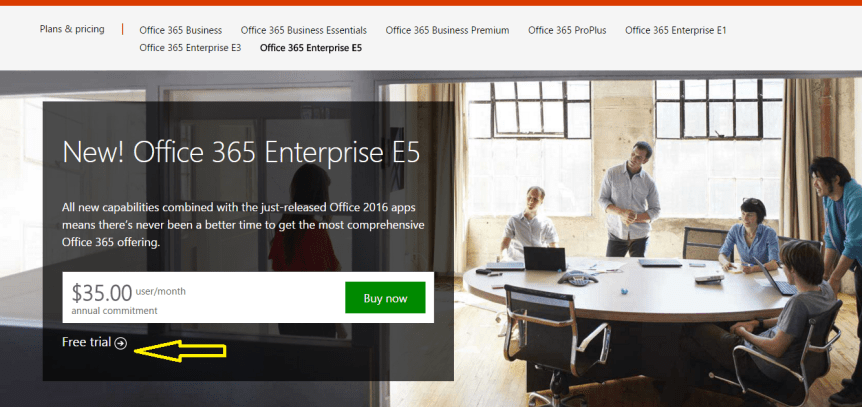
3. Once you’re done clicking “For business” option, it’s going to take you to a screen as shown below. You can notice all the available Office 365 business plans here …If you scroll down it would give you a detailed explanation about what’s included in each plan and the licensing cost. So carefully take a look at the plans before choosing it.

3

4. I’m choosing the “Office 365 Enterprise E5 “free trial plan as you can see in the screenshot below. You need to click on the “Free trial “button if you want to subscribe for a trail version. Also please notice that the free trail plan is valid only for one month.

4.PNG

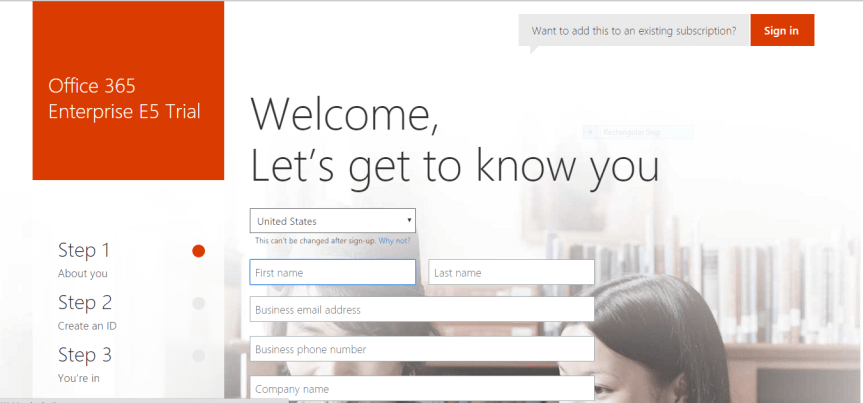
5. You would be taken to a form as shown in the screenshot below asking for your details. Please fill in the appropriate information and click next. Also please bear in mind that you won’t be able to change your country after you have successfully signed up for Office 365.

5

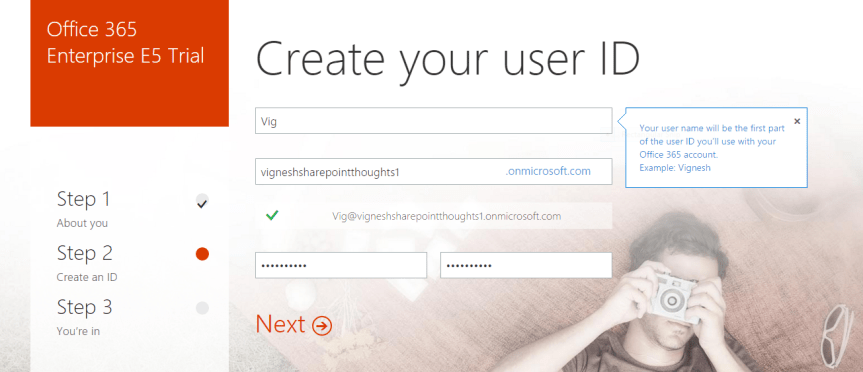
6. The next screen would be asking your username, password & Company name .Please key in those values and click next

Note: The Company name which you key in here will become a part of your Office 365 tenant url , SharePoint Online sites url , Skype for Business meeting url &  Email addresses of those users who are synced with Office 365.  Also while entering the Company name, please make sure that you’re entering an imaginary name or the name of a domain that you own and not a real company name .It’s strictly not recommended to enter your company name without consulting your IT team .

7

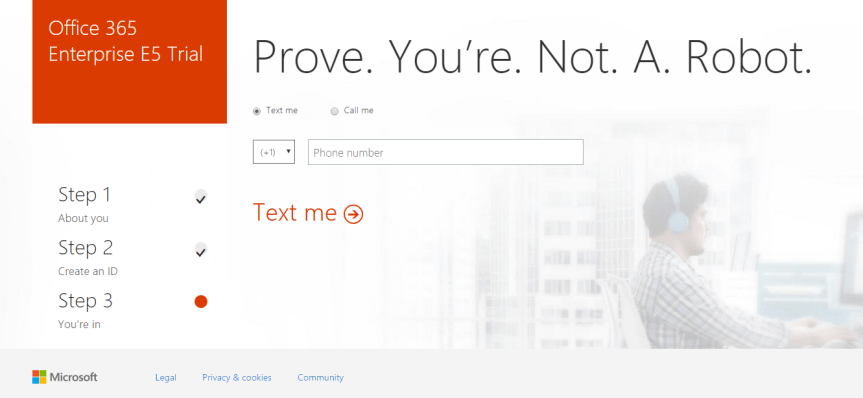
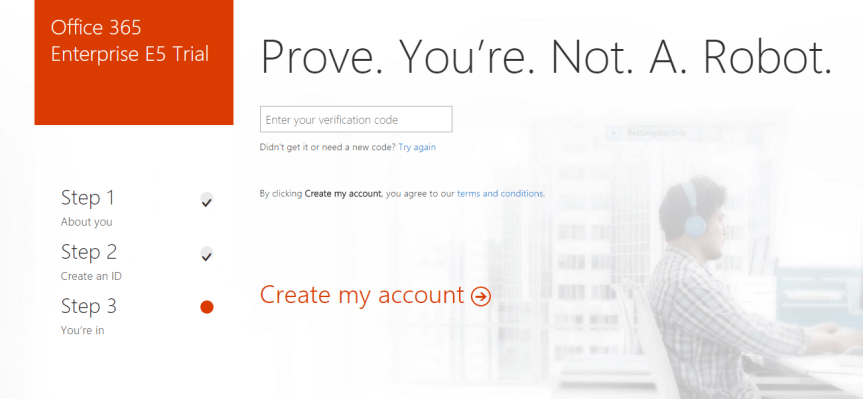
7. Once you’re done entering the values, click next and it’s going to ask you to enter your mobile number just to make sure that you’re not a robot. So enter your mobile number and then key in the verification code which is sent to you as a text.

8

9

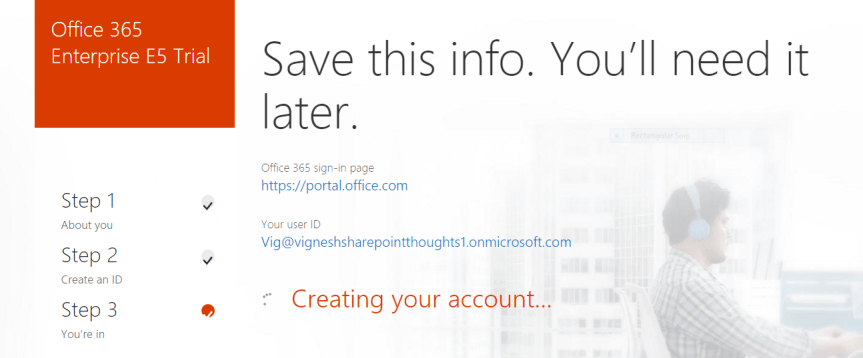
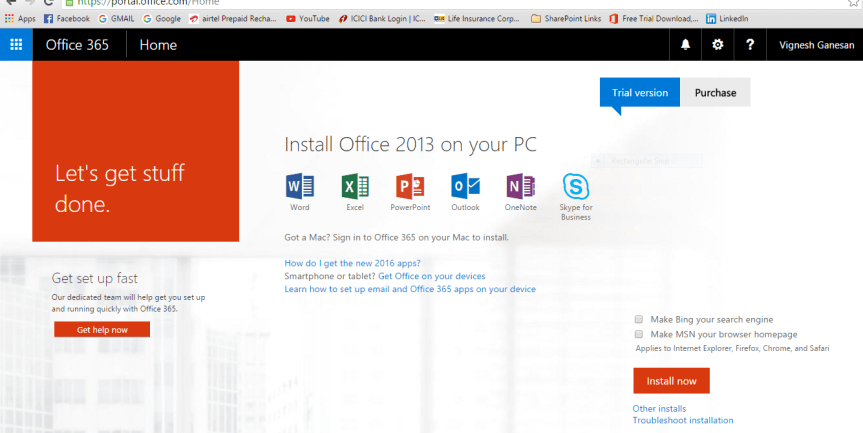
8. Once you’re done entering all these details you’re all set now and you will see the below mentioned screen which says that its saving all your details …

109. Please remain patient for few mins until your Office 365 tenant is completely set up, you will get a screen like this as shown in the screenshot below.

11

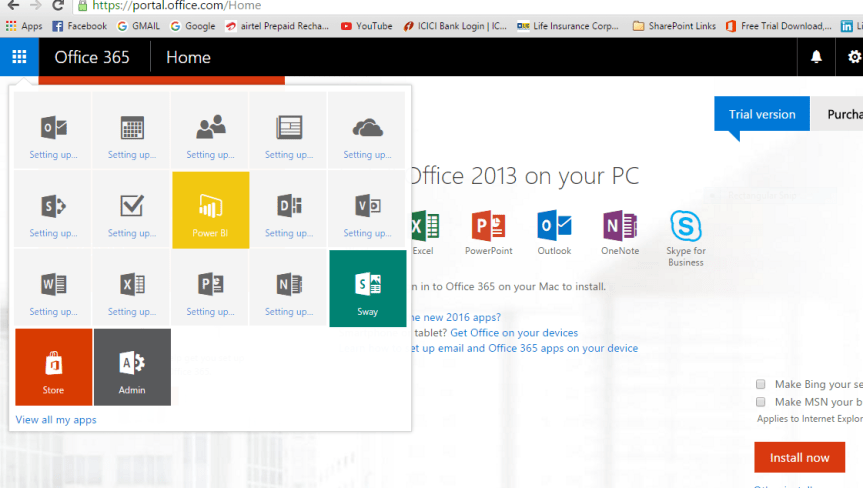
10 .However , please note that by this time your Office 365 tenant is not yet completely set up .The app launcher is still configuring things for you …so please remain patient for few more minutes . You can click the app launcher and check the status….

You can see the note which says, “Setting up “.

12

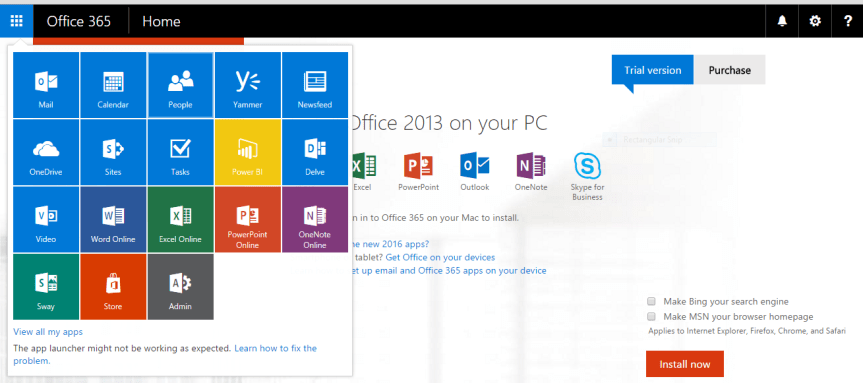
11. So finally after few minutes, you can notice the apps getting displayed in the app launcher indicating that your Office 365 tenant is set up successfully.

13

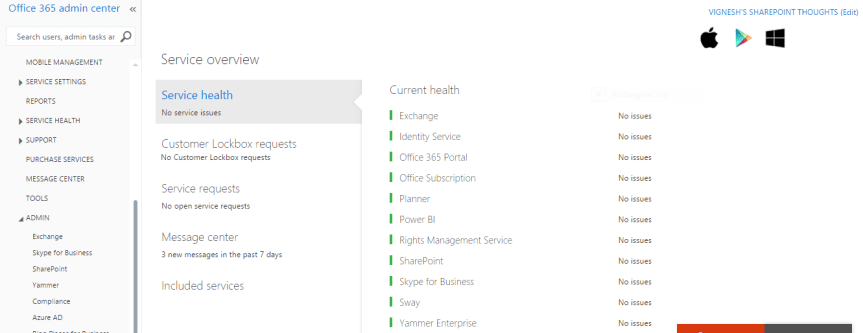
12. You can also take a look at the “service overview” page to check the health status of all the services.

14

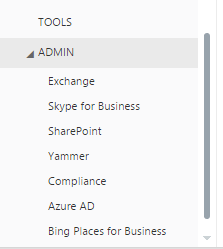
13. Please click on the “Admin” option towards your left hand side to access all the services.

admin page

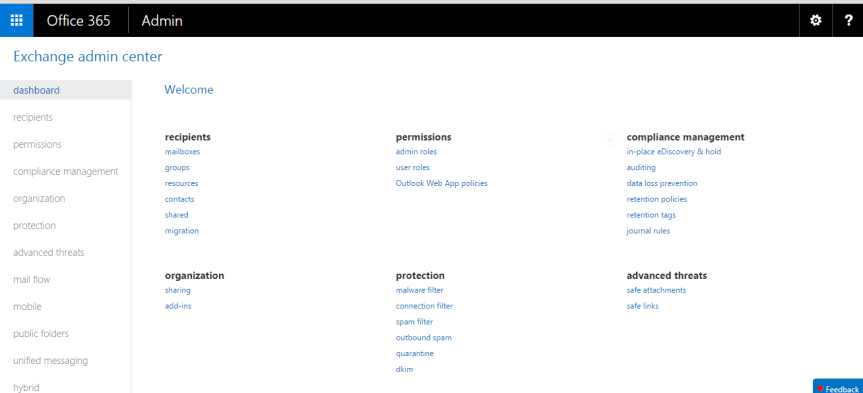
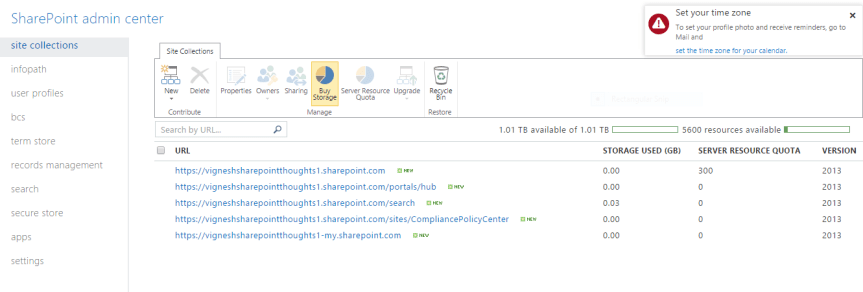
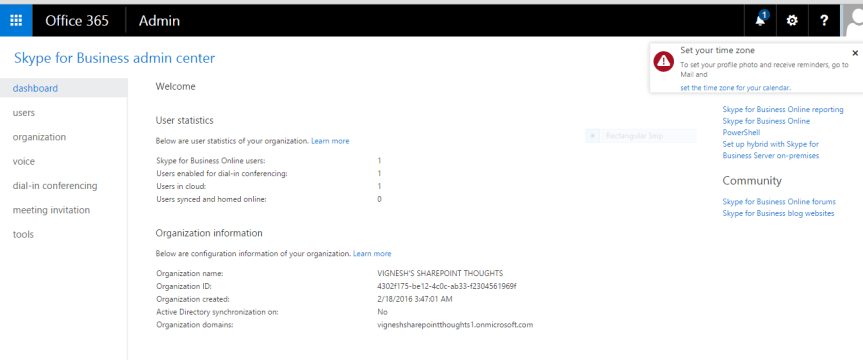
14. This is how the admin center for each service looks like ….

For Exchange

Exchnage admin centre

For SharePoint

SharePoint Admin centre


For Skype for Business

Sfb admin centre

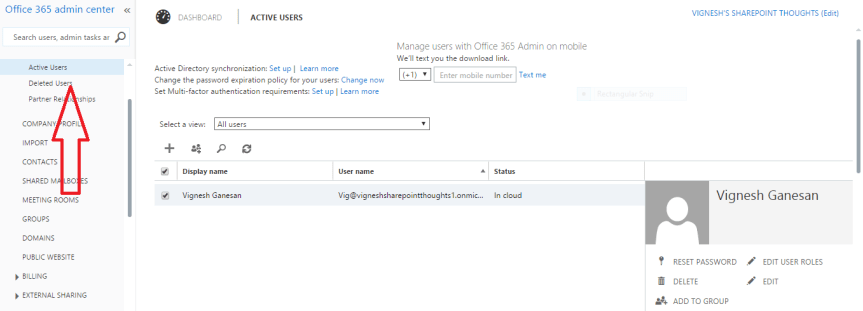
15. You can use the “USERS” option towards your left hand side to manage users and their licenses in the Office 365 admin center.

Managing users.PNG

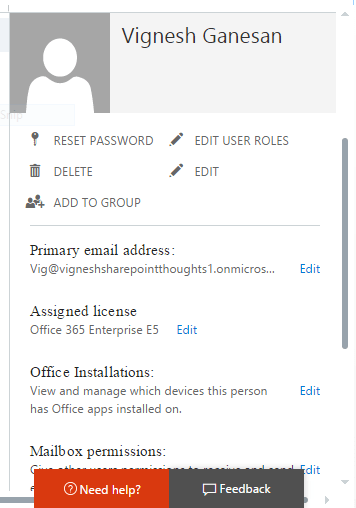
16. To make any changes to a user’s account such as resetting his/her password , edit the user’s details and to assign licenses etc. …please select the user first and then it will give you an option towards your right hand side to do that …(please see below )

User info.png

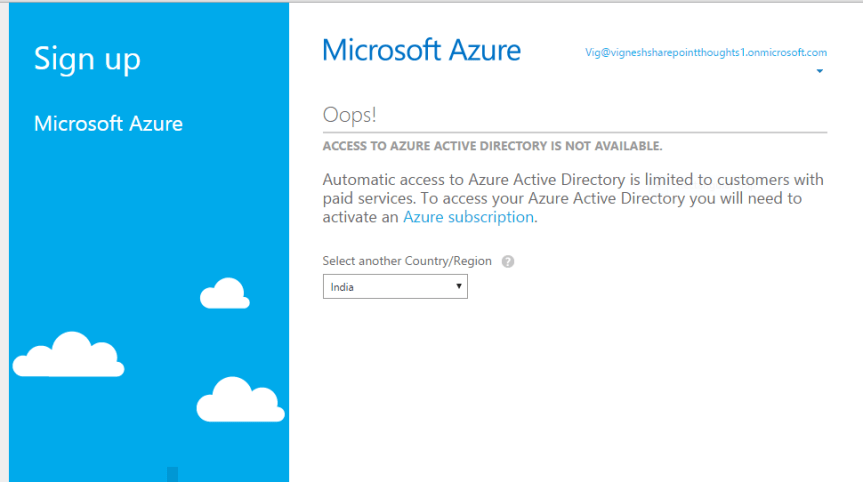
17. Azure Active Directory is only available for paid customers, so if you’re trying to access it on a trial version you’re likely gonna end up with the error as shown in the screenshot below.

Azure for AD

18. I’ve also created few more articles in my blog about Office 365 Identity management, Office 365 Troubleshooting tools, Useful Office 365 PowerShell commands & Required ports for Office 365 implementation…Please go through the below mentioned links to read them.

Office 365 Identity management

Office 365 Troubleshooting Tools

Useful Office 365 commands

Required ports for Office 365

Thanks for reading this post!!!


February 9, 2016, cumulative update for SharePoint Server 2013 is out -(KB3114726

Feb CU seems to have security fixes that take care of the Word and Excel functionality and these fixes are pushed via the Windows Update.

Please find the links for the CU’s below :

SharePoint 2013 Feb CUhttps://support.microsoft.com/en-us/kb/3114726

OWA security update :  https://support.microsoft.com/en-us/kb/3114338

SharePoint CU fix notes : 

  1. If you start a crawl of a content source, the mssearch.exe process causes high CPU usage.
  2. If the claim map cache fills up in SharePoint Server 2013, a race condition occurs that causes a poor user experience.
  3. After you delete a SharePoint group from a site, the SQL database may be locked. When the SQL database is locked, farm availability issues occur
  4. After you install security update 3114503 (MS16-004), you can’t view items in custom lists. (When you install the security fix ONLY)
  5. When you try to follow a site or a document in a multi-farm environment
  6. Incorrect ranked results are returned

SharePoint 2010:

Security fix for Word and Excel has been released for SharePoint 2010

Feb 9, CU for SharePoint 2010 : https://support.microsoft.com/en-us/kb/3114558

OWA Security Update :  https://support.microsoft.com/en-us/kb/3114407

SharePoint 2007 :

Security update for SharePoint 2007 :_  https://support.microsoft.com/en-us/kb/3114432


Yammer Enterprise to be activated by default on all Office 365 tenants

To all the Office 365 Admins out there , please watch out for this new announcement made by Microsoft for Yammer Enterprise ….

https://blogs.office.com/2016/02/02/get-ready-for-yammer/

yammer-logo-ps3


SharePoint 2013 Bug: Access denied error while activating “Following Content” feature

Alright…This post is regarding a bug with the “SharePoint site follow feature “that we recently happened to encounter in our environment. This specific bug which I’m going to discuss about in this article later has already been acknowledged by Microsoft as a bug which was later fixed in Office 365 ( SharePoint Online ) . I’m not sure if this is known issue but if this is something new to you , please try to go through this article to have a clear understanding about this issue .

So before we could start discussing about this bug ,how about a small introduction on the “ follow” feature and what it does and how to activate it …

Activating this feature:

  1. Go to site settings à Manage site features à Activate following content feature.1
  2. Doing this will turn on the follow feature on the site and will display the “follow” button on the top right corner of your site.

What happens when I follow a site and what’s the permission level needed to follow a site?

You at least need “Read “permissions on the site you’re trying to follow. Following a site will bring the conversations being discussed on the Site’s feed to your “My site” News feed section.  Make sure you have the “Site Feed “feature turned on to add the “Site Feed” web part to the main site .This is where the conversations take place.

2

What else can be followed?

The below mentioned four things can be followed in SharePoint.

  1. Site –>This will bring the conversations happening on the site’s feed which you’re following to your “My site” Newsfeed section.

3

2.People–>Following a person will start showing the things they do, they say, and the things that happen to them (for example, job title changes).

4

3. Documents–> Following a document will display any changes made to that document in your Newsfeed .This way you can have a track of all the changes made to a document your currently working on and following .

5

4. #Tags–>Following a #Tag will bring all the conversations that include that #Tag to your Newsfeed even though you don’t have any idea about the person who is using that #Tag in a conversation .Also please note that a #Tag should always be in a single word only .It can’t be in two words.6

In addition to this you have a special section called “Trending Tags” in your “My site” which displays the heavily used Top 5 #tags in your farm. This web part works based on search content crawling. I have written an article about this on my blog site already, please go through that article by clicking here.

Now, since we discussed about the “follow” feature and its uses, let’s jump into the Bug that I pointed about before in this article…

Bug in the site “follow” feature:

When you try to go to the site settings and activate the “Following content” feature you would end up getting an “Access denied error”. Now this is not the case all the time, but during some special scenarios where only the person who created the site would be able to activate this feature.

7

8I confirmed that I’m the site collection admin in the site where I’m trying to activate this feature and still it won’t allow me to do it. I tried removing myself from the SCA group, removed my account from ‘People & Groups” section and added myself back again and still it didn’t allow me to activate this feature. I tried couple of times and also asked the other SCA’s of the site to activate this feature and still it gave the same error …Weird isn’t it?

So after spending quite some time in trying to activate this feature we started to dig into the uls logs by turning on verbose logging and this is what we found….

SPRequest.GetFileAndFolderProperties: UserPrincipalName=i:0).w|s-1-5-21-962155459-1177681987-1237804090-74654, AppPrincipalName= ,bstrUrl=http://<my site>/personal/<user account> ,bstrStartUrl=Social/Private/FollowedSites,ListDocsFlags=24584 ,bThrowException=False       a0fa9d9c-f590-6094-c775-fb7648d76852

System.UnauthorizedAccessException: <nativehr>0x80070005</nativehr><nativestack></nativestack>Access is denied., StackTrace:    at Microsoft.SharePoint.SPWeb.GetFileOrFolderProperties(String strUrl, ListDocsFlags listDocsFlags, Boolean throwException, SPBasePermissions& permMask)     at Microsoft.SharePoint.SPFolder.PropertiesCore(Boolean throwException)     at Microsoft.SharePoint.SPFolder.get_Exists()     at Microsoft.Office.Server.UserProfiles.SPSocialDataStore.EnsureNamespaceExists(String ns, String scopeName, Boolean secured)     at Microsoft.Office.Server.UserProfiles.SPSocialDataStore.WriteFollowedItem(FollowedItem item, FollowedItemData data)     at Microsoft.Office.Server.UserProfiles.SPSocialDataStore.Follow(FollowedItem item, FollowedItemData data, Boolean checkLimit)     at Mic…    a0fa9d9c-f590-6094-c775-fb7648d76852

…rosoft.Office.Server.UserProfiles.FollowedContent.FollowItem(FollowedItem item, Boolean isInternal)     at Microsoft.Office.Server.UserProfiles.FollowedContent.Follow(Uri url, FollowedItemData data)     atMicrosoft.SharePoint.Portal.ContentFollowingFeatureReceiver.AutoFollowWeb(SPWeb web)     at Microsoft.SharePoint.Portal.ContentFollowingFeatureReceiver.FeatureActivated(SPFeatureReceiverProperties properties)     at Microsoft.SharePoint.SPFeature.DoActivationCallout(Boolean fActivate, Boolean fForce)     at Microsoft.SharePoint.SPFeature.Activate(SPSite siteParent, SPWeb webParent, SPFeaturePropertyCollection props, SPFeatureActivateFlags activateFlags, Boolean fForce)

System.UnauthorizedAccessException: Access denied., StackTrace:  

 at Microsoft.SharePoint.SPWeb.GetFileOrFolderProperties(String strUrl, ListDocsFlags listDocsFlags, Boolean throwException, SPBasePermissions& permMask)   

 at Microsoft.SharePoint.SPFolder.PropertiesCore(Boolean throwException)   

 at Microsoft.SharePoint.SPFolder.get_Exists()   

 at Microsoft.Office.Server.UserProfiles.SPSocialDataStore.EnsureNamespaceExists(String ns, String scopeName, Boolean secured)   

 at Microsoft.Office.Server.UserProfiles.SPSocialDataStore.WriteFollowedItem(FollowedItem item, FollowedItemData data)   

 at Microsoft.Office.Server.UserProfiles.SPSocialDataStore.Follow(FollowedItem item, FollowedItemData data, Boolean checkLimit)   

 at Microsoft.Office.Server.UserProfiles.FollowedContent.FollowItem(FollowedItem item, Boolean isInternal)   

 at Microsoft.Office.Server.UserProfiles.FollowedContent.Follow(Uri url, FollowedItemData data)   

 at Microsoft.SharePoint.Portal.ContentFollowingFeatureReceiver.AutoFollowWeb(SPWeb web)   

 at Microsoft.SharePoint.Portal.ContentFollowingFeatureReceiver.FeatureActivated(SPFeatureReceiverProperties properties)   

 at Microsoft.SharePoint.SPFeature.DoActivationCallout(Boolean fActivate, Boolean fForce)   

 at Microsoft.SharePoint.SPFeature.Activate(SPSite siteParent, SPWeb webParent, SPFeaturePropertyCollection props, SPFeatureActivateFlags activateFlags, Boolean fForce)   

 at Microsoft.SharePoint.SPFeatureCollection.AddInternal(SPFeatureDefinition featdef, Version version, SPFeaturePropertyCollection properties, SPFeatureActivateFlags activateFlags, Boolean force, Boolean fMarkOnly)   

 at Microsoft.SharePoint.SPFeatureCollection.AddInternalWithName(Guid featureId, Int32 compatibilityLevel, String featureName, Version version, SPFeaturePropertyCollection properties, SPFeatureActivateFlags activateFlags, Boolean force, Boolean fMarkOnly, Boolean fIgnoreMissing, SPFeatureDefinitionScope featdefScope)   

 at Microsoft.SharePoint.WebControls.FeatureActivator.ActivateFeature(Guid featid, Int32 compatibilityLevel, SPFeatureDefinitionScope featdefScope)   

 at Microsoft.SharePoint.WebControls.FeatureActivatorItem.ToggleFeatureActivation()   

 at System.Web.UI.WebControls.Button.RaisePostBackEvent(String eventArgument)   

 at System.Web.UI.Page.ProcessRequestMain(Boolean includeStagesBeforeAsyncPoint, Boolean includeStagesAfterAsyncPoint)   

 at System.Web.UI.Page.ProcessRequest(Boolean includeStagesBeforeAsyncPoint, Boolean includeStagesAfterAsyncPoint)   

 at System.Web.UI.Page.ProcessRequest()   

 at System.Web.UI.Page.ProcessRequest(HttpContext context)   

 at System.Web.HttpApplication.CallHandlerExecutionStep.System.Web.HttpApplication.IExecutionStep.Execute()   

 at System.Web.HttpApplication.ExecuteStep(IExecutionStep step, Boolean& completedSynchronously)   

 at System.Web.HttpApplication.PipelineStepManager.ResumeSteps(Exception error)   

 at System.Web.HttpApplication.BeginProcessRequestNotification(HttpContext context, AsyncCallback cb)   

 at System.Web.HttpRuntime.ProcessRequestNotificationPrivate(IIS7WorkerRequest wr, HttpContext context)   

 at System.Web.Hosting.PipelineRuntime.ProcessRequestNotificationHelper(IntPtr rootedObjectsPointer, IntPtr nativeRequestContext, IntPtr moduleData, Int32 flags)   

 at System.Web.Hosting.PipelineRuntime.ProcessRequestNotification(IntPtr rootedObjectsPointer, IntPtr nativeRequestContext, IntPtr moduleData, Int32 flags)   

 at System.Web.Hosting.UnsafeIISMethods.MgdIndicateCompletion(IntPtr pHandler, RequestNotificationStatus& notificationStatus)   

 at System.Web.Hosting.UnsafeIISMethods.MgdIndicateCompletion(IntPtr pHandler, RequestNotificationStatus& notificationStatus)   

 at System.Web.Hosting.PipelineRuntime.ProcessRequestNotificationHelper(IntPtr rootedObjectsPointer, IntPtr nativeRequestContext, IntPtr moduleData, Int32 flags)   

 at System.Web.Hosting.PipelineRuntime.ProcessRequestNotification(IntPtr rootedObjectsPointer, IntPtr nativeRequestContext, IntPtr moduleData, Int32 flags) 

So as you can see in the uls logs it’s throwing an Unauthorized access exception error  while you’re trying to activate the feature and it points to a different user’s My site social list and not to the current user’s My site social list who’s trying to activate the feature .

If you’re wondering where to find the social list , you can find it in your “My site”…
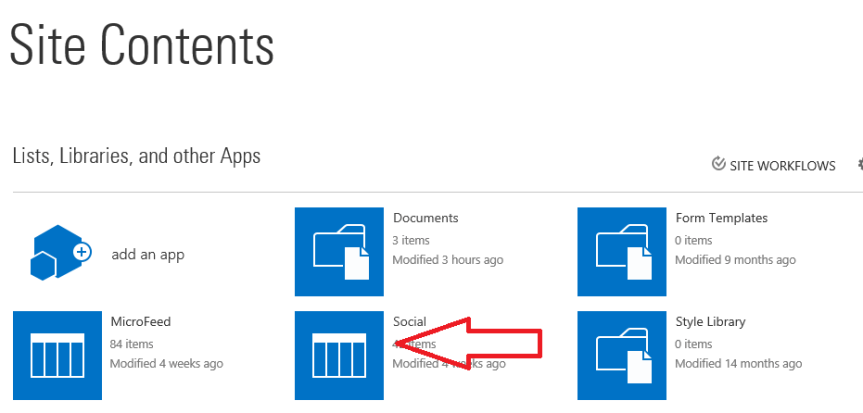
social list

So now when we asked the user who was shown as exception to activate the feature it worked perfectly fine, the user was able to activate it. So we started researching about this in the internet and after loads of effort we were finally able to find a blog article where the author clearly described about what happens in the background when you’re trying to activate this feature on a site.

So this is what exactly happens when you’re trying to activate a site feature and mentioned below (screenshot below) is the code for the site feature activate method.
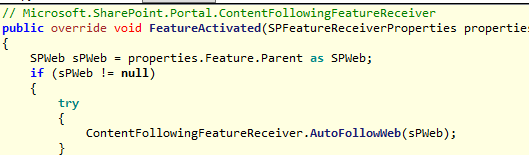
9

It makes a call to the AutoFollowWeb() and mentioned below is the code for that…
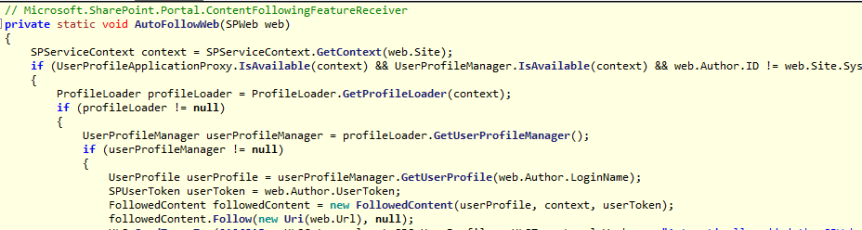
10

Now, please notice the last few lines in the above code….It’s looking for the author (person who created this site) of the site to activate the feature and not the current logged on user …

UserProfile userProfile = userProfileManager.GetUserProfile(web.Author.LoginName);

       SPUserToken userToken = web.Author.UserToken;

       FollowedContent followedContent = new FollowedContent(userProfile, context, userToken)

So this means only the author (the person who created this site) would be able to activate this feature and not others even though they are added as SCA’s.

Few Gotchas…

  1. Only the person who created the site would be able to activate this feature and not others, even though they are present in the SCA group.
  2. The “site follow” feature will by default look only for the author of the site and not the person who’s trying to activate this feature.
  3. Once the author activates this feature then other users would be able to click on the “follow” button and follow the site.

I bet now you would have had a clear understanding about this issue. If you’re facing this issue in your environment then I would suggest to open a support case with Microsoft and work with them on this issue. Also I guess if you try to add yourself as a  site collection admin to the author’s personal site collection then I believe you would be able to activate this feature on all the sites which was created by that user (However, I haven’t tried that option yet ) .

Thanks for reading this post …Happy SharePointing!!!!

Adding an SSL Certificate to SharePoint 2013:

Before we could jump in and discuss about how to add an SSL certificate to a SharePoint web application, how about a brief description on SSL certificates and it types and usage. So let’s start with what is an SSL Certificate first…

We all know that the usage of SSL Certificates has increased rapidly and henceforth the applications which make use of SSL Certificates has also indeed increased rapidly over a period of time.

Now the reason for organizations to use SSL certificates is quite obvious as it provides security/encryption to the content that is been viewed/accessed by the users.

Some organizations wish to use SSL to enhance trust in their security and identity, e.g. they want to show their customers that they have been vetted by an authorized certificate provider and are a legitimate organization.

So, What is an SSL Certificate?

SSL stands for Secure Sockets Layer. It provides a secure connection between internet browsers and websites, allowing you to transmit private data online. Sites secured with SSL display a padlock in the browsers URL and possibly a green address bar if secured by an SSL Certificate.

So what is SSL used for? The SSL protocol is used by millions of e-Business providers to protect their customers, ensuring their online transactions remain confidential. A web page should use encryption expected to submit confidential data, including credit card details, passwords or any personal information. All web browsers have the ability to interact with secured sites so long as the site’s certificate is from a recognized certificate authority.

How to identify whether a site uses SSL Certificate?

When a digital certificate is installed on a web page, users will see a padlock icon in the browser address bar. When an Extended Validation Certificates is installed on a web site, the address bar will turn green during secure sessions.

Users on sites with SSL Certificates will also see : https:// in the address bar

1

2

3

What are the different types of SSL Certificates?

Extended Validation (EV) SSL Certificates: where the Certificate Authority (CA) checks the right of the applicant to use a specific domain name PLUS it conducts a THOROUGH vetting of the organization. The issuance process of EV SSL Certificates is strictly defined in the EV Guidelines, as formally ratified by the CA/Browser forum in 2007, that specify all the steps required for a CA before issuing a certificate, and includes:

  • Verifying the legal, physical and operational existence of the entity
  • Verifying that the identity of the entity matches official records
  • Verifying that the entity has exclusive right to use the domain specified in the EV SSL Certificate
  • Verifying that the entity has properly authorized the issuance of the EV SSL Certificate

EV SSL Certificates are available for all types of businesses, including government entities and both incorporated and unincorporated businesses. A second set of guidelines, the EV Audit Guidelines, specify the criteria under which a CA needs to be successfully audited before issuing EV SSL Certificates. The audits are repeated yearly to ensure the integrity of the issuance process.

Organization Validation (OV) SSL Certificates: where the CA checks the right of the applicant to use a specific domain name PLUS it conducts some vetting of the organization. Additional vetted company information is displayed to customers when clicking on the Secure Site Seal, giving enhanced visibility in who is behind the site and associated enhanced trust.

Domain Validation (DV) SSL Certificates: where the CA checks the right of the applicant to use a specific domain name. No company identity information is vetted and no information is displayed other than encryption information within the Secure Site Seal.

Now, let’s jump into the steps to install SSL certificate to a SharePoint web application using IIS 8.

Note: The SSL Certificate provider in this case is DigiCert

  1. So first you need to start with saving the SSL Certificate file ((your_domain_name.cer) )  to the server on which the CSR was generated.
  2. Open Internet Information Services (IIS) Manager–>From the Start screen, type and click Internet Information Services (IIS) Manager.
  3. In Internet Information Services (IIS) Manager, under Connections, select your server’s Hostname.

4

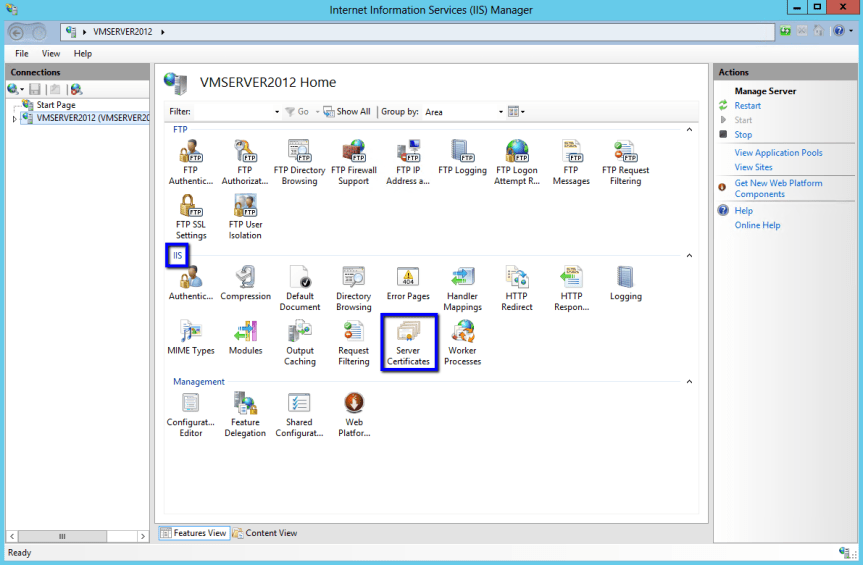
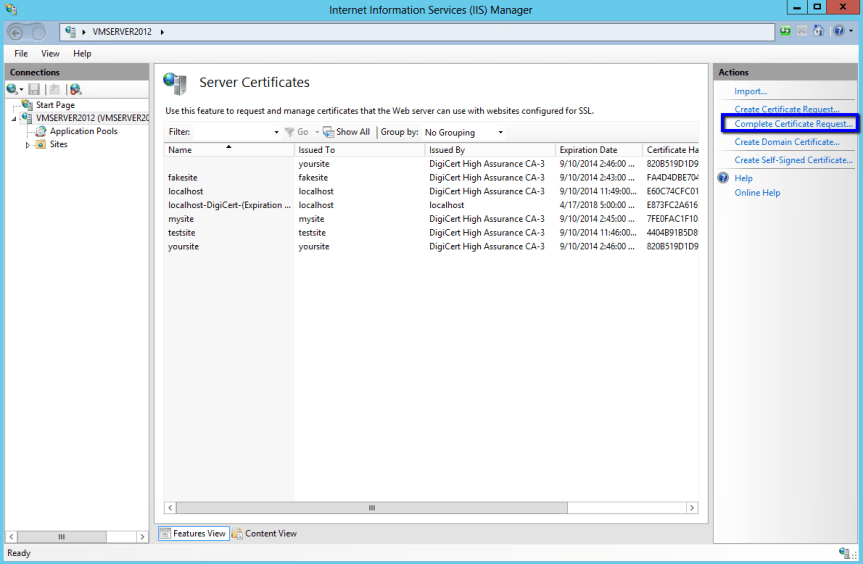
4. On the main menu, under IIS section, double-click the Server Certificates

5. In the Actions menu, click Complete Certificate Request to open the Complete Request Certificate .

5

6. On the Specify Certificate Authority Response page, under File name containing the certification authority’s response, click  to browse to the .cer certificate file that DigiCert sent you, select the file, and then, click Open.

6

7.Next, in the Friendly name box, enter a friendly name for the certificate. The friendly name is not part of the certificate; instead, it is used to identify the certificate. It’s recommended that you add DigiCert and the expiration date to the end of your friendly name, for example: (yoursite-DigiCert-expirationDate). This information helps identify the issuer and expiration date for each certificate. It also helps distinguish multiple certificates with the same domain name.

8.Next, in the Select a certificate store for the new certificate drop-down list, select Personal.

9.To install the SSL Certificate to the server, click OK.

10.Once you have successfully installed the SSL Certificate to the server, you still need use IIS manager to assign or bind that certificate to the SharePoint site.

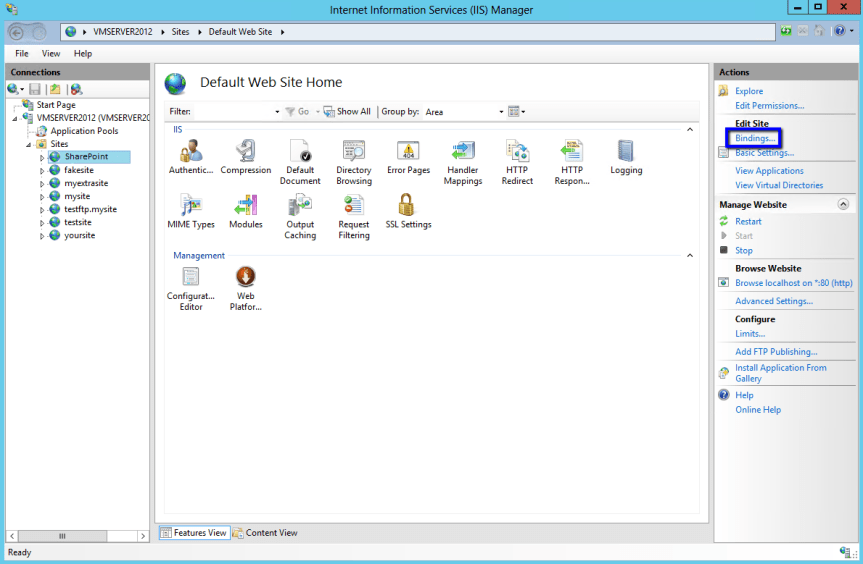
11. Now, go to Internet Information Services (IIS) Manager, under Connections, expand your server’s name, expand Sites, and then select the SharePoint site.

7

12.In the Actions menu, under Edit Site, click Bindings.

13. In the Site Binding window, click Add.

8

14. In the Add Site Bindings window, enter the following information:

Type: In the drop-down list, select https.
 
IP address: In the drop-down list, select All unassigned( If you’re wondering about what “All unassigned “means, it simply means all IP addresses and not specially the IP address assigned to the current server alone )
If your server has multiple IP addresses, select the one that applies.
 
Port: Enter 443, unless you are using a non-standard port for SSL traffic.
 
SSL certificate: In the drop-down list, select the friendly name of the certificate that you just installed.

9

15. When you are finished, click OK.

10

16. Once this is done, we need to install the root certificate on the SharePoint 2013 server.

17. For that, log into your certificate provider account. (I’m going with DigiCert here …)

18. Go to DigiCert® Management Console, under Order, click the order number for the SSL Certificate that you just installed.

19. On the My Orders tab, click Download.

18

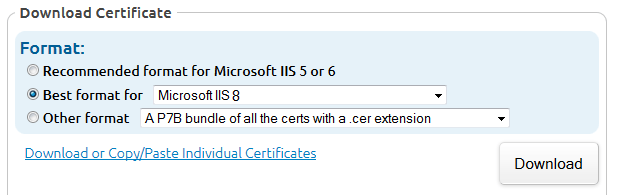
20. In the Download Certificate section, click the Download or Copy/Paste Individual Certificates .

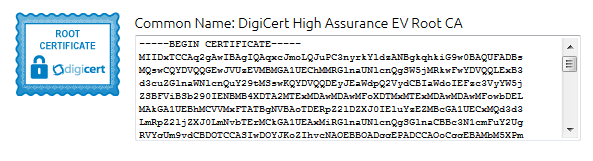
11

21. Next, click the ROOT CERTIFICATE icon.12

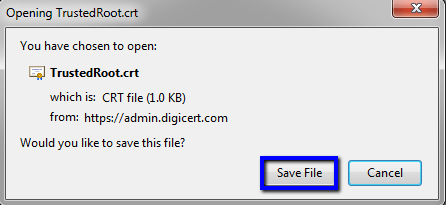
22. In the Opening TrustedRoot.crt window, click Save File to save the file to your SharePoint server.

13

23. Once all this is done , go to SharePoint 2013 Central Administration

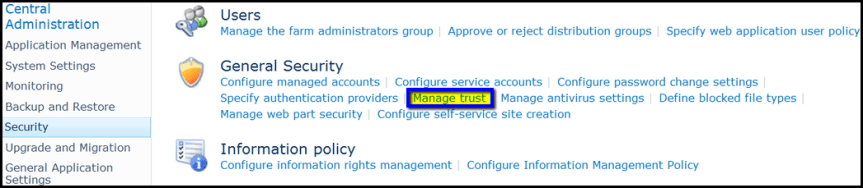
24. In SharePoint 2013 Central Administration, in the menu on the left, click Security and then, under General Security, click Manage trust.

14

25. On the Trust Relationships page, in the menu at the top of the page, click New.

15

26. In the Establish Trust Relationship window, in the General Setting section, in the Name box, type the name that you want to give the SSL Certificate.

16

27. In the Root Certificate for the trust relationship section, click Browse to browse for and select the root certificate (i.e. crt).

28. In the Establish Trust Relationship window, click OK.

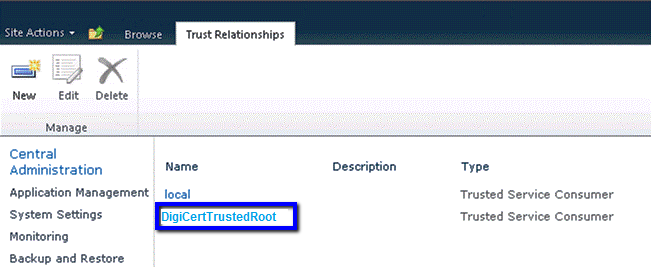
29. If the certificate is installed successfully, it should be listed on the Trust Relationships page.17


30. That’s it, you’re done!!!

Thanks for reading this post .Happy SharePointing!!!

What is Office Web apps server and why do you need to care?

Office Web apps is an online office suite offered by Microsoft that can allow users to create and edit Office files using lightweight , web browser-based versions of Microsoft Office applications : Word ,Excel ,PowerPoint and One Note.

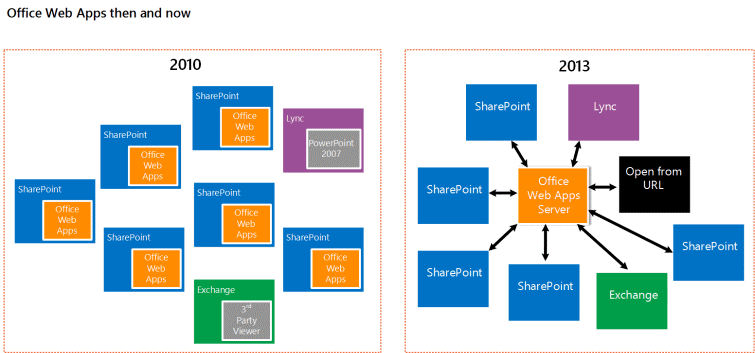
So as mentioned above Office Web apps ( currently knows as Office Online) is a product that was developed by Microsoft to interact with SharePoint Server 2013 ,Exchange Server 2013 and Lync Server 2013 which can help the users in viewing/editing and sharing office files .

1

Let’s take a look at how Office Web apps work with each of this product separately:

Office Web apps with SharePoint Server 2010:

So until SharePoint Server 2010, Office Web apps used to be a component of SharePoint and it was not a standalone product as it is currently. Deploying Office web apps for SharePoint 2010 includes the below mentioned steps.

  1. Installing Office Web apps setup.exe
  2. Activating the Office web apps services –>Starting the required service in CA , creating the service application and service application proxies
  3. Activating the Office Web apps feature in the site collection.

Also in SharePoint Server 2010 there was no need to patch Office web apps separately as the SharePoint patches also included the Office Web apps patches. So any issue that happens to SharePoint as a product will have an impact on Office web apps as well.

Office Web apps with SharePoint Server 2013:

So with SharePoint Server 2013, Microsoft took a big step ahead and removed Office web apps from SharePoint .What this means is, the bits and binaries that install SharePoint Server 2013 will not have Office web apps as part of it. Its standalone product now and needs to handled and taken care separately.

Note: I’ve noticed a lot of customers who think that Office web apps can support Visio files as well. That’s never ever the case and SharePoint Server 2013 uses Visio service to do that .Please refer to my post on Visio Service to know more about it.

So in a nutshell, SharePoint Server 2013 when integrated with Office Web apps provides updated versions of Word Web App, Excel Web App, PowerPoint Web App, and OneNote Web App. Users can view and, in some cases, edit Office documents in SharePoint libraries by using a supported web browser on computers and on many mobile devices, such as Windows Phones, iPhones, iPads, Windows 8 tablets, and Android devices.

Later in this article I’ll be discussing more on Office webs apps and SharePoint Server 2013 ….

Office Web apps with Exchange Server 2013:

With Exchange 2007 and 2010, Outlook Web Access/App [OWA] users can preview documents attached to e-mails directly from their browser. This feature, known as “Web Ready Document Viewing”  which converts supported documents (Word, Excel, PowerPoint or PDF) to HTML and displays them in the web browser, allowing users to read Word documents, for example, without the need to have Word installed or first downloading the file.

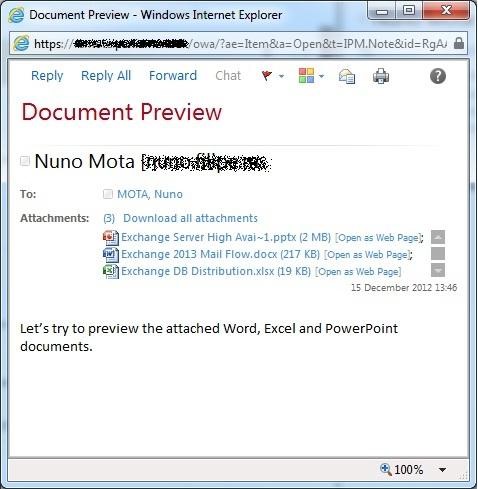
Whenever a user receives an e-mail with a supported attachment, an “Open as Web Page” link appears next to the attachment:

2

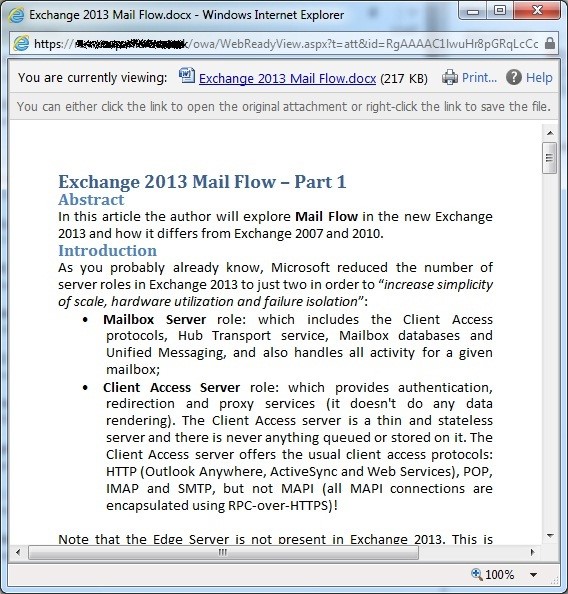
All the user needs to do to preview the attachment is click on the link and the WebReady Viewing version of the document will open.

3


With Exchange Server 2013, there is another method of viewing Office docs. Here you can integrate your Exchange server 2013 with Office web apps .Once that’s done the attached Office document makes a WOPI [Web App Open Platform Interface] call to the Office webs app server to render the document.

Note: Office Web apps cannot open Office files which are IRM [Information Rights Management] enabled.

Office Web apps with Lync Server 2013:

In Lync Server 2010, PowerPoint presentations are viewed in one of two ways. For users who run Lync 2010, PowerPoint presentations are displayed by using the PowerPoint 97-2003 format and they are viewed by using an embedded copy of the PowerPoint viewer. For users who run Lync Web App, PowerPoint presentations are converted to dynamic HTML files then viewed by using a combination of the customized DHTML files and Silverlight. Although generally effective, this approach did have some limitations:


  1. The embedded PowerPoint Viewer (which provided a more optimal viewing experience) is available only on the Windows platform.
  2. Many mobile devices (including some of the more popular mobile telephones) do not support Silverlight.
  3. Neither the PowerPoint Viewer nor the DHTML/Silverlight approach supports all the features (including slide transitions and embedded video) found in the more recent editions of PowerPoint.

To help address these issues, and to improve the overall experience of anyone who presents or views PowerPoint presentations, Lync Server 2013 uses Office Web Apps Server to handle PowerPoint presentations. Among other advantages, this new approach allows the following capabilities:


  1. Higher-resolution displays and better support for PowerPoint capabilities such as animations, slide transitions, and embedded video.
  2. Additional mobile devices can access these presentations. That’s because Lync Server 2013 uses standard DHTML and JavaScript to broadcast PowerPoint presentations instead of customized DHTML and Silverlight.
  3. Users who have appropriate privileges can scroll through a PowerPoint presentation independent of the presentation itself. For example, while User A is presenting his slide show, User B can scroll through and view any slide she wishes, all without affecting User A’s presentation.

So with that being said, let’s take a look at the supported Office file formats for Office Web Apps

Supported file formats:

Word documents (doc, docx, dotx, dot, dotm extensions)

Excel documents (xls, xlsx, xlsm, xlm, xlsb extensions)

PowerPoint documents (ppt, pptx, pps, ppsx, potx, pot, pptm, potm, ppsm extensions)

*Also once again, please do remember that Office web apps doesn’t support IRM protected files.

More on Office web apps with SharePoint Server 2013 ……

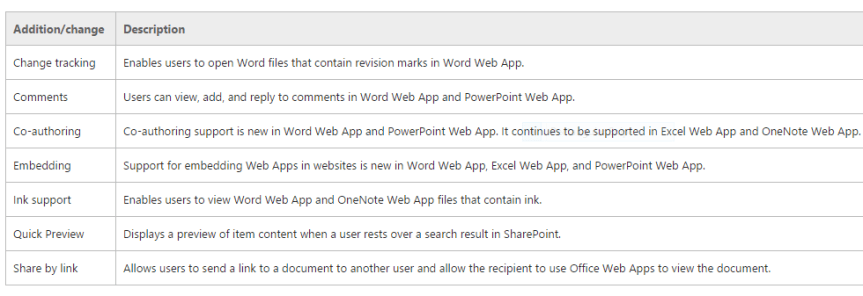
Listed below are the features you get when you use Office web apps with SharePoint Server 2013:

4

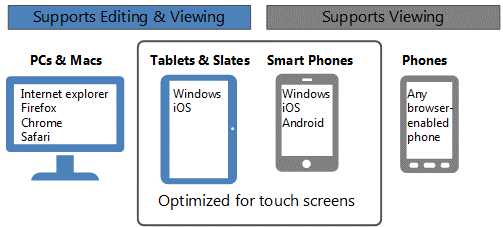
The viewing and editing capabilities of Office webs apps on different devices is given below:

5


Now, being a SharePoint Farm Admin/Site collection admin you get to decide how your users can view office files in the document library. There are two ways to change the default behavior so that files open in the client applications (or the default PDF reader) instead:

For the entire SharePoint 2013 farm :  You ( The Farm admin) can adjust the default open behavior on a per-file-type basis for the SharePoint 2013 farm by using the New-SPWOPIBinding and Set-SPWOPIBinding Windows PowerShell cmdlets. These cmdlets can also be used to adjust the behavior of PDF documents.

In site collections or document libraries : Site collection administrators and users can use the OpenInClient feature in SharePoint 2013 to specify whether Office files will be opened in the client application or in the browser. Users can change this setting in the document library properties, and site collection administrators can change it in Site Collection Administration or by using the “Enable-SPFeature” cmdlet to enable the OpenInClient feature.

Now there are certain things which you might need to pay attention to being an IT Pro, you can configure Office web apps for your SharePoint server 2013 farm so that the Office files in the document library make a WOPI call to Office web apps server (a single machine/farm processing the request for all type of Office file i.e. word,excel,powerpoint and One note)  to  render the document  or you can configure an Office web apps farm so that each machine in that farm can take care of processing the request for each file types.

PowerPoint–>A single Office web apps machine to process the request for PowerPoint files alone

Word –>A single Office web apps machine to process the request for Word files alone

Excel–>A single Office web apps machine to process the request for Excel files alone

This option can give you better scalability, however it’s going to cost you a lot.

How to know whether I’m using Excel online, Excel services or Excel Web app while I’m opening an Excel file?

If the URL resembles  “http://[servername]_layouts/15/xlviewer.aspx?id=/Documents/…” then Excel Services is used to render the workbook.

 If the URL resembles  “http://[servername]/_layouts/15/WopiFrame2.aspx?sourcedoc=/Documents/…” then Excel Web App is used to render the workbook.

Difference between Excel Web App and Excel Services in SharePoint:

Excel Web App and Excel Services in SharePoint have a lot in common, but they are not the same. Excel Services is available only in the Enterprise edition of SharePoint Server 2013. Excel Web App is available in SharePoint Server 2013 and SharePoint Foundation 2013. Both applications enable you to view workbooks in a browser window, and both enable you to interact with and explore data.

But there are certain differences between Excel Web App and Excel Services in SharePoint. For example, Excel Services supports external data connections, data models, and the ability to interact with items that use data models (such as PivotChart reports, PivotTable reports and timeline controls). Excel Services provides more business intelligence functionality than Excel Web App, but Excel Services does not enable users to create or edit workbooks in a browser window.

If your organization decides to use Excel Services instead of Excel Web App to view workbooks in the browser, you can use the Windows PowerShell New-SPWOPISuppressionSettings cmdlet to turn off Excel Web App for Excel workbooks.

Office Online File Support:

Here are file types and formats supported in each of the four Office Online applications.

Word Online:

Supported for viewing and editing Supported only for viewing  Cannot be opened
Word Document (.docx) Word 97-2003 Document (.doc)** Rich text format (RTF)
Word Macro-Enabled Document (.docm)* Word 97-2003 Template (.dot) Hypertext Markup Language (HTML)
OpenDocument Text (.odt) Word Template (.dotx) Multipurpose Internet Mail Extensions HTML (MHTML)
Word Macro-Enabled Template (.dotm)* IRM-protected documents
Portable Document Format (PDF)** Password-protected documents
Documents with digital signatures

*The document can be opened, but macros do not run.

**For editing, Word Online saves a new copy of the document in .docx or .dotx format. Word Online can’t save documents in the .doc or .dot formats.

Excel Online: 

Supported for viewing and editing Supported only for viewing  Cannot be opened
Excel workbook (.xlsx) Portable Document Format (PDF) Excel 97- Excel 2003 Workbook (.xls) **
Excel binary workbook file (xlsb) Excel 97- Excel 2003 Template (.xlt)
Excel macro-enabled workbook (.xlsm)* Excel Template (.xltx)
OpenDocument Spreadsheet file (.ods) Comma separated values (CSV)
IRM-protected documents
Password-protected documents
Documents with digital signatures

*The workbook can be opened, but macros do not run.

**On OneDrive.com this format can be viewed. To edit, Excel Online saves a new copy of the document in .xslx format. Excel Online can’t save documents in the .xls format.

PowerPoint Online:

Supported for viewing and editing Supported only for viewing Cannot be opened
PowerPoint Presentation (.pptx) PowerPoint Template (.potx) PowerPoint Add-in (.ppam)
PowerPoint Show (.ppsx) PowerPoint 97-2003 Template (.pot) Rich Text Format (RTF)
OpenDocument Presentation (.odp) PowerPoint 97-2003 .ppt and .pps* Portable Document Format (PDF)
PowerPoint Macro-Enabled .pptm,  .potm, and .ppsm** PowerPoint 97-2003 Add-in (.ppa)
Portable Document Format (PDF) IRM files
Password files
Files with digital signatures

* The presentation can be opened, but macros do not run.

** For editing, PowerPoint Online saves a new copy of the document in .pptx format. PowerPoint Online can’t save documents in the .ppt or .pot formats.

OneNote Online:

Supported for viewing and editing Cannot be opened
OneNote 2010 and later notebooks (.one) OneNote 2003 or OneNote 2007 notebooks (.one)
OneNote Package (.onepkg)
Portable Document Format (PDF)

I guess this pretty much sums up everything you need to know about Office Web apps. Thanks for reading this post. Happy Share Pointing!!!!


SharePoint Online : External users can and can’t

Who is an external user in SharePoint Online?

An external user is someone outside of your organization who can access your SharePoint Online sites and documents but does not have a license for your SharePoint Online or Microsoft Office 365 subscription. External users are not employees, contractors, or onsite agents for you or your affiliates.

External users can… External users can’t…
Use Office Online for viewing and editing documents. If your plan includes Office Pro Plus, they will not have the licenses to install the desktop version of Office on their own computers. Create their own personal sites (what used to be referred to as My Sites), edit their profile, change their photo, or see aggregated tasks. External users don’t get their own OneDrive for Business document library.


Perform tasks on a site consistent with the permission level that they are assigned. For example, if you add an external user to the Members group, they will have Edit permissions and they will be able to add, edit and delete lists; they will also be able to view, add, update and delete list items and documents. Be an administrator for a site collection (except in scenarios where you’ve hired a partner to help manage Office 365. You can designate an external user as a designer for your Public Website.

NOTE   The SharePoint Online Public Website information in this article applies only if your organization purchased Office 365 prior to March 9, 2015. If you purchased Office 365 after March 9, 2015, use an Office 365 website hosting partner

See other types of content on sites. For example, they can navigate to different subsites within the site collection to which they were invited. They will also be able to do things like view site feeds. See the company-wide newsfeed
  Add storage to the overall tenant storage pool


  Access the Search Center or execute searches against “everything.” Other search features that may not be available include: Advanced Content Processing, continuous crawls, and refiners.
  Access site mailboxes
  Access PowerBI features such as Power View, Power Pivot, Quick Explore, or Timeline Slicer. These features require an additional license, which is not inherited by external users.
  Use eDiscovery. This requires an Exchange Online license.


  Open downloaded documents that are protected with Information Rights Management (IRM).
  Excel Services features, including Calculated Measures and Calculated Members, decoupled Pivot Tables and Pivot Charts, Field List and field support, filter enhancements, search filters.
  SharePoint Online data connection libraries
  Visio Services